
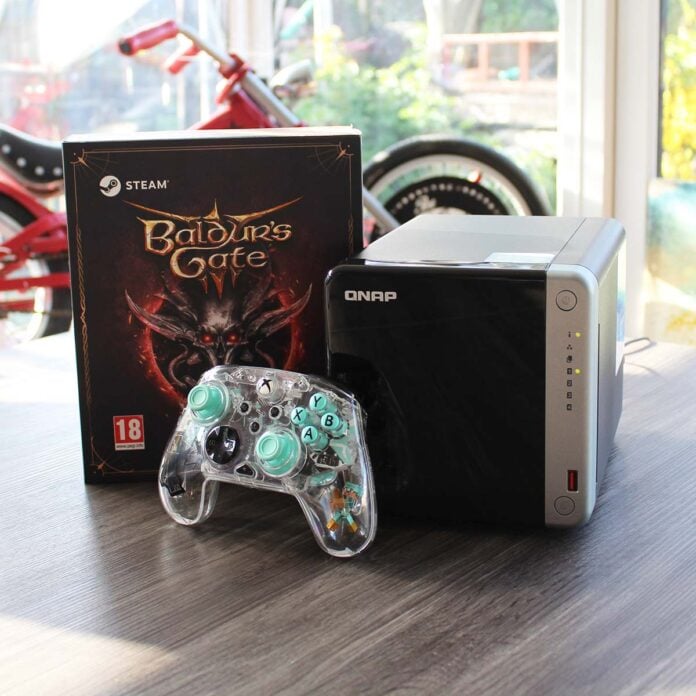
As SSD prices rocket off to the far side of the moon, it’s a bleak time for anyone struggling with a low-capacity drive. That 1TB PCIe Gen 4 SSD might have been a good buy four years ago, but it now only holds a few of the latest games, meaning you need to play a constant game of uninstalling and downloading. This got me thinking. If you have a NAS, is there any way it can help you out with gaming storage? I’ve been using a QNAP TS-462A to store all my games for the last couple of weeks to find out.
I’ll start off my analysis by saying that, yes, I’m very much aware that hard drive prices have also jetted off with SSDs into the realms of surrealism. I’m not advising anyone to buy a huge storage array like the one I’m using here as an alternative to an SSD upgrade. However, if you already own a NAS with a decent amount of storage, or you’re already setting one up for other purposes, it can play a very useful role in storing your game library. Once it’s up and running, you’ll get near-instant access to any games installed on your NAS from any PC on your network, meaning you don’t need to redownload them on every system, and you don’t have to use up any local storage either.
Test setup
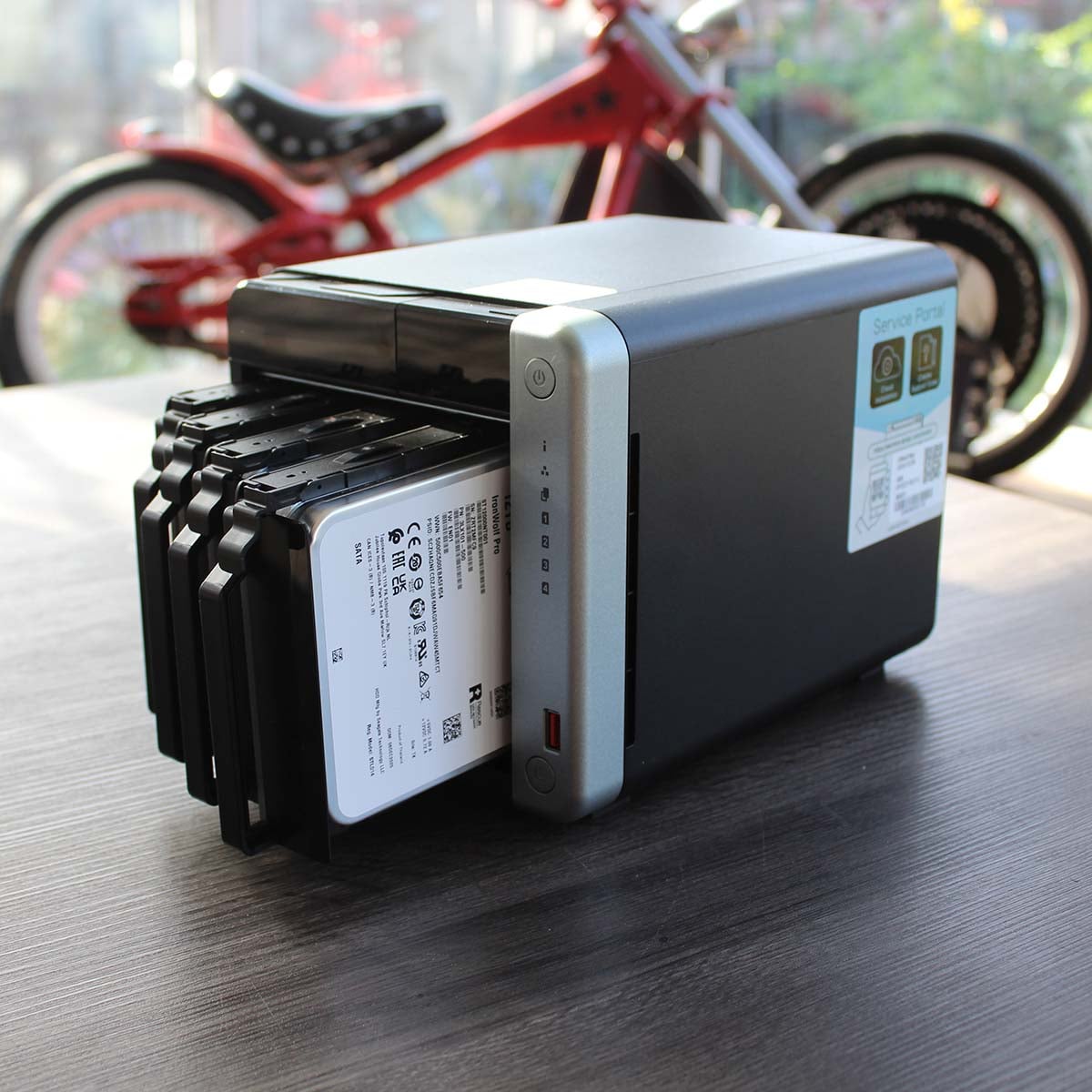
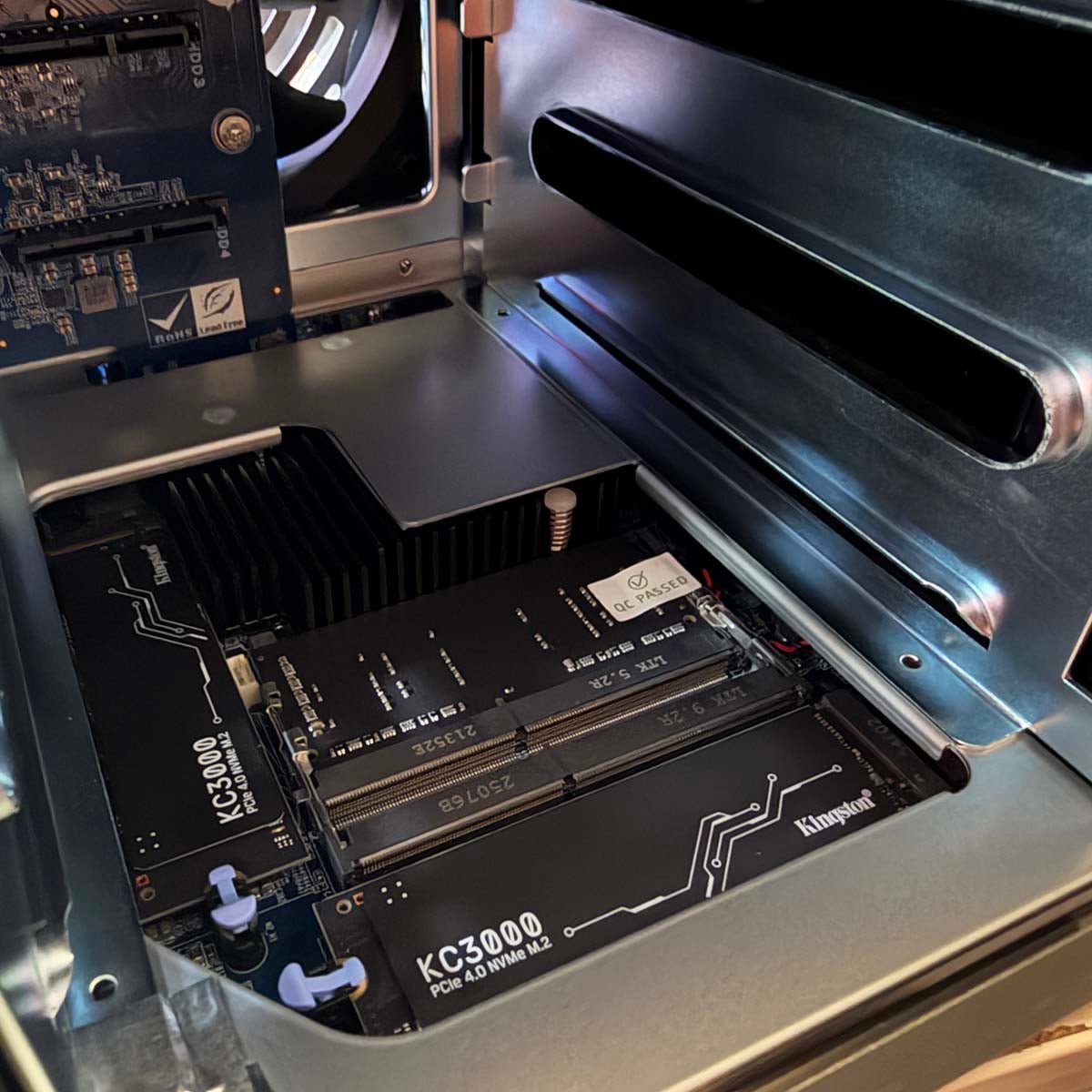
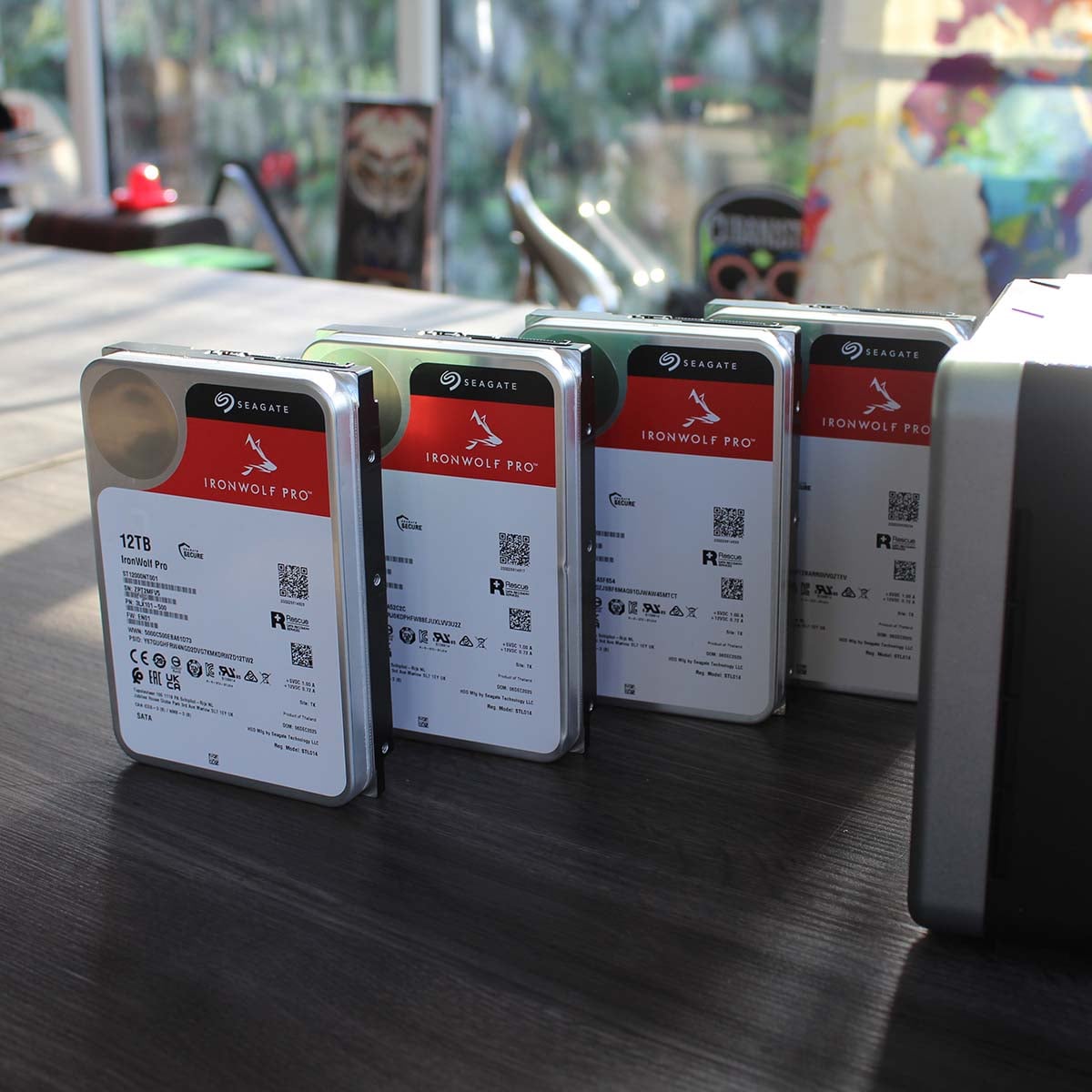
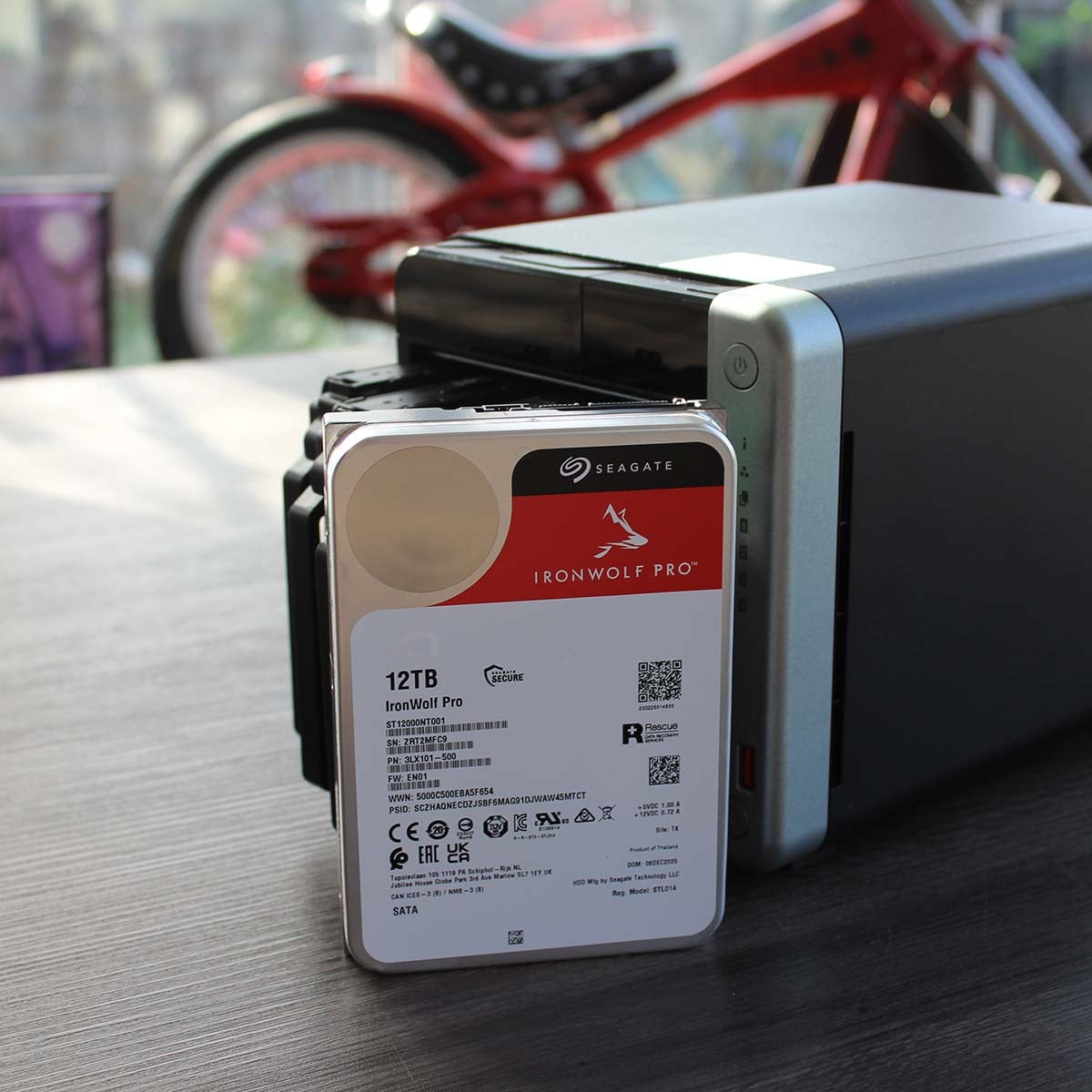
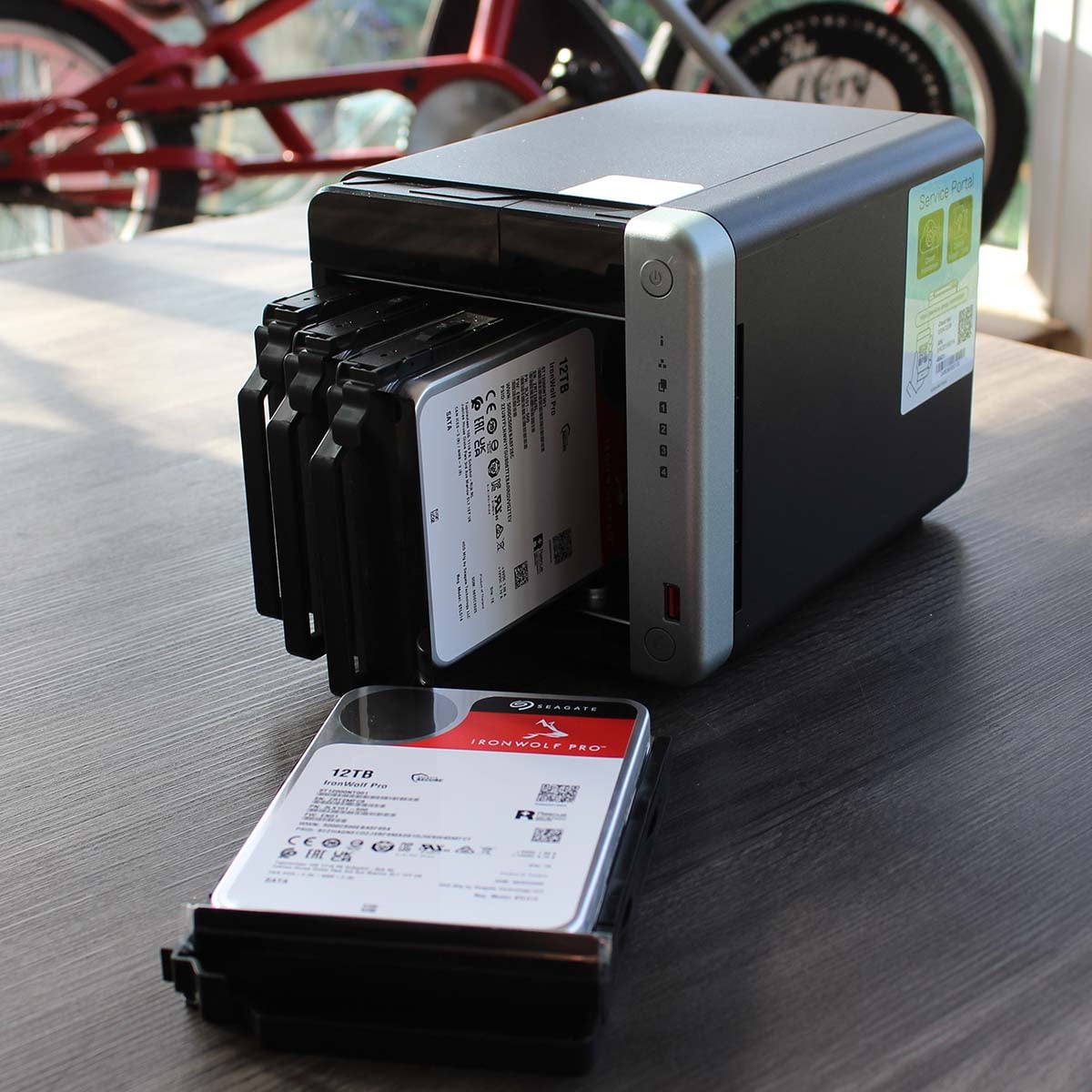
For this feature, I’ve set up an Intel Celeron-powered QNAP TS-462A NAS with four 12TB Seagate IronWolf Pro drives, along with a pair of 512GB Kingston PCIe Gen 4 M.2 SSDs. It’s an incredibly powerful storage array inside a dinky box no larger than a SFF PC, and I’ve hooked it up to my home network with a 2.5Gb Ethernet connection. Don’t worry if this all sounds very expensive – a two-bay 2.5Gb NAS, such as QNAP’s TS-264, with a mirrored pair of 6TB drives will also do a grand job here – it all depends on how many games you want to store on your NAS.
QNAP’s Container Station app can also run a Minecraft Java server on your NAS.
I set up all the hard drives in a RAID 5 array, to strike a good balance between performance, capacity, and fault tolerance. If one drive goes down, I can still rebuild the array without losing data, but I get more capacity than a straight RAID 1 mirror, and I don’t have the risk of losing my data if one drive goes down, as I would with RAID 0. If you’ve never configured a big RAID array in a NAS before, however, I’ll just warn you to leave some time for it to build, and put the box in a location where its noise won’t irritate you. It took this machine 18 hours to build my RAID 5 array, and mechanical storage ensured a lot of chugging and whirring noises while it did it.
I’m focusing on using a NAS as an enormous game install repository for this feature, but there are other gaming uses for a NAS outside of this area as well. For example, QNAP’s Container Station app can also run various game Docker containers, so you can run a Valheim or Minecraft Java server on your NAS.
iSCSI magic
Once your NAS is all set up with your choice of RAID array, your next job is to create a dedicated volume to store all your games. As you may know if you’ve tried installing games on a network drive before, a lot of games really don’t like it, and will refuse to install. This is where iSCSI comes in – it basically creates a volume on your NAS that fools your PC into thinking it’s looking at a local physical drive – not a network drive. This means you can set it up as your default install drive in Steam, GoG Galaxy, Epic Game Store, and so on.
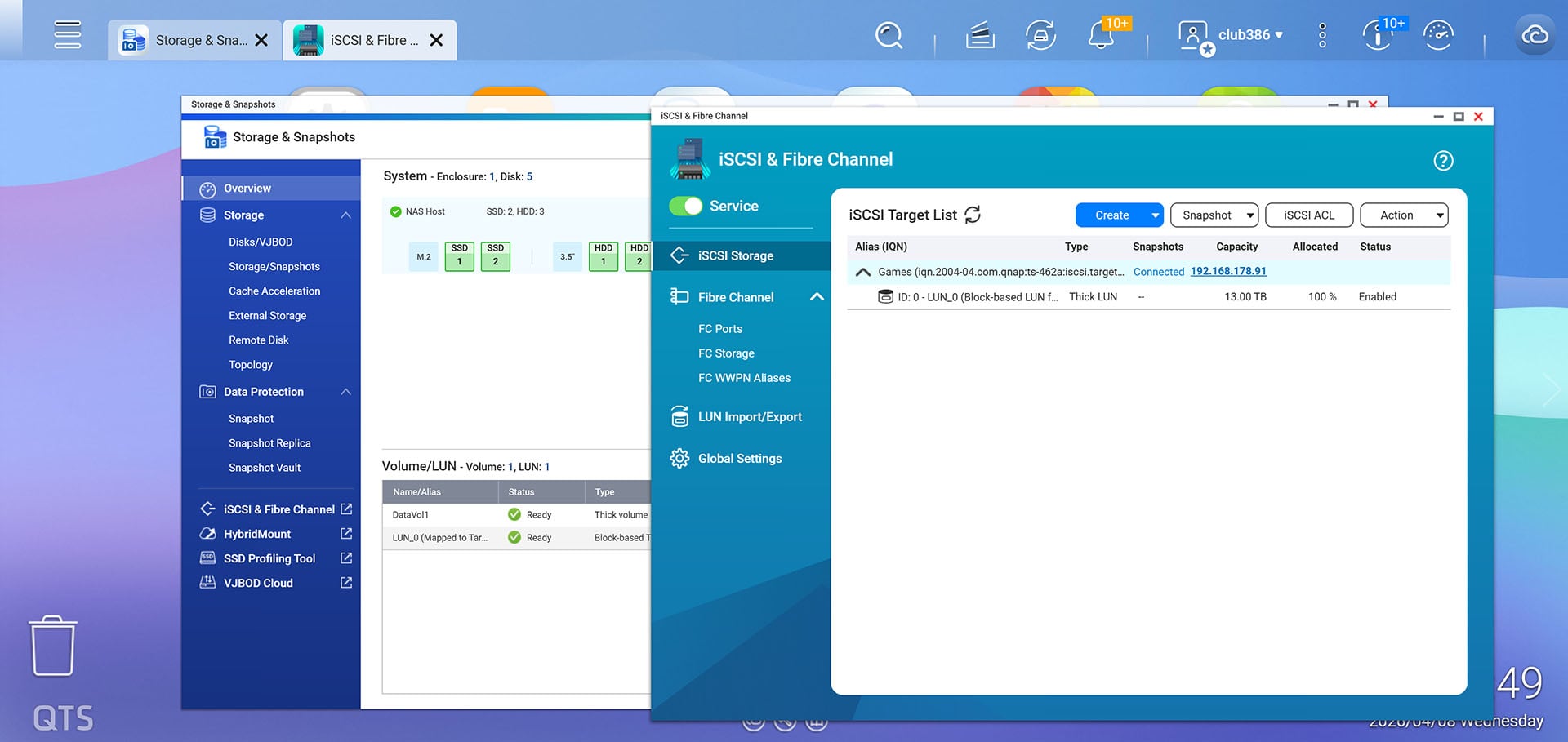
First, you need to create the volume, which, in the case of QNAP’s software, is performed in the Storage & Snapshots app. Click on iSCSI & Fibre Channel on the left, go to Create, give it an alias, select the storage pool you want to use (I’m using the RAID 5 hard drive array, rather than the SSDs) and select Thick LUN. You’ll then need to choose how much storage you want – I opted for 13TB, which gives me room for a lot of games.
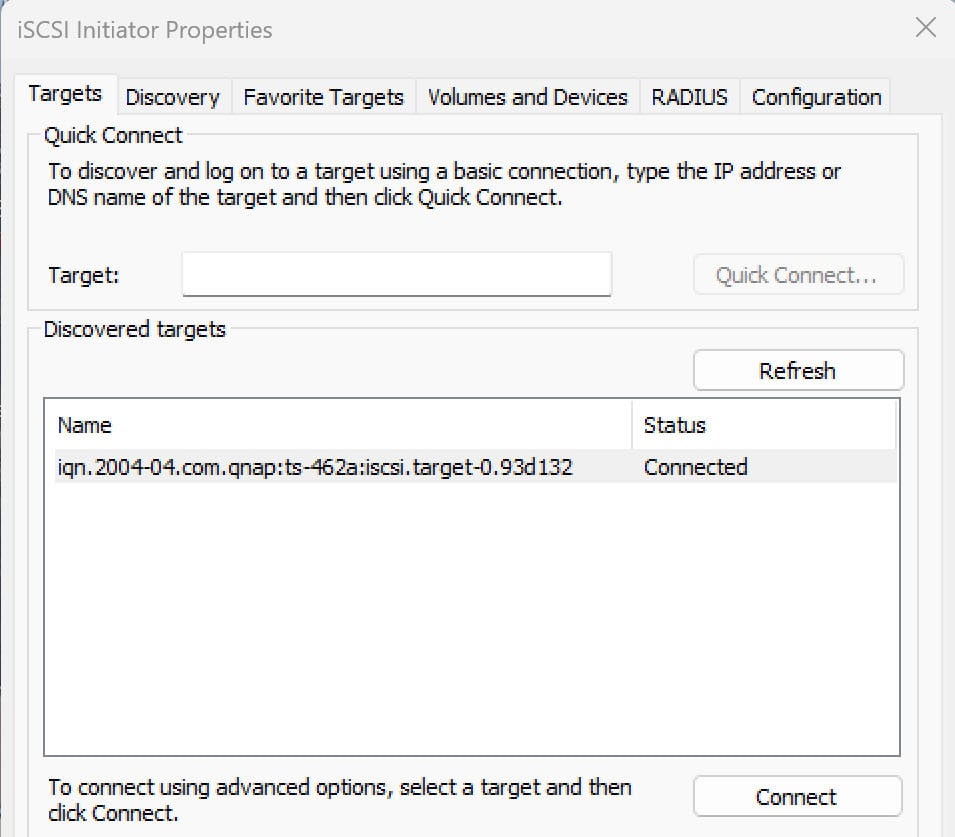
Once your iSCSI volume has been created, you then need to point Windows towards it on your PC. Type ‘iSCSI’ into the Windows Search bar, and load up iSCSI Initiator when it appears. You then just need to put in the IP address of your NAS, and Windows will find your iSCSI drive so you can connect to it. At this point, you won’t immediately be able to access your drive, though. Windows thinks it’s a local drive, rather than a network drive, which means it needs to be initialised, partitioned and formatted, just like a SATA hard drive or SSD.
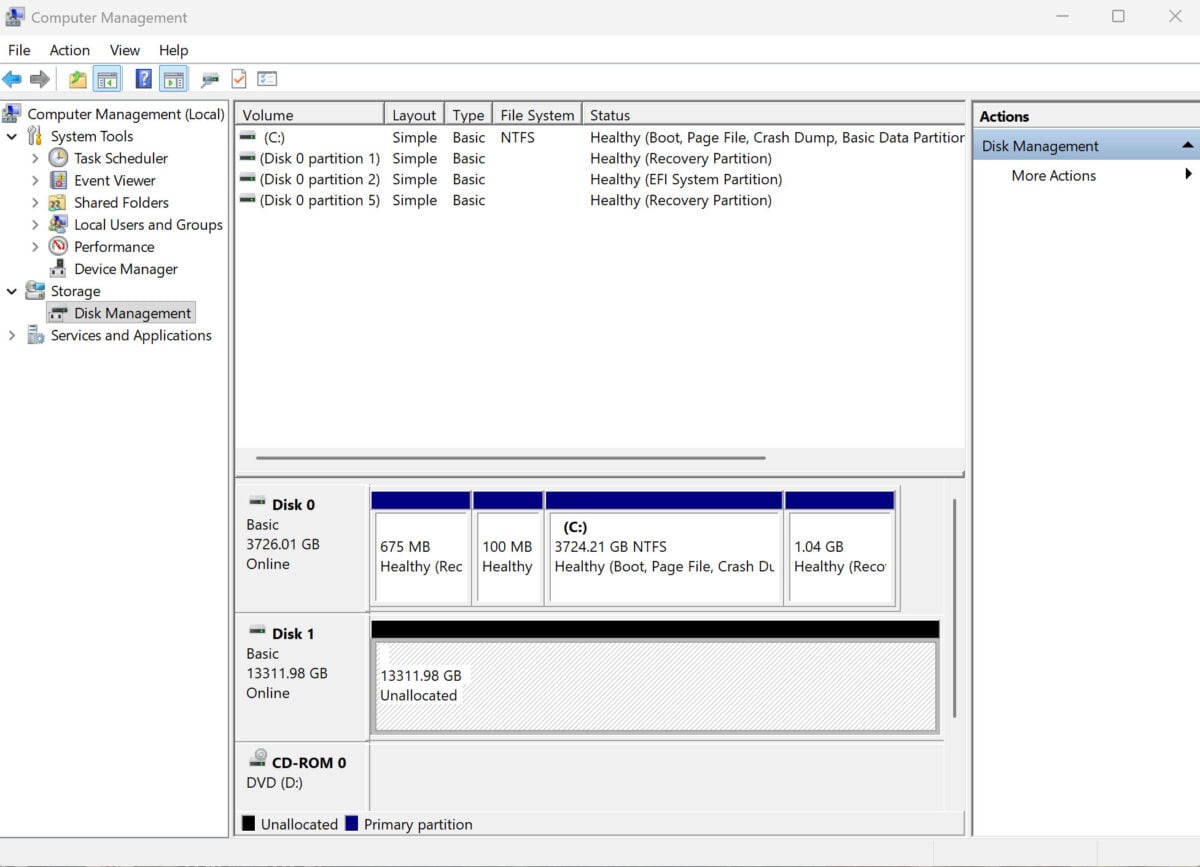
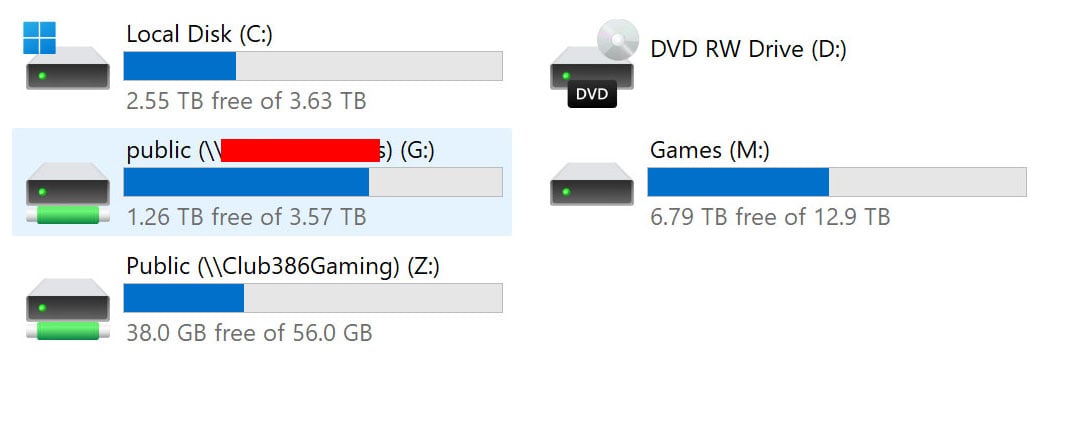
Type ‘disk management’ into the Windows Search bar, and click on ‘Create and format hard disk partitions’ when it appears. You’ll then see your iSCSI drive listed with a black bar across the top and a load of unallocated space. You can then right-click on the unallocated space, create a volume and set it up with a drive letter. Once that’s done, your PC will think it has a massive drive installed locally, which you can then use to store all your games. As you can see in the screenshot below, our iSCSI Games drive (M:) has no networking symbol underneath it – Windows is seeing it as a local hard drive.
Performance
With my iSCSI volume all set up, my first question was how fast this drive would be able to churn through data compared to an SSD. I’ll cut straight to the chase here – a RAID 5 hard drive array on a network obviously isn’t as fast as one of the latest SSDs. However, it’s faster than I expected. Hooked up to my desktop PC, which has an Intel 2.5Gb Ethernet adaptor, I ran CrystalDiskMark to get an idea of peak performance.
It loaded almost instantly and accessed my savegame quickly as well.
Sequential eight queue-depth, one thread (Q8T1) reads and writes came in at just under 300MB/s (296MB/s and 295MB/s, respectively). Given that 312MB/s is the peak theoretical speed of a 2.5Gb Ethernet connection, and I’m using physical hard drives, colour me impressed. What’s also clear here is that, because the network connection is the main bottleneck, you get similar performance outside these peak sequential figures. For example, random 4K Q32T1 reads topped out at 288MB/s. It’s only when we get to Q1T1 random 4K reads that the figure drops right down to 22MB/s.
Clearly, an NVMe SSD will be massively faster when it comes to peak sequential speeds, but if Steam Deck users are loading games from SD cards that can’t be read any quicker than 105MB/s, I reckon I should be able to load games over a 296MB/s network storage setup.
Your mileage here will vary depending on the size and complexity of the game you’re loading, as well as how long you’re prepared to wait. I started with an easy test, loading DoubleFine’s simple point-and-click adventure game Broken Age straight from the NAS. It loaded almost instantly and accessed my savegame quickly as well. However, this game only takes up 2.1GB.
Next up was Civilization VI, a game I like to play on various systems and that would really benefit from being in one place. This game loaded from the NAS in 23 seconds, measuring the time taken from initiating loading to getting to the game menu, skipping the opening sequence. Comparatively, this took 20 seconds on my Samsung 9100 Pro PCIe Gen 5 SSD, so there’s a difference, but it’s not massive. Loading a savegame took 13 seconds on both the NAS and the SSD – running Civ VI (a game with an 18.49GB install size) directly from a NAS is completely viable.
My takeaway from this is that you can easily run a lot of games directly from your NAS.
Finally, I wanted to give the NAS a challenge. I’m currently playing through Warhammer 40,000: Space Marine 2 on my desktop PC, so I was intrigued to see how the NAS handled this massive game. This was hard work for the NAS – it took one minute, 33 seconds to load the game to the menu, and another minute and 25 seconds to load my savegame. Comparatively, my SSD loaded the game to the menu in 44 seconds, and took 24 seconds to load my savegame. Once the game was loaded from the NAS, however, it ran absolutely fine – this is really just a case of whether you’re prepared to wait.
As an in-between case, I also tried loading The Witcher III: Wild Hunt directly from the NAS, which took 39 seconds to get to the menu, and 35 seconds to load a savegame – that’s around twice as long as it took with my SSD, but it’s perfectly usable all the same.
My takeaway from this is that you can easily run a lot of games directly from your NAS, but it’s better to run larger, more complicated games directly from your SSD, if you have room. Even then, though, there’s still a big benefit from storing the game on your NAS, as all your PCs can instantly access it. Moving the whole Space Marine 2 install from the NAS to my SSD took five minutes and 14 seconds, which works out at around 269MB/s (2,152Mb/s) for this massive 84.93GB title. Unless you have an unbelievably fast broadband connection, that’s significantly quicker than redownloading it online every time you want to install it.
All the games
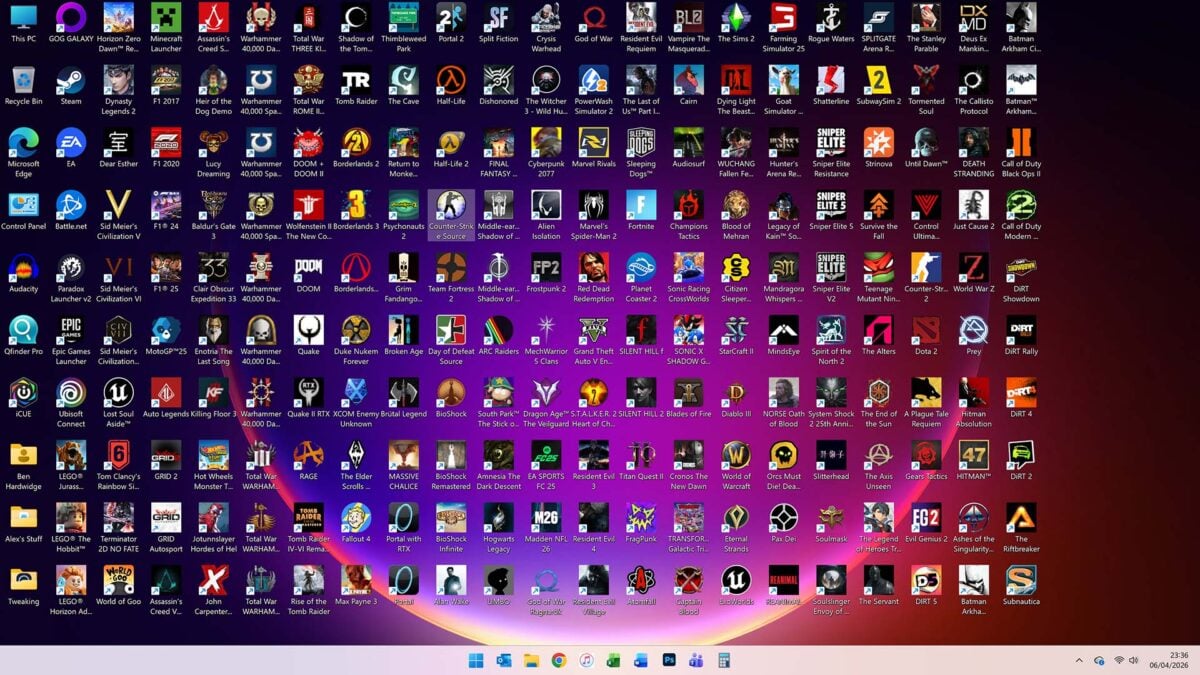
The big bonus to using your NAS as a game repository, of course, is sheer capacity. I set the NAS downloading games over the Easter Bank Holiday weekend, with the objective of installing every game I owned in online stores – Epic, GoG, Steam, Battle.net – the lot. The end result is the screenshot above – a Windows desktop nearly packed full of icons, taking up over 6TB of space. Given that I’ve only used around half my capacity, if I’d had more download time, I could easily have fitted even more games on the box.
Setting up your NAS as the install drive is easy when you have iSCSI – you just need to set each of your game stores’ default install locations to folders on your iSCSI drive. In Steam, you specifically need to add your iSCSI drive as a Steam Library Folder before you can use it as an install location – you’ll find this in Settings/Storage – in the screenshot below, M: is my iSCSI drive.
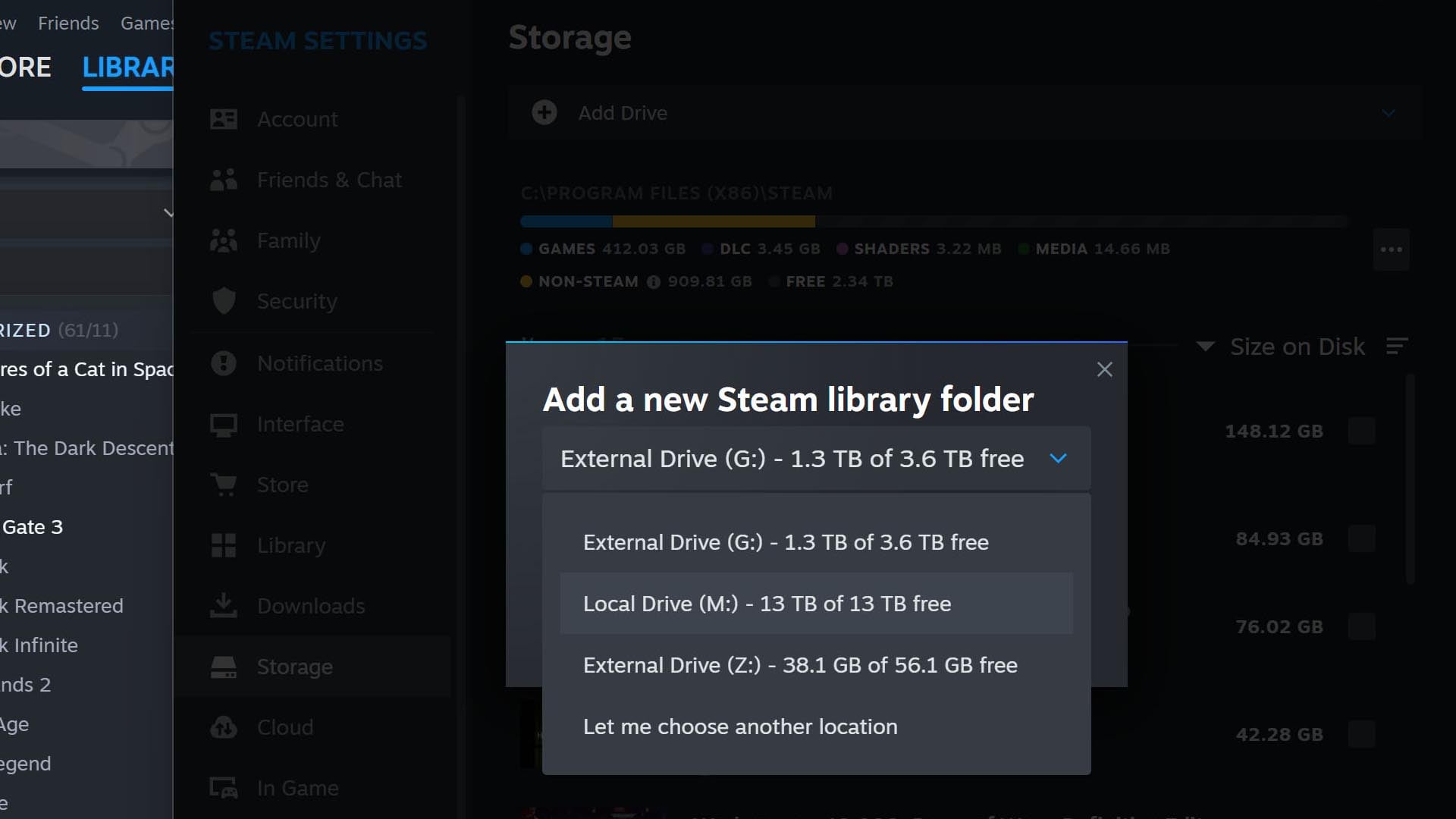
You can then load any of your games from your NAS repository straight from the Windows desktop. Plus, in some stores, including Steam, you can easily move the game install to your SSD if you want quicker loading times. This takes a while, such as the aforementioned five minutes to move Space Marine 2, but that’s loads quicker than redownloading them.
You’ll be greeted by a big list of white game names, all ready to launch.
More impressively, once all your games are on your iSCSI drive, most game stores can then detect them from a PC on the same network. Whichever PC you want to use for this, you just need to load up iSCSI Initiator on it, input the IP address again, and it will find the iSCSI drive and link it up to the PC. This time, you won’t need to initialise it either – Windows will automatically assign it a drive letter, and you’ll be able to use it like a normal hard drive. It doesn’t even need to have the same letter you assigned it on the first PC.
Again, in Steam, you then just need to add your iSCSI drive’s appropriate directory as a Library Folder in Steam. Amazingly, it then automatically finds all the installs and you’ll be greeted by a big list of white game names, all ready to launch. Alternatively, you could also then move whichever ones you want to your SSD.
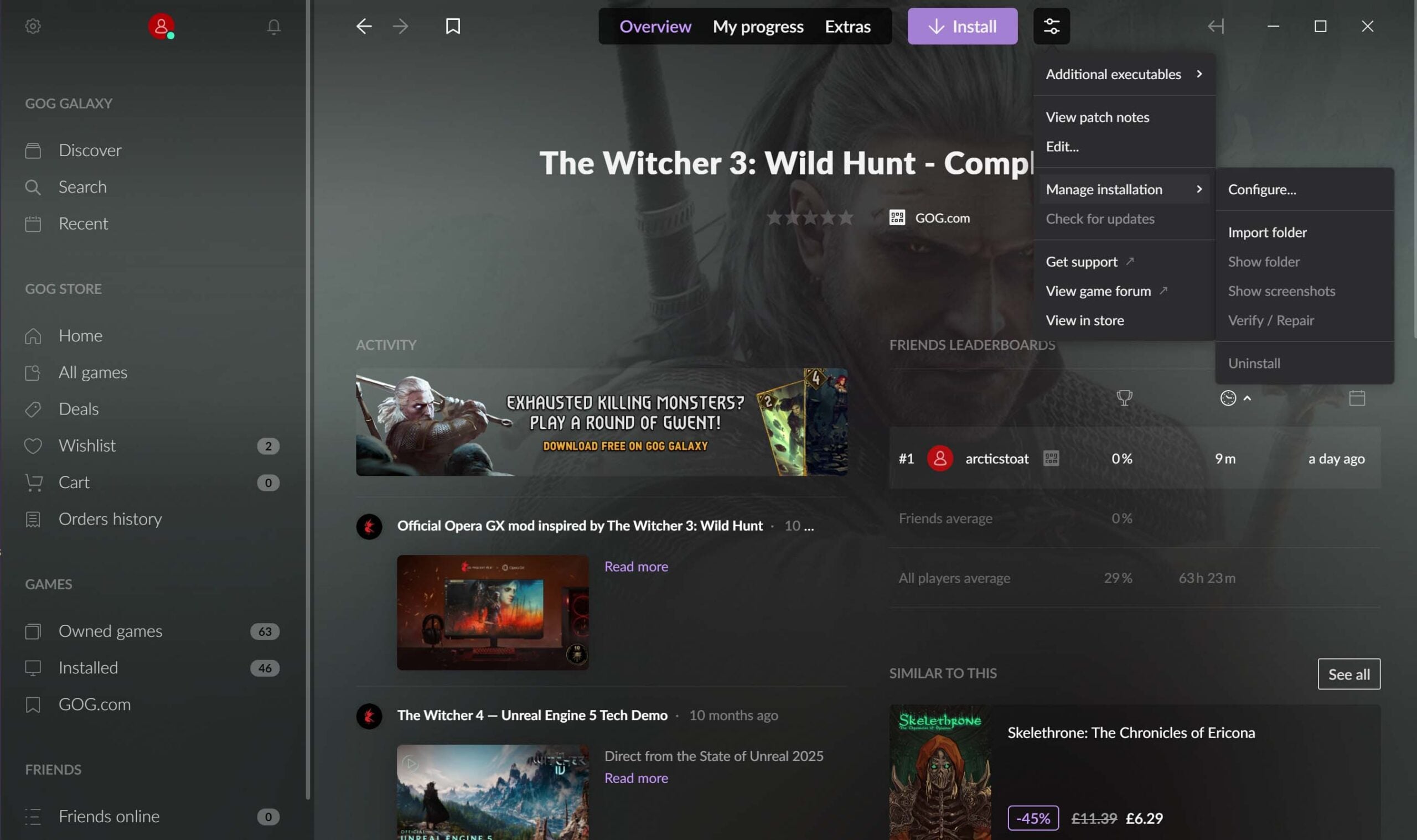
GoG is similarly easy to set up. Click on Settings, select ‘Installing, updating’ and point it to the GoG folder on your iSCSI drive. Then go to the page of the game you want to install in GoG Galaxy, click on the settings sliders button next to the Install button, and select Manage installation/Import folder. You can then point it to the same folder where the game is installed on your iSCSI drive, and it will detect all the files and let you play it straight from the NAS.
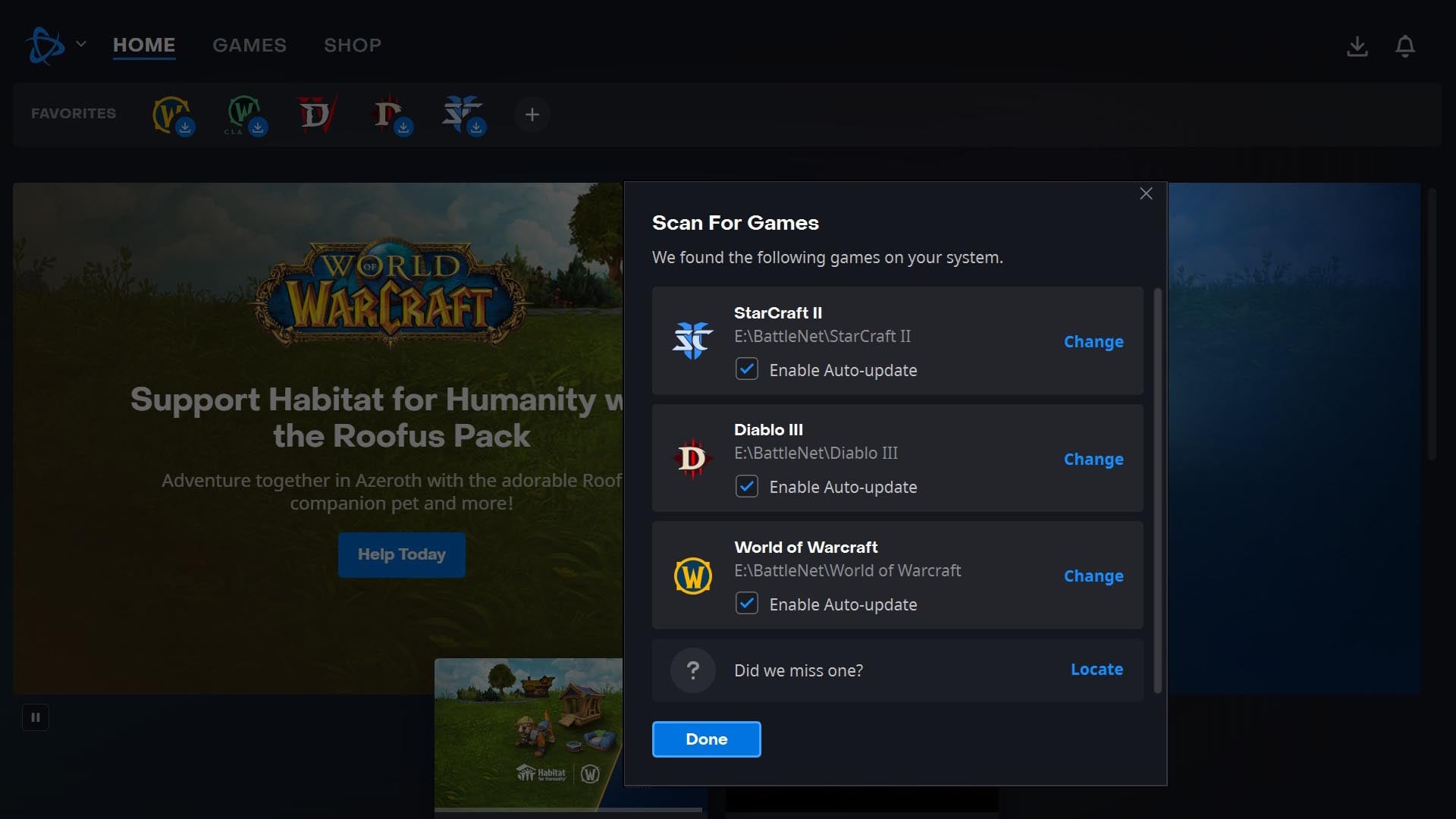
Battle.Net is simple, too – in this case, you need to click on the Battle.net logo in the top left corner, select Settings, go to Downloads, and then click on Scan for Games. You can then point it to the appropriate folder on your iSCSI drive, and it will detect all the games and let you play them from the NAS.
The one disappointment in this setup process was the Epic Games Store, which doesn’t offer an integrated, easy way to share a networked game install folder between multiple machines, and Epic doesn’t officially support any workarounds either. You can at least use your iSCSI drive to install all your Epic games on one PC, load them directly from the NAS and save a load of SSD space, but you can’t then easily use the same install on another rig.
Final thoughts
I have to say I’m pleasantly surprised by the experience of using a NAS for gaming. Having an enormous game repository that can be accessed by any PC on your network saves a shedload of download time, while giving you loads more storage capacity than your average SSD. You can even directly load massive games from the NAS if you’re patient with loading times, and if you’re not, you can move them to your SSD quickly.
For smaller game installs, a NAS on a 2.5Gb network connection is perfectly fast enough for direct loading. If you fancy playing Civ on your laptop, but don’t want to have to wait to download it, you just need to run it from your iSCSI drive where it’s ready and waiting. If you’ve built up an enormous library of games over the years, a NAS repository gives you a way to have the whole lot instantly accessible from any machine on your network. If you already have a NAS, and you’re running out of space for game installs on your SSD, I recommend giving it a try.