
It’s taken the PC industry a bizarrely long time to squeeze itself out of the restrictive confines of Gigabit networking, despite the massive acceleration of storage and processing speeds in the meantime. It’s been a weird sticking point. We happily upgraded from 10Mbps BNC and RJ45 tech to 100Mbps networks, giving us a transformative boost with 10x the bandwidth, and then did the same when Gigabit Ethernet arrived. But the latter just wouldn’t budge, and it’s now far outstayed its welcome.
Even now, 27 years after the Gigabit (IEEE 802.3b) standard over UTP was first ratified, there are still plenty of new laptops, PCs, and routers coming out today that don’t go beyond the 1000BASE-T level. Times are changing, though. We’ve seen more and more motherboards coming equipped with at least 2.5GbE network ports over the last few years, and some, such as the MSI X870E Ace Max used in our test rigs, come with both 5GbE and 10GbE ports. Meanwhile, routers are catching up, albeit slowly.
I’m still stuck on Gigabit networking in my home, for one. I have a wired CAT5e network through my home that won’t go much beyond that level, and a lot of my gear only has Gigabit ports, including my ageing NAS. It’s a regular frustration whenever I try to move large amounts of files between my NAS and various PCs, sometimes taking well over half an hour while I twiddle my thumbs. It’s even worse over my Wi-Fi 5 mesh setup. Would an upgrade to a wired 10GbE network change all that? I asked QNAP to send in some 10GbE kit to find out, and I can tell you the answer is a resounding “yes.”
What do you need for 10GbE networking?
As with any previous networking upgrades, all your kit needs to support the 10GbE standard if you want to get the most out of it. You can still plug your Gigabit devices into a 10GbE switch, but it won’t run any faster. Likewise, bear in mind that Internet speeds will still be ultimately bottlenecked by your broadband connection.
The other factor you really need to consider is cable. If you have a short-length CAT5e network like mine, you may be able to run 2.5GbE gear over it, but 10GbE really needs at least CAT6 (for a short-length 50m home network) or CAT6e for larger setups. If you have a load of sockets wired up already, this is a faff that involves wither fiddling around with crimpers or hiring an electrician. However, after seeing the speeds, I’d argue it’s a faff that makes sense if you regularly send large amounts of data over your network.
That’s it, though. You basically just need a 10GbE switch, or a router with some 10GbE ports, and your compatible cables and devices.
Test setup
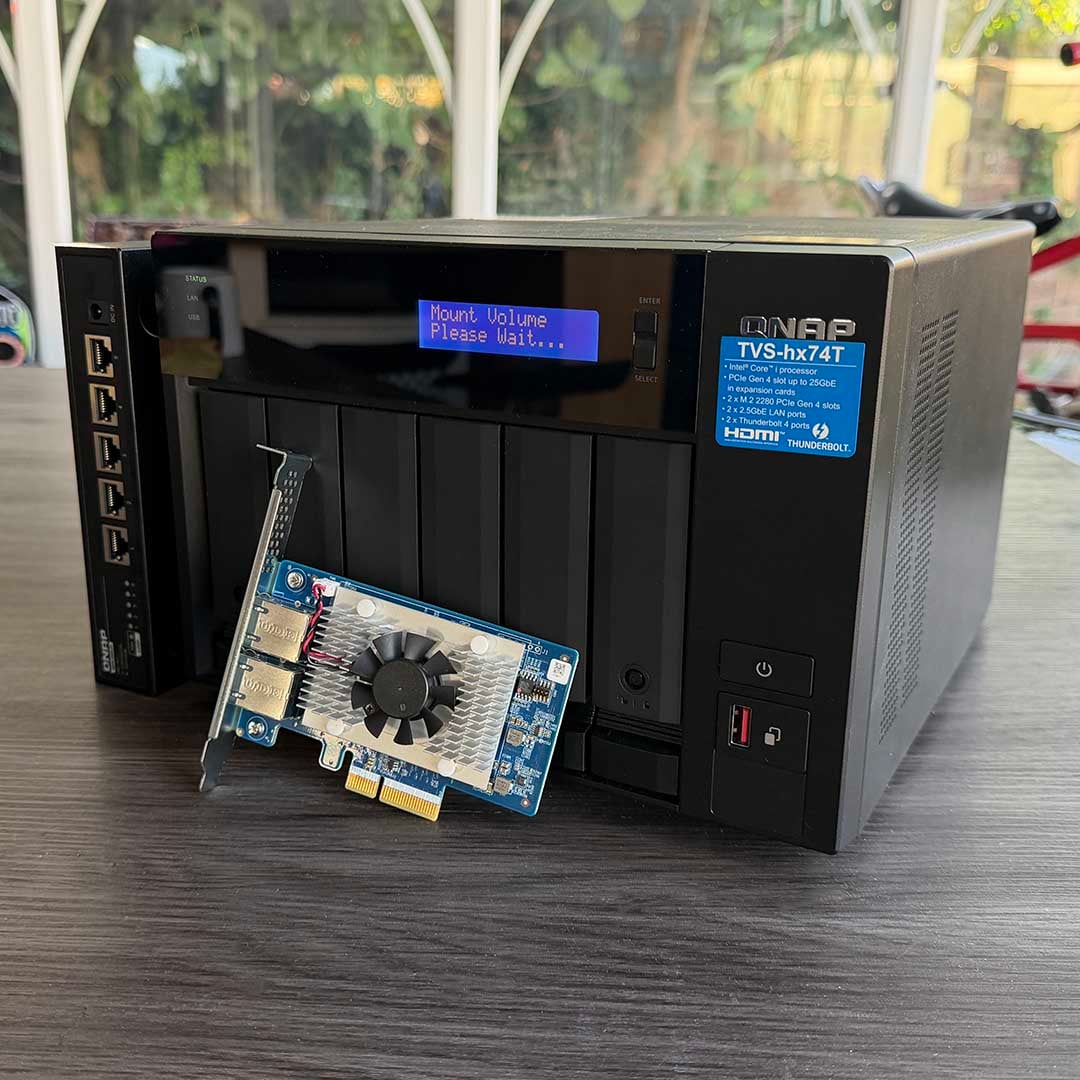
I already had access to a Marvell AQtion 10GbE port on our Club386 test rigs, so QNAP sent me three crucial components to complete the picture and help me build a working 10GbE network – a NAS, a network card, and a switch. I’ll also be using this setup for another networking feature in the future, so watch this space.
QNAP TVS-hx74T
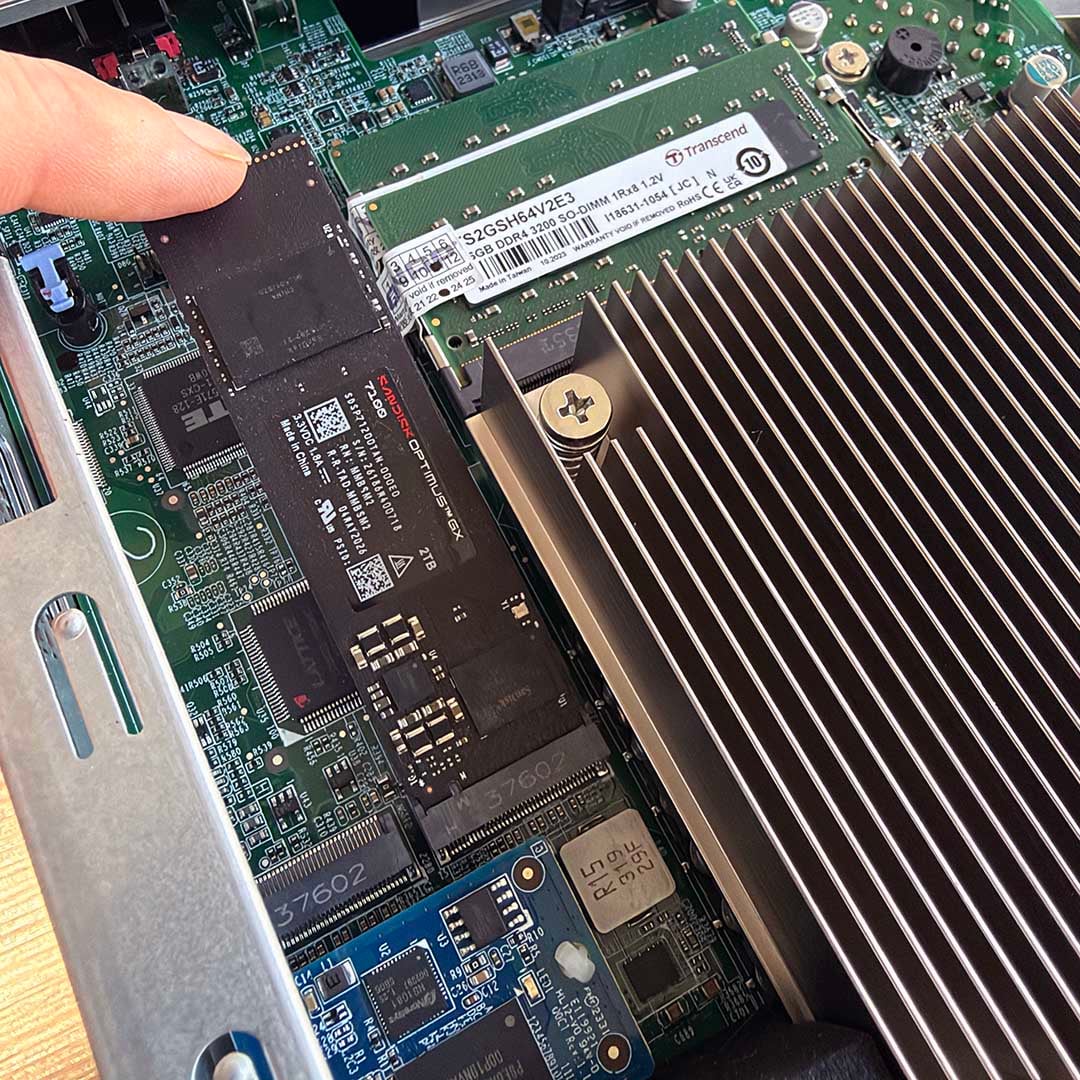
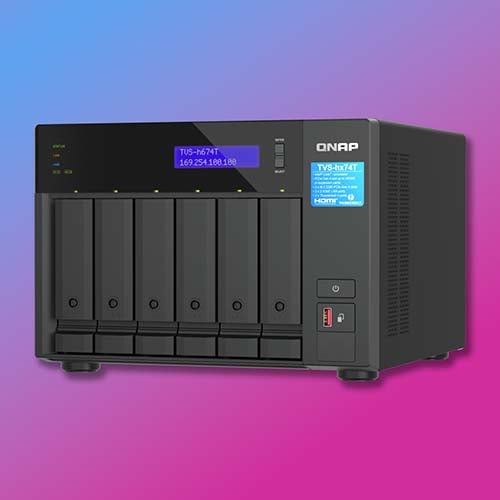
The QNAP TVS-hx74T NAS I’m using is a fantastic 6-bay box that’s packed with features. It’s basically a mini PC dedicated to handling storage. An Intel Core i5 CPU maintains excellent performance, and it’s assisted by 32GB of DDR4 RAM. Importantly, for my testing, it also has a pair of PCIe Gen 4.0 M.2 sockets for SSDs. I’ve put a 2TB SanDisk Optimus GX 7100 drive into one of these sockets, so I can get an idea of peak storage performance.
It’s really easy to set up the NAS using QNAP’s QFinder software, which just detects it on your network and then takes you through the process, and rewards you with a friendly point-and-click OS. For this feature, which is all about throughput, I’m not actually using any of the drive bays. Instead, I’ve simply set up my SSD as an iSCSI drive. This means Windows will basically see it as a local SSD, meaning I can run tests such as CrystalDiskMark easily on it.
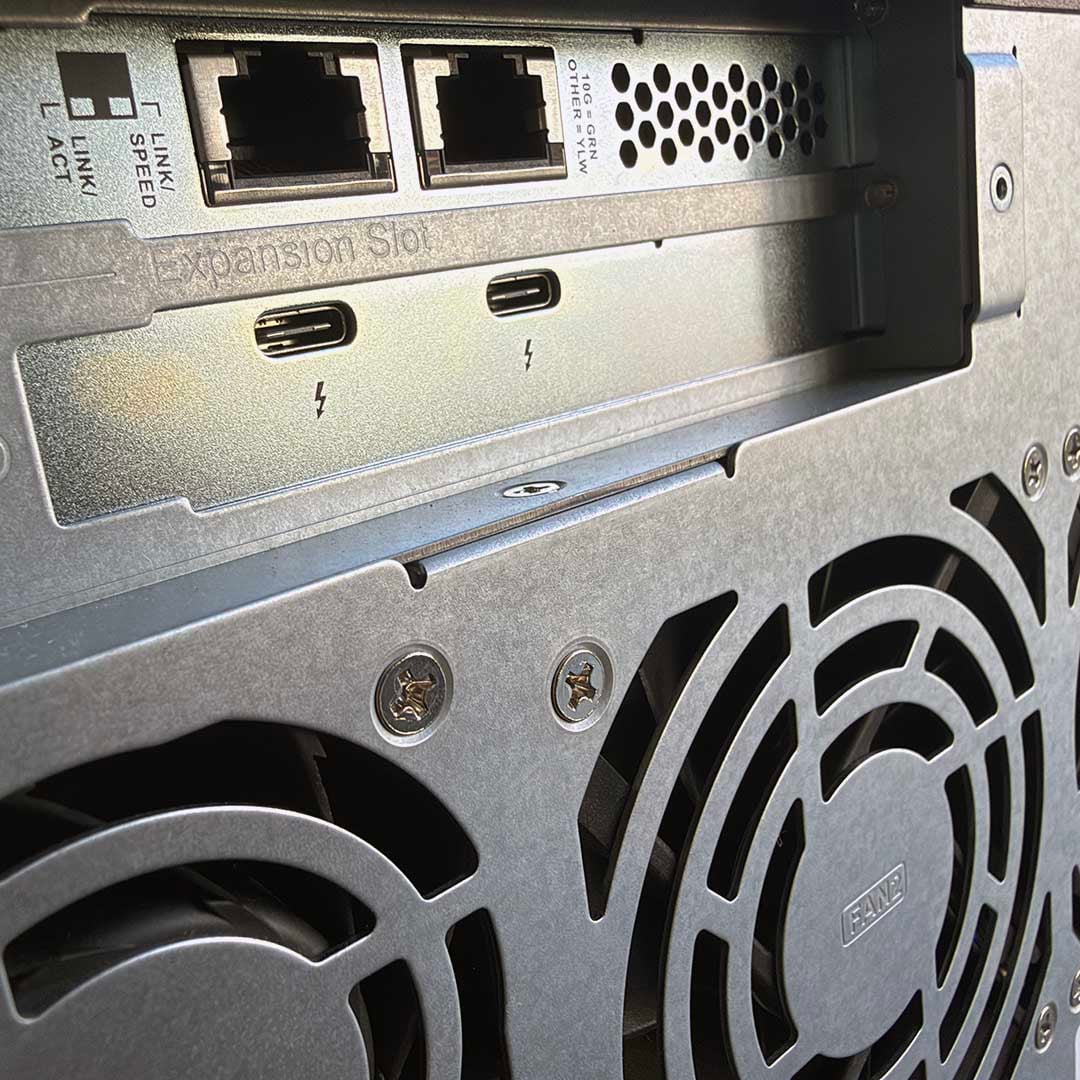
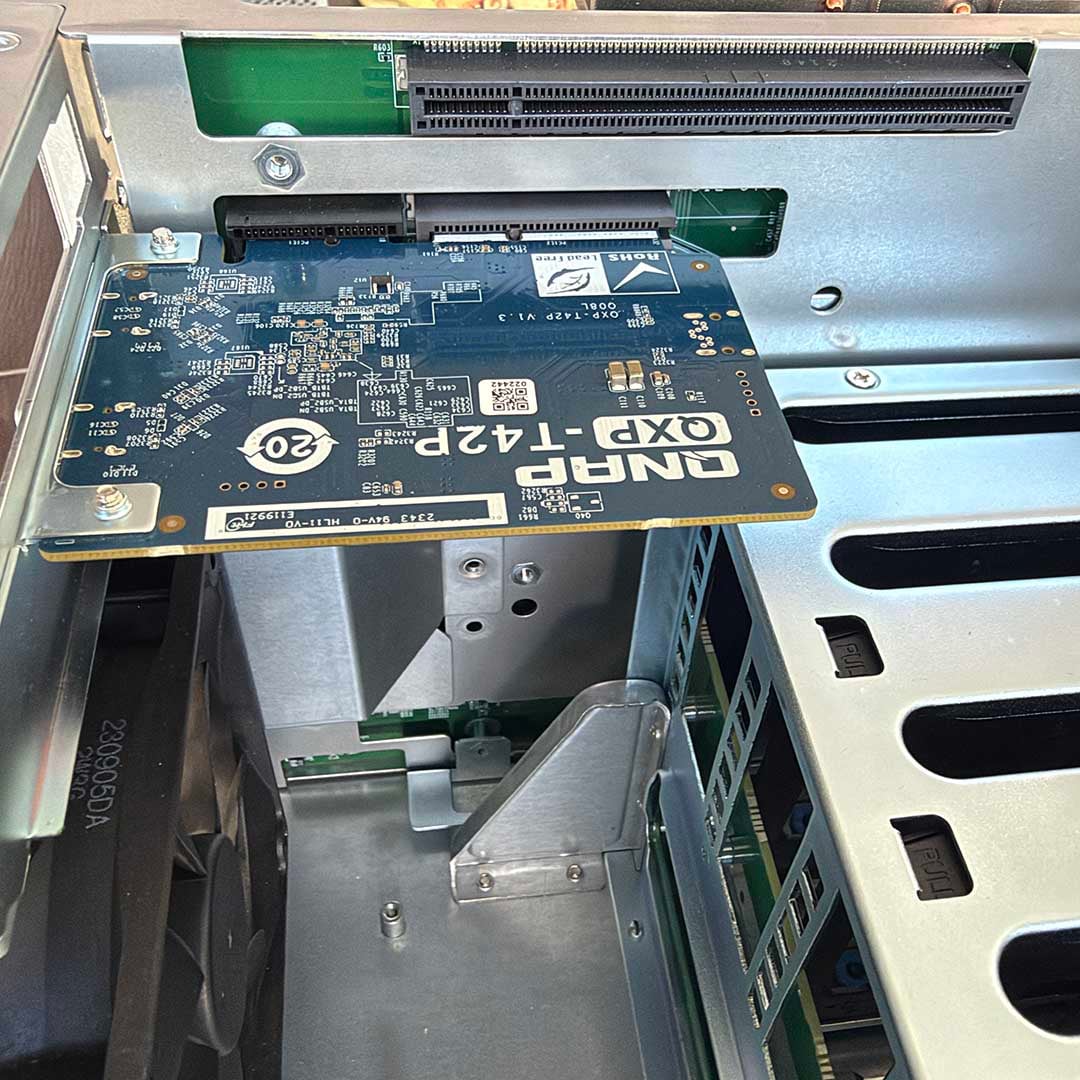
Crucially, this box also contains a pair of PCIe Gen 4.0 slots (one x4 and one x16). There’s already a Thunderbolt 4 card fitted in one of these slots, which offers tremendous speeds if you hook it up straight to your computer. The NAS already sports a pair of 2.5GbE ports on the back, but that extra spare slot enables me to upgrade it to a full 10GbE device.
QNAP TVS-hx74T
“The TVS-h874T is more than a simple backup/archiving machine, and provides a total solution for encouraging your creativity with various technologies.” – QNAP
QNAP QXG-10G2T-X710
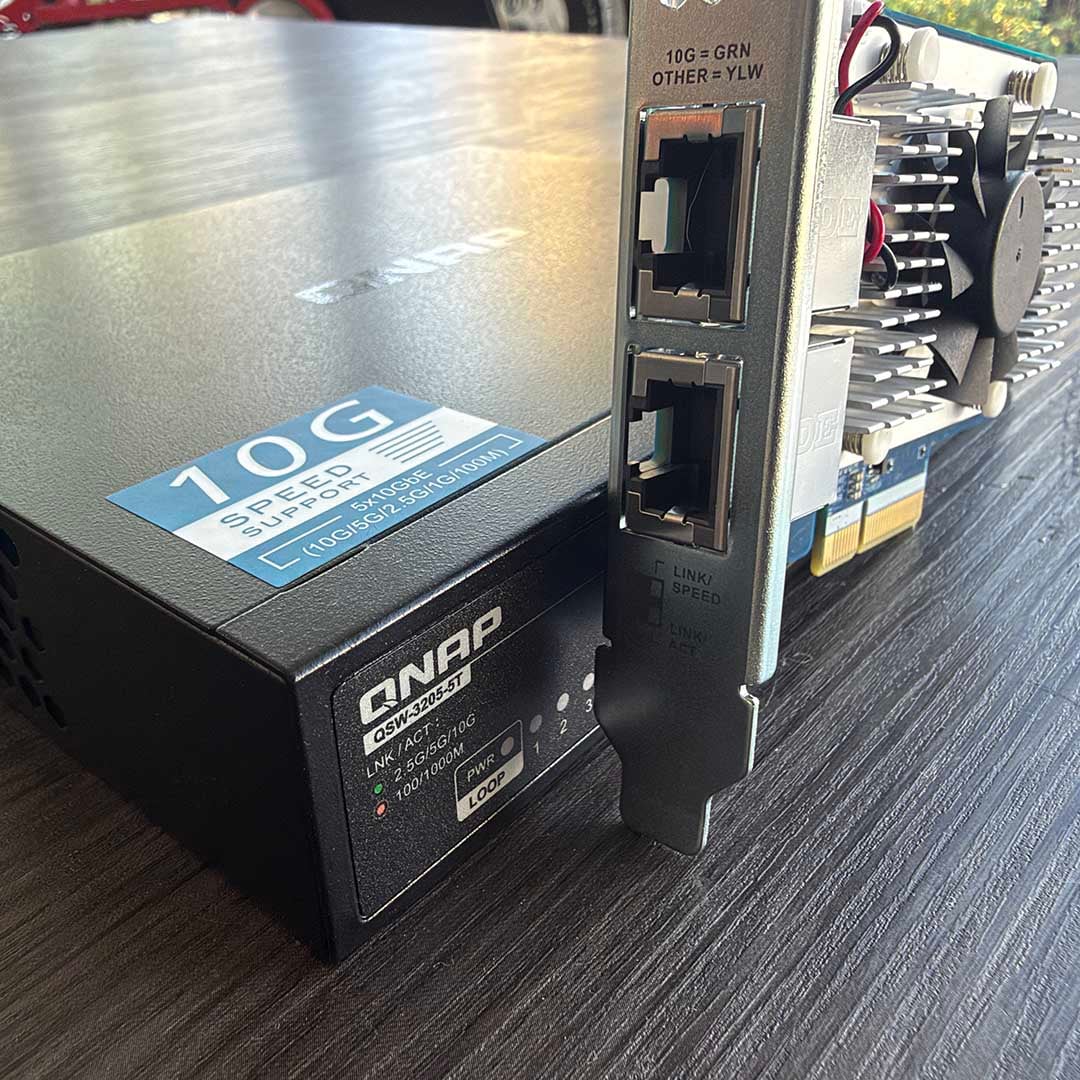
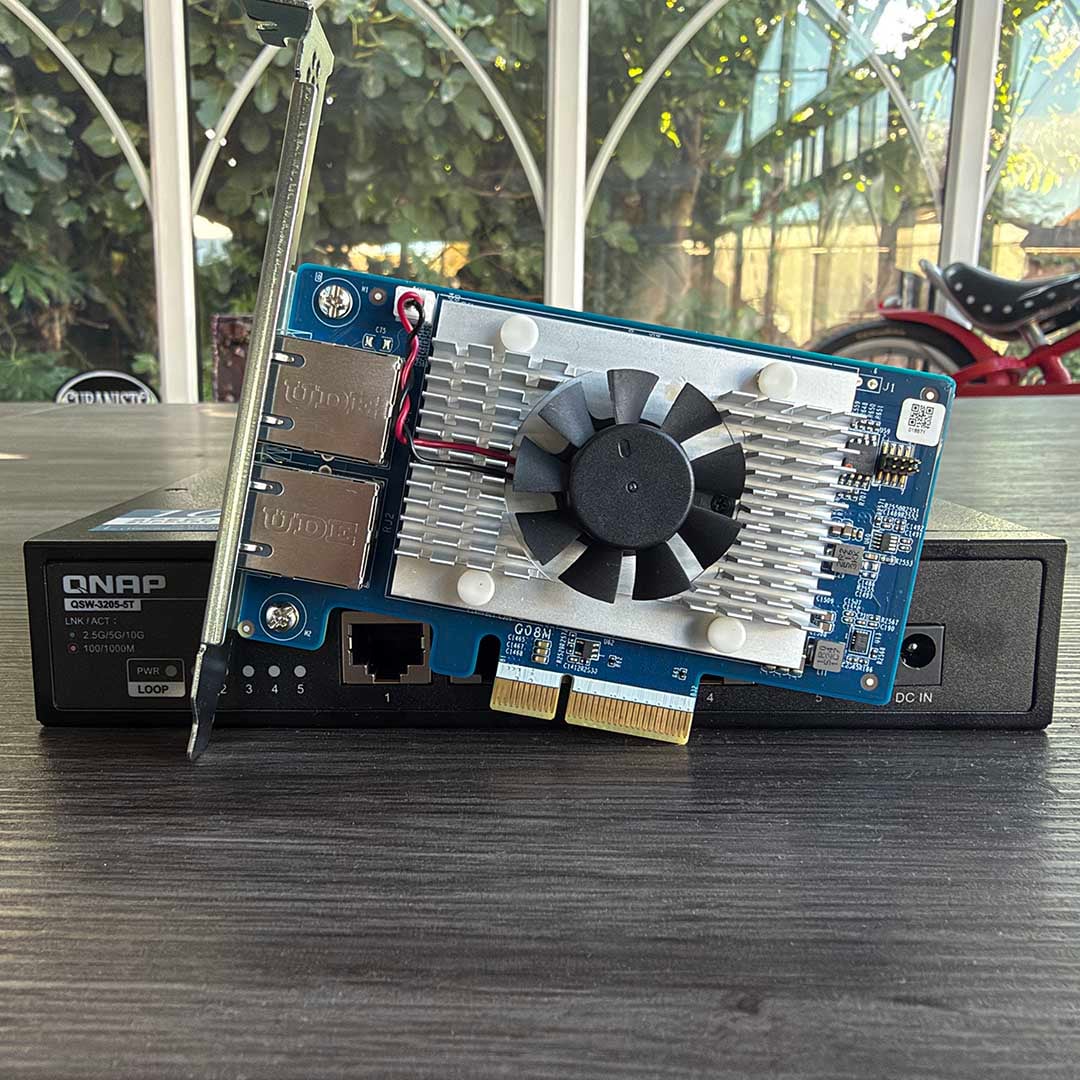
The QNAP QXG-10G2T-X710 is a simple 10GbE network card, with two ports on the back. It only takes up a single slot, which is enough room to pack in the necessary heatsinks and a small cooling fan to keep its temperature under control. Out of the box, it has a half-height IO plate on the back, designed for shallow boxes such as rack cases. However, both medium and full-height brackets are included in the box – you just remove a couple of screws to remove the existing plate, and then screw in the right alternative.
I needed to remove the NAS box’s PSU in order to properly access the screws for installation, as it’s a tight space, but fitting it is otherwise a simple job – you just slot it in, then screw the power supply back in place. The NAS box instantly picks it up, and hey presto, you have a 10GbE device.
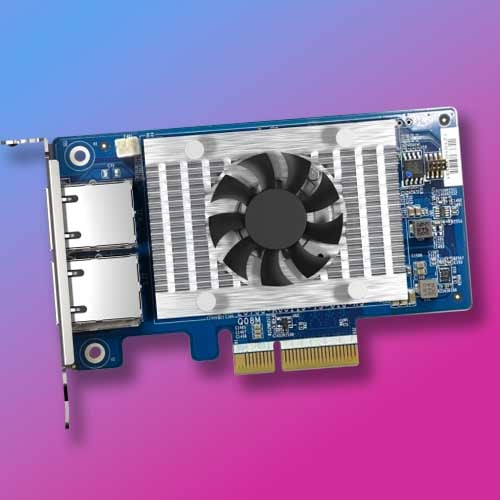
QNAP QXG-10G2T-X710
“The QXG-10G2T-X710 can be used with QNAP’s 10GbE switches for you to build a budget-friendly high-speed network environment.” – QNAP
QNAP QSW-3205-5T
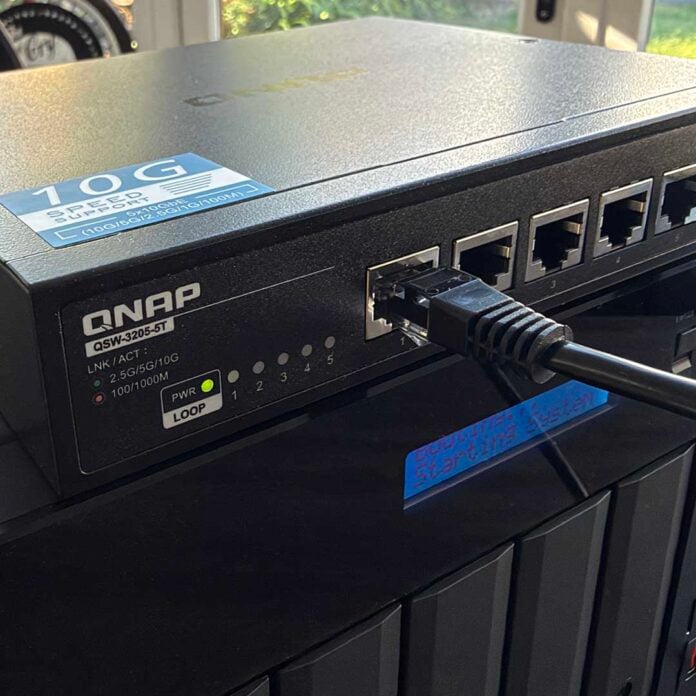
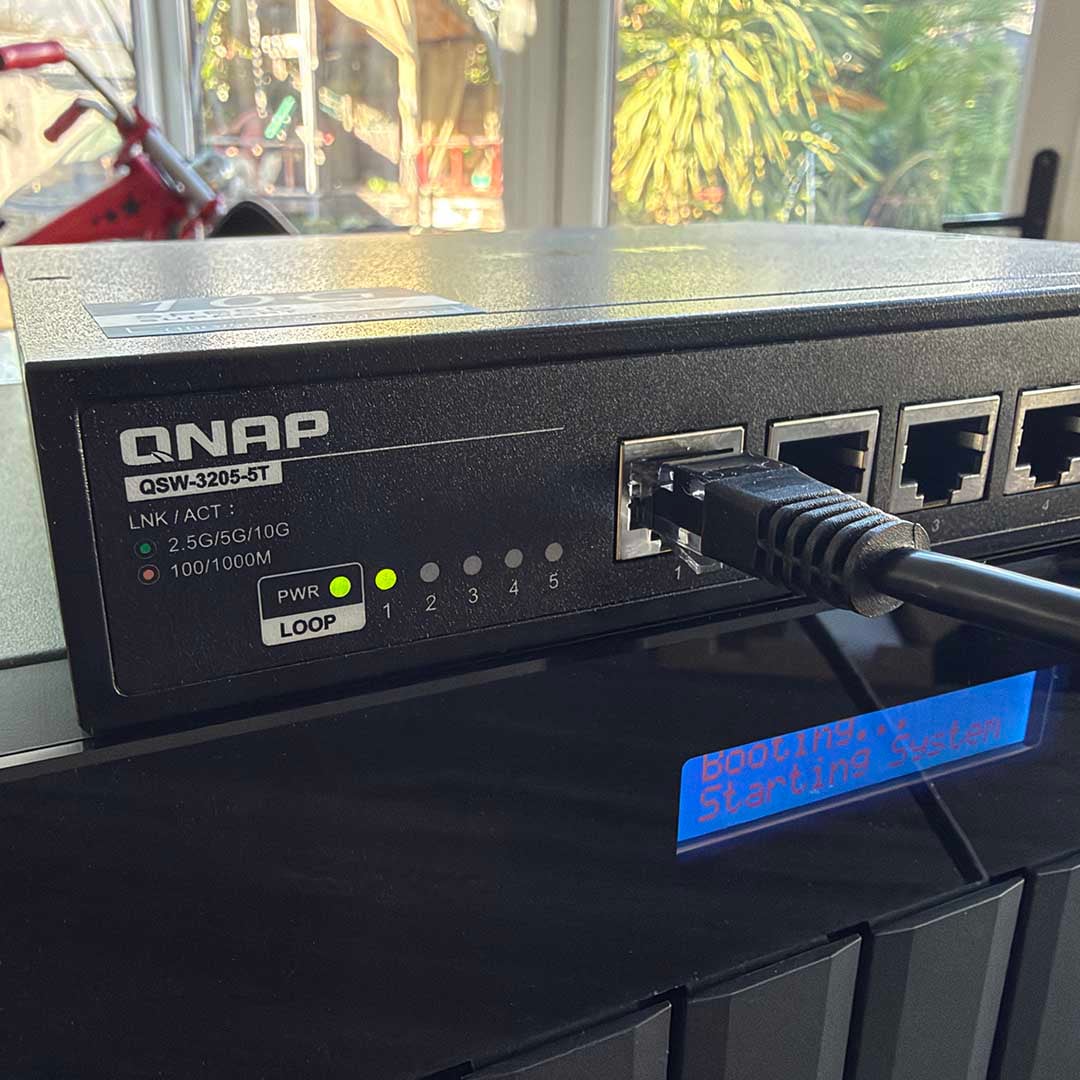
That just meant I needed a switch to complete my network, which in this case is a QNAP QSW-3205-5T. It behaves just like any other network switch, with five3 RJ45 ports on the front, and activity lights on the left side showing their usage. There are vents on either side, and it gets a little warm when it’s working, so I recommend putting it in an open space with room to breathe if you can.
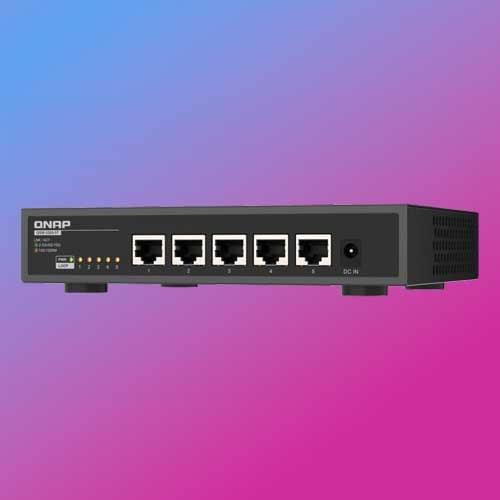
QNAP QSW-3205-5T
“Want to upgrade to 10GbE but find the price too high or the setup too complicated? Don’t worry – QSW-3205-5T is an affordable, entry-level 10GbE switch.” – QNAP
The rest of the gear
Otherwise, my main piece of testing kit is one of our Club386 test rigs. This features a high-speed 4TB Sandisk Optimus GX Pro 8100 PCIe Gen 5 SSD, so there’s no worry about storage speeds being a bottleneck here. Importantly, its MSI MEG X870E Ace Max also features a 10GbE network port.
I’ve used the same network port for all these tests, and manually adjusted the maximum speed in its Advanced settings using Windows Device Manager. In addition, I’ve also used our MSI motherboard’s onboard MediaTek MT7927 Wi-Fi 7 adaptor, in conjunction with an Asus GT-BN98 Wi-Fi 8 router, to measure wireless speed in a best-case scenario for comparison. For these tests, I directly connected one of the router’s 10GbE connectors to the QNAP NAS.
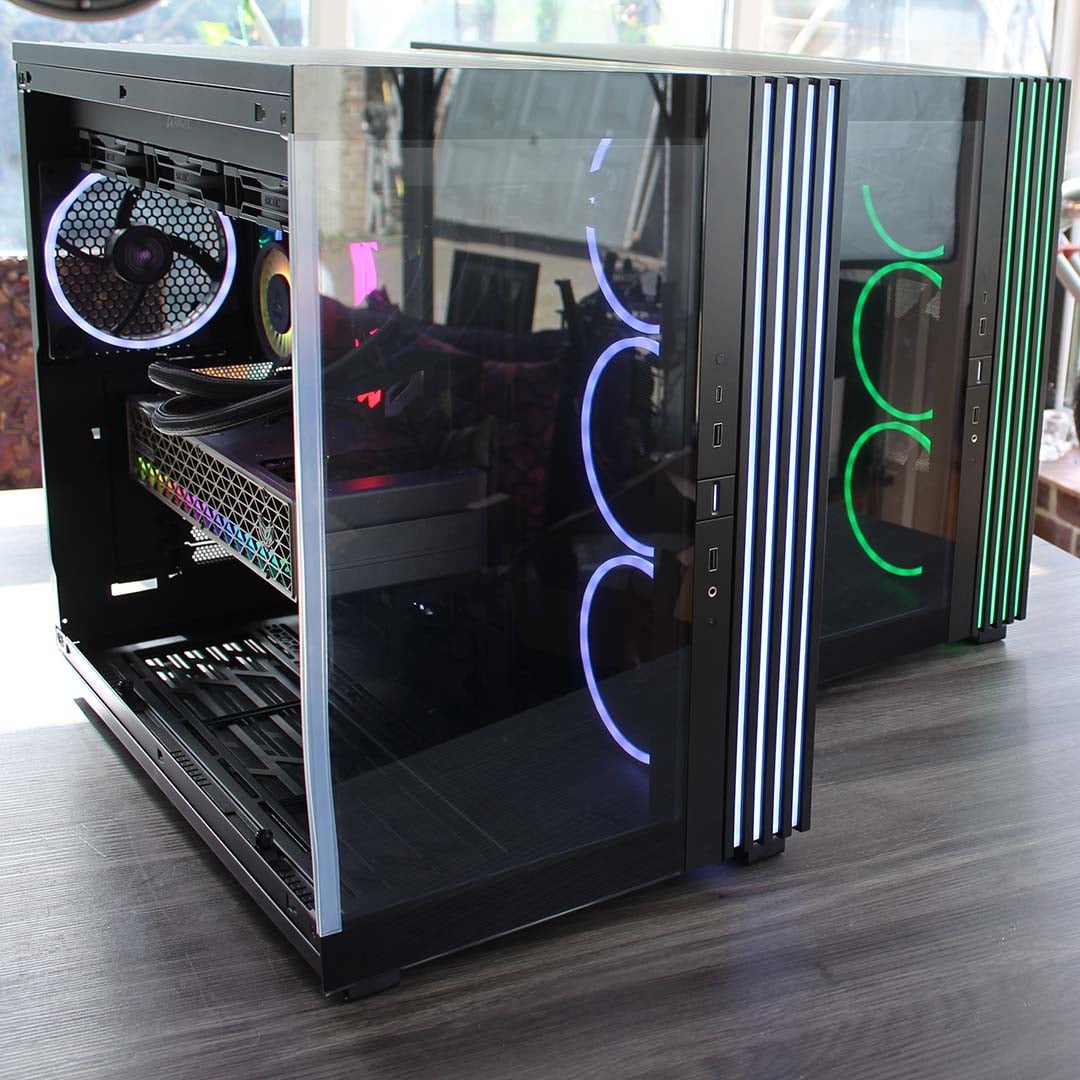
Our 9950X3D Test PCs
Club386 carefully chooses each component in a test bench to best suit the review at hand. When you view our benchmarks, you’re not just getting an opinion, but the results of rigorous testing carried out using hardware we trust.
Shop Club386 test platform components:
CPU: AMD Ryzen 9 9950X3D
Motherboard: MSI MEG X870E Ace Max
Cooler: Arctic Liquid Freezer III 420 Pro ARGB
GPU: Sapphire Nitro+ Radeon RX 9070 XT
Memory: 64GB Kingston Fury Renegade DDR5
Storage: 4TB Sandisk Optimus GX Pro 8100
PSU: be quiet! Dark Power 14 1,200W
Chassis: be quiet! Light Base 900 FX
Performance
CrystalDiskMark
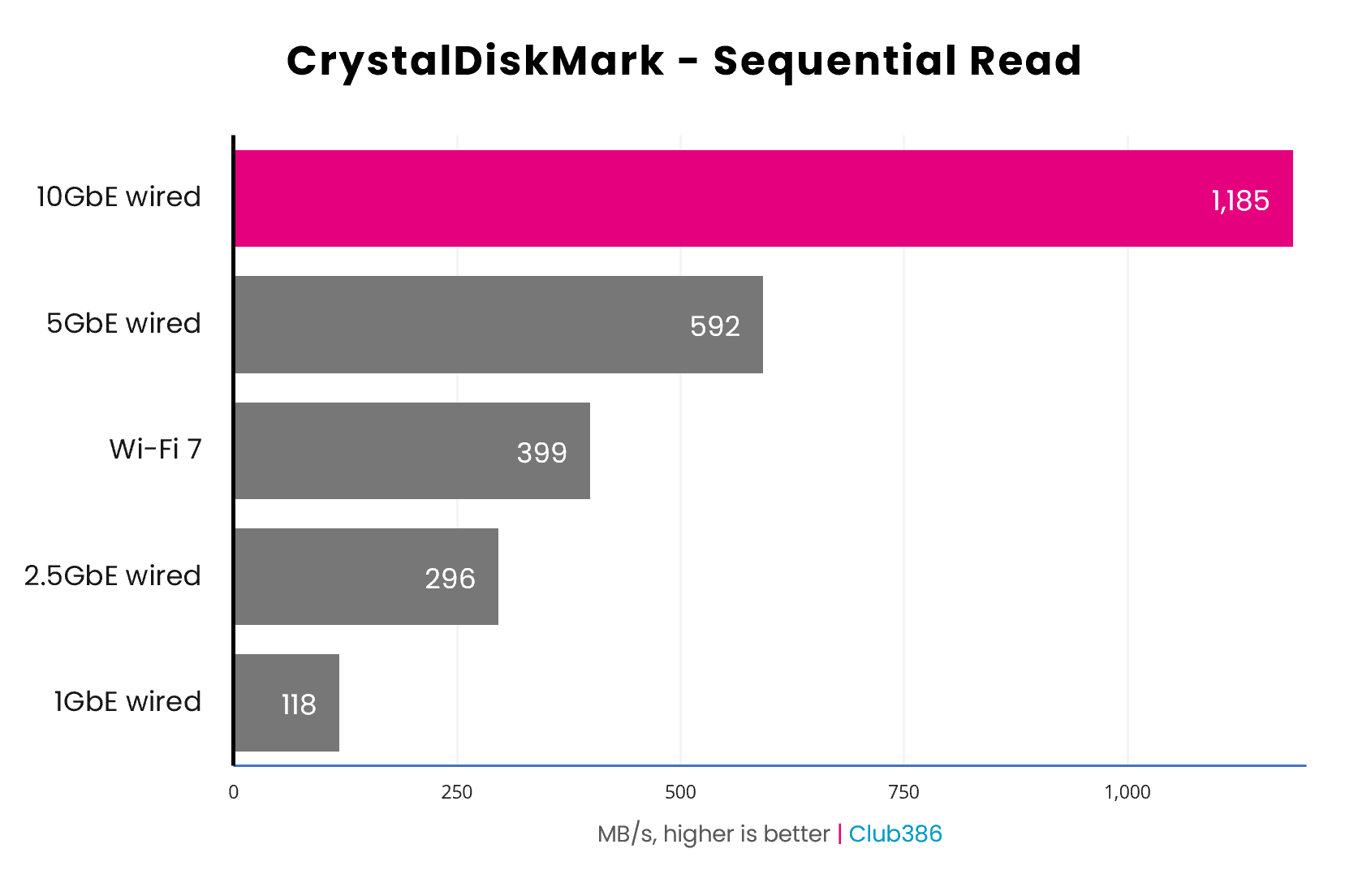
My first test was raw storage performance. There’s a PCIe Gen 4.0 SSD inside the NAS, so it should be able to run at a decent pace across my 10GbE network. As I set it up as an iSCSI device, I was able to run CrystalDiskMark’s sequential read and write benchmarks directly on the SSD over the network, and the speeds were phenomenal.
As you can see from the graph above, there’s an entirely linear progression in raw storage performance when you go between network speeds, and write speeds were practically identical across the board. The 1GbE connection only reads my drive at 118MB/s, while a 2.5GbE network multiplies that almost precisely by 2.5x to 296MB/s. Wi-Fi 7 holds up well here as well, with my networked drive basically performing as fast as a decent local SATA SSD, but over a wireless connection.
The star of the show is undoubtedly the 10GbE connection, though. It’s literally 10x the speed of the 1GbE network, and basically like having a USB 3.2 Gen 2 external SSD plugged into your PC. The difference, of course, is that any device on your network could access it at that speed.
Even comparing 10GbE to other newer wired network speeds, it’s significantly quicker than 5GbE or 2.5GbE connections. It’s not just an incremental upgrade, but a big leap in performance.
Cyberpunk 2077 game transfer
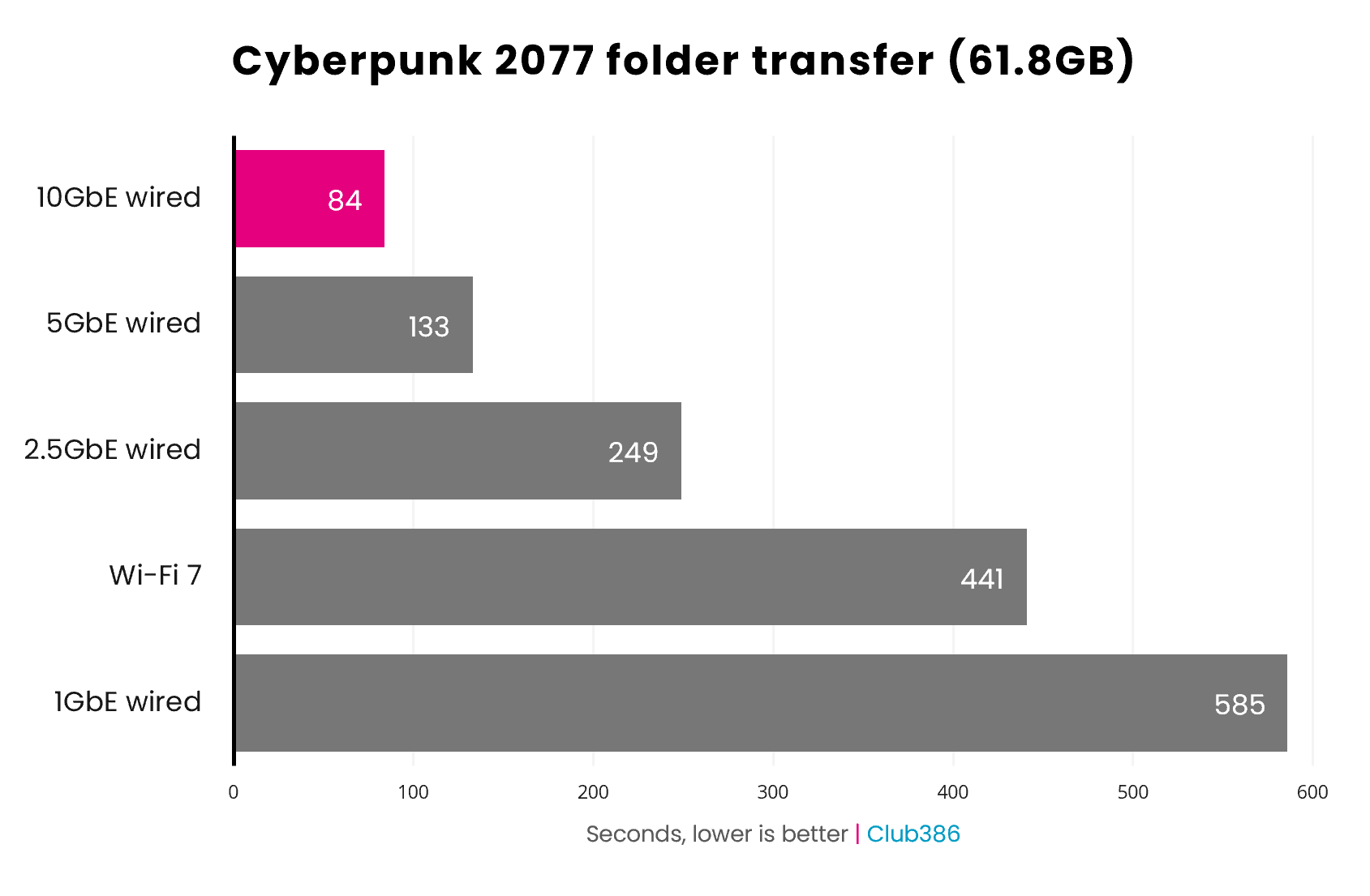
Next up was a game transfer from my PC to the NAS – the sort of task that currently drives me to breaking point on my 1GbE network. In this case, I’m shifting all 61.8GB of my Cyberpunk 2077 install from my PC’s SSD to the QNAP NAS. It took just 84 seconds to move this massive game over 10GbE, which is game changing.
Comparably, a 1GbE network really struggles with this task, taking 585 seconds – nearly ten minutes. You can also really see the benefit of having a wired connection once you get into the nitty gritty of large-scale file transfers, rather than raw speed tests. The Wi-Fi 7 network took 441 seconds here, being slower than the 2.5GbE connection.
Unlike the CrystalDiskMark test, you’re not seeing straight multipliers in speeds here. The 10GbE connection isn’t 10x the speed of a Gigabit network, and so on. However, it’s still nearly 7x quicker, and that makes all the difference.
Just out of curiosity, I also ran this test on a Wi-Fi 5 network, using one of the nodes from my BT Whole Home Wi-FI mesh setup. I plugged this node into the 10GbE switch, and connected to it at point blank range (on the same desk) from the Wi-Fi 7 adaptor in our test rig. It took a mind-boggling 1,306 seconds (over 21 minutes), and I’ve come to the conclusion that I really need to upgrade my home network setup.
Photo folder transfer
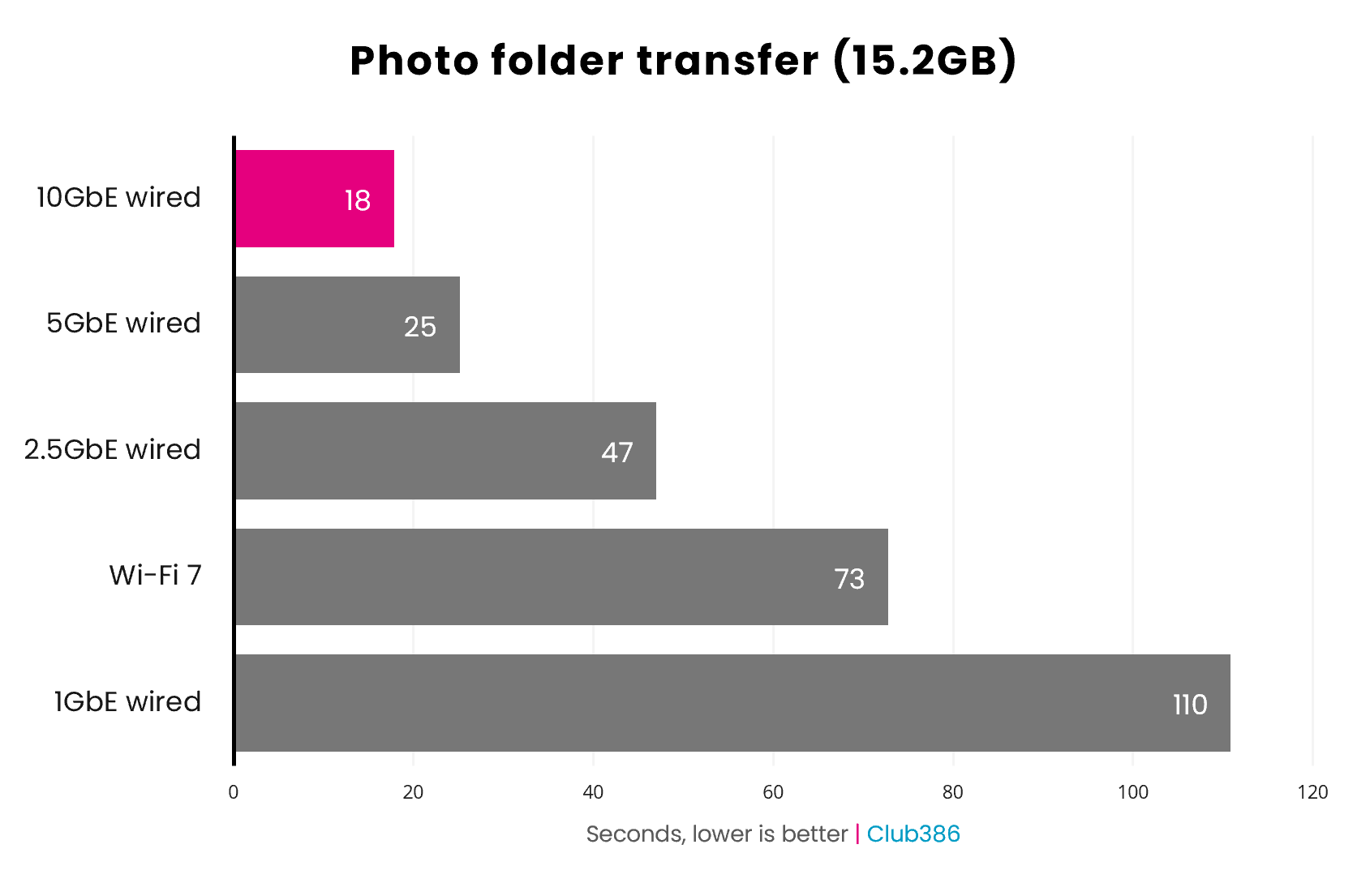
Finally, I wanted to conduct another real-world file transfer test. I have a 15.2GB folder of photos on my NAS, which I regularly access from my devices. I wanted to see how quickly I could move the whole lot from my PC to a NAS over various connection speeds, and again the 10GbE network’s performance was stunning.
It completed the job in just 17 seconds – it was just like transferring data between two local M.2 SSDs. Again, there isn’t a linear increase in speed as you drop connection bandwidth here – the 5GbE connection only took a little longer at 25 seconds. However, you can once more see the benefits of wired over wireless here, with the Wi-Fi 7 connection again sitting behind a 2.5GbE wired network. Meanwhile, the old Gigabit network took nearly two minutes to complete the same task.
Conclusion
This is a slam dunk for me – 10GbE networking is the bomb, and it’s high time we relegated Gigabit Ethernet to the bin of obsolescence, at least in terms of performance. Upgrading to the 10GbE is transformative in terms of storage speeds, with a significant impact on real-world waiting times. You’re basically going from minutes of thumb twiddling to a job being done in a few seconds.
The barrier, of course, is cost. Upgrading your whole setup to 10GbE isn’t just a case of buying a new network card for your PC – you also need a switch/router and a compatible NAS if you really want to take advantage of it. Not only that, but you may need to consider replacing your UTP cabling as well.
While that’s not a straightforward or cheap process, it’s also not like we haven’t done it before. We had to replace BNC 10Mb network cards, gear, and cabling in the past, and it’s a price you sometimes have to pay when a big technical leap comes along. For a lot of us, upgrading to 10GbE may well be a gradual process – starting with a motherboard, then a router, and then a NAS when you can afford it. If you’re thinking of putting a wired network in your home, though, or upgrading your office network – take my advice, and go with 10GbE – it’s a massive upgrade and well worth it.