


After spending a few days testing the MSI Roamii Be Pro, I’m about ready to retire my wired network – MSI’s new mesh system is genuinely that powerful, even with just two nodes. For the first time since I moved into my three-bedroom Victorian terrace 11 years ago, I’ve been able to max out my broadband connection in every single room, from front to back. It’s not without its faults, which I’ll come to later, but MSI has basically solved Wi-Fi coverage in your average UK home.
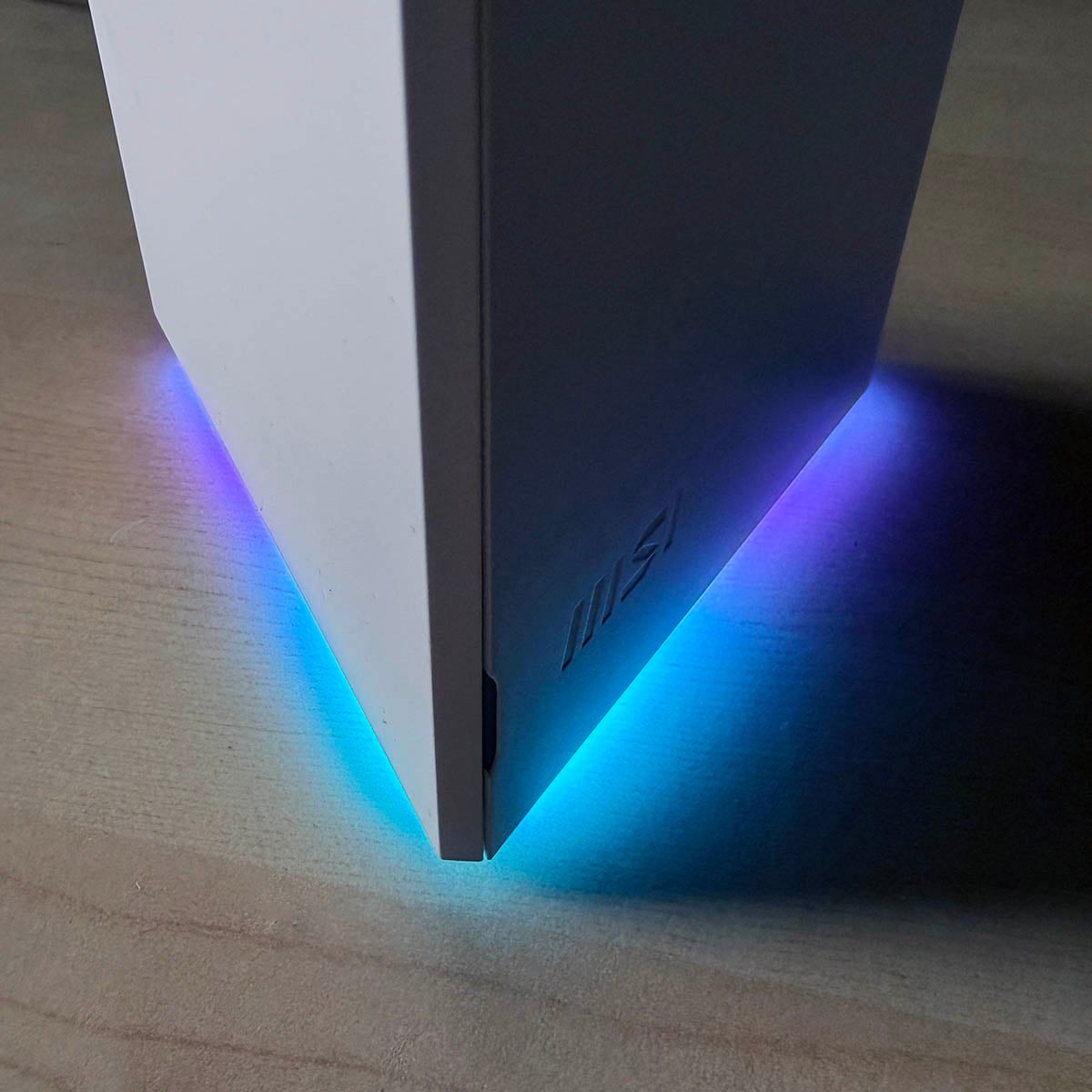
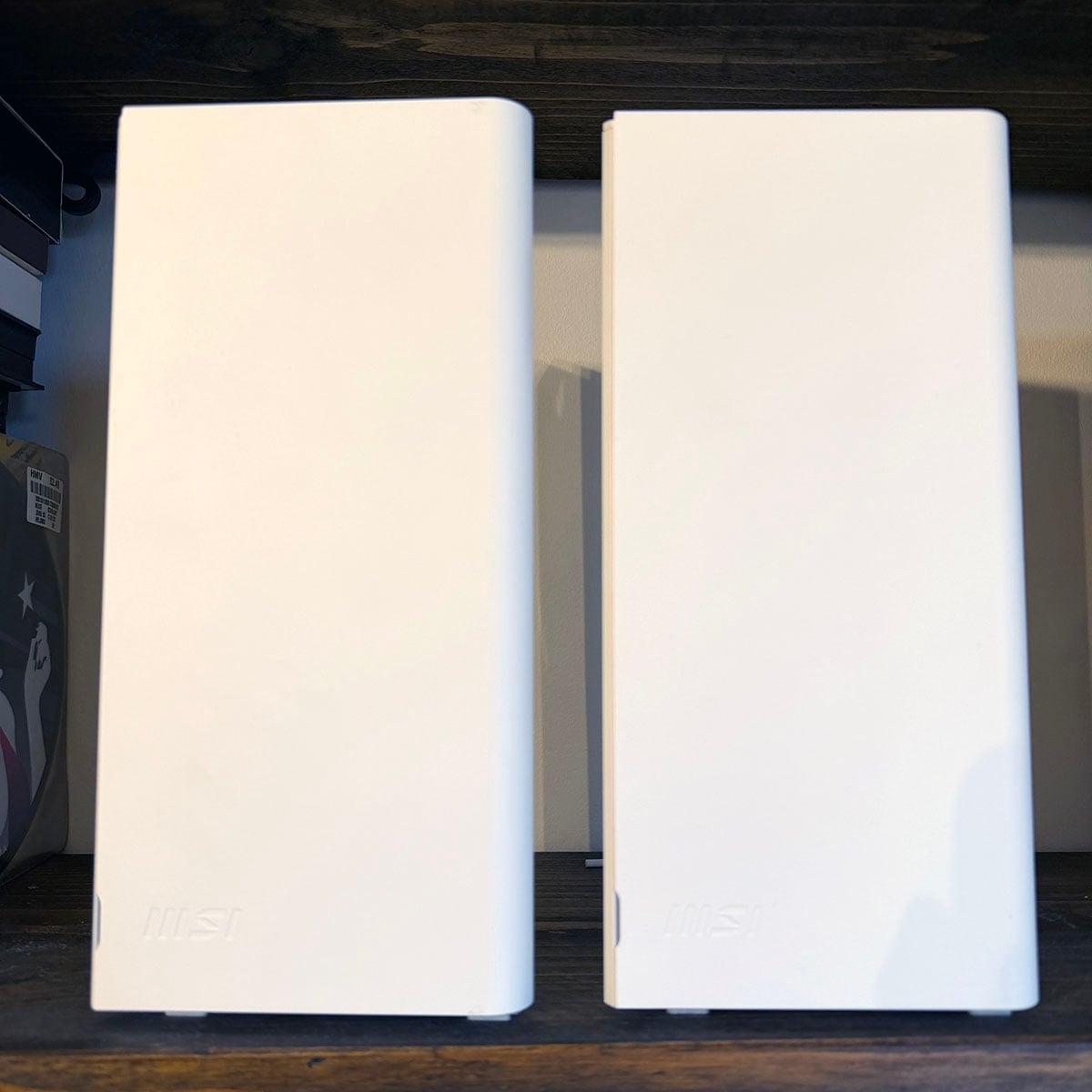
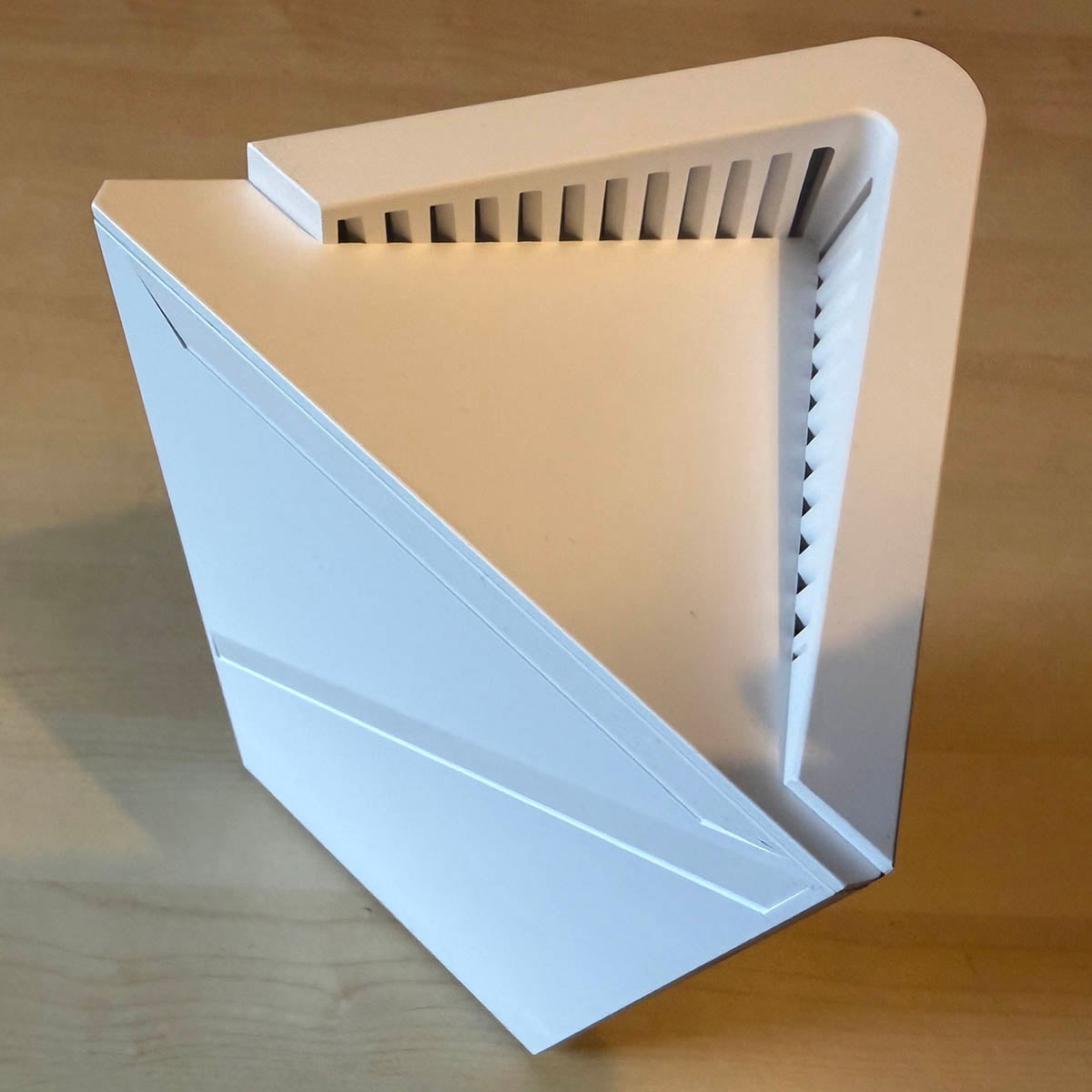
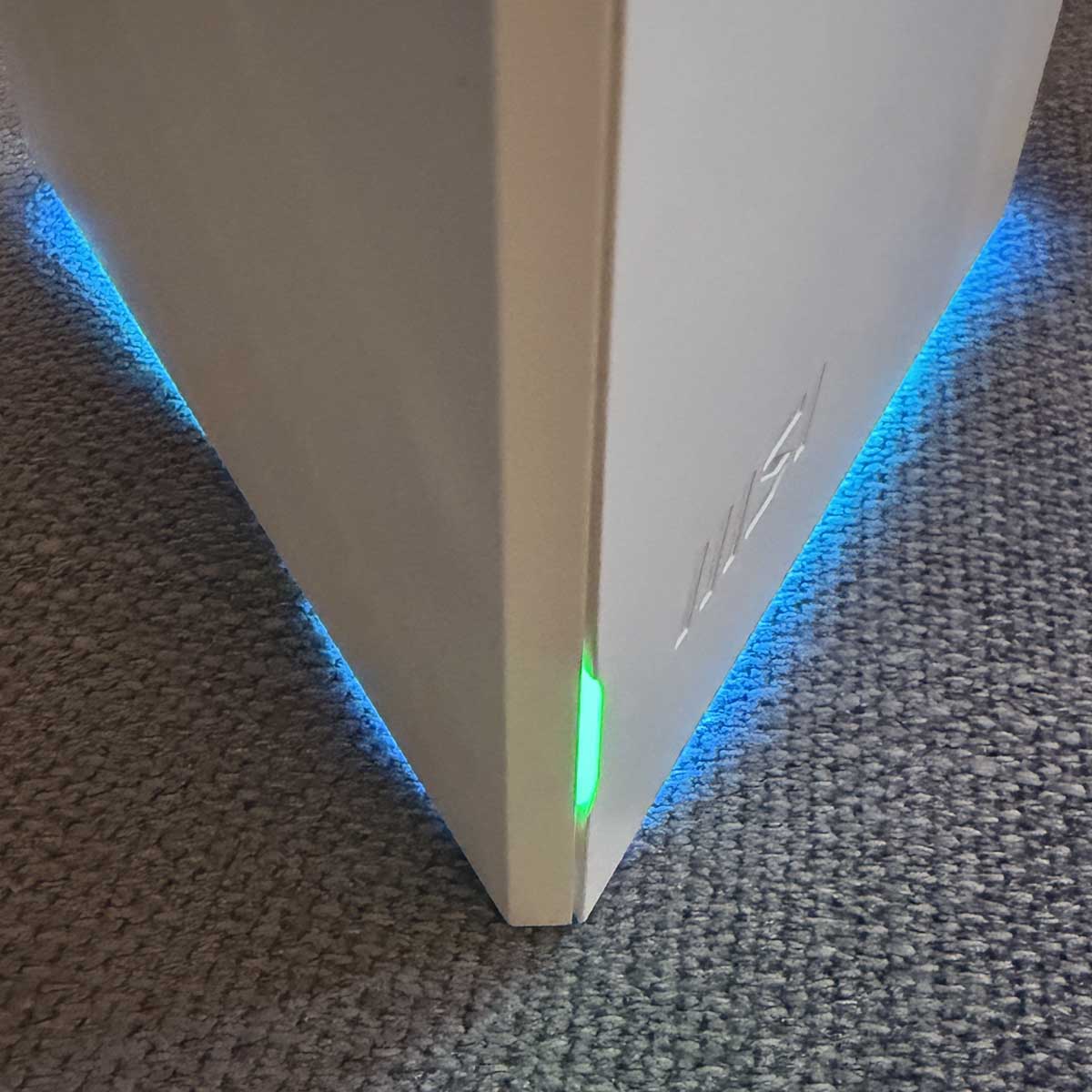
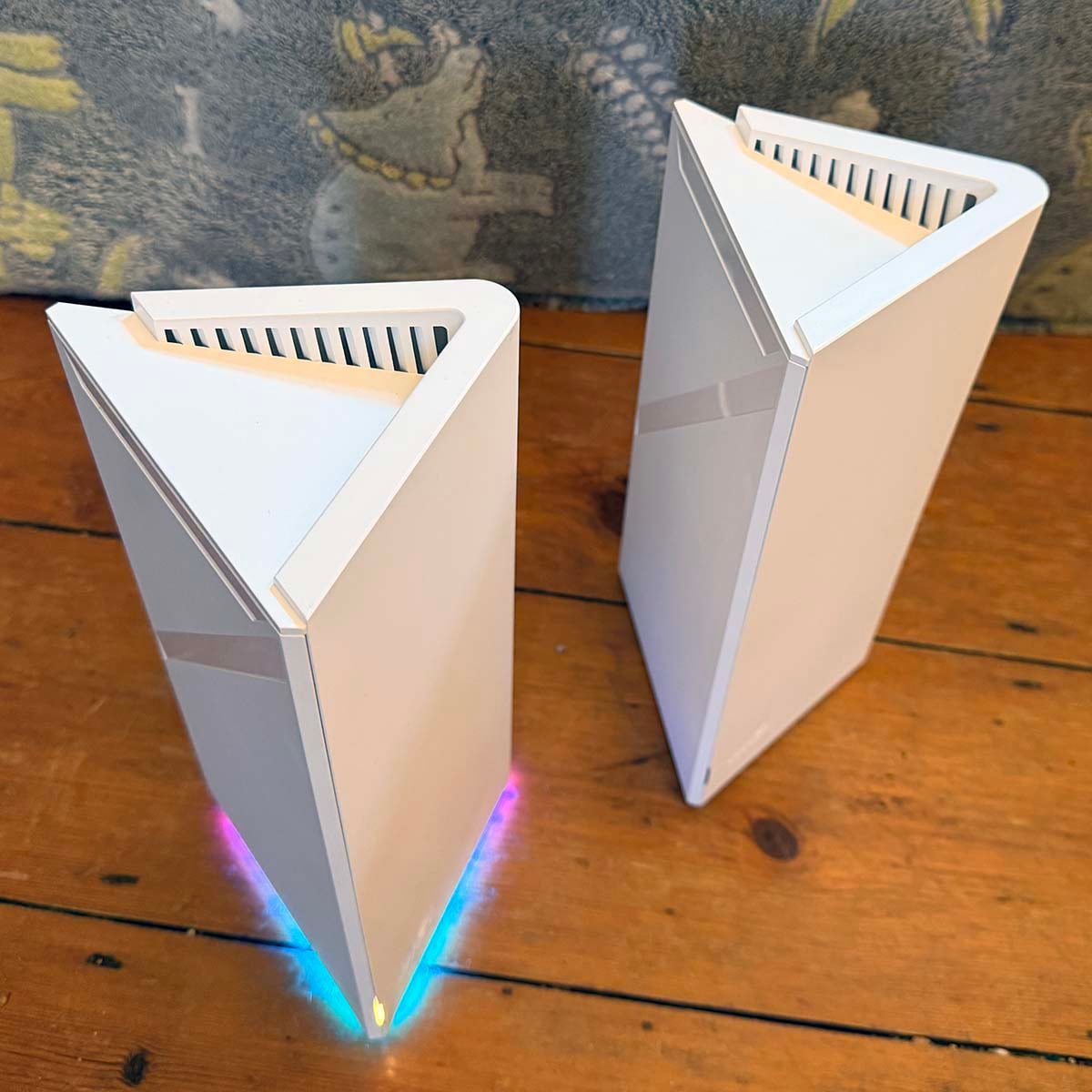
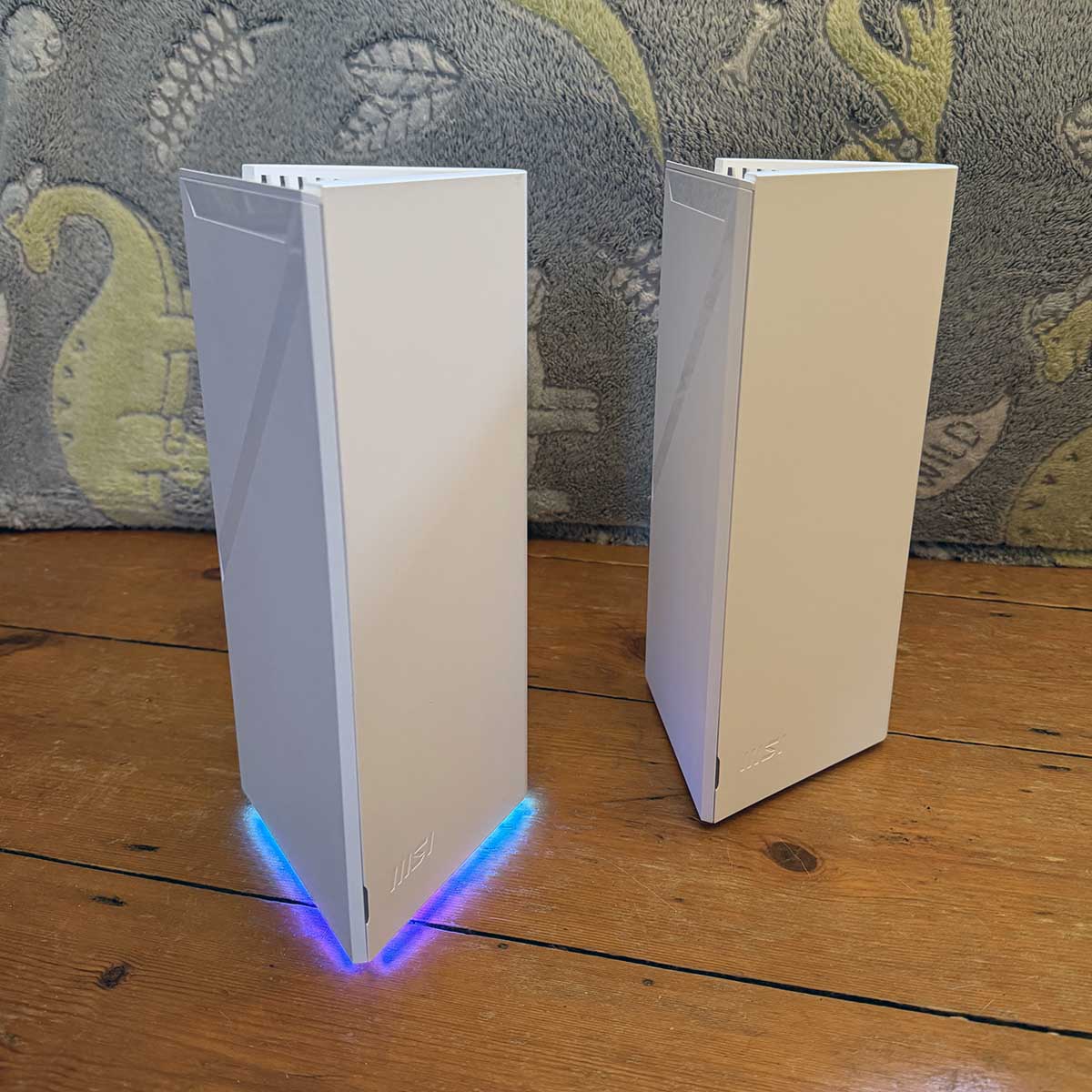
Following on from the Roamii Be Lite, which also really impressed us, this new set introduces 6GHz Wi-Fi, along with some new smartphone controls via MSI’s Router 2.0 app. The new nodes look handsome as well. Unlike your average gaming router, these smart towers don’t stick out in your lounge like a ridiculous cyberpunk spider, and all their antennae are subtly concealed inside the units. Meanwhile, a ray of customisable RGB lighting glows from the undersides, without looking garish and over the top, but making the nodes look more interesting than white towers of plastic.

MSI Roamii BE Pro Mesh System
£249.99
Pros
- Outstanding Wi-Fi coverage
- Fast performance
- Smart looks
- Loads of 2.5Gb/s Ethernet ports
Cons
- Smartphone software needs a lot of work
- Frustrating setup process
Club386 may earn an affiliate commission when you purchase products through links on our site.
How we test and review products.
Specifications
| Roamii BE Lite specification | |
|---|---|
| Wi-Fi | Wi-Fi 7 (802.11be) Wi-Fi 6 (802.11ax) Wi-Fi 5 (802.11ac) Wi-Fi 4 (802.11n) 802.11g / 802.11b / 802.11a |
| Frequencies | 2.4GHz / 5GHz / 6GHz |
| Speed | 5,764Mb/s (6GHz) 4,323Mb/s (5GHz) 688Mb/s (2.4GHz) |
| Encryption | WPA-PSK / WPA2-PSK / WPA3-PSK |
| Security | Trend Micro FortiSecu Guest network isolation Network security Parental controls |
| Ports | 2.5Gb/s (x4) per unit |
| CPU | Quad-core 1.5GHz |
| Management | MSI Router 2.0 smartphone app Web browser interface |
| Antennae | Six (internal) |
| Dimensions | 118.5 x 108 x 252.5mm (each unit) |
| Weight | 830g (each unit) |
| Features | 4K-QAM Adaptive Puncturing Beamforming Guest Wi-Fi / Multiple SSID Multi-Link Operation (MLO) MU-MIMO Multi-RUs OFDMA WPS |
In terms of core specs, there’s not an enormous difference between the MSI Roamii BE Pro and the aforementioned Lite system. The main upgrade is that there’s now support for 6GHz in addition to the standard 2.4GHz and 5GHz frequencies, complete with wide 320MHz data channels. This is an optional part of the Wi-Fi 7 spec that isn’t supported by the Be Lite, and it means each channel can support more data packets at a time.
These smart towers don’t stick out in your lounge like a ridiculous cyberpunk spider.
Plus, thanks to Wi-Fi 7’s support for 4096-QAM (Quadrature Amplitude Modulation), each of those packets can carry up to 12 bits, rather than the maximum of 10 on 1024-QAM (Wi-Fi 6E). Add the two together, and you end up with the ability to send data more efficiently between servers and clients, and faster speeds too.
In fact, MSI says you can get up to 5,764Mb/s over 6GHz. Meanwhile, Wi-Fi 7’s multi-link operation support means you no longer need to think of 2.4GHz, 5GHz, and 6GHz bands being effectively separate networks – data can be sent over all of them simultaneously.
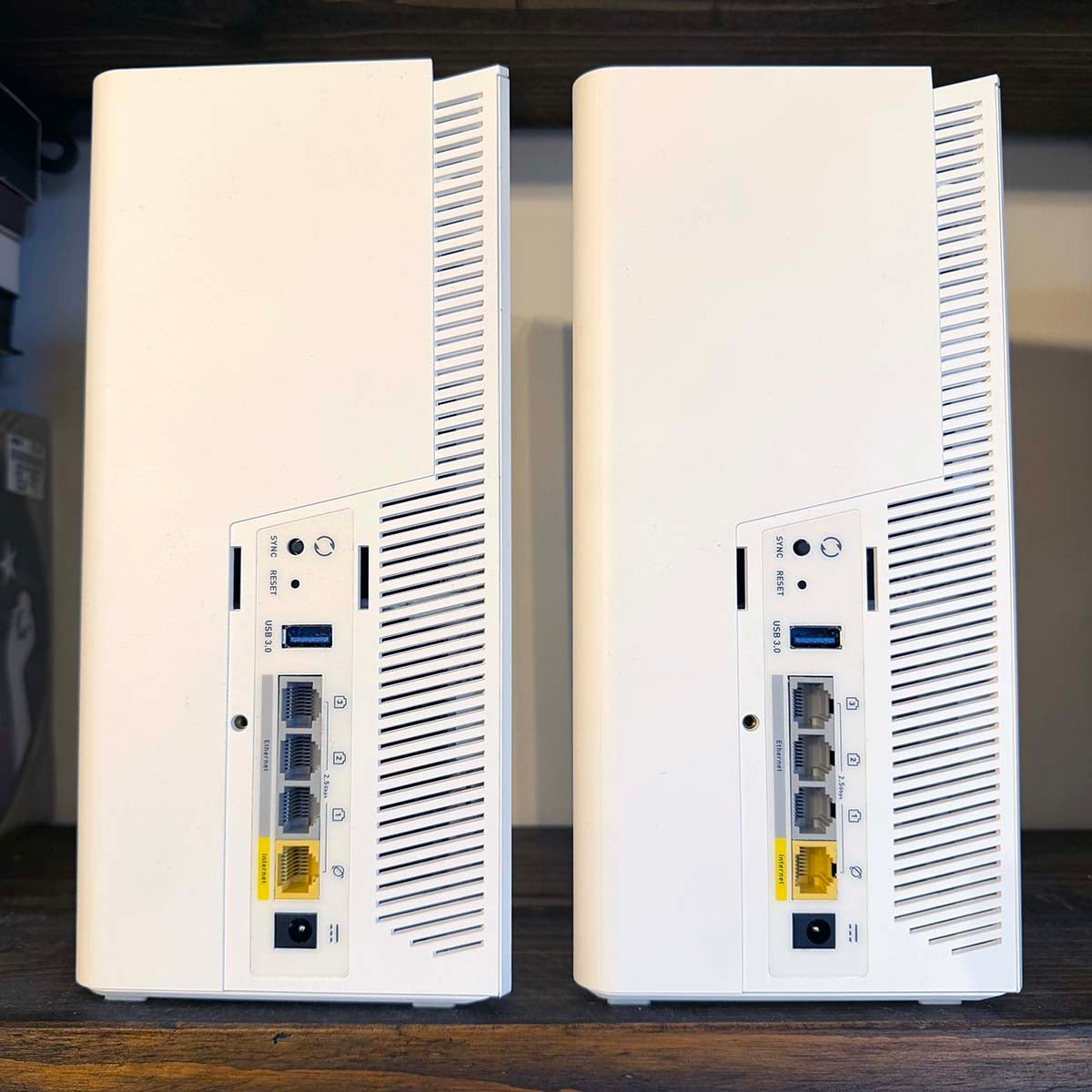
MSI has also gone all out on wired network support with this set. Each node has four Ethernet ports, one of which connects to your broadband modem on the base router, and all of them support 2.5Gb/s. There isn’t a single Gigabit Ethernet socket on the whole setup – it’s 2.5Gb/s all the way.
There isn’t a single Gigabit Ethernet socket on the whole setup – it’s 2.5Gb/s all the way.
While that’s still not an essential for everyone, many PCs and laptops come with 2.5Gb/s network connections now, as do the latest NAS boxes. If your broadband connection exceeds 1Gb/s, then this is genuinely useful, and it’s also good to have so many ports. I use wired connections for my Yamaha AV receiver, Nintendo Switch 2 dock, and Synology NAS box, and this meant all three of them could be plugged straight into the router.
If, like me, you have a wired network in your home, you can also hook up the second node using a wired backhaul, rather than wireless, although I actually found the wireless backhaul was more than stable and fast enough.

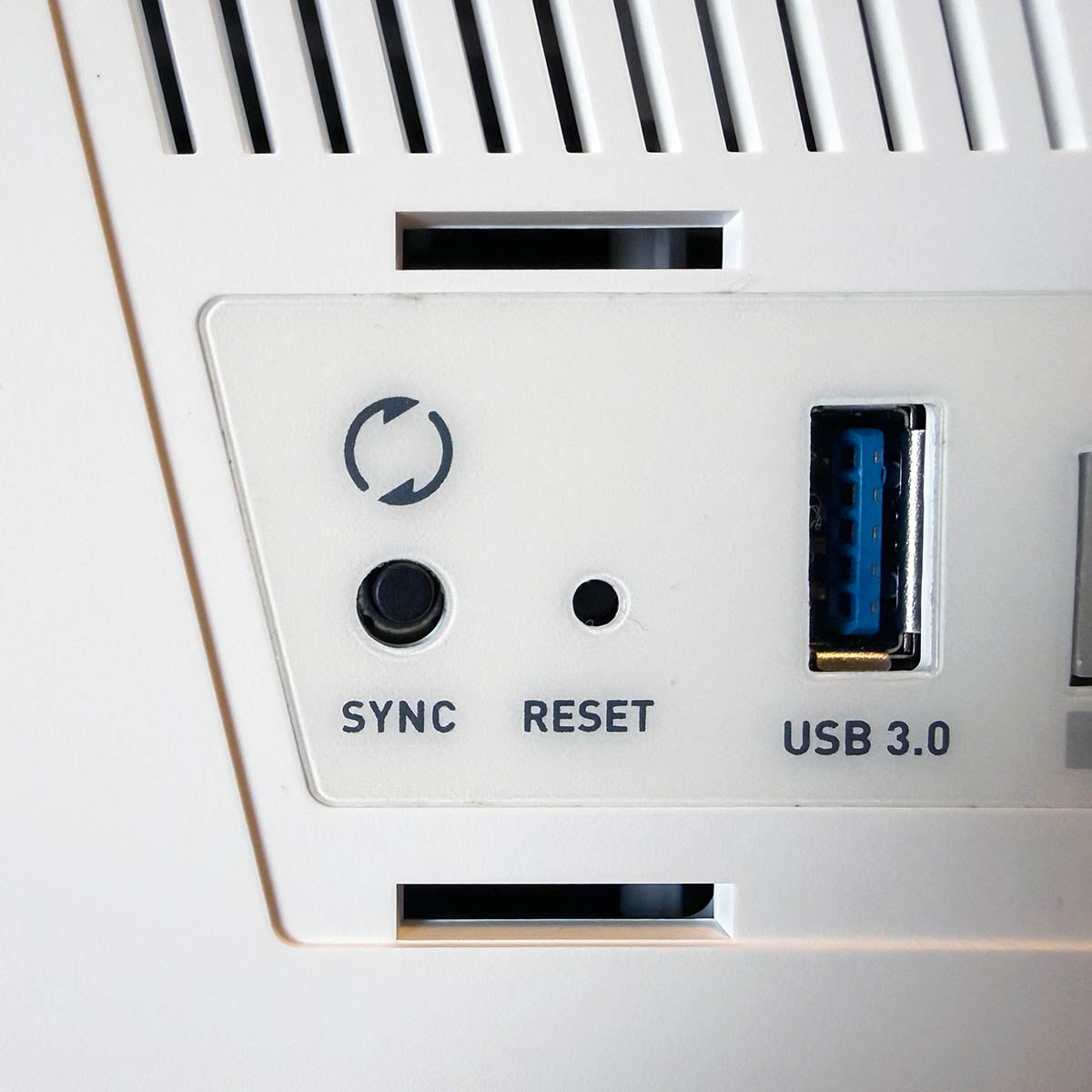
In case you’re unfamiliar with all this talk of meshes and backhaul, it’s worth taking a step back just to go through the basics of mesh routers. The idea is that, rather than having just one router in your home, you have several of them dotted around. All these routers are then grouped together under one network name (SSID), so you don’t need to constantly connect and reconnect to range extenders with different names as you move around your home. The backhaul is basically a high-bandwidth channel between the routers that enables them to share data with each other enormously quickly.
Finally, it’s worth noting that the Roamii Be Pro’s node towers are heftier than the ones supplied with the Be Lite. They each measure 252.mm tall and weigh 830g on the Be Pro, compared to 238mm and 585g, respectively, on the Be Lite. Handily, you get some mounts in the box for fitting them to your walls as well.
Software
MSI says its mesh system is aimed at people who ‘have no clue about internet/networking’ and promises ‘easy setup’ from its Router 2.0 smartphone app. I’m afraid I beg to differ, as I had a frustrating time setting up the Be Pro with my iPhone 17 Pro, and you do need a modicum of networking knowledge for troubleshooting. Once it’s all set up and working, the performance is amazing, but this is one area where MSI needs to iron out some issues.
There are some good ideas here, but they’re not particularly well implemented at the moment. The setup procedure starts off well – you download the app, and plug in one of the nodes. Unlike some mesh networks, such as BT’s Whole Home Wi-Fi sets, you don’t need to plug the Roamii Be Pro into an existing modem/router – you can connect it straight up to your broadband with your login details – just make sure you have them to hand before you start.
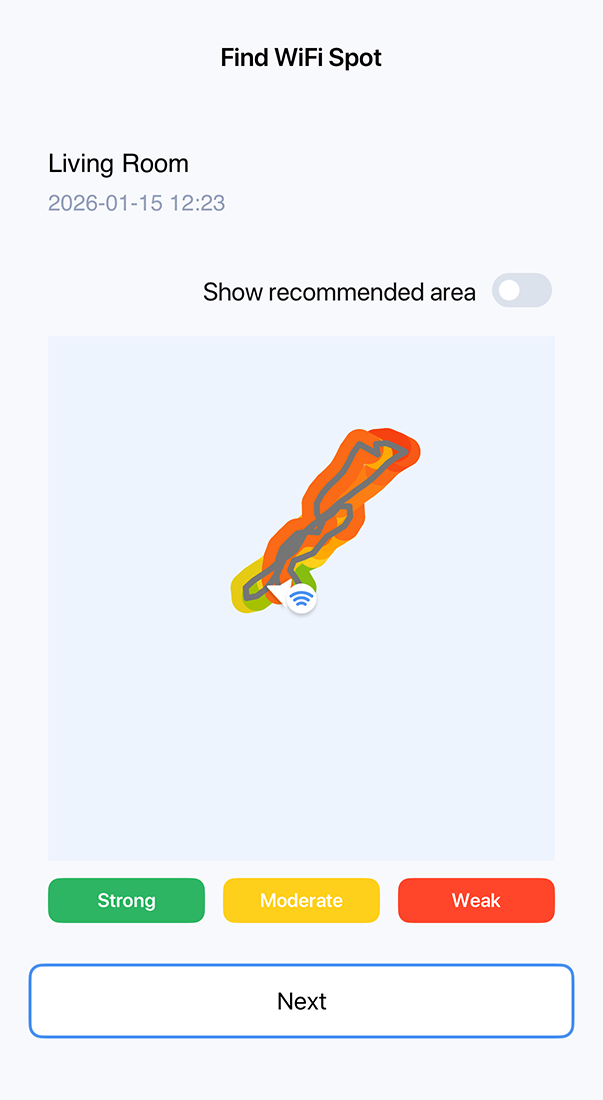
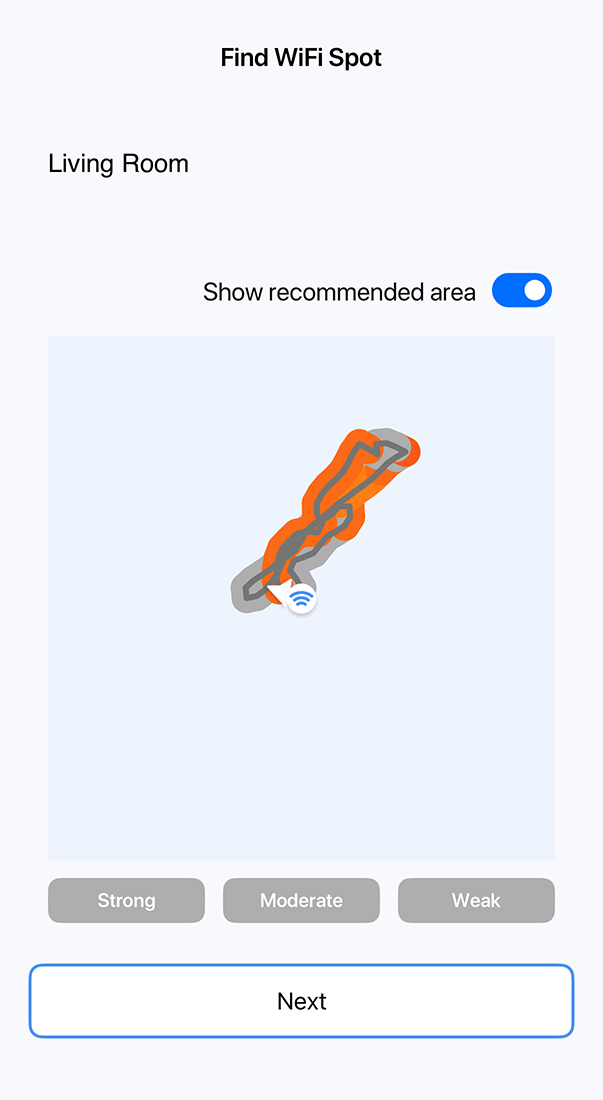
Once it’s all plugged in, you then need to connect your phone directly to your new router with the app, and it will then start getting you set up. A part of this process is a neat-looking feature that takes you on a walk around your home, leaving the base node by your broadband outlet, so you can find a good spot for the second node. While you’re on your walk, the app follows your path with a coverage heatmap – green is good, red is bad.
So far, so good. However, if you live in a compact, two-floor, house, like many in the UK, it doesn’t discern between floors, and just draws the next storey’s path over the previous one. When you flick the button to display the recommended area, it just shows you a homogenous red and orange splodge that could be anywhere. I chose the middle of the upper floor for my second node, which was in an orange/red area on either floor. It’s a good idea, but it needs more time in the oven.
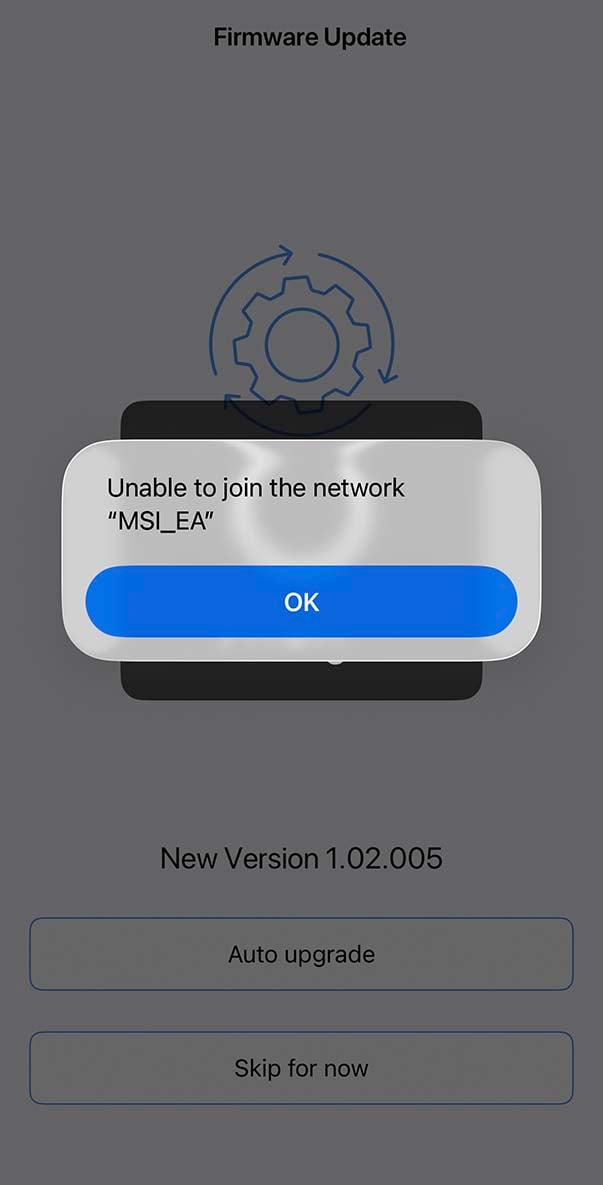
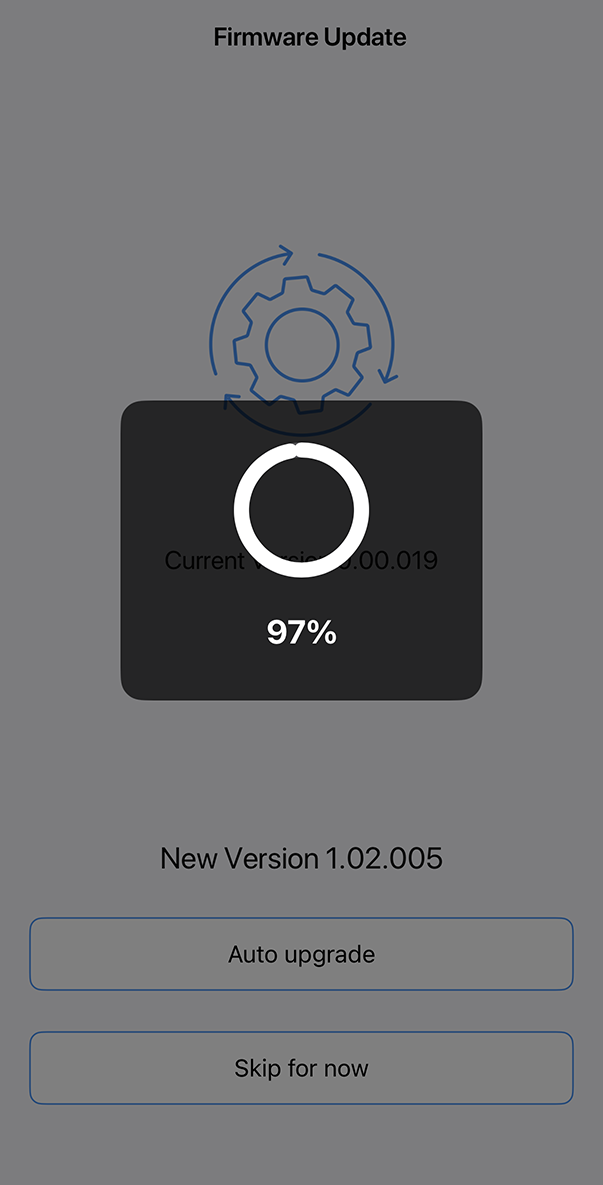
Confusingly, though, you don’t then put your second node in this location right away. Instead, you need to remember the chosen spot, and plug in your second node right next to the first one. The two towers then talk to each other for a while (just under eight minutes), with progress relayed via the colour of the front main light. When it’s white, it’s all set up and ready to be installed at the preferred location. At least that’s the theory.
I then had the option for a firmware update, which took nearly ten minutes. When the routers restarted, the app told me it couldn’t log in any more. As the routers had been temporarily turned off, my phone had moved to my mobile data network instead, so it wasn’t connected to the router – a problem to look out for when you’re setting up a network with a wireless smartphone rather than a wired laptop.
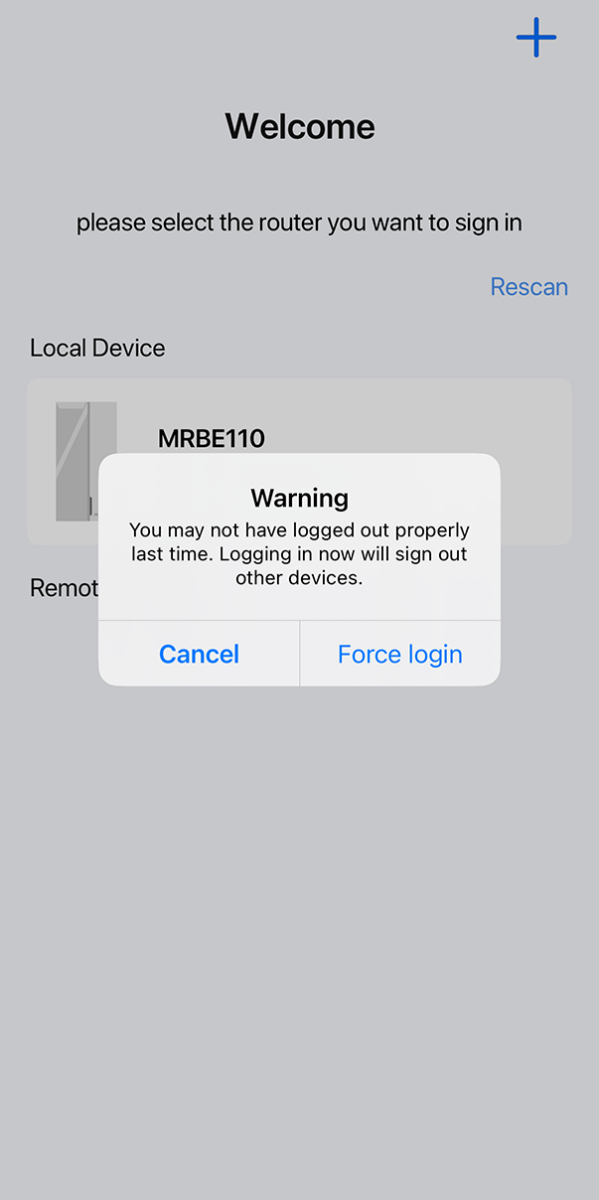
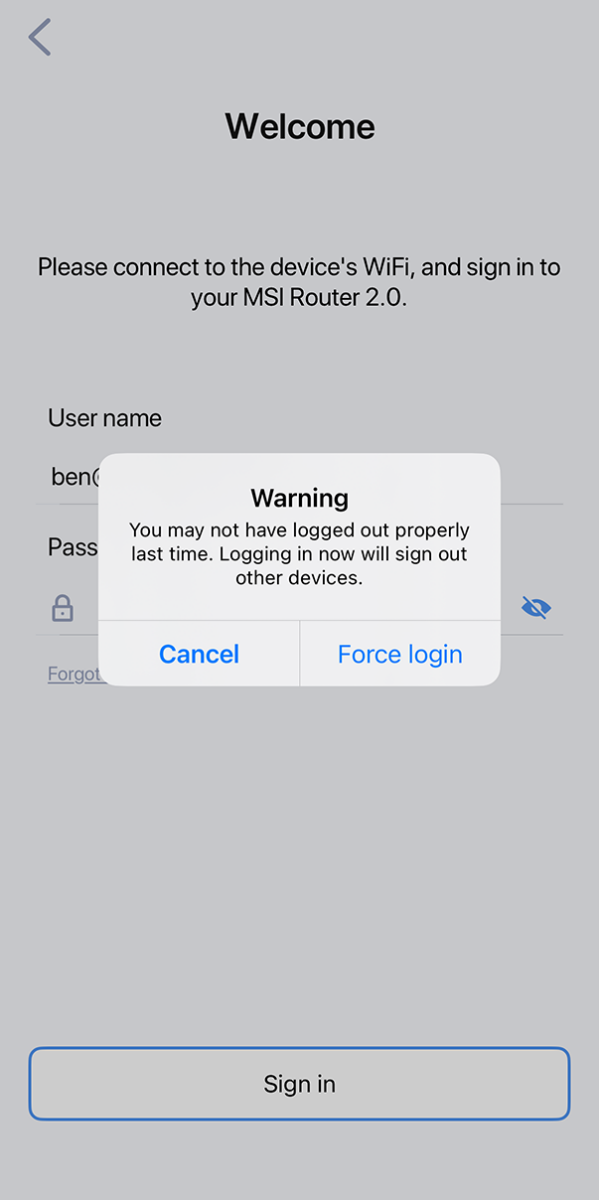
That was easy enough for me to work out, but if I were someone with ‘no clue about internet/networking,’ I’d wonder what was going on – the screen just told me it couldn’t join the network any more, without any detail. The app then warned me that it couldn’t sign in to the router, because it may not have logged out properly. The only options here are Cancel and Force Login, neither of which looks particularly friendly. Once you force the login, you’re fine, but again, I’d worry about this if I weren’t tech savvy.
To complicate matters, the app frequently crashed out during testing. Every time you restart it, you’re then given the same warning about not being properly logged out, and that forcing a login will sign out your devices.
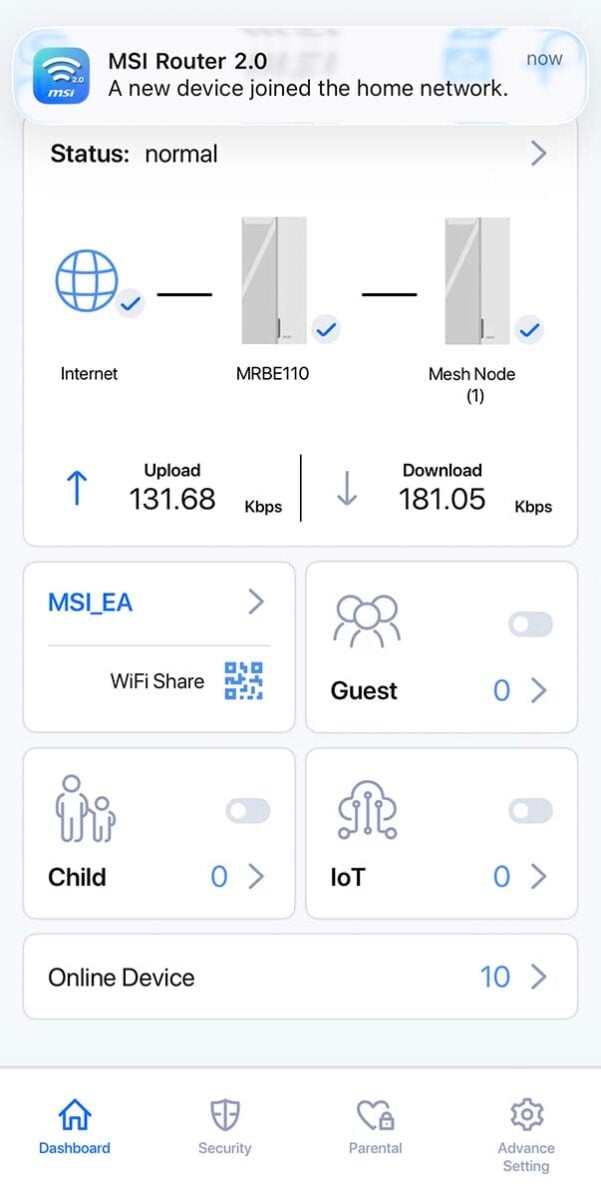
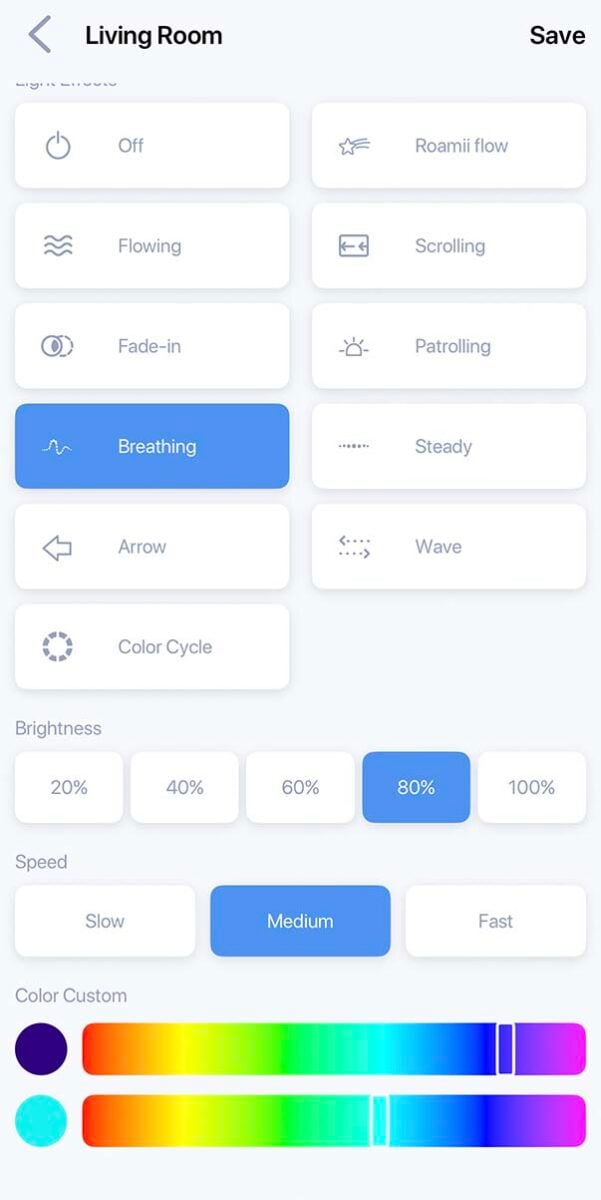
That’s a shame because, when it’s working, the app is actually really well laid out. It’s easy to set up your router as you like it, with options for creating guest and child networks, enabling DDNS, and sharing the login with a QR code. You also get notifications when new devices join the network, and you can adjust colour and transition effects for the RGB lighting.
There are a load of parental control options as well, which you can assign to different members of your household. Annoyingly, though, the app frequently crashed during the creation of these accounts. It took several attempts to create one and adjust its settings, and the app ended up creating two accounts with the same name in the process.


Once I finally had a user account up and running, there were options to block sites, from adult content to ‘controversial’ topics, although you only get tickboxes for each one, with no granularity for blocking specific domains. You basically have to trust that MSI’s app will do a good job here, and as a parent, I’d much rather have more control.
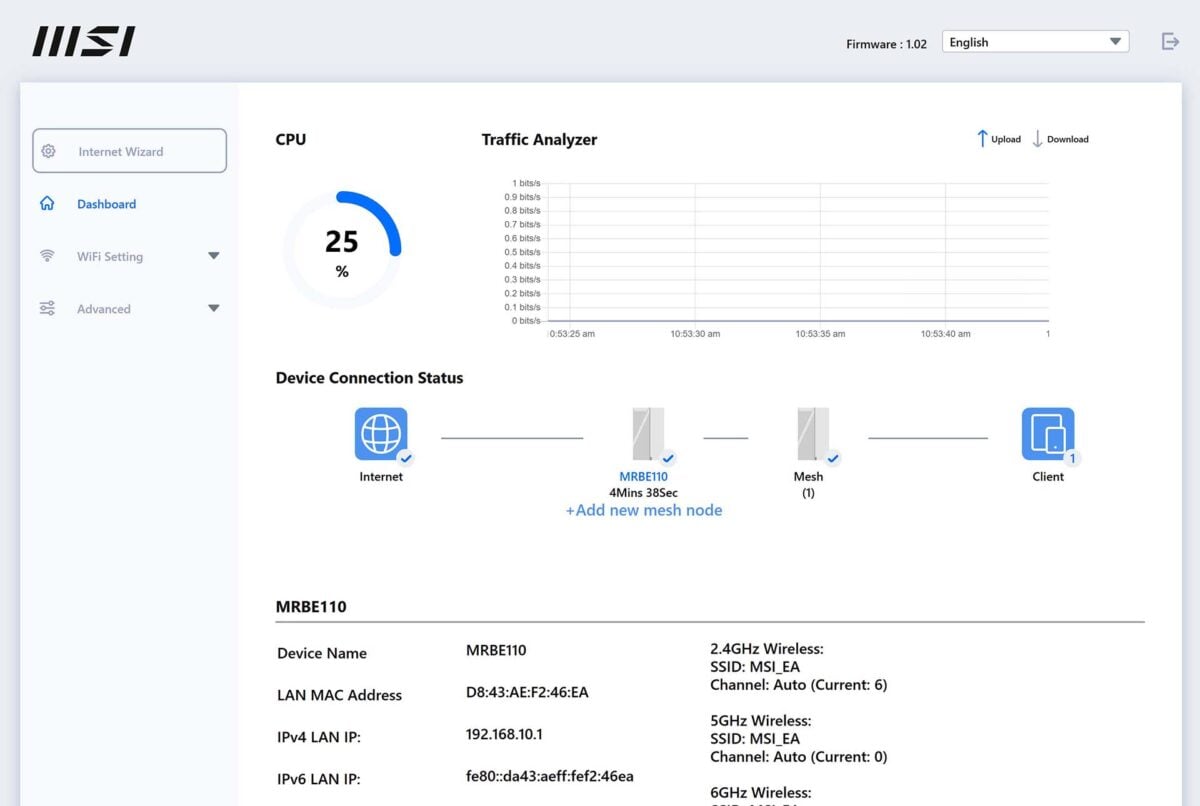
On the plus side, you can also access the router settings via a web browser, which is much more stable, but lacks some settings found on the app, including parental controls.
Performance
I might have complained a lot about MSI’s smartphone router software, but the hardware is clearly absolutely amazing. I’ve tested a number of routers in my home, and I’ve never seen anything like the coverage of the Roamii Be Pro before. I currently use a BT Whole Home Wi-Fi set, with three units, which just about covers the house. However, even this three-node set still struggles once you get to my back office bedroom with the door closed.
As such, I wasn’t holding out high hopes for the Roamii Be Pro, given that it only contains two nodes. However, I was amazed by the coverage when I tested this set around my house, using my iPhone 17 Pro and Ookla Speedtest.
| MSI Roamii BE Pro | BT Whole Home Wi-Fi | FRITZ!Box 7530 AX | |
|---|---|---|---|
| Living room | 511Mb/s | 514Mb/s | 507Mb/s |
| Kitchen | 507Mb/s | 178Mb/s | 29MB/s |
| Front bedroom | 507Mb/s | 263Mb/s | 217Mb/s |
| Back office (open) | 506Mb/s | 207Mb/s | 5Mb/s |
| Back office (closed) | 434Mb/s | 174Mb/s | No signal |
As you can see from the table above, there’s just no stopping this two-pronged tour de force. I have a ~500Mb/s broadband connection with Zen Internet, and the standalone FRITZ!Box 7530 AX Wi-Fi 6 router provided by my ISP really struggles beyond the front of my house, with barely any signal at all in my back office room. The BT Whole Home Wi-Fi set does better, but even then, it drops below 200Mb/s in the kitchen, and when I close the door to my back office room.
Comparatively, the Roamii Be Pro consistently ran at above 500Mb/s throughout the whole house. Even closing the door to my back office, which is usually a Wi-Fi killer, resulted in a brilliant speed of 434Mb/s. To give it a real-world work out, I then downloaded Baldur’s Gate 3 on Steam in my back office (with the door open), and the download speed was a constant 480-499Mb/s. Brilliant. Even the 11ms PING in this room was solid, with results of 9-10ms in the other rooms.
TCP network bandwidth peaked at a massive 2.02Gb/s, which is tremendous speed for Wi-Fi.
Beyond the confines of my 500Mb/s broadband connection, this router set is also supremely capable. To get an idea of its maximum abilities, I set up my desktop PC with a 2.5Gb/s Ethernet adaptor as an iPerf3 server, and connected it directly to the base router with a network cable.
Using an Asus Zenbook with a 6GHz Wi-Fi 7 adaptor as a wireless client, TCP network bandwidth peaked at a massive 2.02Gb/s in the same room as the router – that’s tremendous speed for Wi-Fi.
Moving the laptop throughout the house saw speeds generally in the 1.3-1.6Gb/s range, dipping just below 900MB/s in my office room with the door closed. Basically, you could easily share a 1Gb/s broadband connection throughout a typical UK house with this router set, and get network speeds well beyond that.
Conclusion
MSI has produced some killer hardware with its Roamii Be Pro. If, like me, you’ve been struggling to get Wi-Fi into every corner of your house, this mesh set can do an awesome job of maintaining high performance throughout your home, negating the need for wireless networking entirely. I was sceptical about whether just two nodes could do it, but it puts my current three-node set to shame. The networking bandwidth available here is tremendous, and it’s packed with high-speed wired networking ports as well.
This pair of white towers isn’t cheap at £249.99, but it’s absolutely worth it for the performance and coverage on offer, and they even look good. What’s not so good is the smartphone software, which has a noble aim of making mesh networking accessible to newcomers, but falls flat with regular crashes, sign-in problems, and other idiosyncrasies. It feels as though MSI could do with properly focus-testing its software with lots of regular people so it can iron out these issues early on.
As such, despite MSI’s best wishes, I currently only recommend buying the Roamii Be Pro if you’re at least a little network savvy, and willing to put up with the software quirks. That’s a pity, because the hardware and network coverage is absolutely fantastic – with more thought and QA put into the software, this would be a superb mesh router set.