
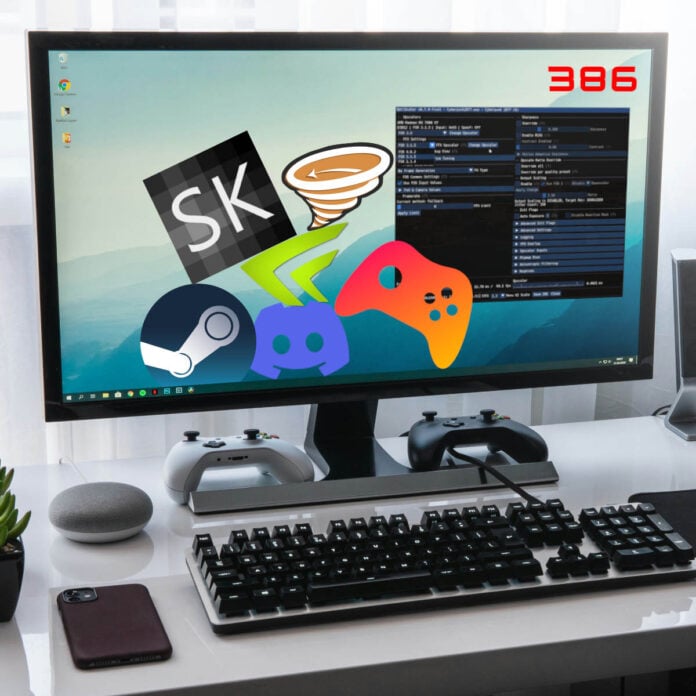
Whether you have the best PC config on the market or a modest second-hand machine, software plays a big role in your gaming experience, be it by simplifying your life or by optimising your hardware. Today, I will share with you a list of gaming-oriented apps that can take your journey to the next level, many of which I can no longer live without. I will try to keep the list focused on universally useful software pieces, but some are just too good to omit, even if they may be rarely used. If you’re looking to set up your PC for gaming or simply want to make sure it’s spitting out the current number of fps, there is something for you.
Note that this list will focus on Windows, but many of these entries are also available on Linux. Also, I won’t be including a number of popular hardware tweaking suites, as I’ve covered those already in my list of must-have free hardware monitoring and benchmarking apps. Lastly, before we start, don’t forget to check out our essential BIOS settings to optimise your system if you have a brand new PC.
Game stores
The first thing to do after installing drivers and updating Windows is probably to choose and install the storefront from which you will buy and download your games. Since PC has plenty of options to choose from, I will focus on some of the most popular as they border on essential. I’ll also exclude studio-specific apps such as Ubisoft Connect, EA Desktop (previously Origin), and Battle.net, for the simple reason that they will be installed automatically if you own games like Far Cry 6, Battlefield 2042, and Diablo IV.
Steam is undoubtedly the dominant platform on PC, loved and respected by countless players for its neutral storefront and great community features. It contains over 100,000 titles spanning all game genres, from 2D retro games to the latest VR titles. If a game was released on PC, chances are it’s available to purchase through Steam. The app is available on Windows, Mac, and Linux, making it highly appreciated by those who care about freedom. Steam keeps your games up to date, your friends a message away, and your achievements front and centre. There is even an excellent Workshop for those who like to mod their games.
Epic Games Store is a growing competitor that has managed to attract many users thanks to its weekly free games, great regional pricing, and exclusive titles such as Alan Wake 2. The app is available on Windows and Mac, but Linux is yet to be supported. Though its UI is still missing many features Steam has enjoyed – voice chat and game recording spring to mind – Epic Games Store is perfectly serviceable when it comes to game purchasing and downloading. Being the underdog, Epic focuses a lot on offering the best prices, going as far as giving $10/€10 coupons that are cumulative on top of the ongoing discounts. It’s not perfect, but it’s worth having for the deals alone.
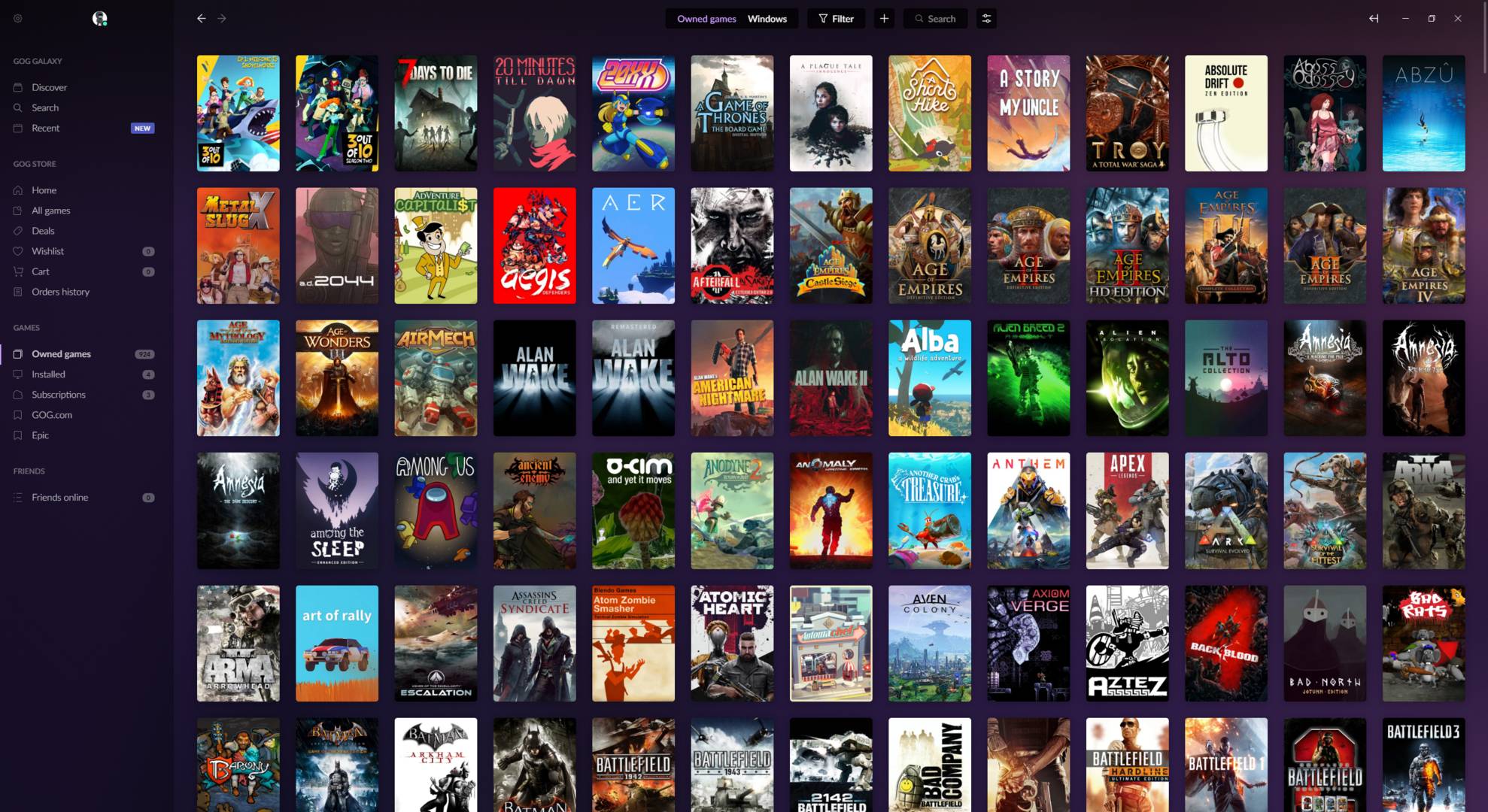
GOG Galaxy is a DRM-free alternative to Steam and Epic, focusing on giving users back control over their purchases. Like Steam, GOG is available on Windows, Mac, and Linux, making it a great tool for game preservation. Here, the games you buy can be played at any time, and without requiring an internet connection, making it a great option for those who travel a lot. Understandably, because of this, you won’t find many titles, especially those requiring a constant online connection. Nevertheless, GOG’s interface is well polished, and though it’s far from Steam’s versatility and feature set, it’s one of the game stores worth having in your arsenal.
Playnite
While myriad game stores can be a good thing, they do then create a challenge in keeping everything managed. That’s where Playnite comes in handy. A free open-source game library manager for Windows, Playnite lets you organise and launch games from multiple platforms in one unified interface.
Instead of juggling between Steam, Epic Games, GOG, or what have you, Playnite aggregates your entire collection into one list. The app supports all major PC stores/launches, and even emulators if you are into that. Better still, Playnite allows you to customise its layout extensively using add-ons, giving you the ability to make it look like an Xbox, a PlayStation, and more. The default interface is sufficient if you just want to have all your games in one place, but the custom layouts are worth the effort.
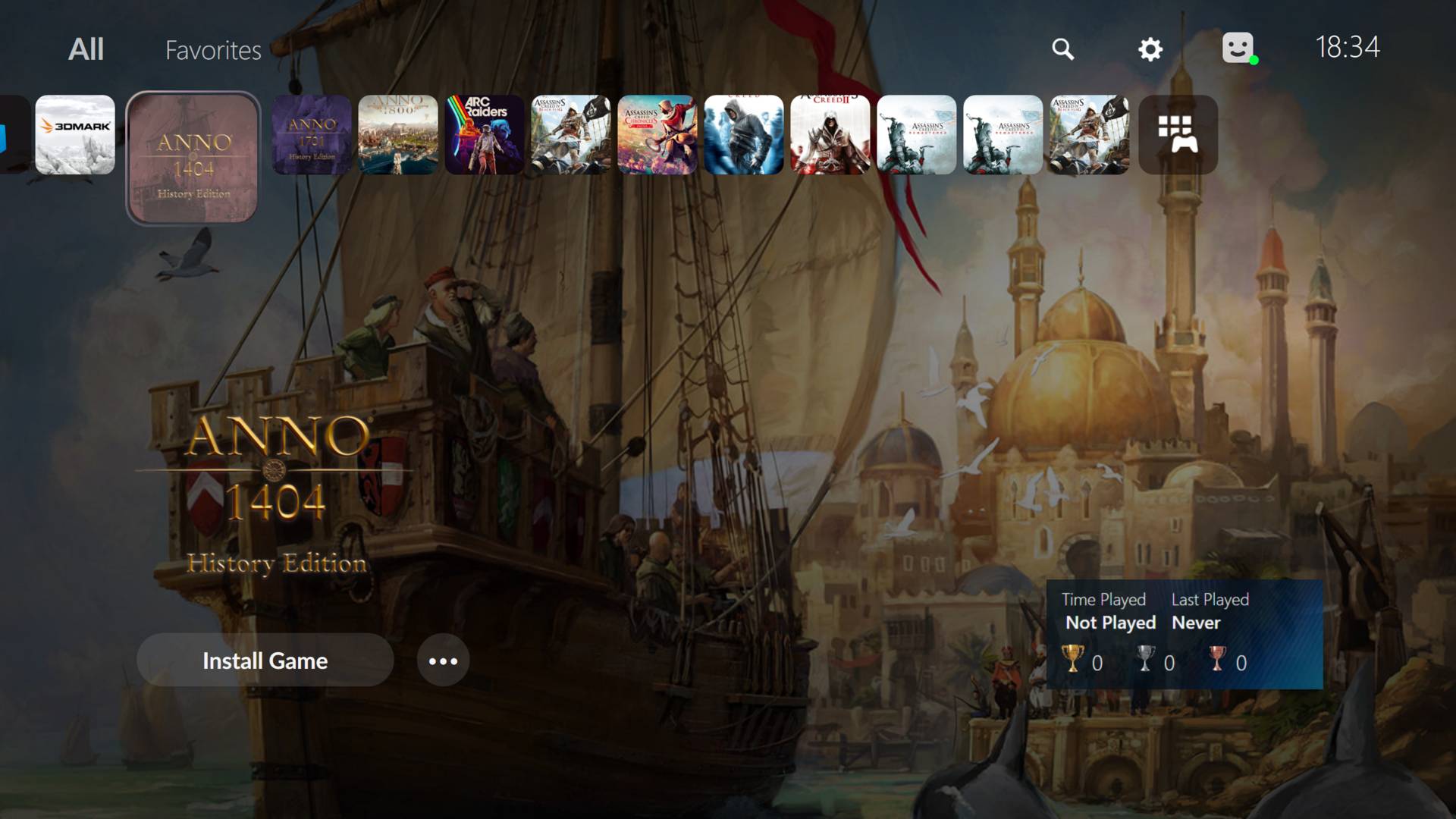
Note that Playnite doesn’t replace the DRM layer or game launcher; you will still need to have Steam or whatever store you have purchased your game from. Consider it a library of game shortcuts, but with additional features like trailers, metadata, filters, and tags. It’s especially handy for those who like to play from the couch, as its full-screen mode lets you access all your games without needing to switch manually between launchers. To put it simply, Playnite allows you to take advantage of price competition between stores without the downside of dealing with fragmented libraries.
Voice chat app
Now that your games are ready to go, you will need a means to communicate with your friends and teammates. As is always the case on PC, there’s no shortage of choice with the likes of Discord, TeamSpeak, Mumble, and many more. Even Steam has a built-in text and voice chat feature.
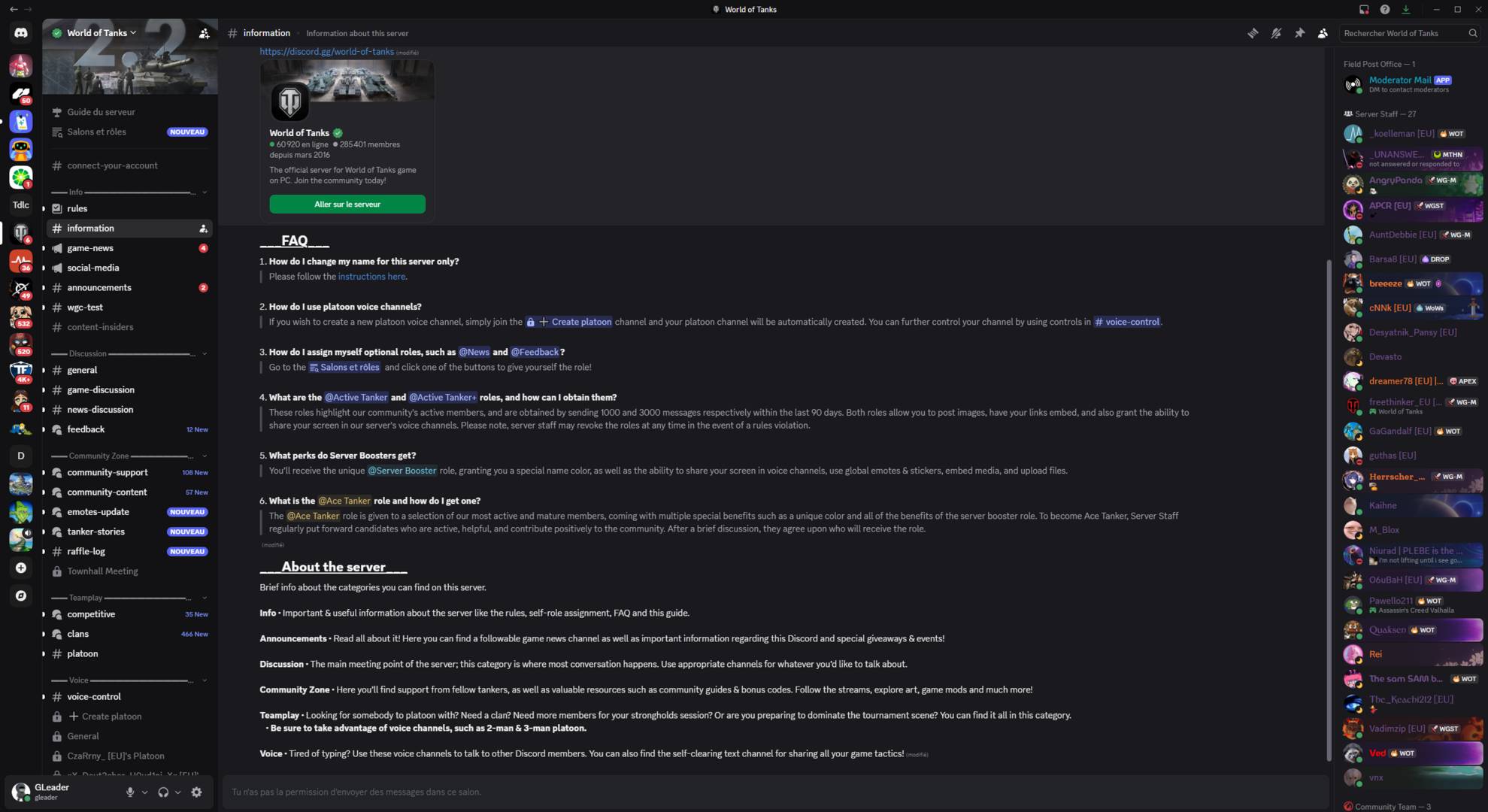
Despite recent controversies surrounding its age verification requirement, Discord remains the leading free voice/text chat app for gamers. It’s available on all major platforms, including Windows, Mac, Linux, and Android, and is even integrated with PlayStation 5 and Xbox Series consoles, making it practically unavoidable.
Discord’s age verification process means you need to prove you’re at least 13 to sign up for it, and it offers some tools for parents of teenagers as well. Parents can restrict access to explicit content, see which servers their kids join, and watch who they’re adding to their friends list. In theory, this should create a safer space for children to enjoy online games without being exposed to inappropriate interactions, although the reality can be different.
Despite these safeguards, parents always need to be aware that online gaming carries other risks. Kids can still run into strangers, bullies, and inappropriate content, be it directly in-game or via other means. For example, when Rust first introduced hand-paintable panels that could be installed on players’ bases/homes, some players started painting genitalia and swastikas on them. The developer quickly added an option to disable these paintings, but not before many were exposed to them. Basically, parental controls can’t supplant in-person supervision, especially for younger users.
Performance monitoring tool
Unlike console gaming where you just jump straight into action, the first reflex you learn as a PC gamer is to go straight to graphics settings to optimise performance and quality. While some titles feature built-in frame rate and latency monitoring tools, the majority give no indication about your machine’s performance. Because of this, it’s highly recommended to install a third-party monitoring tool to measure metrics such as frame rate (fps), latency (responsiveness), and CPU/GPU usage.
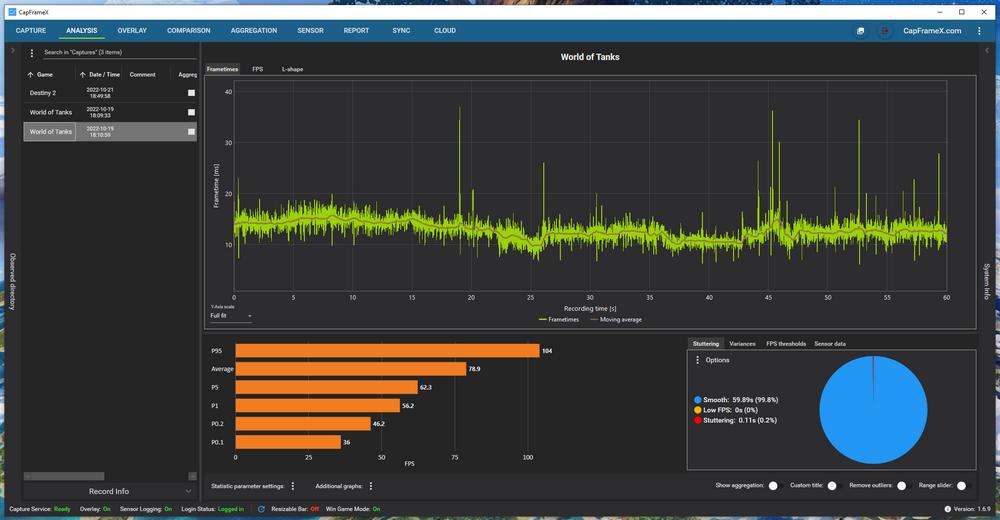
To do so, you have apps like MSI Afterburner, Intel PresentMon, Nvidia FrameView, and CapFrameX, just to name a few. Your monitor may also have this feature, but it won’t be as accurate as software that can read API calls directly. MSI Afterburner is one of the most popular solutions since it also doubles as GPU tuning/overclocking software. However, for my part, I prefer CapFrameX due to its more versatile tool suite, which allows for deeper analysis of performance. It can be especially useful when you try to identify the cause of a bottleneck or stutter.
Nvidia Profile Inspector
The Nvidia Profile Inspector is a utility that lets you view and modify hidden settings inside the GeForce GPU driver far beyond what is normally allowed through the official Control Panel. These low-level parameters allow you to optimise your game in many ways, though nothing as deep as swapping textures or non-Nvidia upscalers.
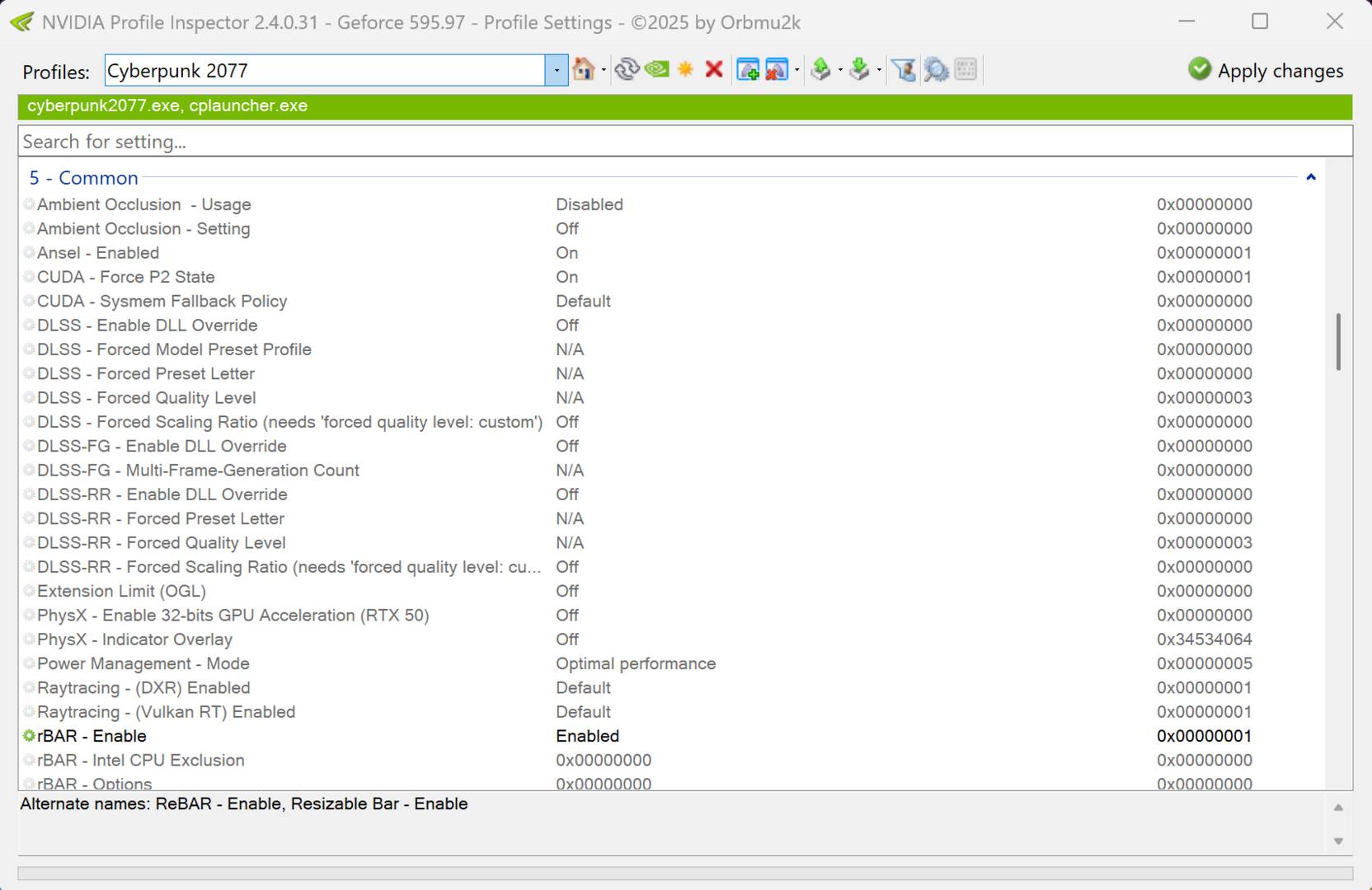
With the Nvidia Profile Inspector you can, for example, modify the pre-rendered frames/render queue, tweak anti-aliasing/texture filtering, and force specific fps limits or DLSS presets. You can also force G-Sync off, enable DLAA in practically any game that supports DLSS, or change the Texture Filtering LOD Bias to make your game look better.
Note that despite the presence of Nvidia in its name, this is a third-party tool, not an official Nvidia app. And, like any powerful tool, inputting the wrong values can break visuals or cause crashes, so proceed with caution.
Special K
Referred to as the Swiss Army Knife of PC gaming, Special K is a powerful tool used primarily for game performance tuning and modification. It acts as a layer between your game and the system, allowing you to add advanced features that aren’t normally available. For example, you can inject HDR into games that don’t normally support it or override DLSS upscaling to DLAA anti-aliasing. You can also add/override Nvidia Reflex, force borderless window mode, or assign audio devices to display devices so that moving a game onto a different screen would automatically transfer audio output.
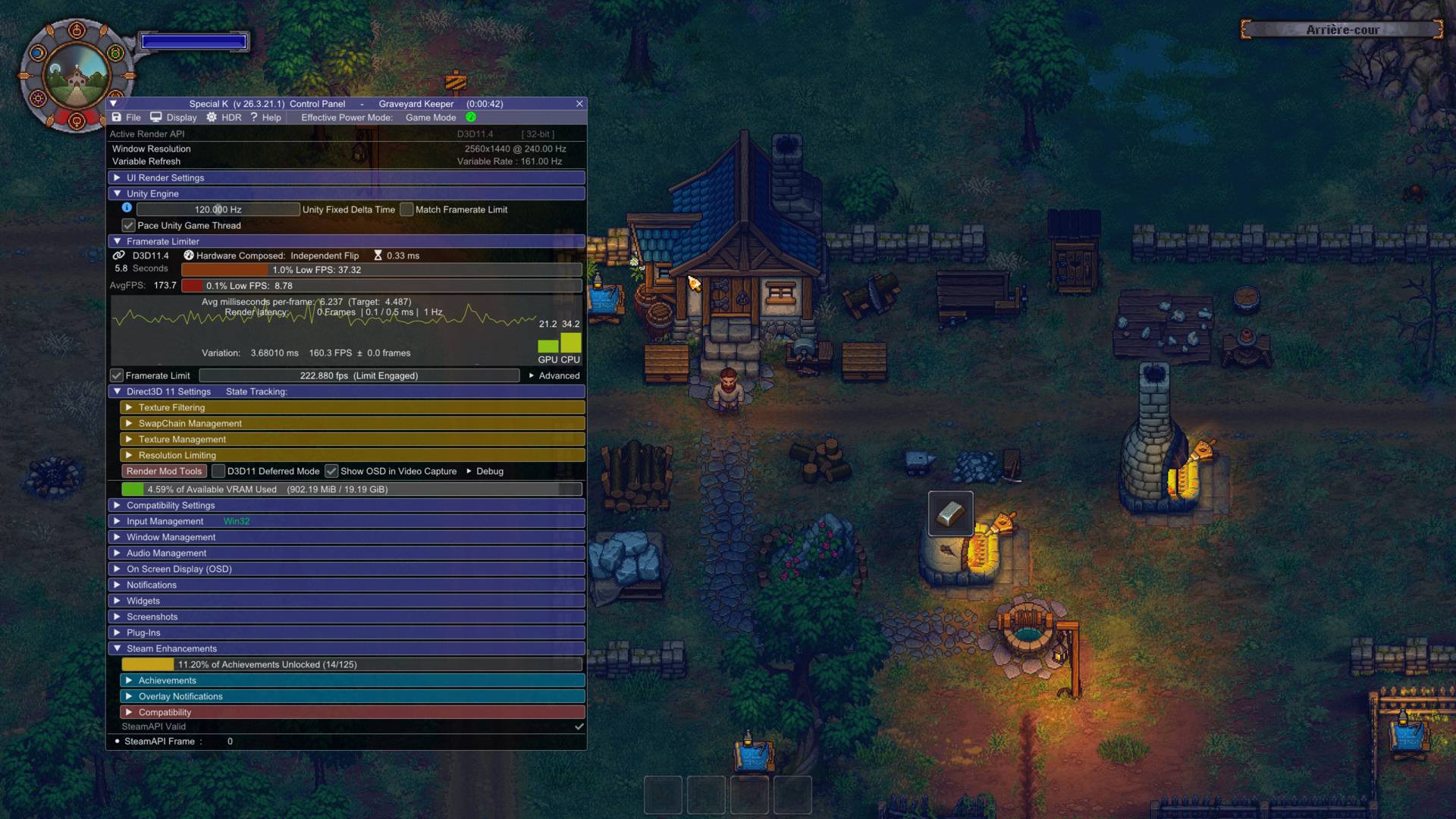
Many use it to fix the stuttering/bad frame pacing (inconsistent delays between frames) caused by CPU scheduling issues. And if you are still playing DirectX 11 titles, it can improve latency in borderless window mode. For those unfamiliar, in borderless windowed mode, your game doesn’t present frames directly to the screen; instead, it goes through the Windows compositor (Desktop Window Manager), where frames are queued before being displayed, which can add latency in DirectX 11 games.
That said, like any code-injecting tool, Special K has the potential to trigger anti-cheat systems in some online games, meaning it’s best suited for single-player/offline use.
Optiscaler
OptiScaler is a tool that lets you inject/replace the upscaling technologies in games. It allows you to use Nvidia DLSS, AMD FSR, and Intel XeSS even when the game doesn’t natively support it, or update to a newer version if the game only supports an older implementation. To do so, OptiScaler intercepts the game engine calls and translates them into a different upscaling method. For example, it can force DLSS or XeSS on FSR-only games, enabling superior image quality and stability. It can even enable DLSS Frame Generation on unsupported games.
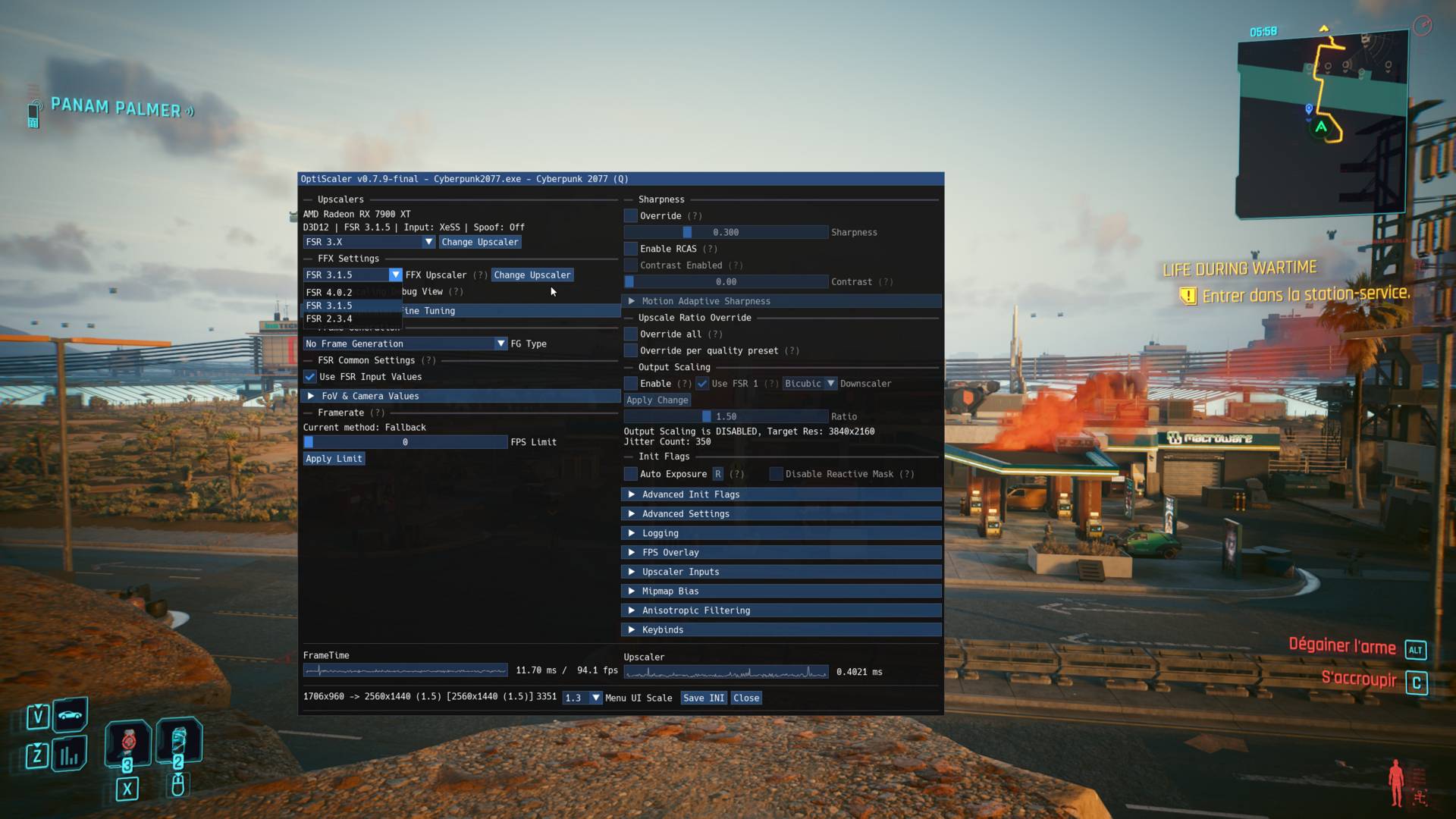
While its installation and usage may seem complicated, there are plenty of online tutorials that can guide you step by step. Ancient Gameplays has a great one if you want to get started.
Like Special K, using OptiScaler in online multiplayer games, especially those with aggressive anti-cheat mechanisms, can result in bans since the installation requires modifying game files. Because of this, better keep it to solo games like Cyberpunk 2077.
Vortex Mod Manager
Vortex Mod Manager is a tool developed by Nexus Mods used to install, organise, and manage game modifications. It offers a user-friendly interface and automated mod installation, removing the hassle of manually copying files into game folders. Better yet, Vortex keeps track of the changes applied to your games, which makes it possible to enable/disable mods safely and easily. No more sifting through game files to remove each mod-related DLL. Vortex also controls which mods load first, helping to prevent conflicts, and warns you when two mods overwrite the same files.
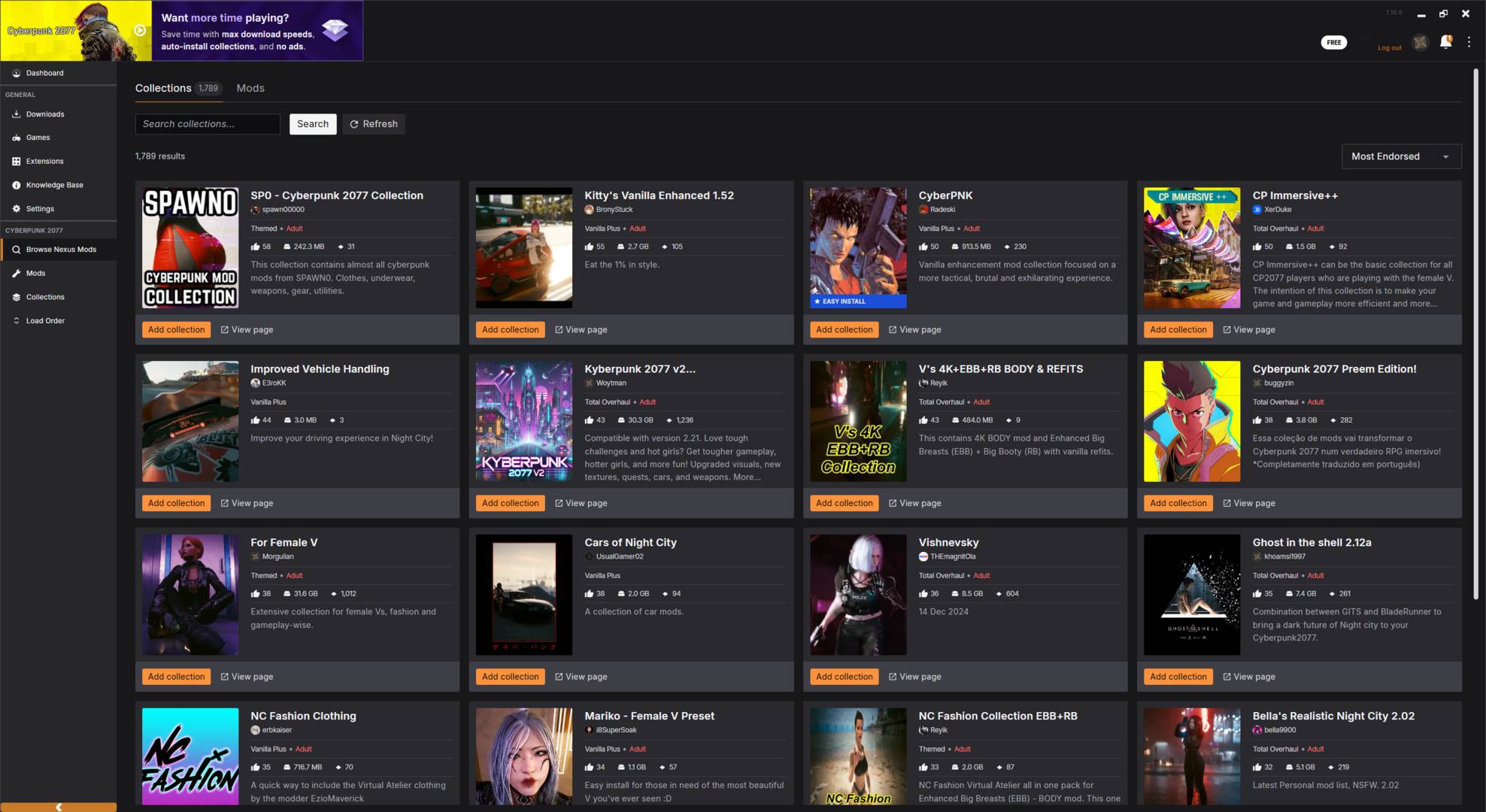
While it doesn’t support all games and game mods, it does support many of the most popular, like Skyrim, Cyberpunk 2077, The Witcher 3, and Fallout 3. If you want to try game modding but can’t be bothered with the manual procedure, which can get quite tedious, Vortex is a great help. Nexus Mods has a complete tutorial series that will get you going.
Video recording app
Now that your system is setup and your games are running as smoothly as you like, you may want to capture and share some of the fun moments you experienced while playing. Thanks to the explosion in content creation popularity, there is no shortage of gameplay capture software.
Some of the best free options include OBS Studio/Streamlabs OBS, Overwolf Outplayed, and SteelSeries GG. The latter is the one I prefer due to its simplicity and built-in video editor. With a click of a button, you can capture the previous minutes of gameplay (up to 30 minutes), so you don’t miss any hilarious situations because you forgot to press record before starting the game. While Nvidia and AMD both have equivalent features called Shadow Play and Radeon ReLive, respectively, I prefer the versatility of SteelSeries GG.
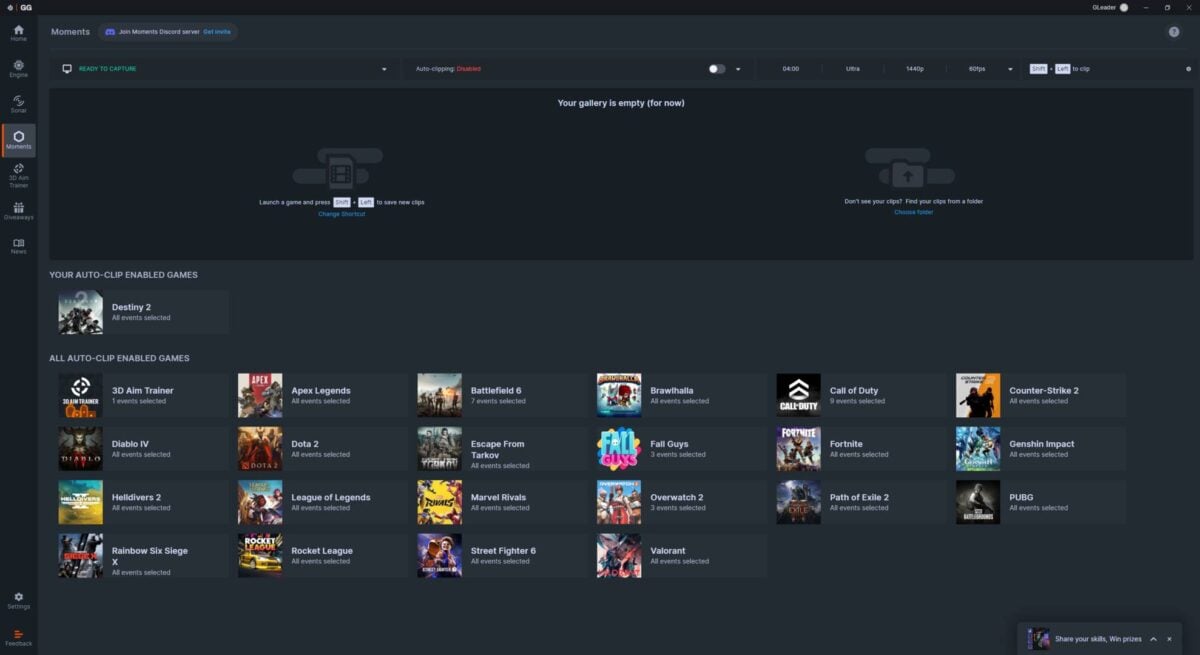
The app also lets you customise the sound profile of your headphones and mic, with detailed tweaks to the entire sound frequency range. But the part that interests us here is the app’s ability to separate game sound from voice chat and Spotify music, simplifying the video editing process. A perfect app to complete your set.
Summary
There are many reasons why PC is the best place to game, with choice and versatility high up the list of advantages. My list of must-have apps is by no means exhaustive, but will help you on your way to creating the perfect setup.
If you feel like you’re already there, and need some recommendations on what to play, don’t miss my take on the best RTS and FPS games of all time, as well as the top free PC games available right now.