
What’s a PC enthusiast to do in 2026? AI-fuelled memory shortages have put a serious dampener on acquiring new builds, and the outlook’s not much brighter if you’re looking to upgrade just a component or two. GPU prices remain stubbornly high, and excitement on the CPU front has slowed as we await next-generation gear from Intel and AMD.
It’s not all doom and gloom, mind you. In the constant pursuit of higher frame rates and quality settings through more powerful components, it’s easy to forget about the device responsible for displaying all that computing goodness: your monitor.
While innovation in other categories flatters to deceive, the once-humble PC monitor has come on heaps and bounds in recent years, with larger screens, higher resolutions, blazing-fast refresh speeds and lower price points serving as just some of the many welcome advancements. As the cost of building a PC continues to climb, there’s never been a better time to swap out your ageing screen for a brand-new model at a wallet-friendly price, so I thought I’d take a look at some of the best options available.
In order to help you figure out which monitor is right for your budget and use case, I’ve broken down the market into five categories, in which I’ll show you what to look out for. I’ll also fire off some recommendations from iiyama’s current lineup of displays, which serve as great examples of their respective use cases.
Budget gaming monitors
If there’s one thing you should take away from this editorial, it’s that you don’t have to spend a massive amount of cash to find a quality gaming monitor. In stark contrast to the soaring cost of living, budget displays can offer surprising bang for your buck, transforming your PC setup for less than £100.
At this end of the market, you can expect to find 1080p (FHD) screens with either 24in or 27in diagonals. While the larger display may seem like the obvious choice, the bigger screen size comes at the expense of pixel density, leading to a softer image. In deciding between the two, the question becomes how much you value sharpness over size and vice versa. Personally, I recommend sticking with 24in at FHD and only moving up to 27in if your budget and hardware can stretch to a 1440p (QHD) panel.
The days of needing to settle for 60/75Hz refresh rates on affordable monitors are long behind us, with 100Hz+ displays now a dime a dozen even at the lowest prices. While you will find some screens offering refresh rates closer to 200Hz, I’d only recommend esports aficionados reach for these typically more expensive panels, as 144Hz is still pleasingly smooth and responsive enough for most folks.
Better yet, modern monitors arrive with some form of adaptive sync, usually arriving under the branded banner of either AMD FreeSync or Nvidia G-Sync. This feature is an absolute must for a gaming display, allowing you to run games at variable frame rates without the risk of unsightly screen tearing. It’s always worth double-checking the specification of a screen to make sure at least some of this technology is running under the hood.
Finally, budget gaming monitors will typically arrive with either an IPS or VA panel. While the former is more commonplace, each has unique advantages. Generally speaking, I recommend going with an IPS as a better all-round experience, but there are pros and cons to both panel types.
In short, VA screens generally have deep blacks and high contrast, which makes for a good cinematic image, but their response times are typically higher, impeding responsiveness and proving more prone to ghosting. Meanwhile, IPS panels offer wider viewing angles, superior colour accuracy, and faster response times with less ghosting, although they lack the deep blacks and high contrast of VA screens.
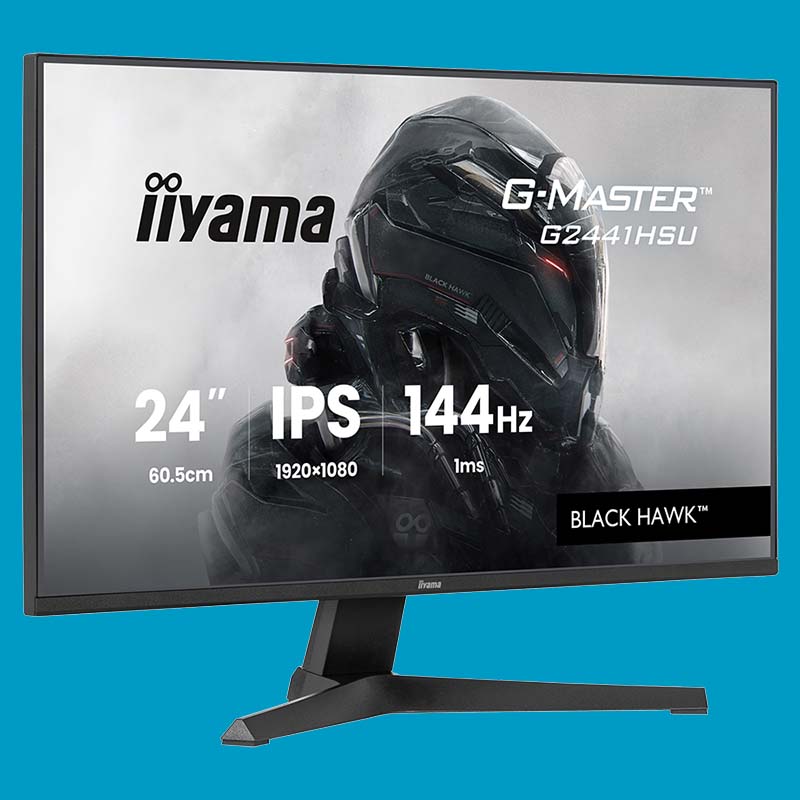
G-Master G2441HSU-B1
“This display boasts cutting-edge IPS panel technology, a 144Hz refresh rate, and an ultra-swift 1ms MPRT response time.” – iiyama
To give you an example of just how affordable a monitor upgrade can be, the above iiyama G-Master G2441HSU-B1 is a solid choice for those with a maximum budget of £100. Currently retailing for £89 – less than my last grocery shop – this 24in gaming monitor packs a 1080p IPS panel with a 144Hz refresh rate, complete with AMD FreeSync support and a couple of built-in USB ports to boot. That’s a whole lot of screen for a two-figure price tag.
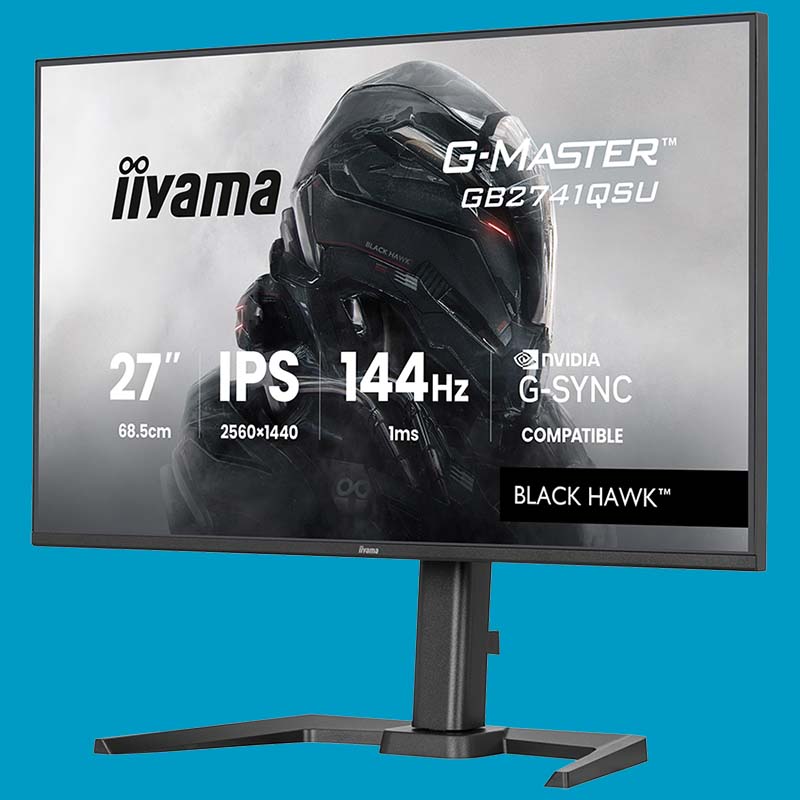
G-Master GB2741QSU-B1
“The G2741QSU-B1 may lack the vibrancy of more expensive alternatives, but its panel is precise, packing good brightness and contrast to boot.” Read our review.
For those keen to make the jump to a 27in 1440p monitor, take a gander at the G-Master GB2741QSU-B1, conveniently offering 144Hz for £144. You’ll learn all you need to know about this screen in my G-Master G2741QSU-B1 review, but this ‘GB’ variant comes with the advantage of an adjustable stand. If you’re looking to move away from a tired 1080p60 panel, it’s difficult to think of anything else for less than £150 that comes close to transforming your PC experience as a 1440p144 screen.
Mid-range gaming monitors
Moving up the price scale gets you higher resolutions, faster refresh rates, and superior panel quality. Better still, mid-range gaming monitors arrive with additional features and unique form factors.
Fast IPS and VA panels are more common among models that command a £200+ asking price. These underlying display technologies are the same as budget alternatives, but higher budgets pave the way for faster response times. This refers to the time it takes for individual pixels to respond to changes in output, transitioning from one colour to another, with faster transitions better mitigating visual artefacts such as ghosting and overshoot.
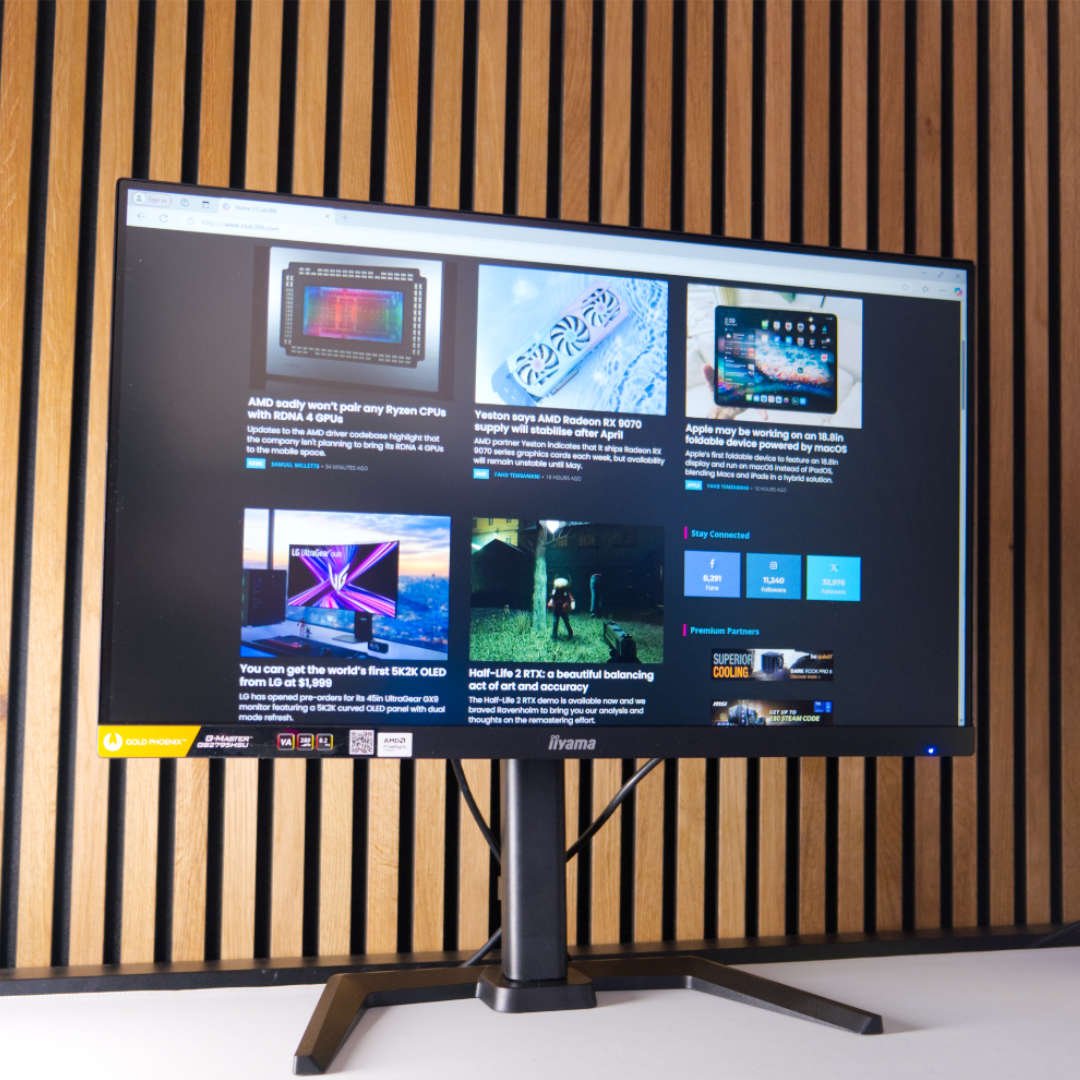
You’ll also often find that these screens carry a wider gamut, allowing them to display more hues across colour spaces for a more vibrant viewing experience. Look out for coverage of sRGB and DCI-P3 in specification sheets, with higher percentages indicating more colour-rich panels. Moreover, keep colour accuracy in mind too, with Delta E measurements of ≤2 being the gold standard.
Extra buying power also opens the door to ultrawide panels. These screens increase resolution screen size along the horizontal axis, increasing your aspect ratio from the typical 16:9 to 21:9 and beyond. These monitors fill up more of your field of view, enhancing the immersive quality of games. I find that first-person shooters, racing games, and simulators particularly benefit from such a display, but not every title supports ultrawide output.
While USB hubs don’t improve picture quality, they’re an undeniable nice-to-have feature among mid-range gaming monitors. These hubs usually manifest as a collection of USB-A inputs, with some displays also offering USB-C ports. Note the number of ports a screen offers, as well as whether it has a KVM (Keyboard, Video, Mouse) switch, which makes it possible to share the same peripherals across multiple PCs and easily switch between them.
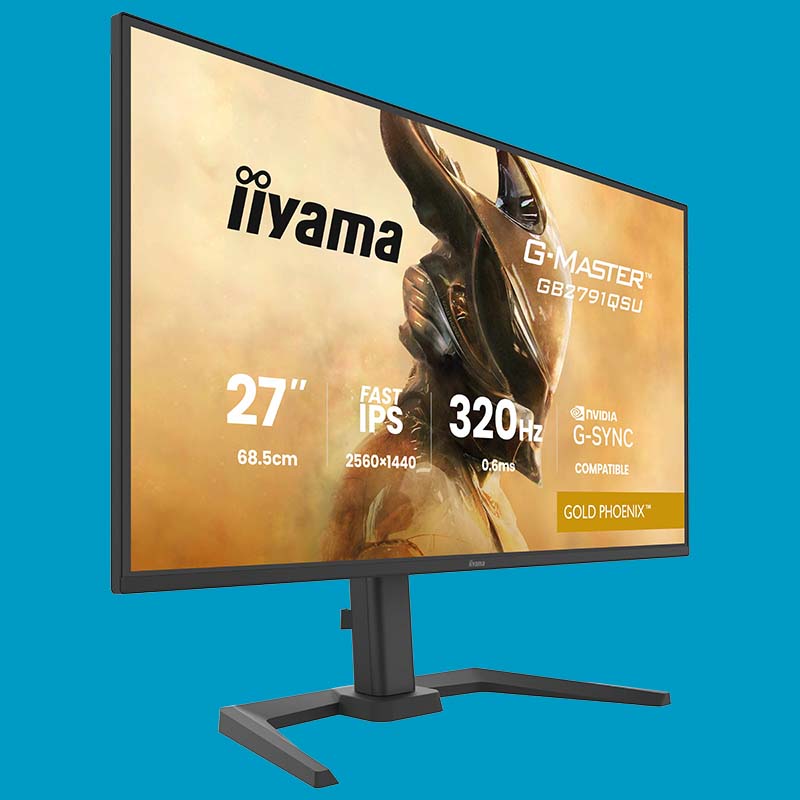
G-Master GB2791QSU-B1
“Packed with the latest technologies, including FreeSync Premium, the 27in Gold Phoenix features a 320Hz refresh rate and a stunning 0.6ms MPRT response time, making sure your equipment will never hold you back.” – iiyama
Examples are the best way to realise what’s achievable today. Rocking a 27in Fast IPS panel, the G-Master GB2791QSU-B1 can run up to 320Hz and sports lightning-fast response times of 0.6ms. If you’ve got the hardware to run at such lofty frame rates at QHD resolution, a monitor such as this offer an experience that’s as sharp as it is smooth. Round back you’ll also find a welcome assortment of USBs, including two Type-As and Type-Cs. Despite the broad feature set, this particular panel is available for £239 at the time of writing; that’s about the same as a 16GB pack of DDR5 memory in today’s topsy-turvy market.
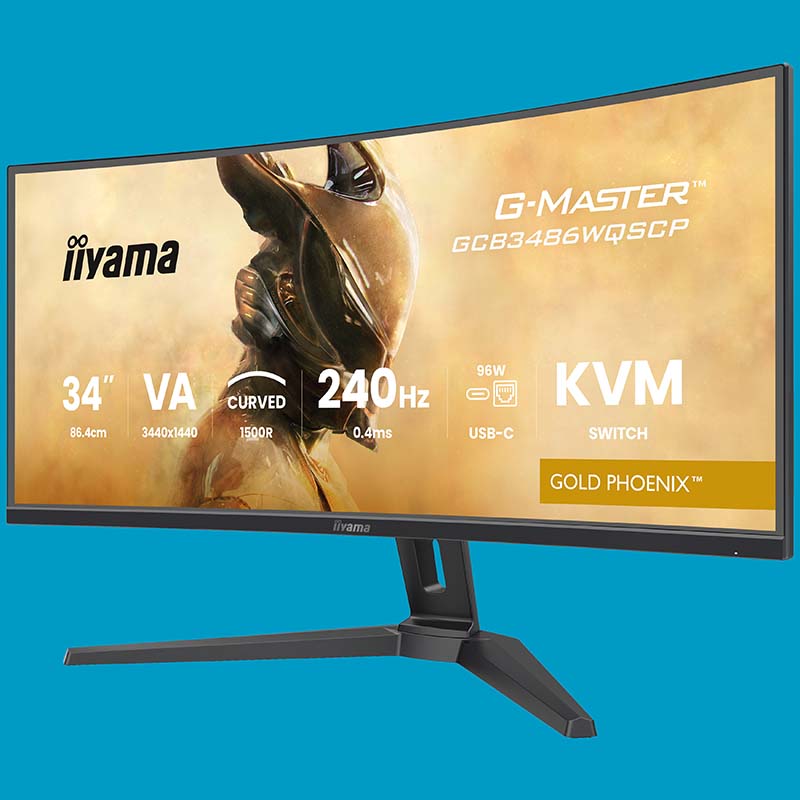
G-Master GCB3486WQSCP-B1
“With an ultra-fast 240Hz refresh rate, motion is incredibly smooth and fluid, ensuring top-tier performance for competitive gaming.” – iiyama
If an ultrawide gaming monitor is more your thing, the 240Hz G-Master GCB3486WQSCP-B1 is ideal. With a large 34in diagonal, this monitor’s VA panel provides an expansive and contrast-rich canvas for content. Going the route of 21:9 does come at a small premium, with this particular display costing £312, but the built-in USB hub and KVM switch help bolster its value as a both a gaming and productivity solution.
Monitors for students
Despite graduating from university almost a decade ago now, the memories of spending what felt like forever at my monitor as I conducted research and wrote up last-minute coursework have remained fresh in my mind. However, all work and no play makes for dull minds, so having a display that’s versatile enough for both tasks is an absolute must for any student.
Creating a comfortable viewing experience is imperative for focus, making eye care a high priority for any monitor that will be in front of your eyes for hours at a time. I recommend taking regular breaks from any displays you’re using for long periods, but blue light reduction features go a long way to reducing strain, as does flicker-free certification.
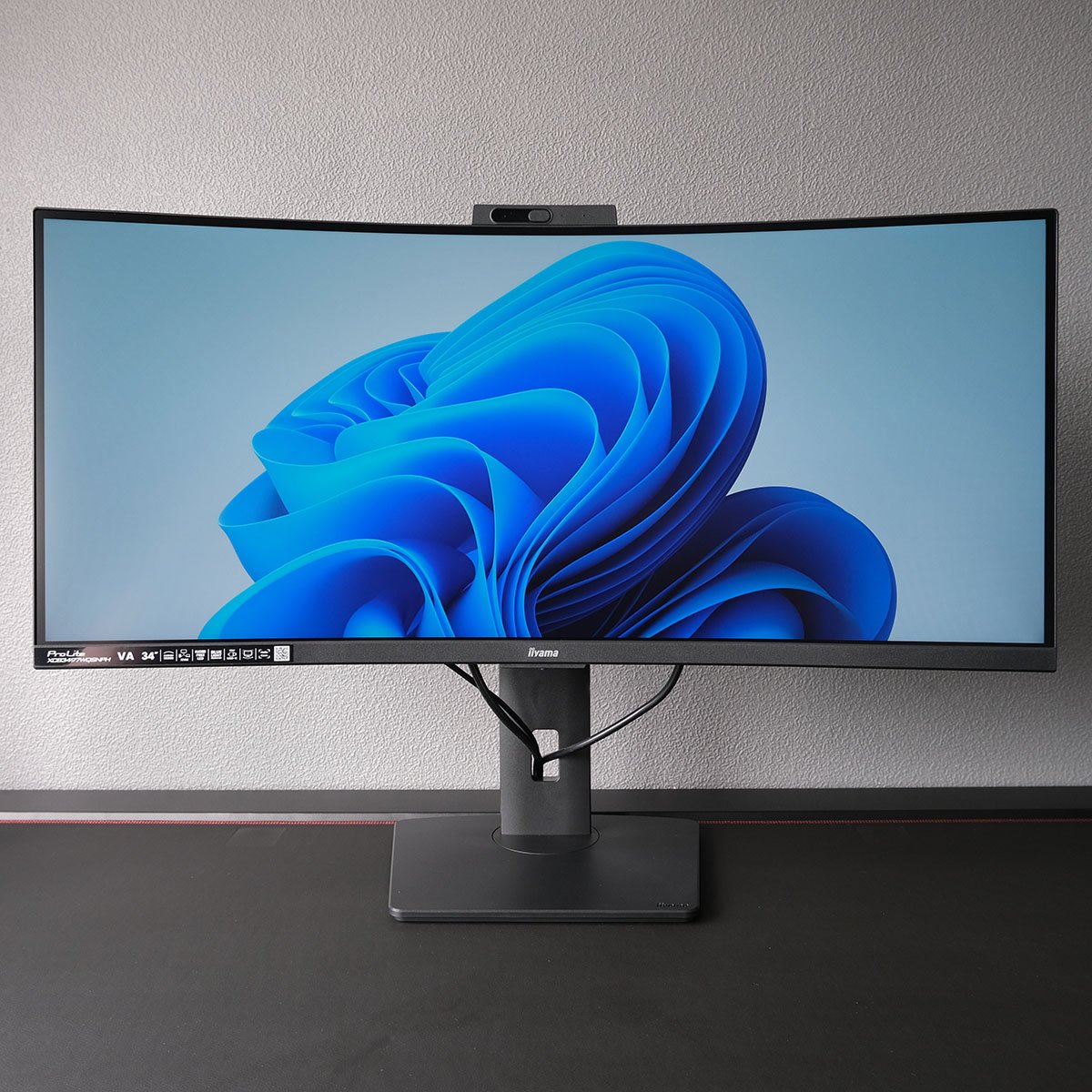
Ergonomics are equally important, as no one wants to emerge from a revision or writing session with back and neck pain. With this in mind, look out for monitors with suitable height adjustment for your space. If you can, measure the distance between the top of your desk and where your eye line falls, and grab a monitor that’s capable of reaching that height.
It’s also worth considering what features you need to create a tidy workspace. USB ports and a KVM switch are a good start, but also consider whether your prospective monitor offers DP Alt Mode and Power Delivery (PD) to provide an easy one-cable connection to your laptop. Some displays also come with built-in speakers and webcams, providing further convenience without cluttering up your desk with extras.
In terms of gaming credentials, look out for monitors with relatively low response times in the region of 5ms or less. Prioritise resolution and screen size over refresh rate where possible, but still aim for triple-digit hertz. Finally, consider whether you’d benefit from the wider aspect ratio of 21:9 panels, particularly if you’ll frequently work with large spreadsheets or multiple windows – it’s great to be able to have a Word document and a web browser side by side on one of these extra-wide screens, for example.
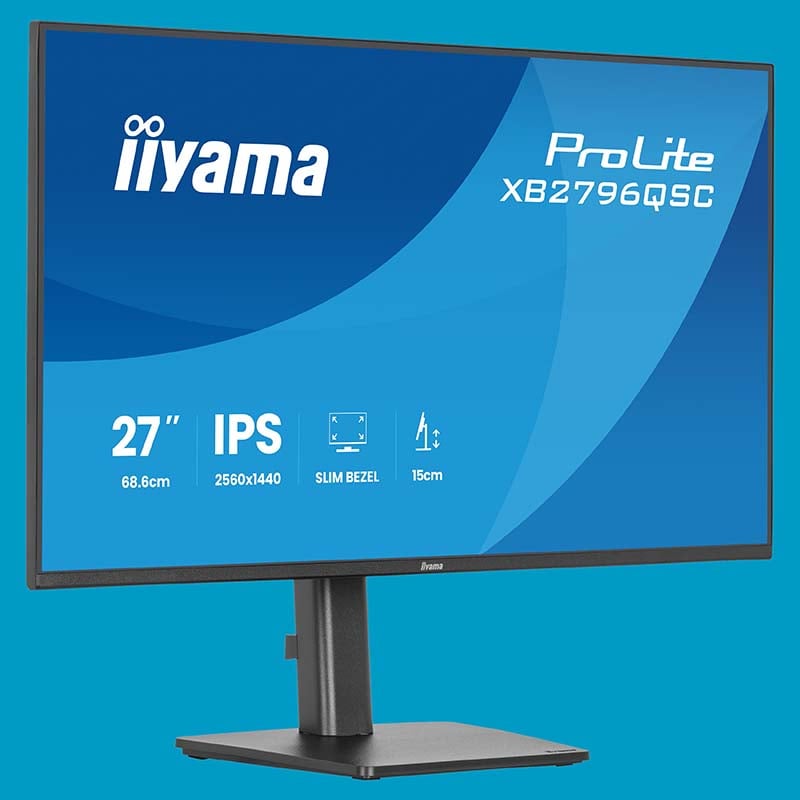
ProLite XB2796QSC-B1
“One USB-C cable handles both video signal and up to 65W of power to your laptop, reducing cable clutter and simplifying setup.” – iiyama
For students who only want the essentials, or need to save cash without compromising on core monitor quality, the likes of iiyama’s ProLite XB2796QSC-B1 is a strong value pick at £169. This slender 27in screen is suitably sharp with a QHD resolution making for a pixel density of 109PPI (pixels per inch), and even finds room for two USB-A ports and a USB-C socket supporting video and 65W power delivery. Perfect for docking your laptop, it’s also height adjustable by 150mm, can swivel 90°, and has the ability to pivot into portrait mode, which comes in handy for multi-monitor setups.
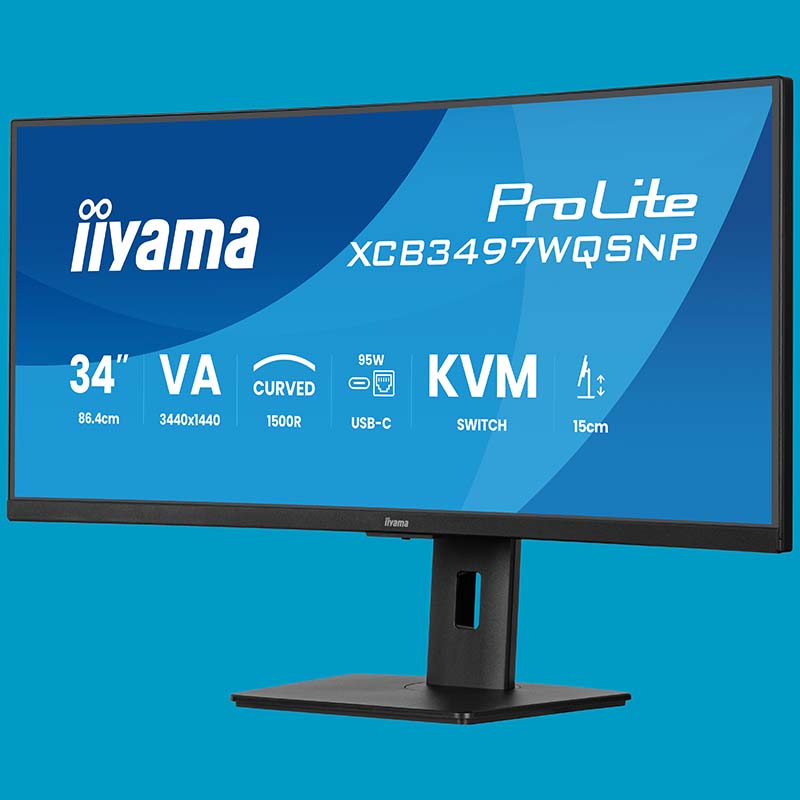
ProLite XCB3497WQSNP-B1
“Having the right monitor to complement your workflow can make all the difference when it comes to productivity.” Read our review.
There are so many good choices in the current monitor market that I could reel off recommendations until the cows come home. If you’re looking for a mid-range 34in ultrawide screen, the ProLite XCB3497WQSNP-B1 receives a firm recommendation as an excellent productivity all-rounder at £289. Read my XCB3497WQSNPH-B1 review for further details, as the two monitors are identical, bar the inclusion of a built-in webcam on the latter.
Monitors for creatives
Colour-sensitive workflows demand specialised monitors that prioritise picture quality and accuracy above all, so you can realise creative projects with as little room for error as possible. As such, colour is king in this regard, regarding both accuracy and gamut, alongside high pixel density.
As a creative professional myself, I’m a stickler for colour accuracy both in and outside of working hours, not wanting to see anything but proper artistic intent on my screens. As such, when purchasing monitors with this mindset, I recommend seeking out Delta E values on specifications sheets. Accept nothing less than <2.0 on average, keeping an eye out for maximum deviation values too.
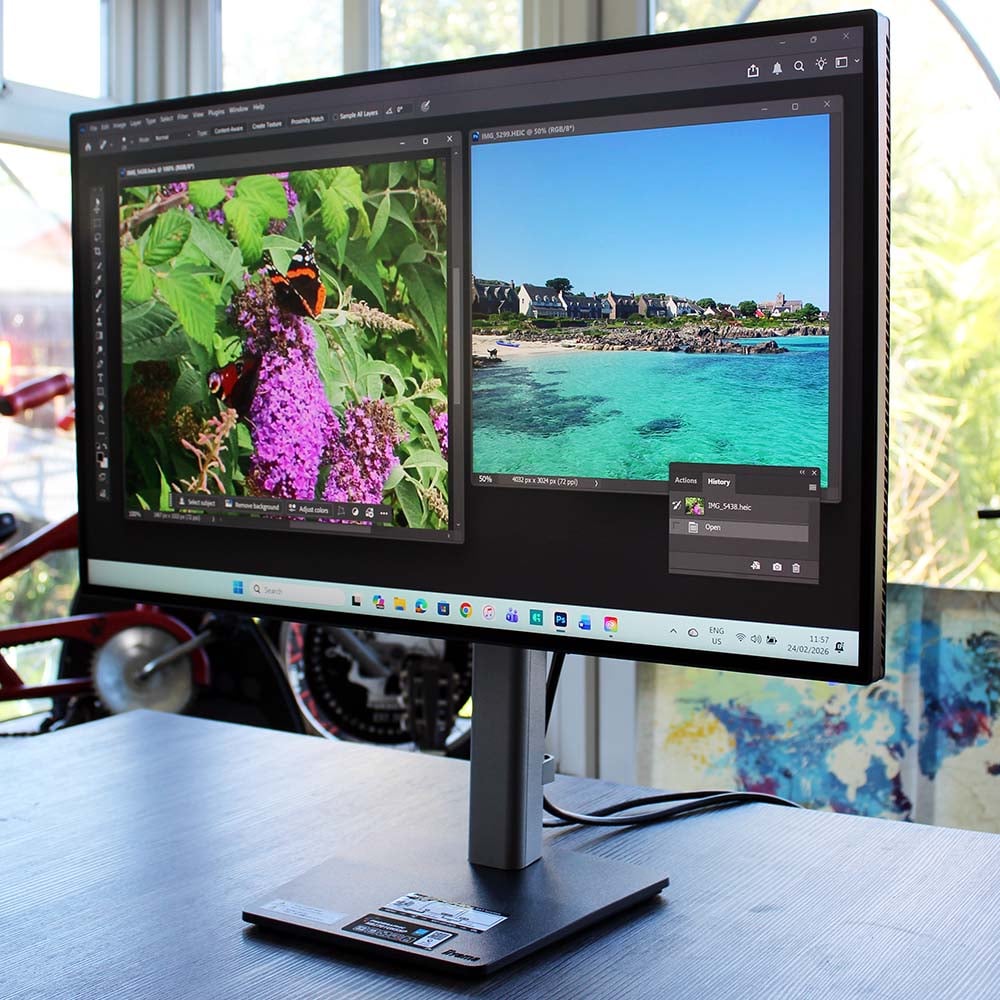
If you regularly use a Pantone Formula Guide, then purchasing a Pantone Validated monitor for your setup is a no-brainer. This certification ensures the colours you’re seeing on screen match your reference materials, ensuring cohesion across digital and print. That’s to say nothing of the reassurance this brings clients, cutting down on the potential for unnecessary revisions.
It’s important to understand what colour spaces are important to your professional workflows when considering a new screen. This will usually come down to either Adobe RGB or DCI-P3, depending on your field of work, as both can reliably scale down to sRGB for broader compatibility. Higher percentages in this regard are better, but make sure to take colour accuracy into account too.
4K displays are common in this specialist area, offering a notably sharper image than QHD counterparts, thanks to 138-163PPI (pixels per inch) across 27-32in panels. A higher resolution also affords more granular control of assets, with more pixels in play for you to tweak to your liking. As someone who uses a 32in 4K screen every day, I’ve never thought twice about downsizing, as having a larger screen size and resolution continues to prove invaluable.
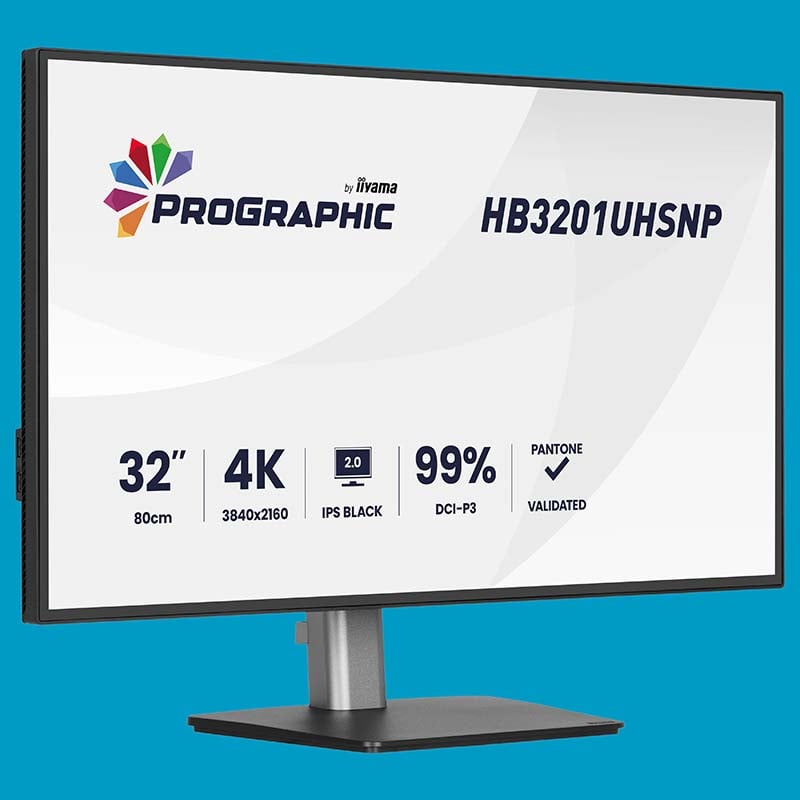
ProGraphic HB3201UHSNP-B1
“Work with confidence on the 32in ProGraphic HB3201, a 4K UHD monitor engineered for photographers and content creators who demand uncompromising visual clarity.” – iiyama
Such creative smarts typically attract a premium, yet the impact on workflow and productivity is such that value remains high. Case in point, the ProGraphic HB3201UHSNP-B1 has all the qualities of a cracking monitor for professional creatives. It costs a hearty £700, but offers a 32in 4K IPS Black 2.0 panel, complete with Pantone Validated status. It even comes with a 96W USB-C port, which can both charge and serve as a display output for your laptop. The kind of screen that once added to your setup, you’ll wonder how you ever managed without.
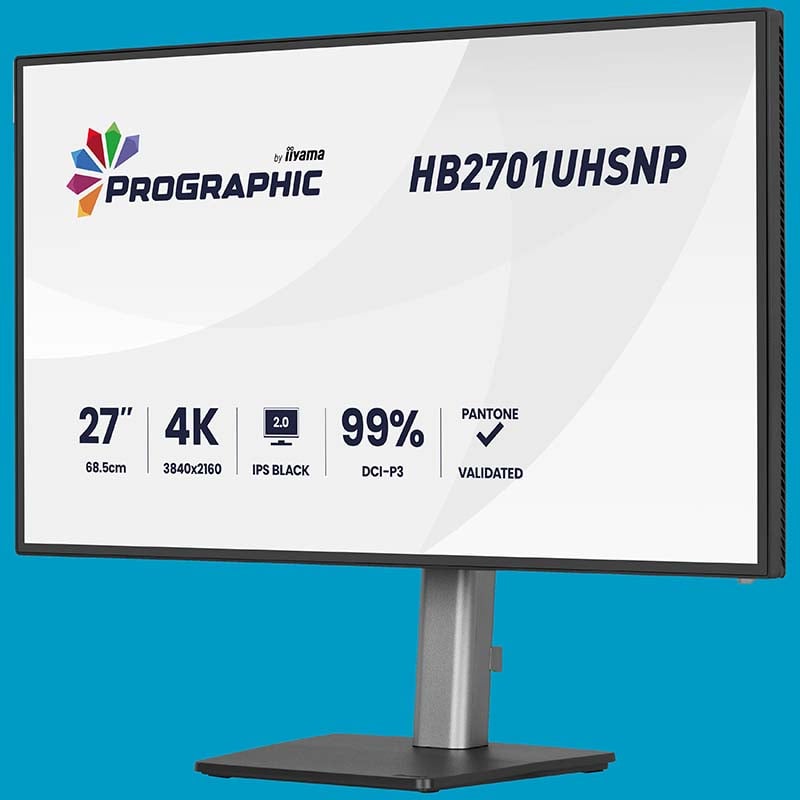
ProGraphic HB2701UHSNP-B1
“With its extensive desktop connection features, 98% DCI-P3 coverage, and top image quality, it’s ideal for creative professionals.” Read our review.
My colleague Ben reviewed the iiyama ProGraphic HB2701UHSNP-B1 earlier this year, earning the £499 monitor a coveted Club386 recommended award. If you’re after a 27in display for your workflow, complete with an IPS Black 2.0 panel and all the ports you’re ever likely to need, this one’s certainly worth a look. Read our in-depth review for more details.
Monitors for power users
Specialised monitors are a sensible route, but there are screens available that serve as a solid jack of all trades for power users who require versatility. Such capabilities naturally require high-end specifications, so expect to pay a fair premium for these panels.
Monitors of this ilk offer the best of both worlds when it comes to creative workflows and gaming, combining large screen sizes with high resolutions and fast refresh rates. 32in 4K displays will suit most, but it’s worth considering 34in or even 45in ultrawide alternatives if your use case benefits from the wider aspect ratio, and you have room in your setup. Just be sure to take the capabilities of your system into consideration when eyeing up a high-end monitor. While 4K gaming is wonderful, driving all 8.3M pixels in games requires serious GPU rendering power, regardless of refresh rate.
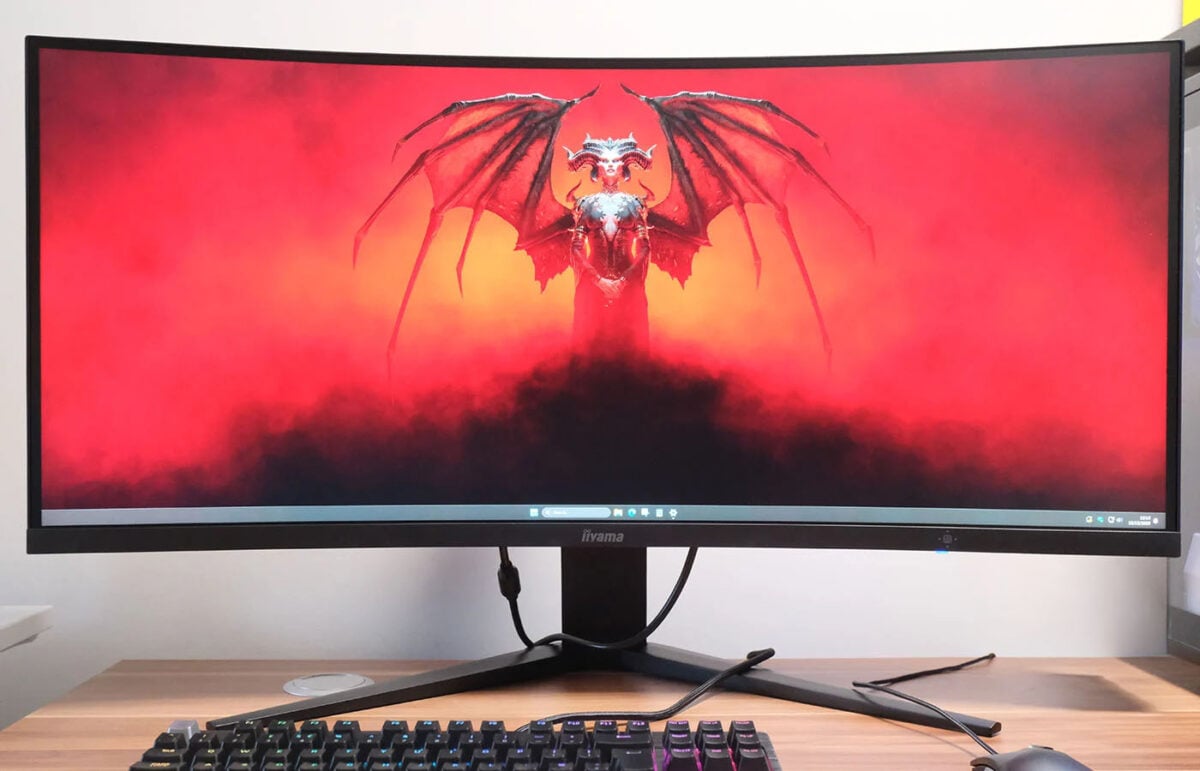
Once you’ve considered panel specifications and quality (colour accuracy, gamut, and so on), evaluate a monitor’s feature set. How many USB inputs are available, and does the monitor include a KVM as well as DP Alt Mode or Power Delivery? Are there speakers if you want them? Do all the display outputs have enough bandwidth to drive the monitor at its full resolution and refresh rate? In short, interrogate the spec sheet and ensure it aligns with your needs.
You’ll also find HDR capabilities are common as you spend more on a monitor, but I’d only suggest considering this a plus if a panel features local dimming. Currently, this technology is exclusive to Mini LED and OLED screens, which allow the technologies to turn off individual portions of a backlight for enhanced contrast and perceived brightness. Without them, HDR isn’t nearly as impactful nor worthwhile.
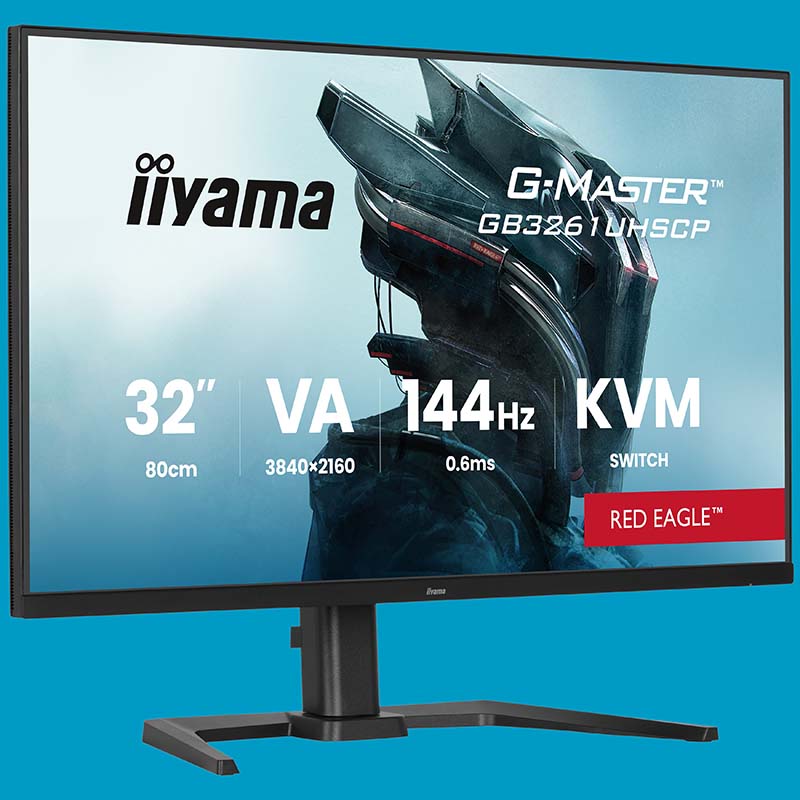
G-Master GB3261UHSCP-B1
“It’s a monitor that fits as easily into a workday setup as it does into a late-night gaming session, built to deliver both enhanced productivity and outstanding visuals.” – iiyama
With a 4K resolution and 144Hz refresh rate, the 32in VA panel in the G-Master GB3261UHSCP-B1 is a fine example of an expansive gaming monitor. If those specifications aren’t quite enticing enough, then allow the display’s KVM switch, complete with four USB ports and 95W power delivery, to whet your appetite. It wasn’t long ago that such specifications would have commanded a lofty asking price. Competition in the monitor space is such that this monitor is now available for £327.
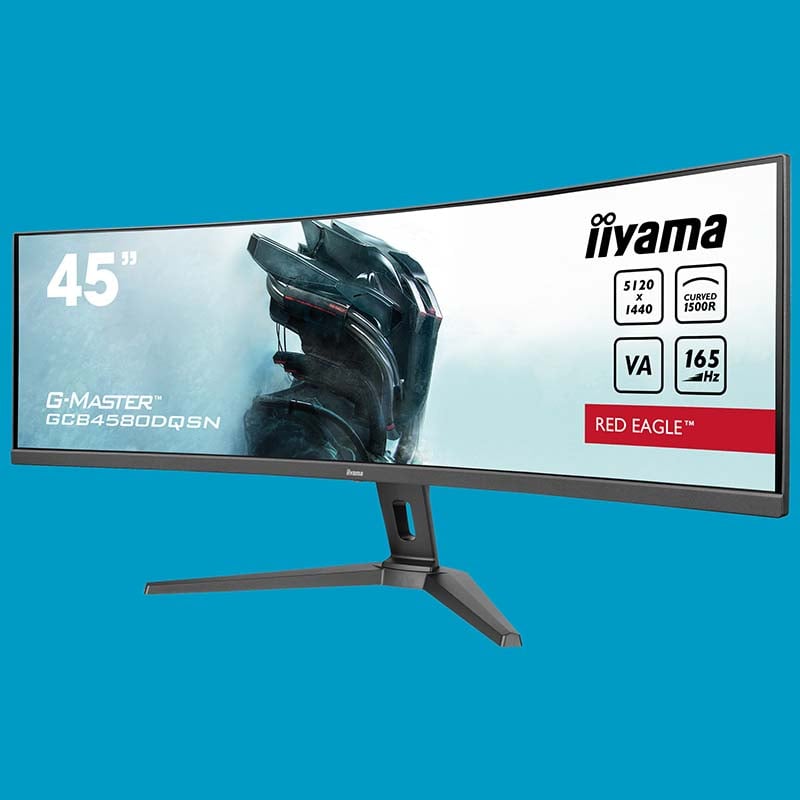
G-Master GCB4580DQSN-B1
“Unleash a panoramic visual experience and immerse yourself into your gaming world with this ultra-wide DQHD 5120×1440 display.” – iiyama
Ever wanted to merge two QHD monitors into one? The iiyama G-Master GCB4580DQSN-B1 does just that, at £489, packing a DQHD (5120×1440) resolution into its enormous 45in VA panel. That size doesn’t come at the expense of speed or features either, with a native 165Hz refresh rate and KVM switch included.
Conclusion
It’s easy to fall into the trap of believing all things PC are on hold until the memory crisis is over. While that’s partly true, external parts, and in particular monitors, offer respite to users seeking cost-effective upgrades that help elevate the computing experience.
Rapid evolution and sheer variety of screen technology is such that while no one solution fits all, it’s easy to find a monitor that meets your specific needs. Whether you’re looking to take your gaming experience up or notch, or bolster your productivity with a super-wide canvas, a new monitor is likely to deliver better bang for buck than any internal component in the current landscape.
Absorbing all the information above, you now have a solid grasp of what to look for in your next monitor. Don’t fret if you’re still mulling over options, as any worthwhile purchase demands due consideration, regardless of cost. Speaking from experience, I sometimes take a week, if not longer, before committing to buying anything moderately expensive, let alone tech.
If I can impart one final piece of advice, it’s to view any prospective monitor upgrade as a long-term investment. This screen could potentially see you through your next component upgrade cycle, if not several. I’m using screens I purchased at the tail-end of the last decade, and they still have plenty of life in them. Get this choice right, and your monitor will see you through many years of service.