

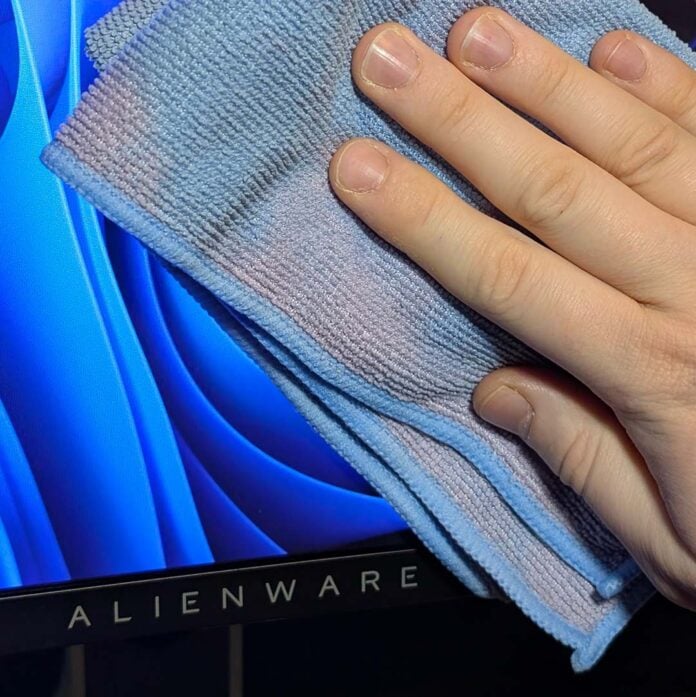
While your gaming monitor may look amazing when it’s fresh out of the box after a satisfying shrink wrap peel, it will inevitably require a clean at some point, as it accumulates muck over time. Thankfully, keeping your screen pristine isn’t difficult provided you have the knowledge and tools to do so. I intend to help get your display looking brand new in this guide, and equip you with the means to keep your panel looking pretty.
In search of the best advice possible, I’ve spoken to several monitor manufacturers, including Dell, Gigabyte, iiyama, MSI, and more for the official word on how to clean your monitor. I’ve also pored over FAQs and manuals. Everything I’ve learned, I’ve distilled into the paragraphs below. Now, let’s get to (gently) scrubbing.
What you’ll need
To free your monitor of its filth, you’ll need three relatively cheap items that are readily available from Amazon or retail stores:
- Microfibre clothes (x3)
- Isopropyl alcohol (70%)
- Distilled water
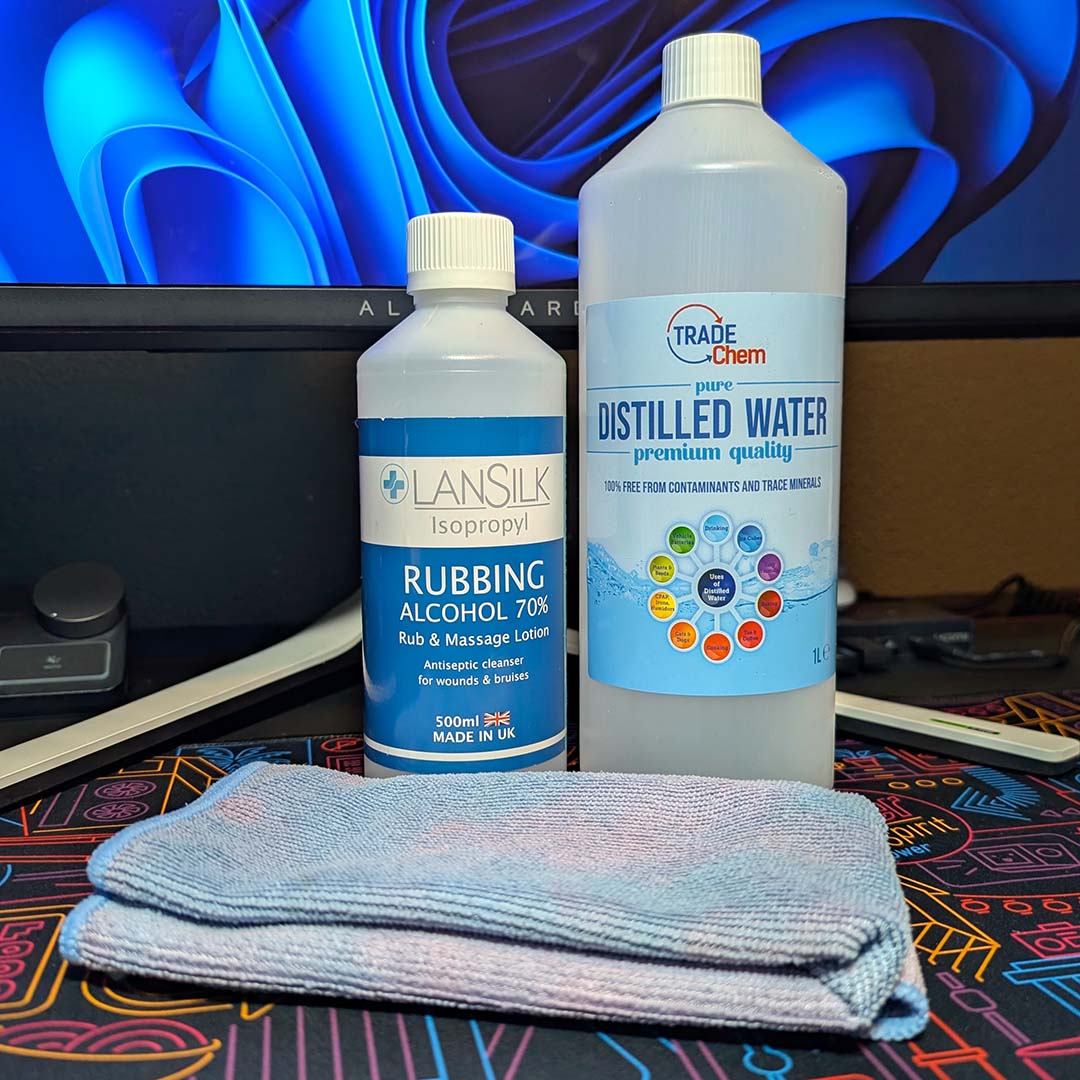
You may well already have some microfibre cloths that you use for cleaning other parts of your house. While it’s possible to use the same cloth for multiple jobs, I advise using a separate trio for your monitor’s upkeep. There’s a risk that dust or trace elements of cleaning chemicals could make contact with your screen, leading to scratches (as I’ve personally experienced) or other forms of damage.
Just don’t forget to give these cloths a wash after use. Davis & Moore, a UK manufacturer of rags and other cleaning supplies, recommends using cold or warm water, as hot temperatures can damage the fibres. You can restore them by agitating any soiled areas by hand, before leaving them to soak for 20 minutes, and then rinsing them off before leaving them to dry. You can also machine-wash them, largely following the same steps, but don’t use any bleach or fabric softeners.
Every monitor manufacturer we contacted provided us with materials that all recommended using 70% isopropyl alcohol to clean your monitor. However, some firms advised that distilled water was an acceptable substitute. I personally use both when cleaning my own QD-OLED panel, as I’ll explain in more detail later. Ethanol wipes are also a valid stand-in but won’t provide the best finish.
One point I’d like to make absolutely clear is that you should never use a generic window or glass cleaner on your monitor. These spray bottles aren’t made to handle the screen coatings you commonly find on PC displays, and can damage or even destroy them.
Cleaning your screen
In the name of science and education I’ve sullied my monitor with a grossly spectacular collection of fingerprints for this guide. It should go without saying that you should avoid touching your display where possible, regardless of whether doing so fills you with as much emotional dread as I felt sullying my screen.
Look on my works, and despair.
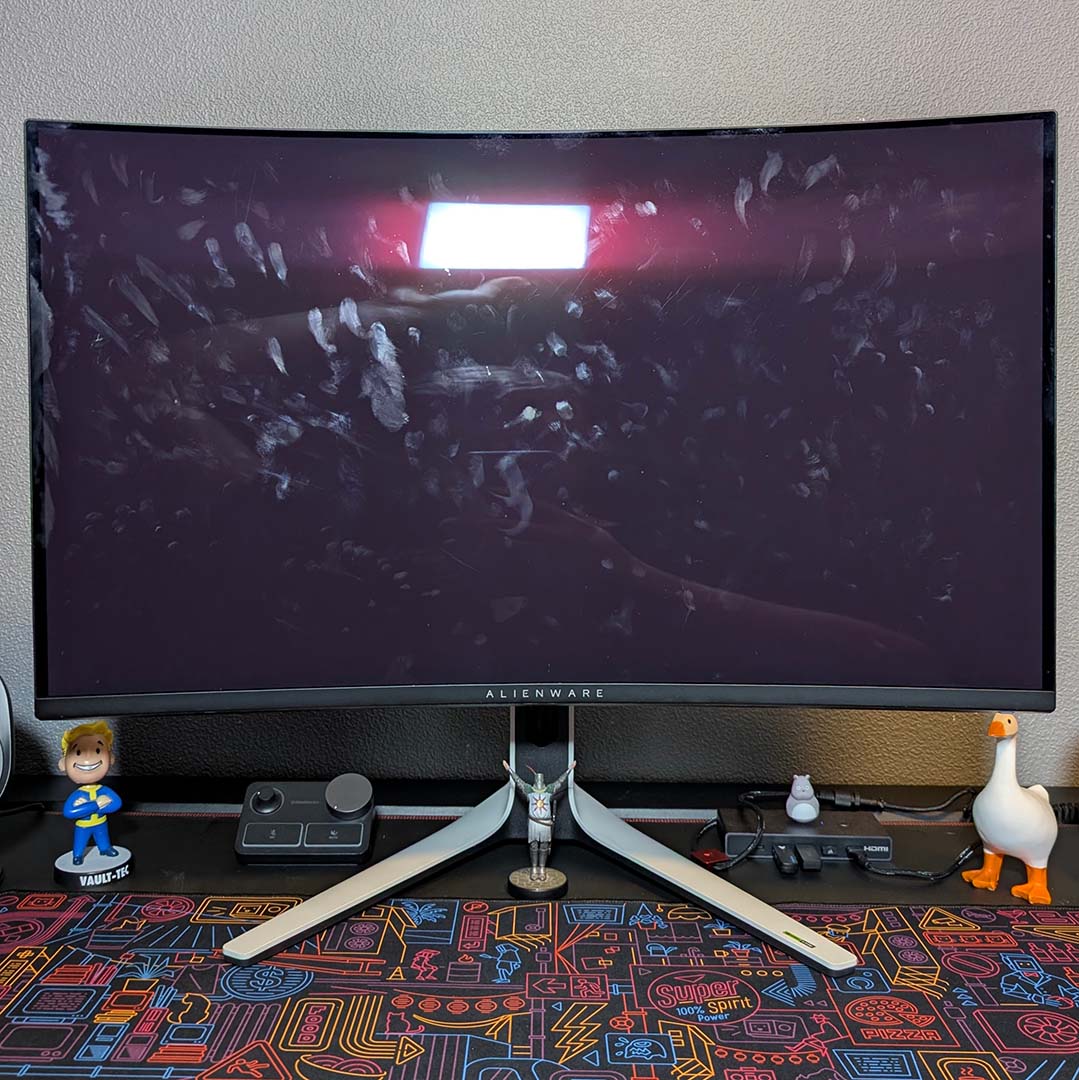
Before we right this wrong, there’s a small bit of additional preparation to complete. Turn off and unplug your monitor, then leave the screen a while to cool down. Ambient heat from the backlight or OLED pixels can fast-dry your isopropyl alcohol or distilled water before it can lift any dirt, resulting in a streaky subpar clean. I usually leave my screen overnight when possible, but an hour will suffice in most cases.
Now, take one of your dry microfibre cloths and gently rub it against your monitor in one direction (e.g. left-to-right). The goal here is to free any loose dirt and dust that’s clinging to the panel, with the single direction in service of not causing any unintentional scratches. If you see any smudges or other unsightly splotches that aren’t coming away at this stage, don’t try to force them off the screen, as this could lead to damage.
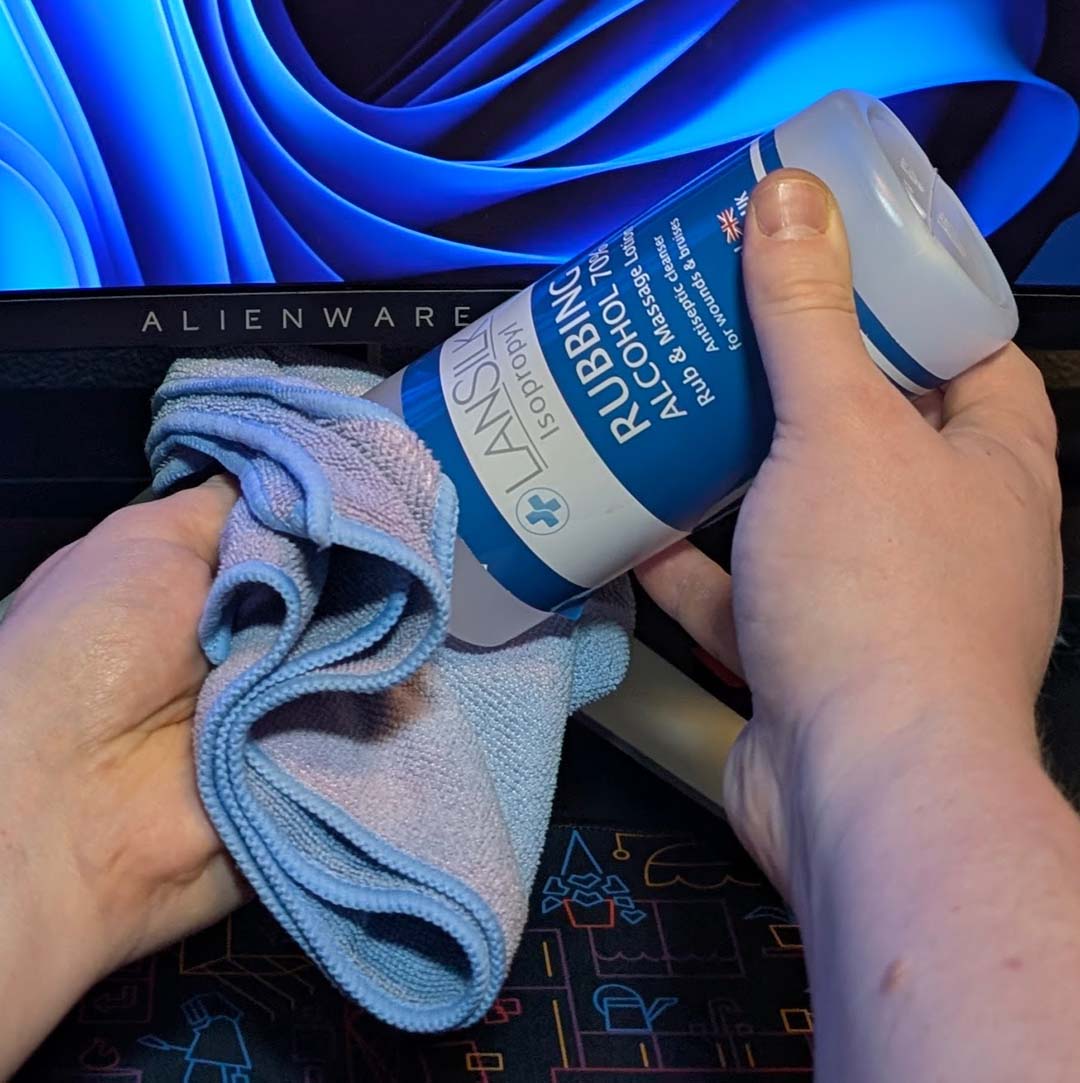
Next, take your isopropyl alcohol and a separate microfibre cloth, then dab a small amount of liquid into the rag. I recommend three to four doses in the middle of whichever part you intend to use for wiping your screen, but you can’t really go wrong as long as you don’t absolutely drench the cloth. Do not apply isopropyl alcohol directly on to the monitor.
Once again, we want to apply gentle force behind the cloth and move it across the panel in a single direction. You may find some stubborn stains require several wipes, which is perfectly normal, just don’t attempt to clean your screen with unnecessary, brute-force pressure.
Wait for the isopropyl alcohol to dry out, then wipe away any residue with your final microfibre cloth. If you’re still seeing streak marks from your initial clean, the monitor possibly wasn’t cool enough prior to your application. Alternatively, you may have been using a dirty rag, or you just might need to over the panel once more. If you still need to get rid of some stubborn streaks, I find some distilled water can do the trick, using the same method as we used with the isopropyl alcohol, but employing a new cloth.
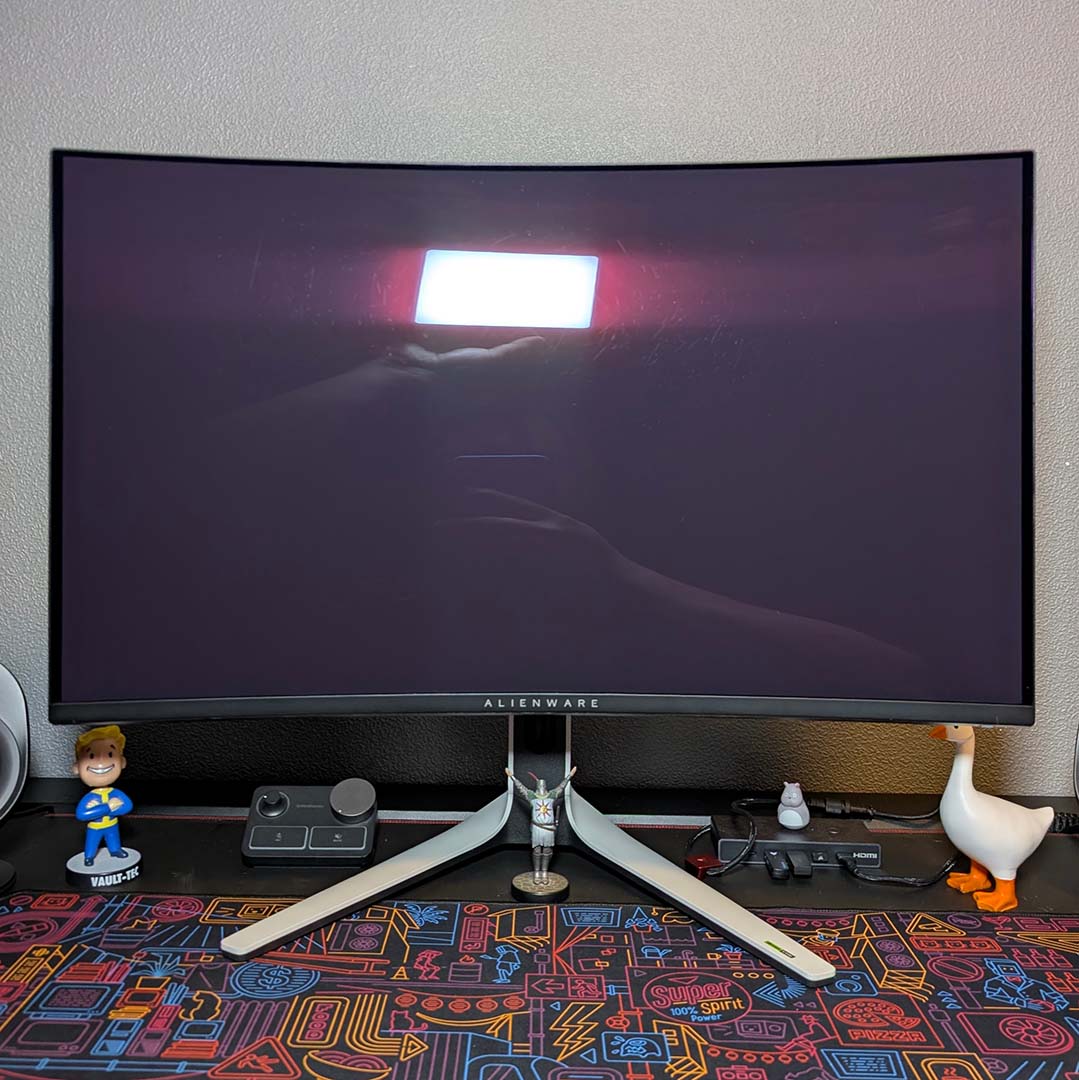
Just like that, your monitor should be looking almost as good as new. In the case of my Alienware AW3225QF, though, there are sadly many micro scratches littered across the screen from its several years of service, moves, and bad cleaning advice that I’d received prior to researching this guide. Let my screen serve as a warning for the consequences of ignorant or lazy upkeep.
In terms of how frequently you should clean your monitor, the manufacturers we contacted recommend somewhere between once a week or once a month. Of course, if you happen to accidentally sneeze, cough, or otherwise introduce nasty stains on to your screen, there’s no harm in following the steps above for an impromptu tidy.
For more cleaning advice, check out our guide on how to clean your PC keyboard. If you’re hungry for more display chatter, check out our picks of the best gaming monitors on the market.