
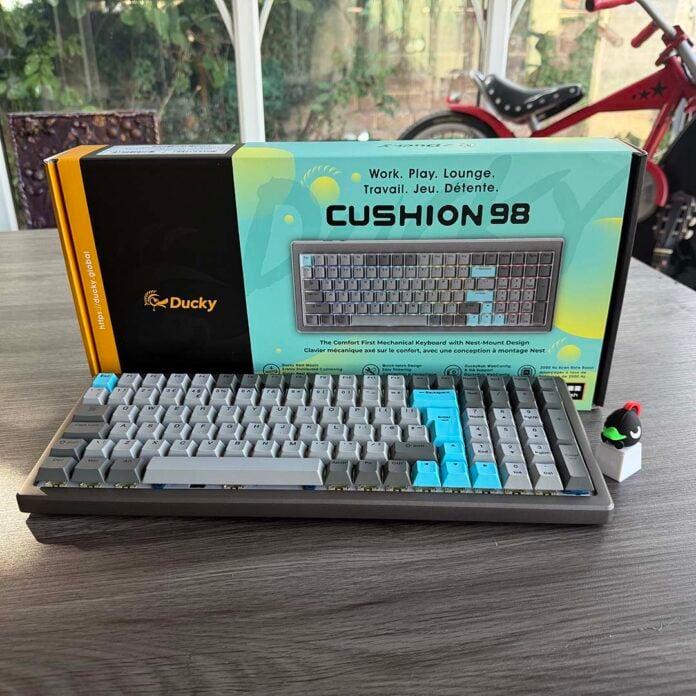
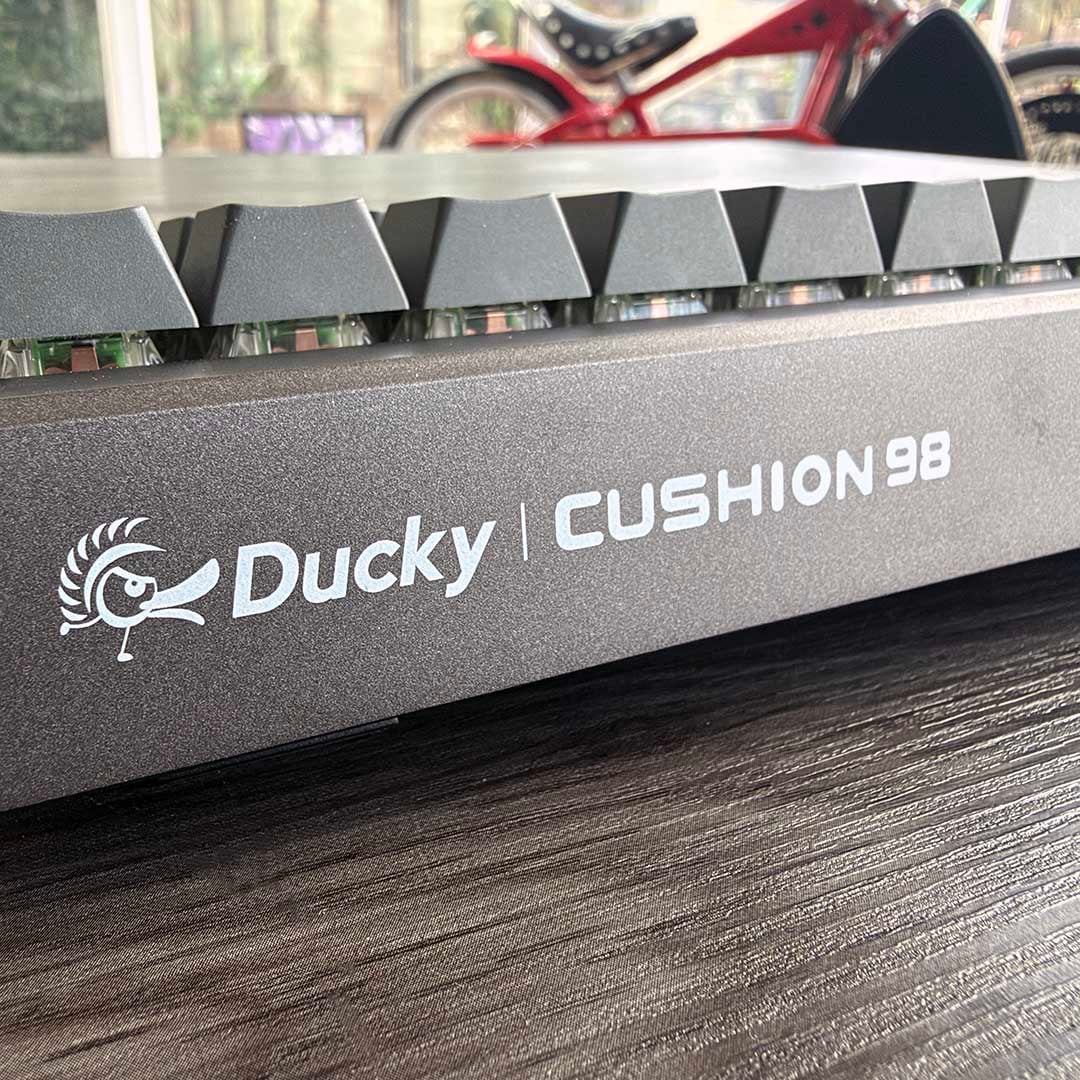
I’ve been using the Ducky Cushion 98 as my daily driver for a week now, and I still can’t believe how quiet it is. Its secret is a soft, thick layer of cushioning that lies between the base and other layers of construction, absorbing the all the clickety clacks you usually generate by typing on a mechanical keyboard, and it really works – it’s genuinely quiet.
That’s not the only way this modestly-sized keyboard worked its way into my good books either. Like many modern mechanical keyboards, it has a small footprint, but Ducky has somehow shoehorned a numpad into the design, making good use of the dead space often found on the right of TKL keyboards.
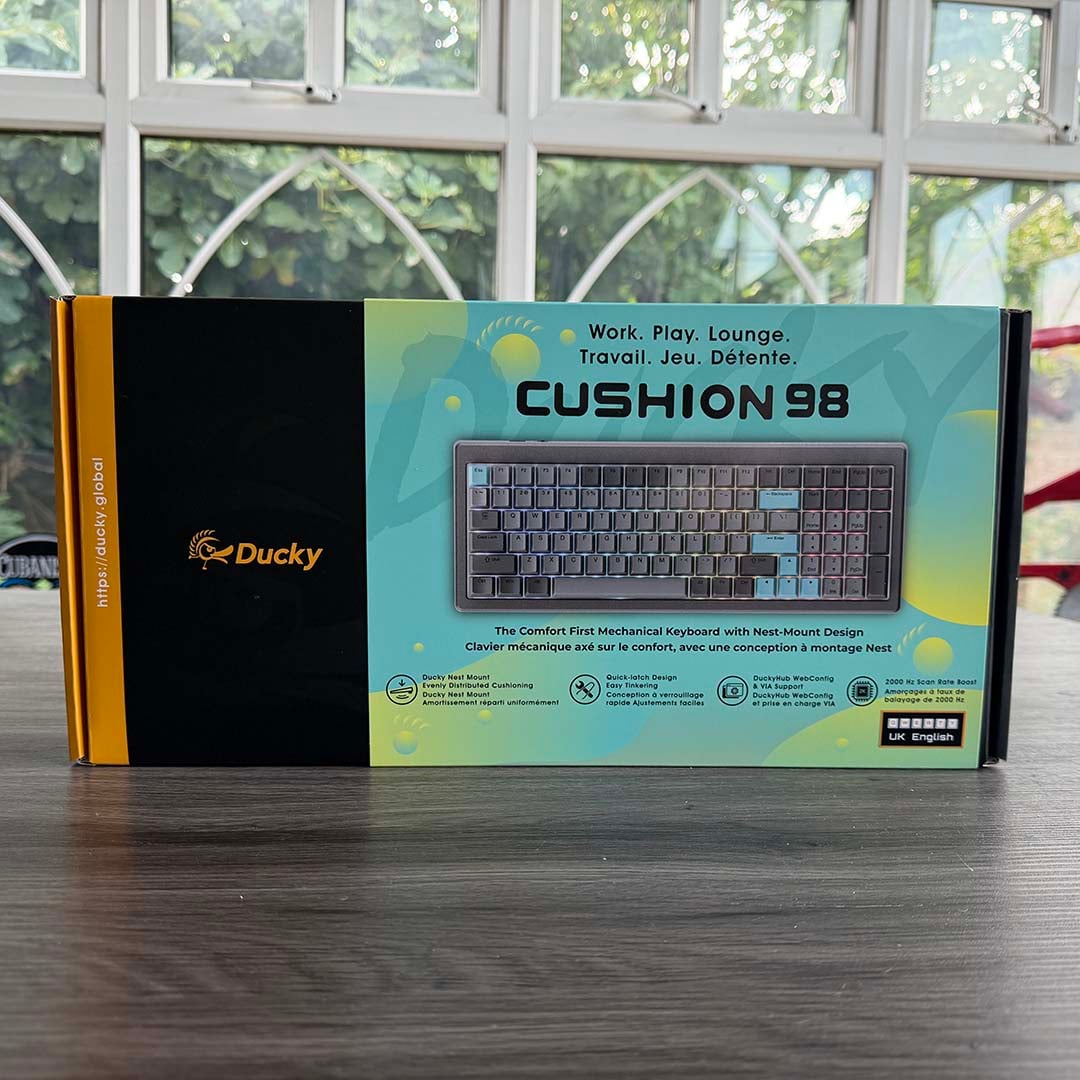

Ducky Cushion 98
£149.99
Pros
- Incredibly quiet
- Excellent build quality
- Hot-swappable switches
- Choice of dampening materials
- Small footprint
- You still get a numpad
- Tool-free internal access
- Loads of extras
Cons
- No Prt Scr key
- No dedicated media controls
- Some legends are hard to read
Club386 may earn an affiliate commission when you purchase products through links on our site.
How we test and review products.
The end result is a keyboard that takes up hardly any space on your desk, while still providing a decent typing experience, remaining exceptionally quiet, and importantly for Excel users like me, giving you a numpad for quick number entry. It’s not perfect, but it’s a fantastic piece of engineering. Let’s take a closer look at how it’s all put together.
Design
What first strikes you when removing the Ducky Cushion 98 from the box is its sheer weight. This comparatively small keyboard is topped by a chunky aluminium frame, and it weighs in at 1.23kg. You really feel like you’ve bought something for your money here – it’s a properly premium product.
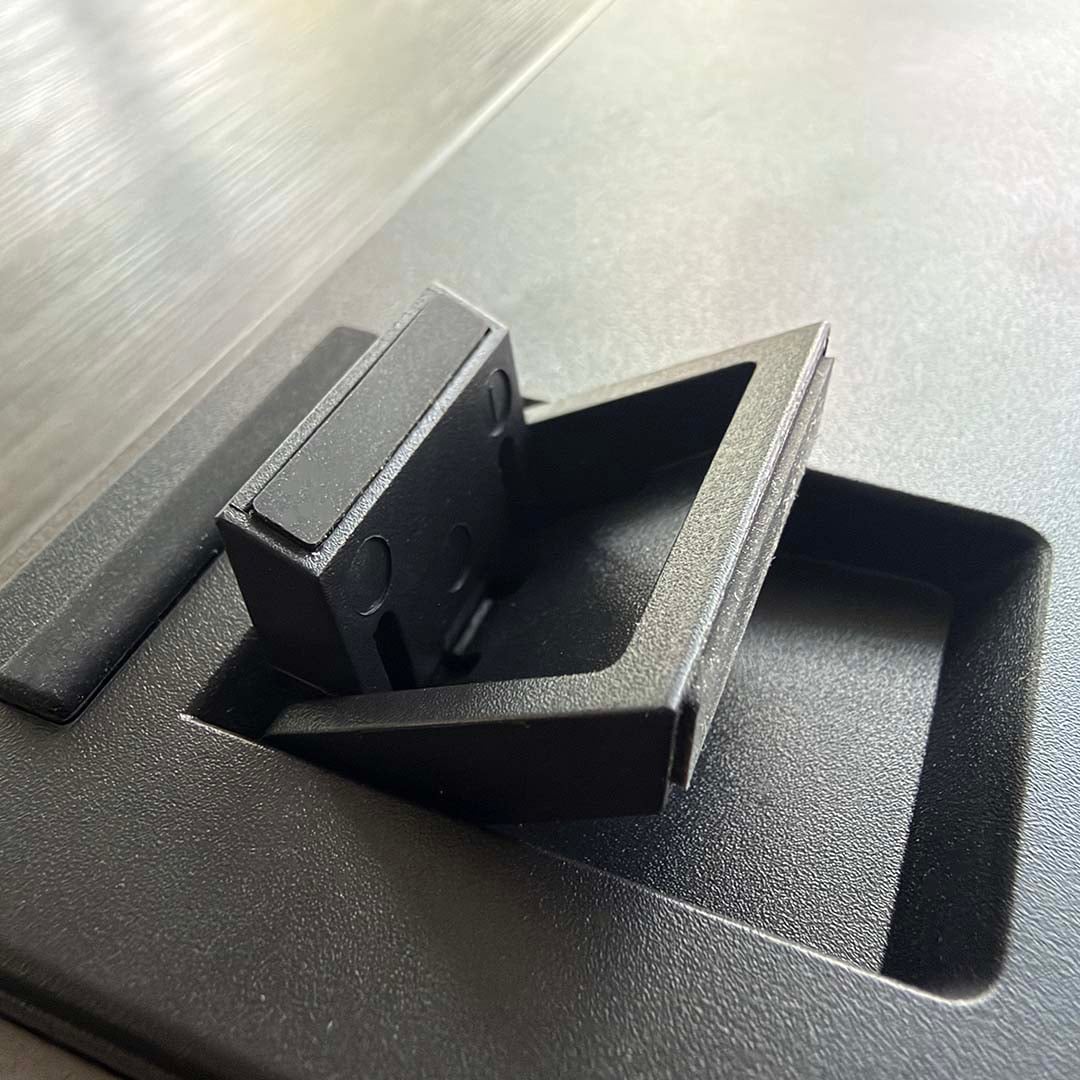
This means it stays firmly in place on your desk while you’re typing. Meanwhile, a clever foot design gives you two levels of elevation from which to choose, depending on what sort of slope you want under your fingers. The whole unit measures just 384mm wide, slashing a good 50-60mm off the usual width of a full-size keyboard. Despite looking more like a compact TKL design, though, Ducky has managed to squeeze a numpad onto the end.
The secret here is bringing all the keys together in one group, while removing a few of the stragglers people might not always use. There are no right Windows or Menu keys, for example, plus the Pause/Break and Scroll Lock button have gone. One key (pun intended) omission here for me, though, was the lack of a Prt Scr (print screen) key.
This is one that I regularly use in my working day to initiate the Windows screenshot snipping tool, and it was frustrating not to have it on hand. Yes, you can remap it as a secondary function of another key (more on that later), but I’d much rather have a dedicated, labelled button for it. Unsurprisingly, given the small form factor, you also don’t get any dedicated media keys or a volume roller.
Again, these are keys I use regularly on my usual Corsair K95 RGB Platinum, and it took me a while to get used to their absence – sometimes an annoying song comes on random play and you need a way to skip or pause it without having to faff around. I found that making volume up and down secondary functions of the up and down cursor keys helped here, with skipping back and forward corresponding to the left and right cursors too.
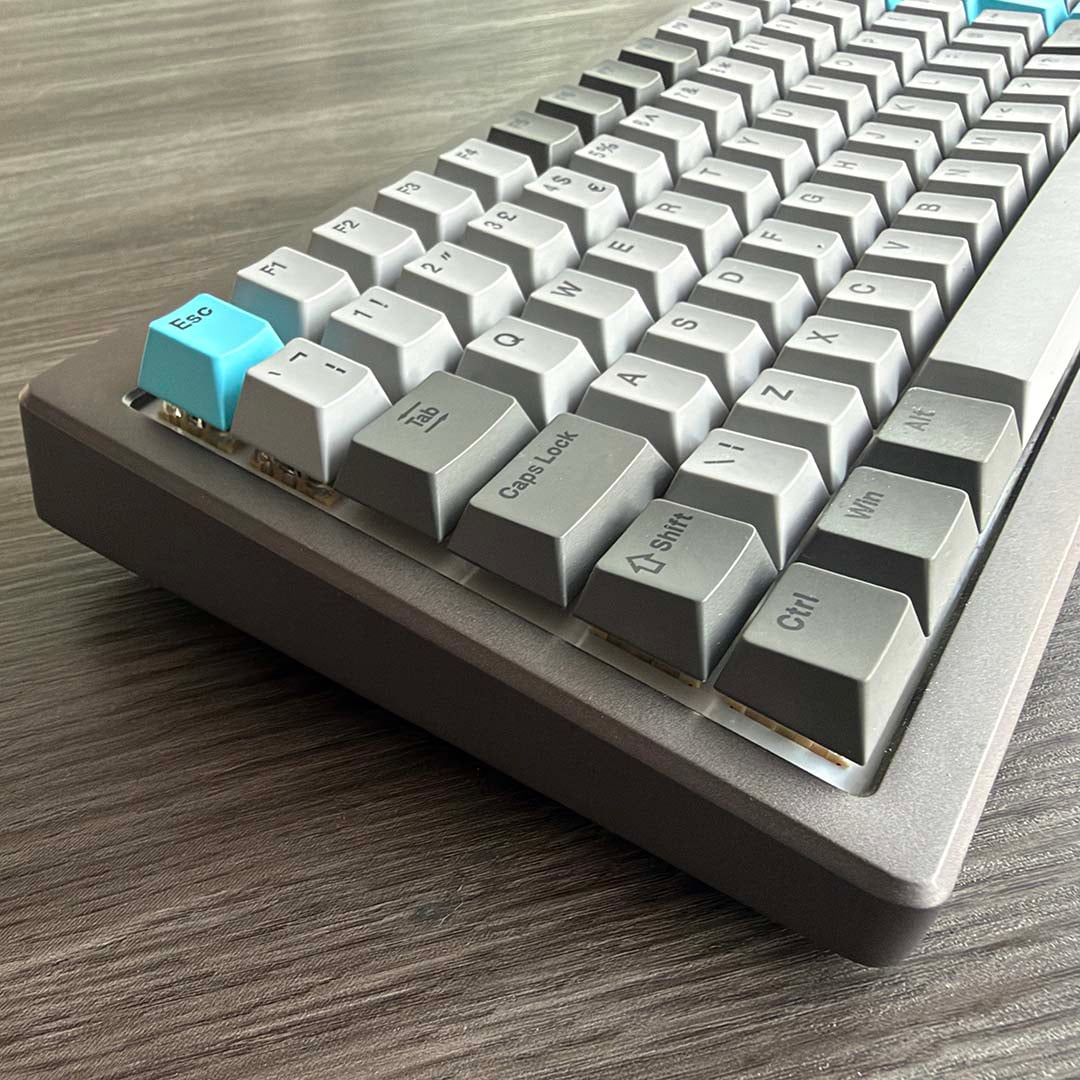
Otherwise, though, you’ve got everything a typist needs in this compact package. It takes a little while to get used to the new positions of the keys for Ins, Del, Home, and so on, but you get there eventually. Once you know where everything is located, you soon get up to speed. Having the numpad on hand is a real boon too.
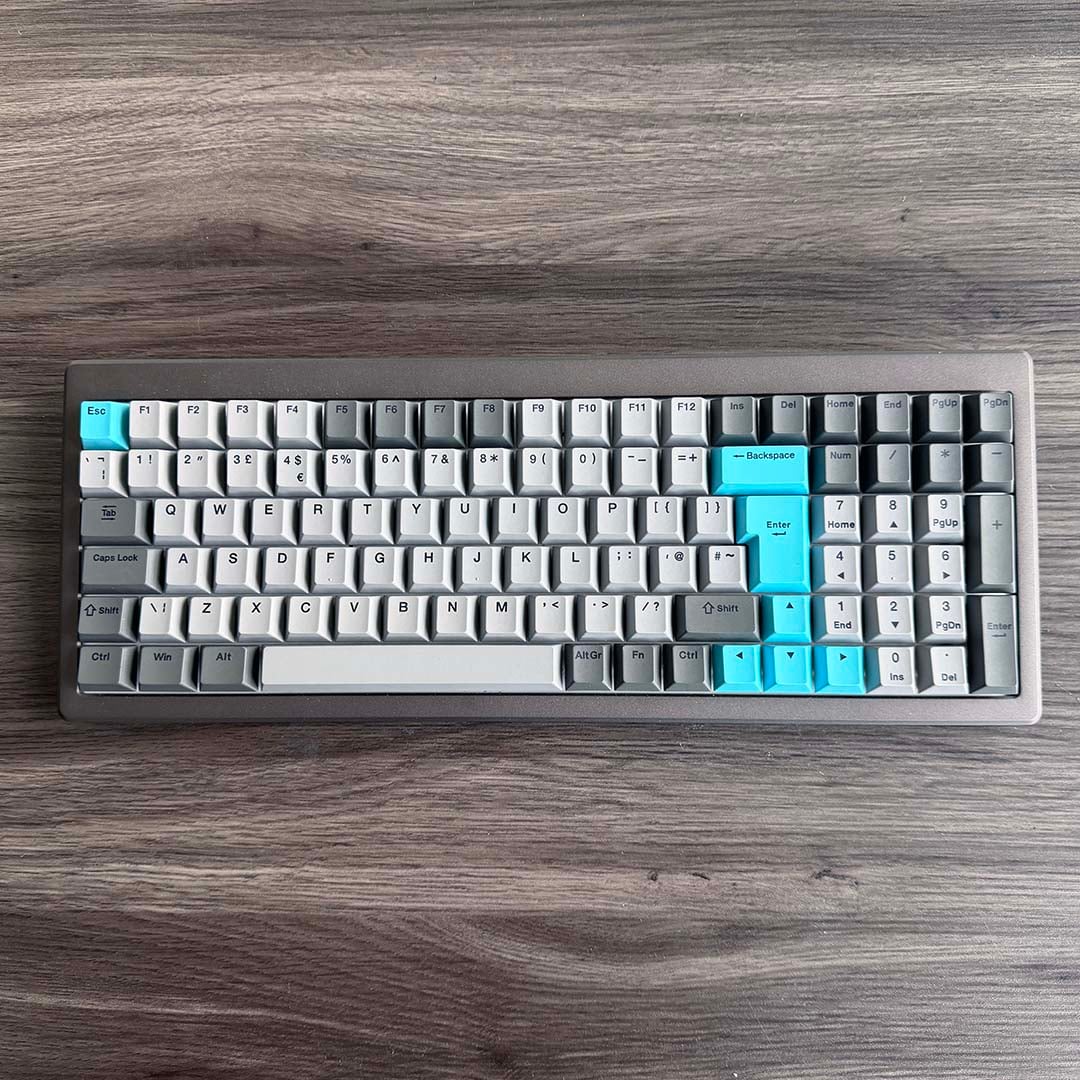
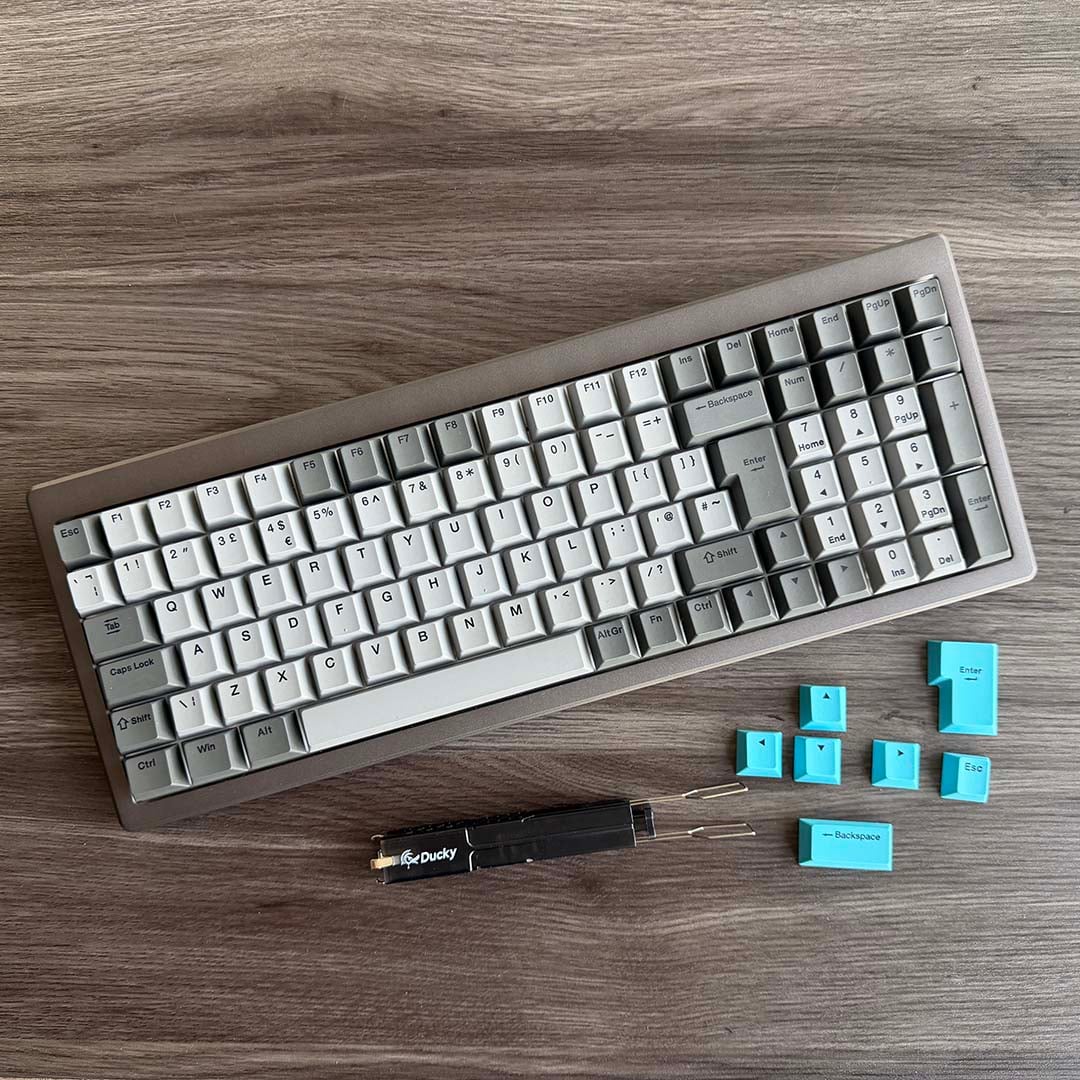
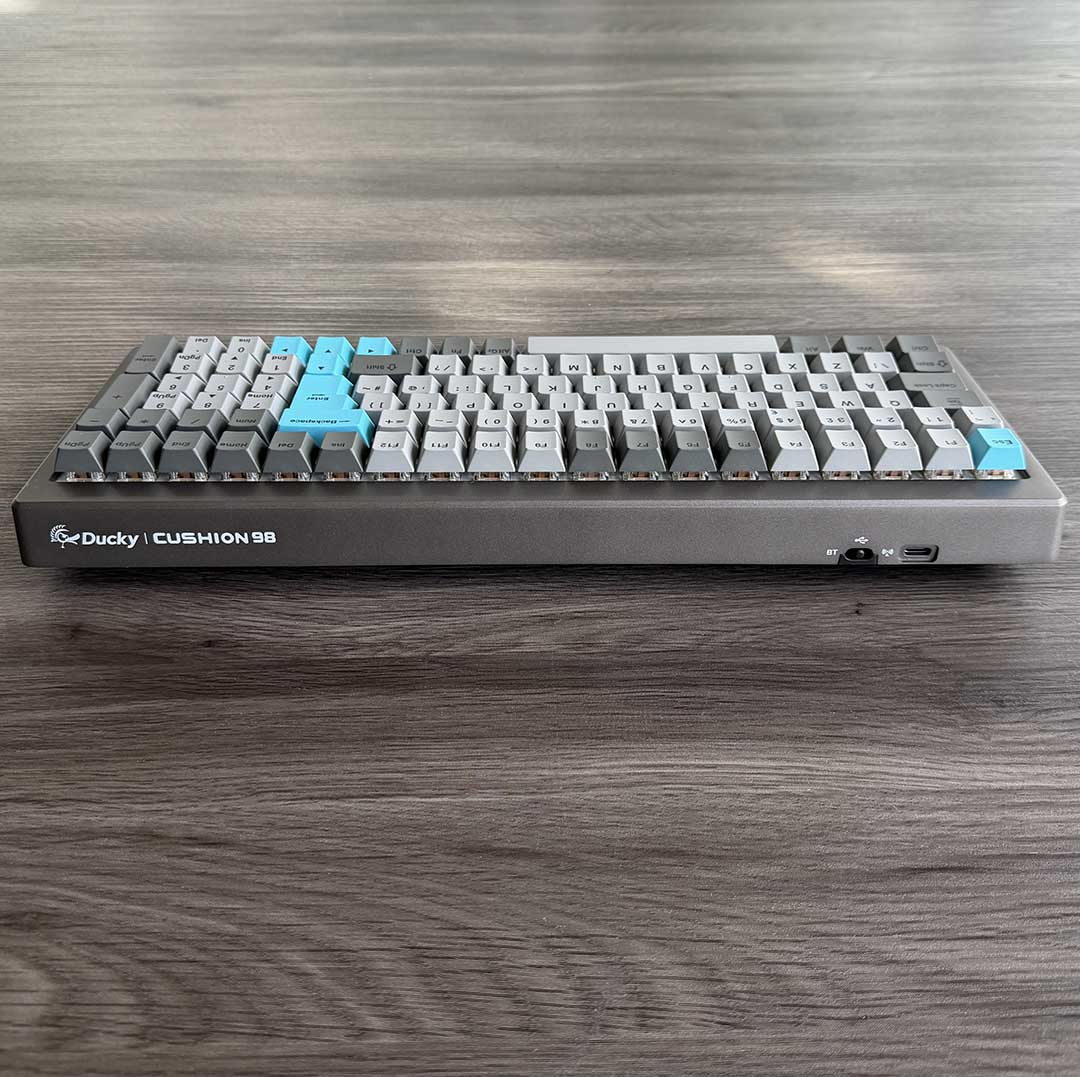
The keys themselves use standard Cherry-profile keycaps, with PBT-doubleshot legends, so they won’t wear away under your fingers. Out of the box, the cursor, Backspace, Return, and Backspace keys are all blue on the nickel model I tested.
This brings me to my only other main criticism of this particular model, though, which is that the black legends are hard to read on the dark grey keys, particularly in low light conditions. In this case, the RGB backlight doesn’t help either, as it only acts as a backdrop, rather than shining through the legends, and there are also no activation lights for the Num Lock and Caps Lock keys.
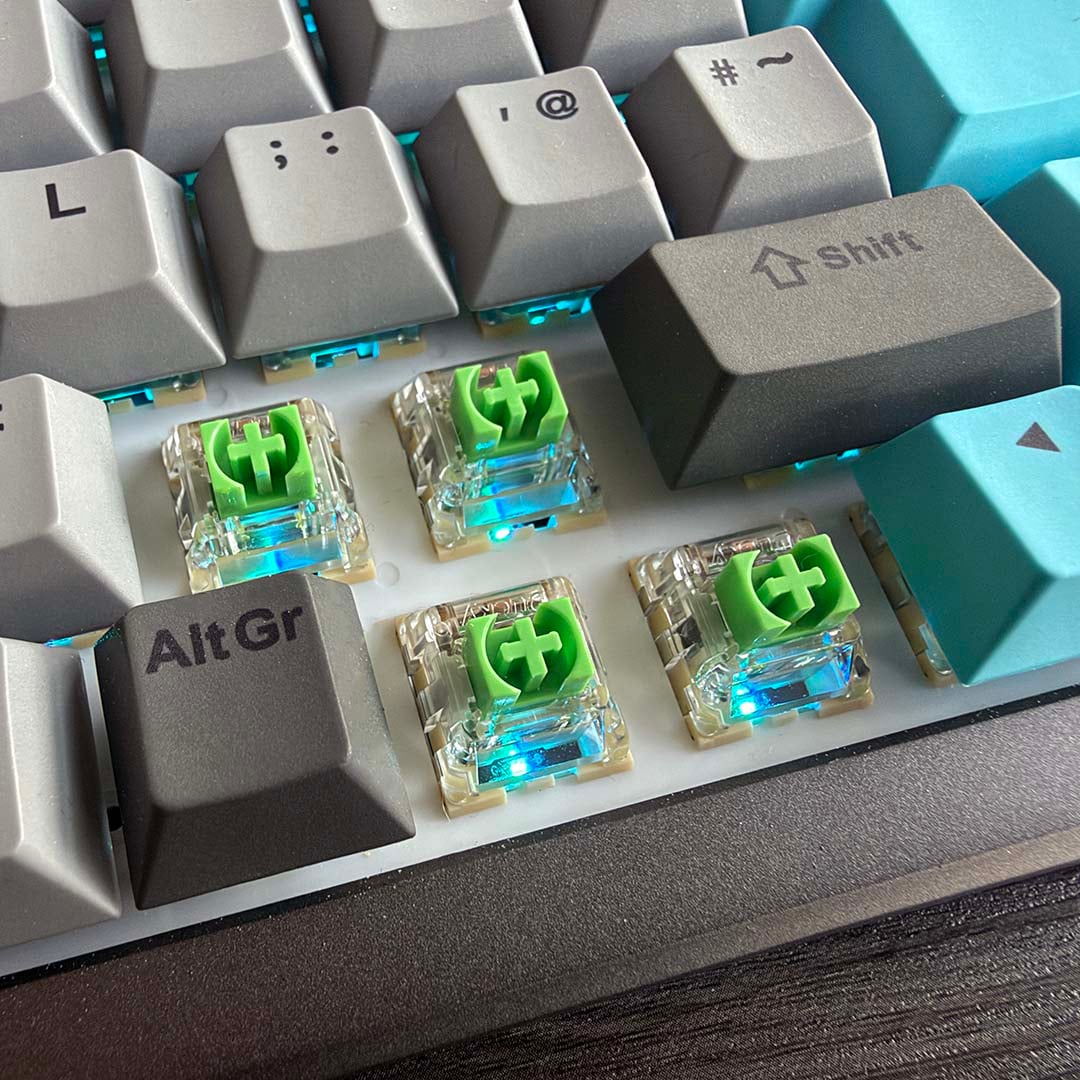
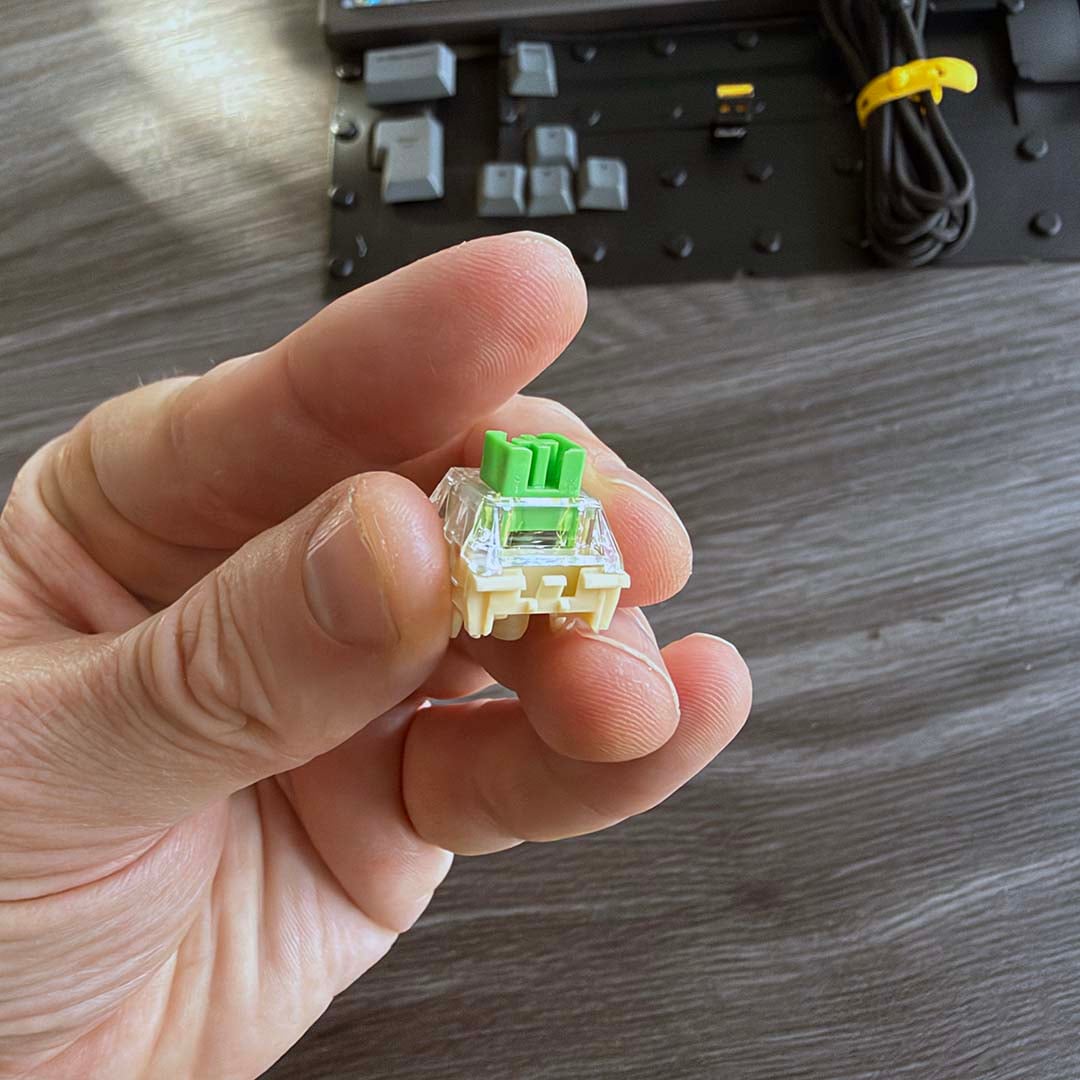
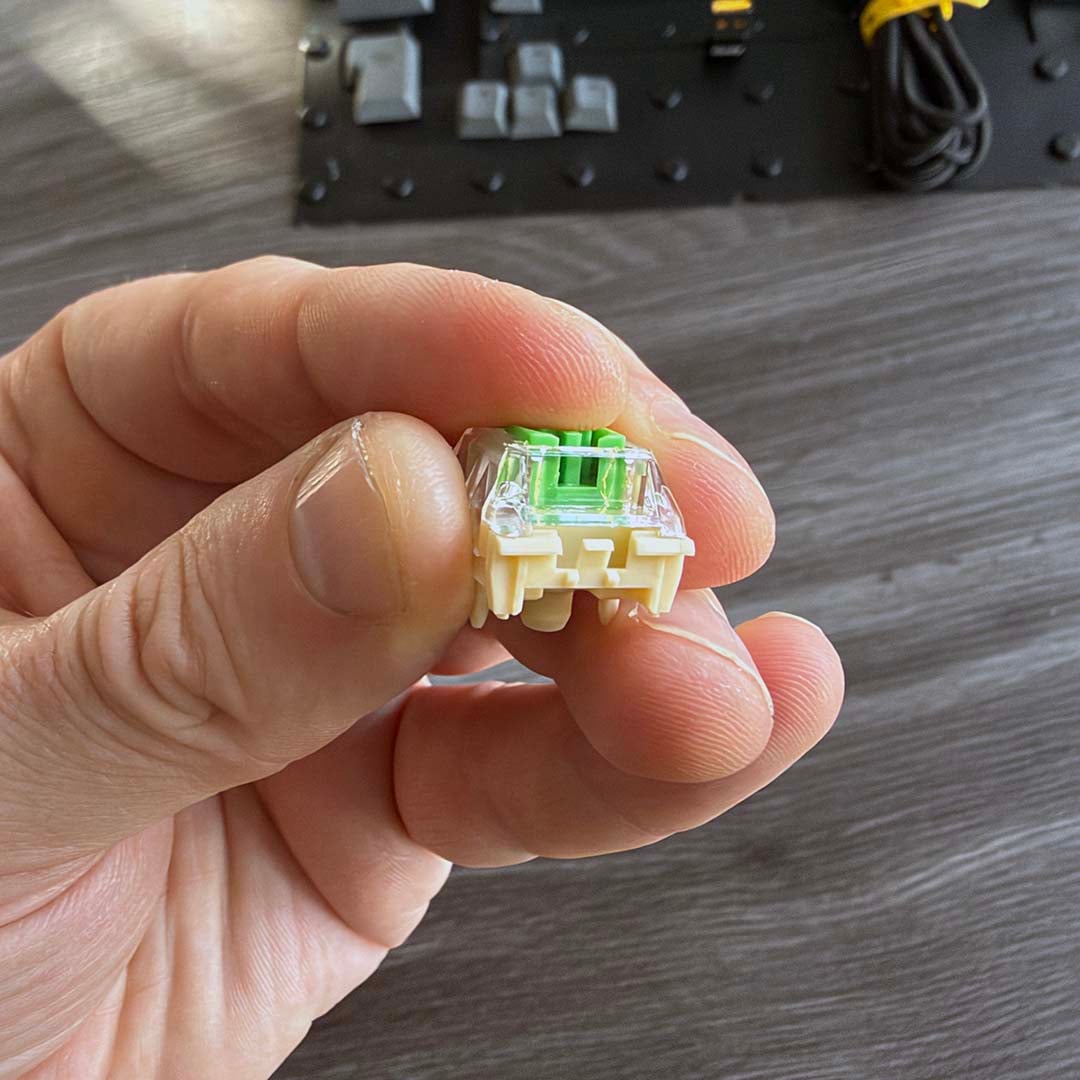
Underneath these keycaps you’ll find Ducky’s own-brand Shush switches, which are hot-swappable with your own choice of switches if you prefer. These switches are designed with quiet operation in mind, aiming to still give you a responsive press, and bottom out distinctly at the end like any other switch, while also keeping the noise down. A choice of tactile (green) and linear (red) switches is available.
I had the former in my sample, which have a small bump at the bottom of the press, so you have some feedback without a clicky noise. There’s also a small hole in the front of each switch, which allows the small LEDs on the Ducky PCB to shine through, pointing towards you, rather than upwards. In all honesty, though, the RGB lighting on this keyboard is largely superfluous. It provides a subtle glow through the gaps between keycaps, providing a touch of colour, but you can’t see much of it and, as I mentioned earlier, it doesn’t illuminate the legends either.
Sound dampening
Beneath the switches and PCB is where you’ll find the Ducky Cushion 98’s weapon of choice – a thick layer of flexible silicone cushioning, which Ducky calls the Nest Mount, because ducks have nests, don’t they? Ducky says this is designed to offer a more uniform typing experience than a typical gasket mount, acting a bit like a mass suspension system under the switches to even out the action. Mainly, though, it softens the blow of those switches hammering down, making for a really quiet typing experience.
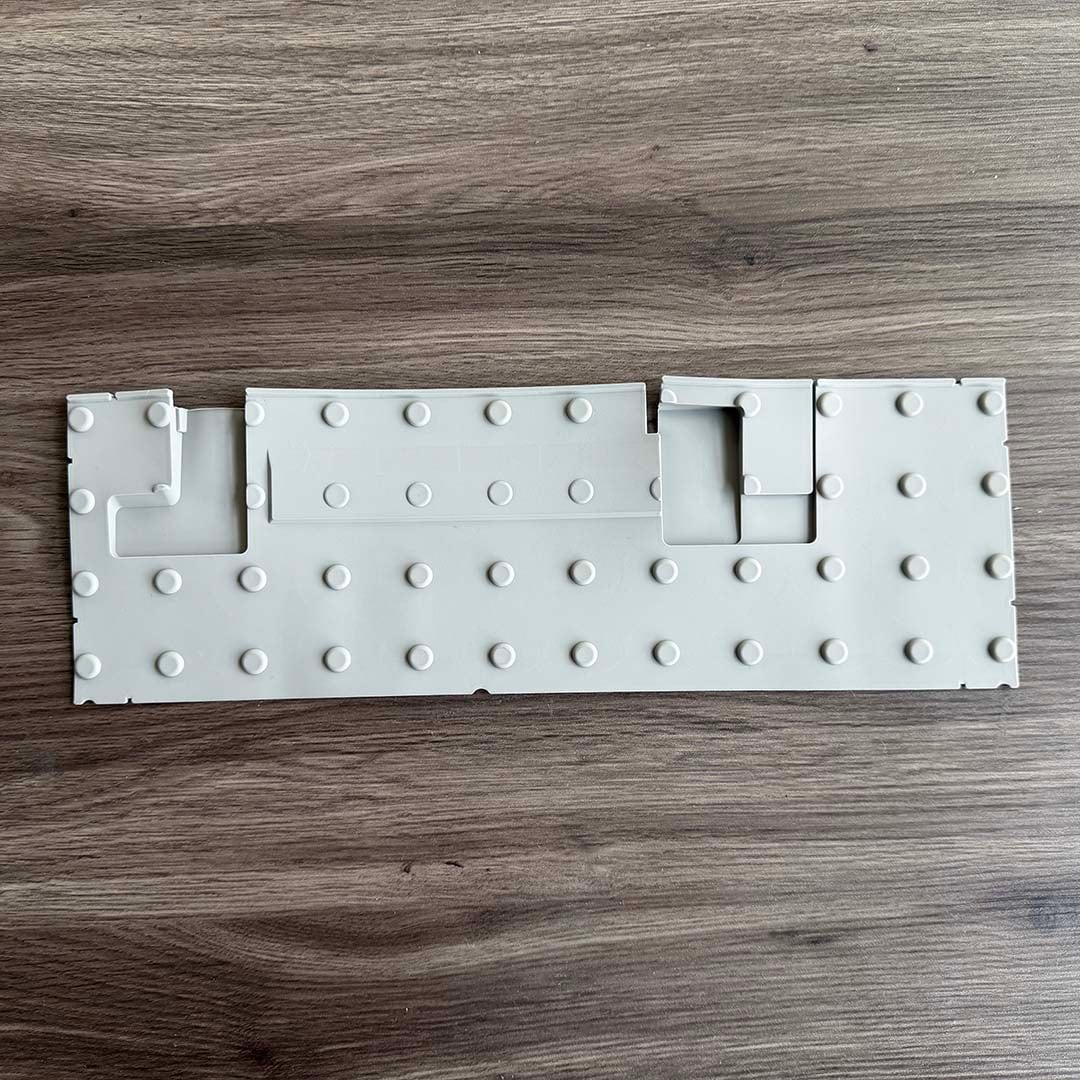
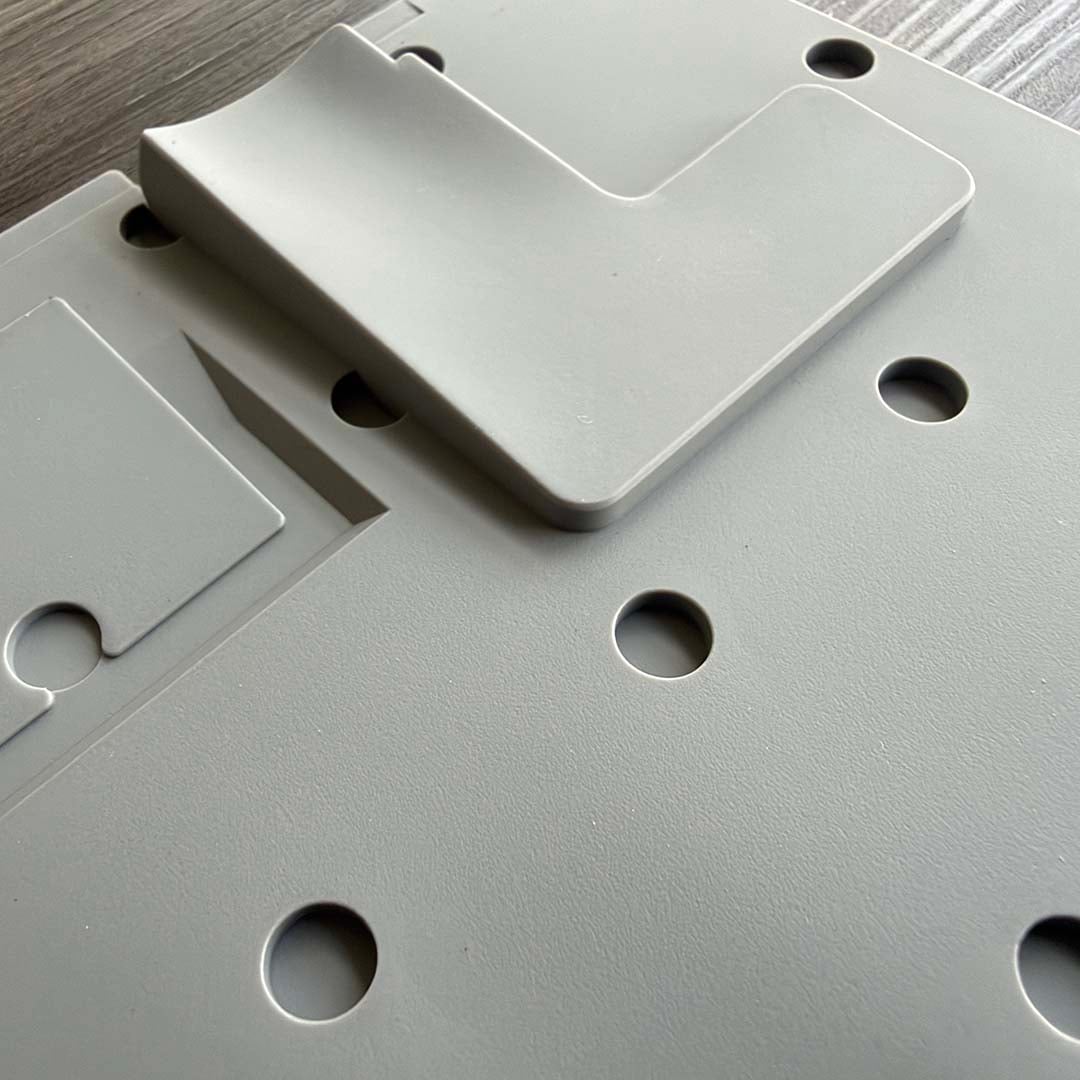
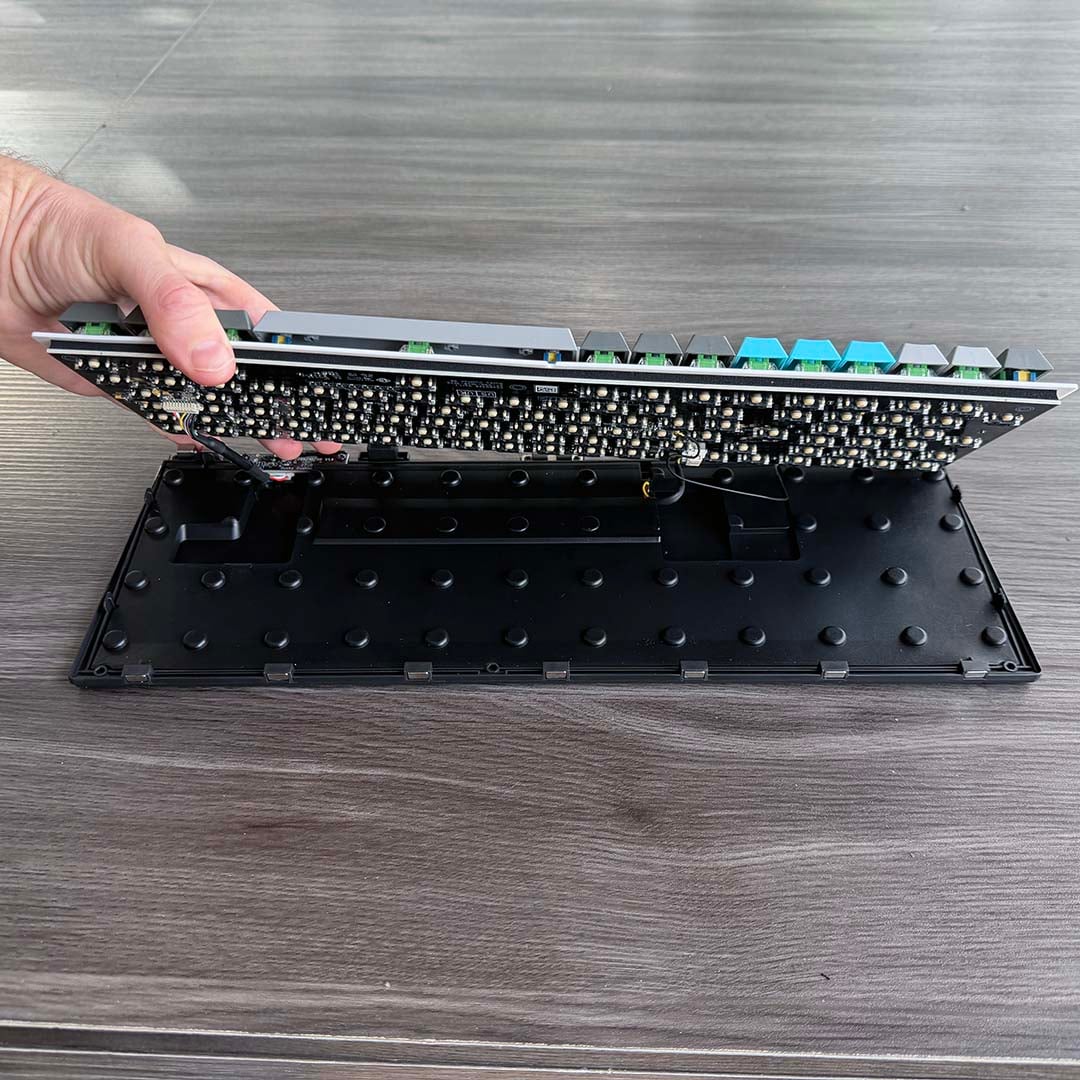
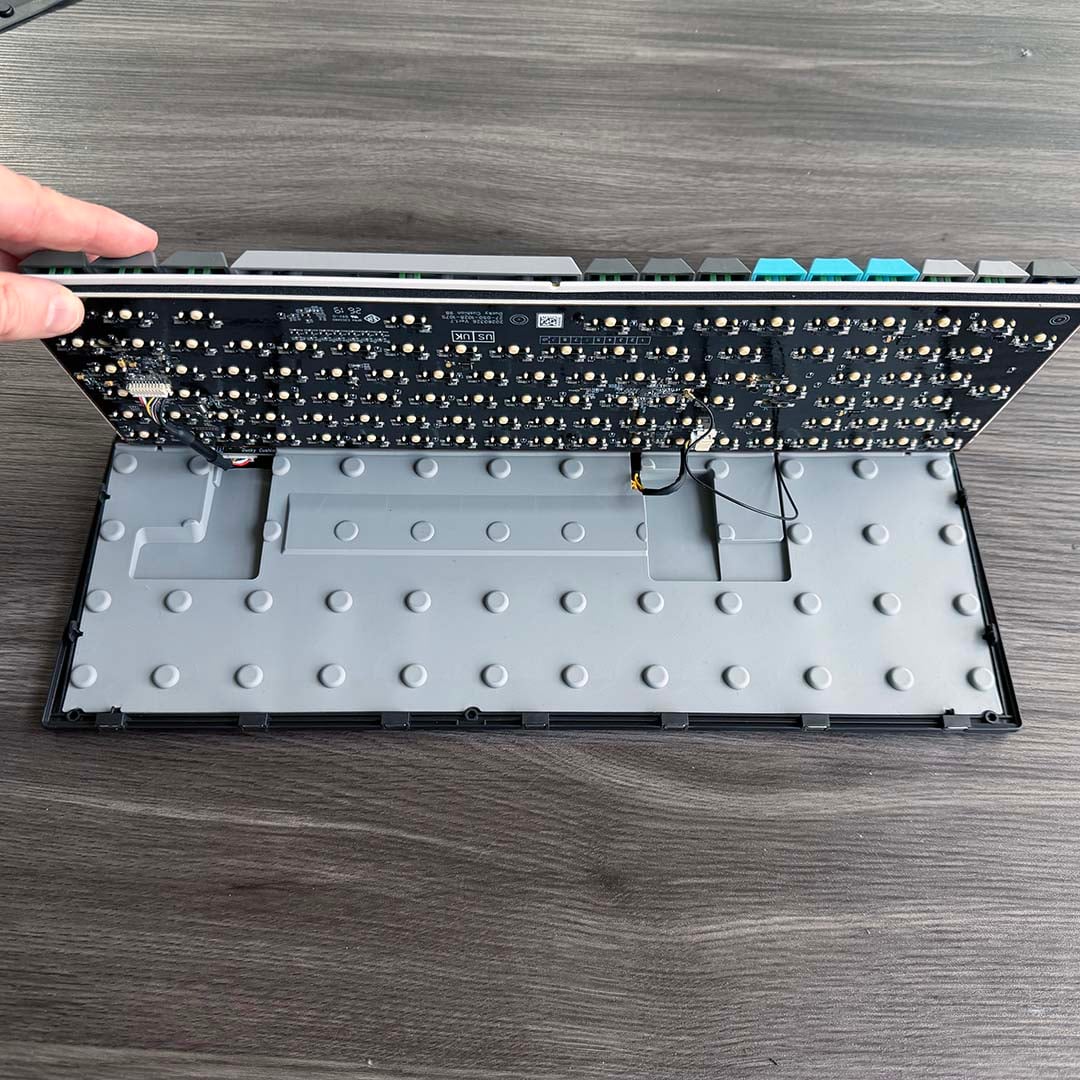
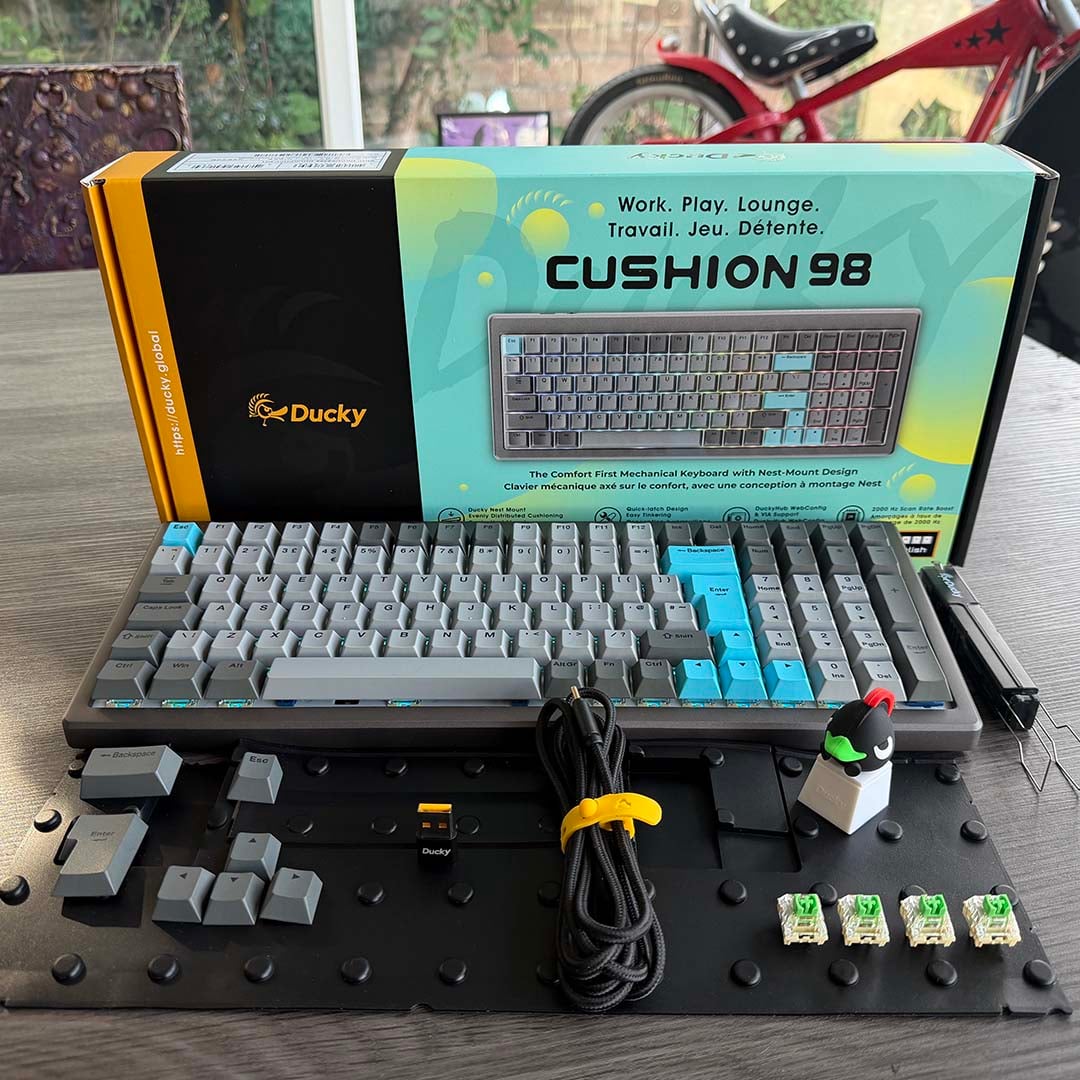
Two cushions are provided in the box – a grey one and a black one. As standard, the black cushion is fitted in the keyboard, and offers the quietest experience. However, you also have the option to dismantle the keyboard and swap it out for the grey one, which isn’t as quiet, but feels firmer and a bit less mushy under your fingers.
Don’t let the thought of taking apart your keyboard worry you, though, as Ducky has made it remarkably simple. You don’t even need a screwdriver, or a small box to keep track of all the parts. What’s more Ducky has provided clear paper instructions on how to do it in the box, which I always appreciate.
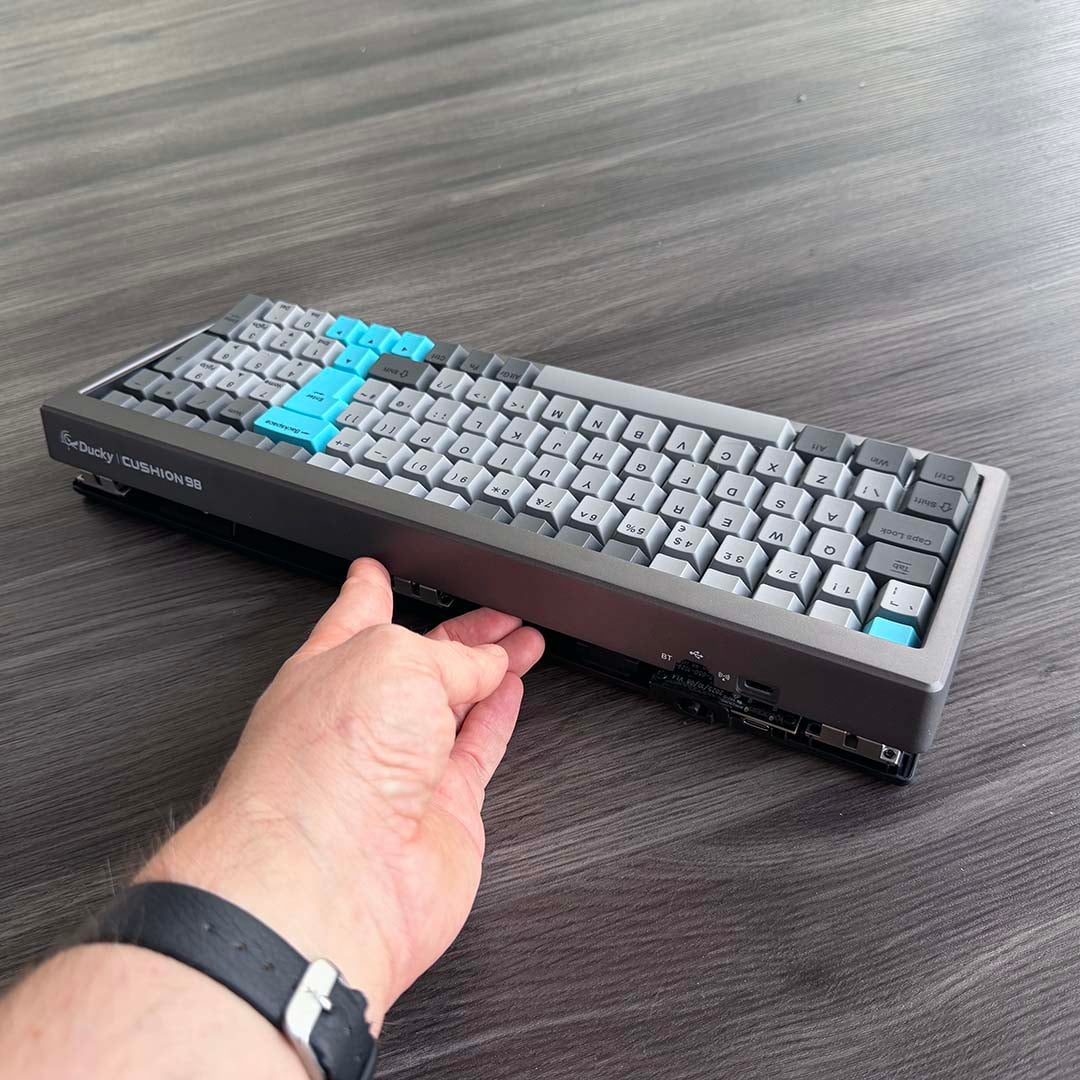
Basically, you can take the whole kaboodle apart with just your hands, thanks to a simple latching mechanism and Ducky’s use of magnets to hold it together. You start with the latch at the back, which just involves pushing the keyboard through down through the aluminium frame, and then lift off the front, which is held in place with magnets.
You then lift up the PCB, being careful not to detach any of the cables. After that, you simply swap out the cushioning pad, make sure the cables are sitting in the gaps on the new cushion, and then click it back together. I’m honestly really impressed by how simple and tactile Ducky has made this process – it’s a masterclass in thinking about the consumer first.
Features
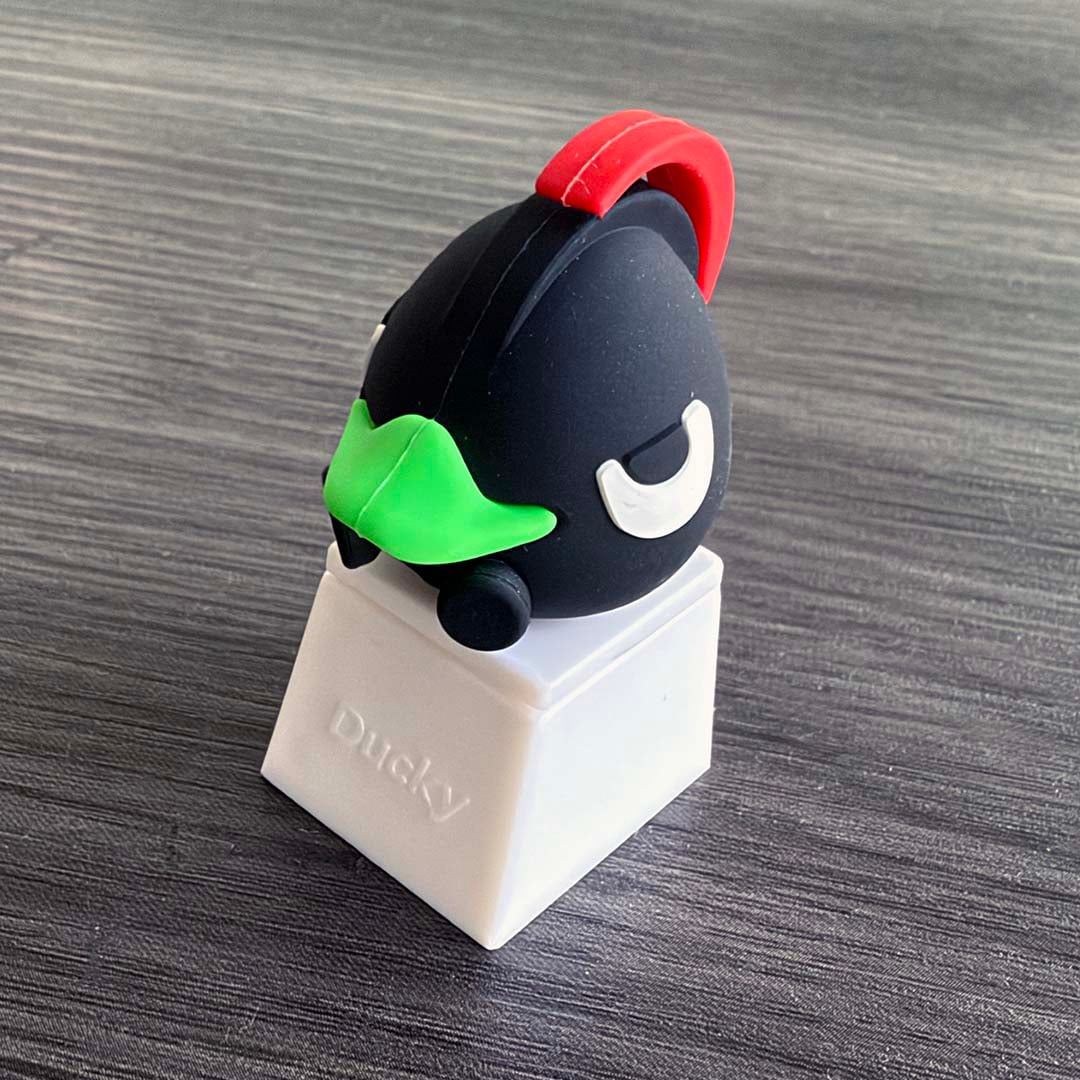
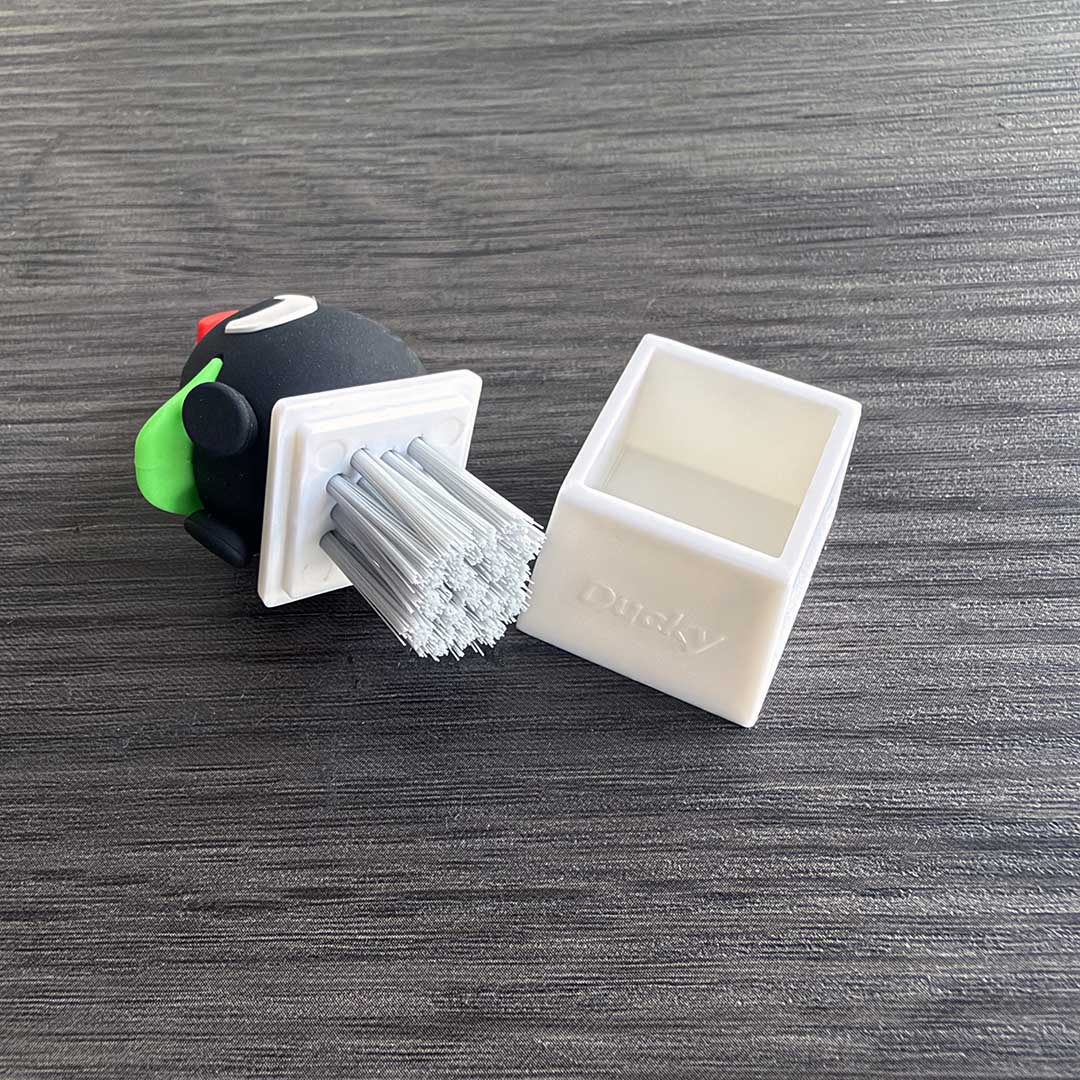
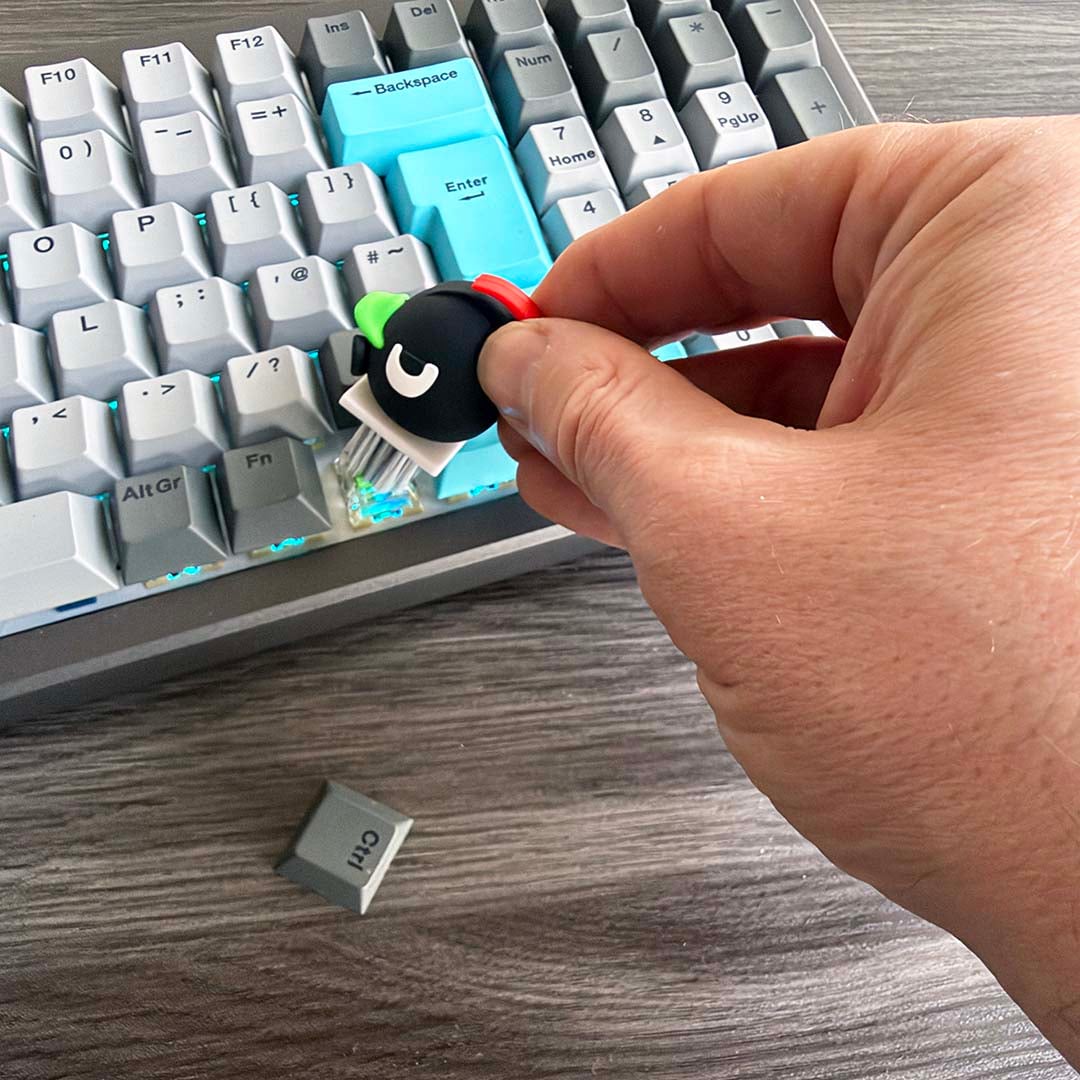
Those soft cushioning layers aren’t the only handy features you get in the box. There are loads of little extras, one of which is a little Ducky mascot that actually has a useful function. Pull this little dude out of his stand and you’ll find a cleaning brush, which is handy for sweeping dust, hair, and crumbs from your keyboard.
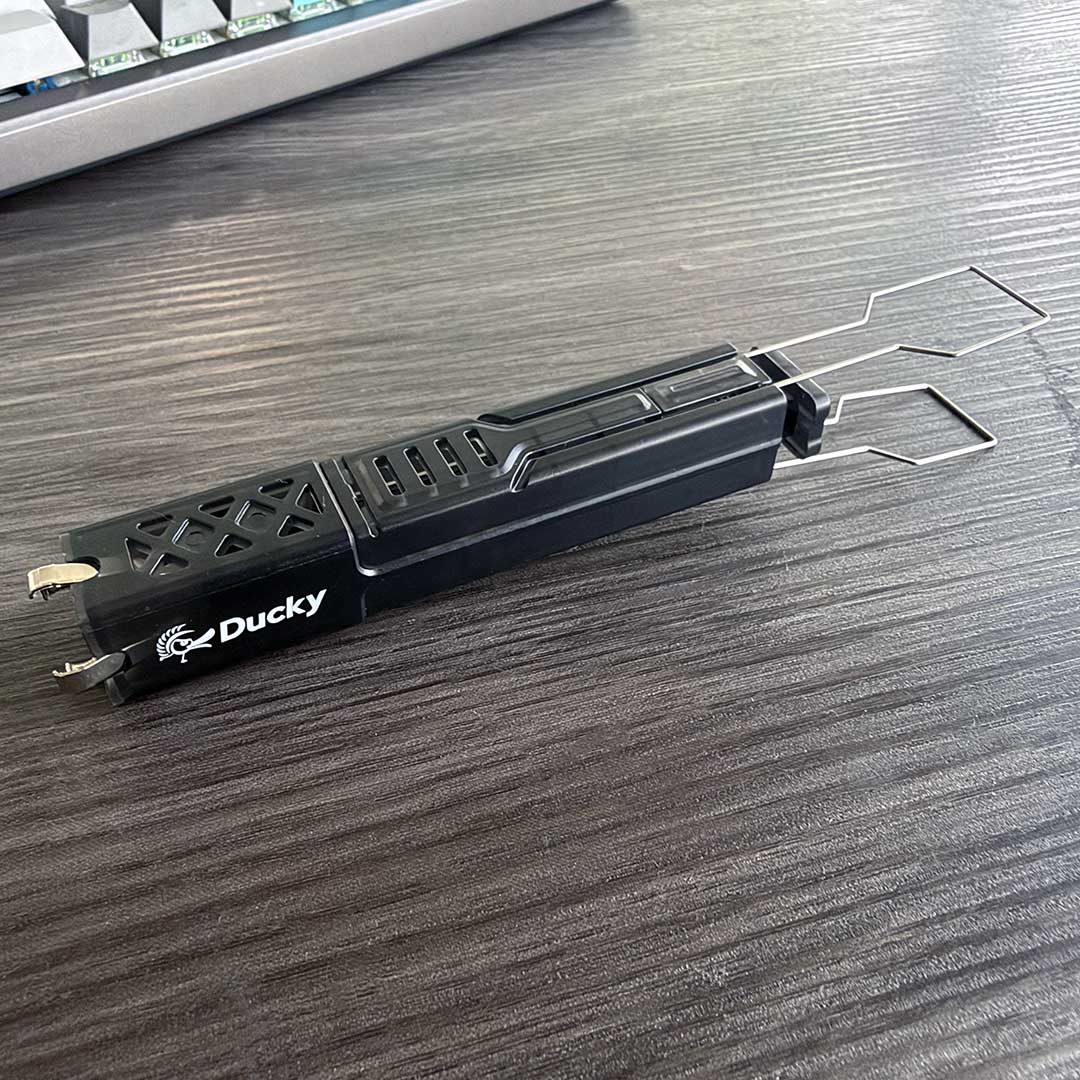
There’s also a dedicated all-in-one tool for removing keycaps and switches. Two metal levers fold out to give you a keycap puller, while the four metal grips on the other end can be used to remove your keyswitches. Four spare Ducky Shush switches are included in a little bag, just in case any of them fail at any point.
Another bag contains a set of dark grey keys with black legends, which are designed to replace the blue cursor, Esc, Backspace, and Return keys on the nickel model, giving it a more conservative, uniform appearance. However, as I mentioned earlier, the legends are hard to see on these keys, and it was a no-brainer to stick with the blue ones.
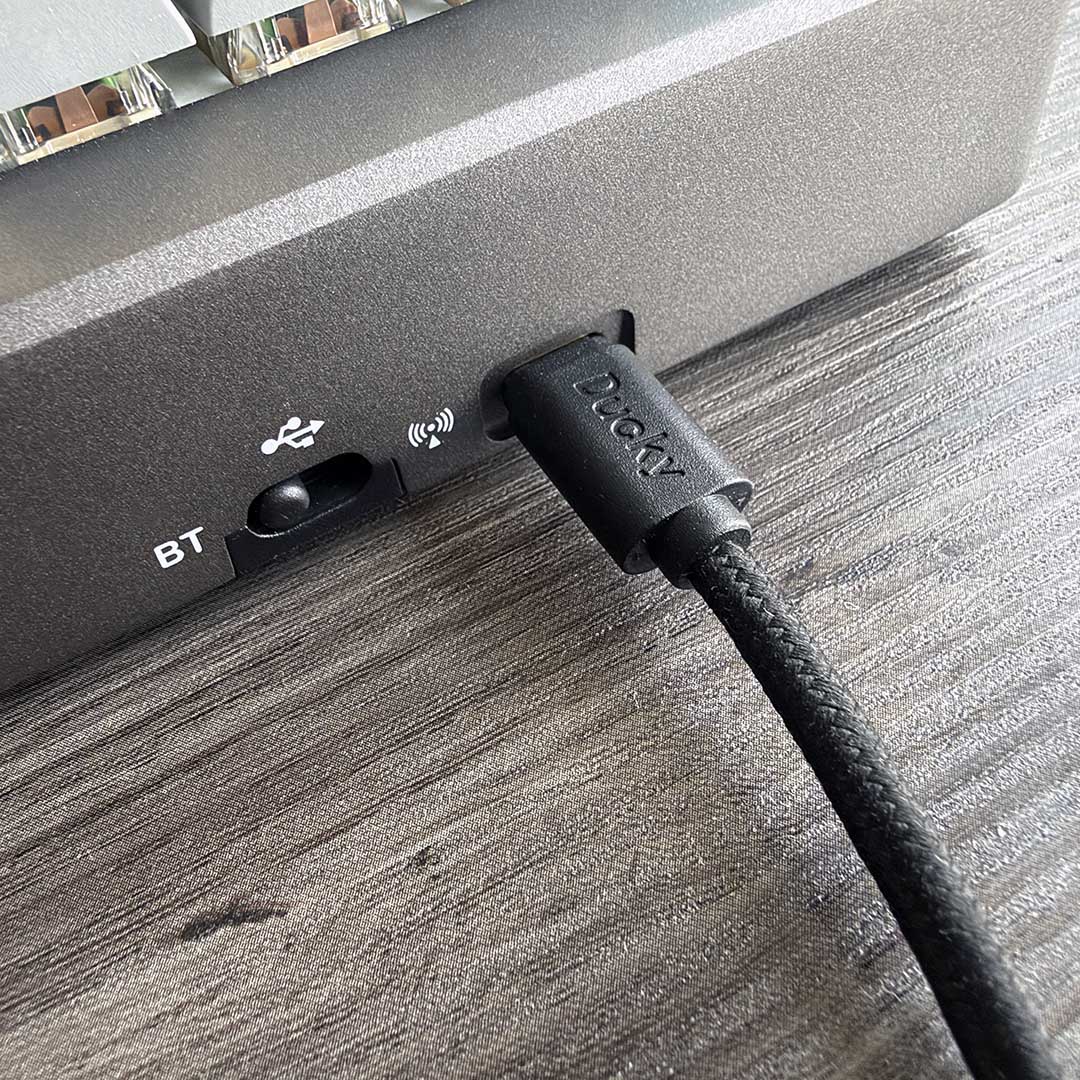
Finally, you have three choices when it comes to hooking up your keyboard to a PC. There’s a well-made braided USB-C-to-USB-C cable for a wired connection, which has a decent 2m length to it, along with a USB-A adaptor for one end. However, you also have the option to hook up the Cushion 98 wirelessly, either via Bluetooth or through a dedicated 2.4GHz wireless connection.
A 4,200mAh battery sits under the cushion layer inside the unit, which Ducky says gives you up to up to 63 hours on a single charge. That feels about right in my testing if you turn off the backlight – I had it running for two solid days of typing and gaming over Bluetooth with the backlight on, and Windows started nagging me about the battery at the end of the second day.
Software
Keeping things simple is clearly a matter of principle for Ducky, as we saw with the cushion swapping, and the same goes for its software. While some peripheral makers feel like they’re bamboozling you with busy, dedicated apps, Ducky has gone for a basic web app to control the Cushion 98. That means it works on basically any computer, as long as you use a Chromium-based browser, and you’re not connecting with Bluetooth.
Put the Ducky Hub web address into your browser, click the button to identify your keyboard, and it picks up the Cushion 98 instantly. You’re then presented with a series of simple menus to remap functions, create macros, adjust the lighting, and set up advanced features. Just bear in mind that you need a fair bit of screen space for it – snap it left or right on a 16:9 screen and it will say it can’t be displayed.
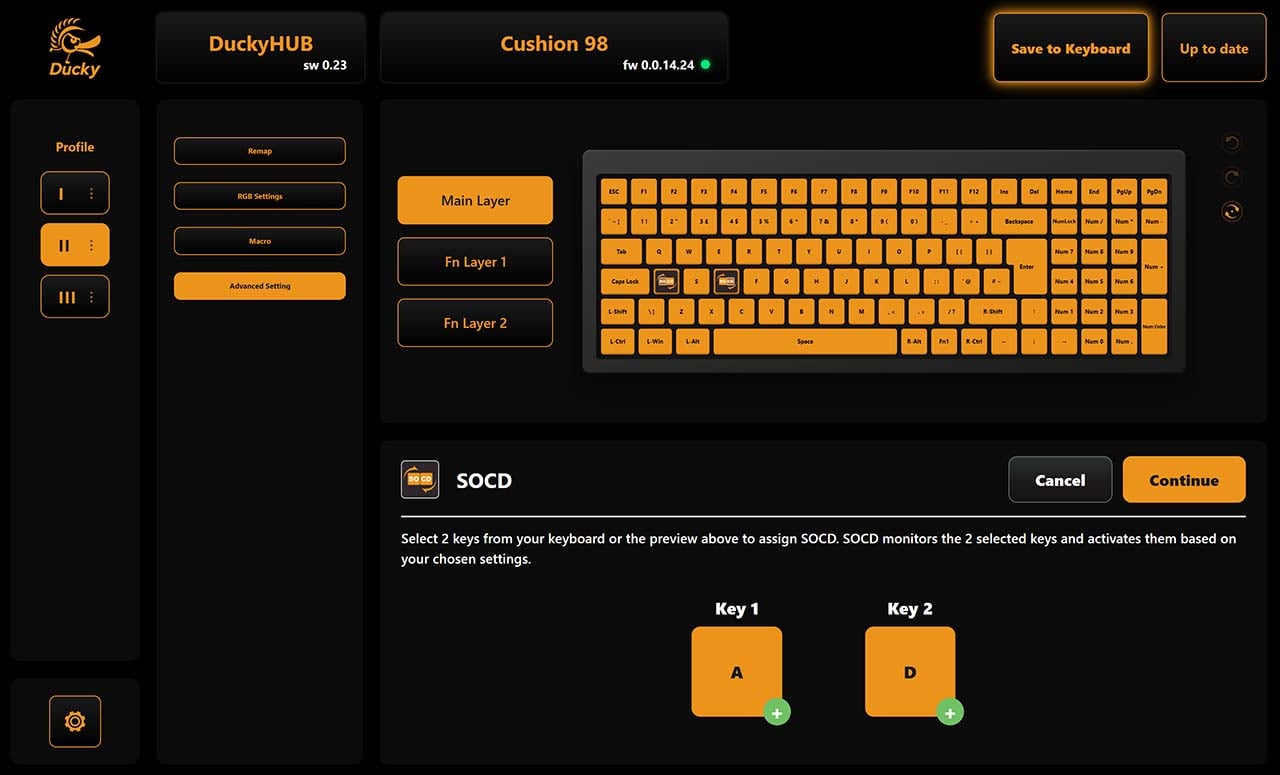
The latter includes Simultaneous Opposing Cardinal Directions (SOCD), which Razer calls Snap Tap – the controversial tech that’s banned in some games, including CS2. It basically enables you to carry on holding down one key while pressing another, but it only prioritises the one that you’ve pressed most recently. Set up a pair of keys to work with this system and you’ll find it makes light work of strafing as you don’t have to lift that other finger.
Meanwhile, key remapping is made really simple with a drag and drop interface. There’s a Fn key sitting between the right Alt Gr and Ctrl keys, and pressing this opens up two layers of additional functions. You just find the function you want (in my case, that’s Prt Scr and media controls), and drag them to the keys you want to use.
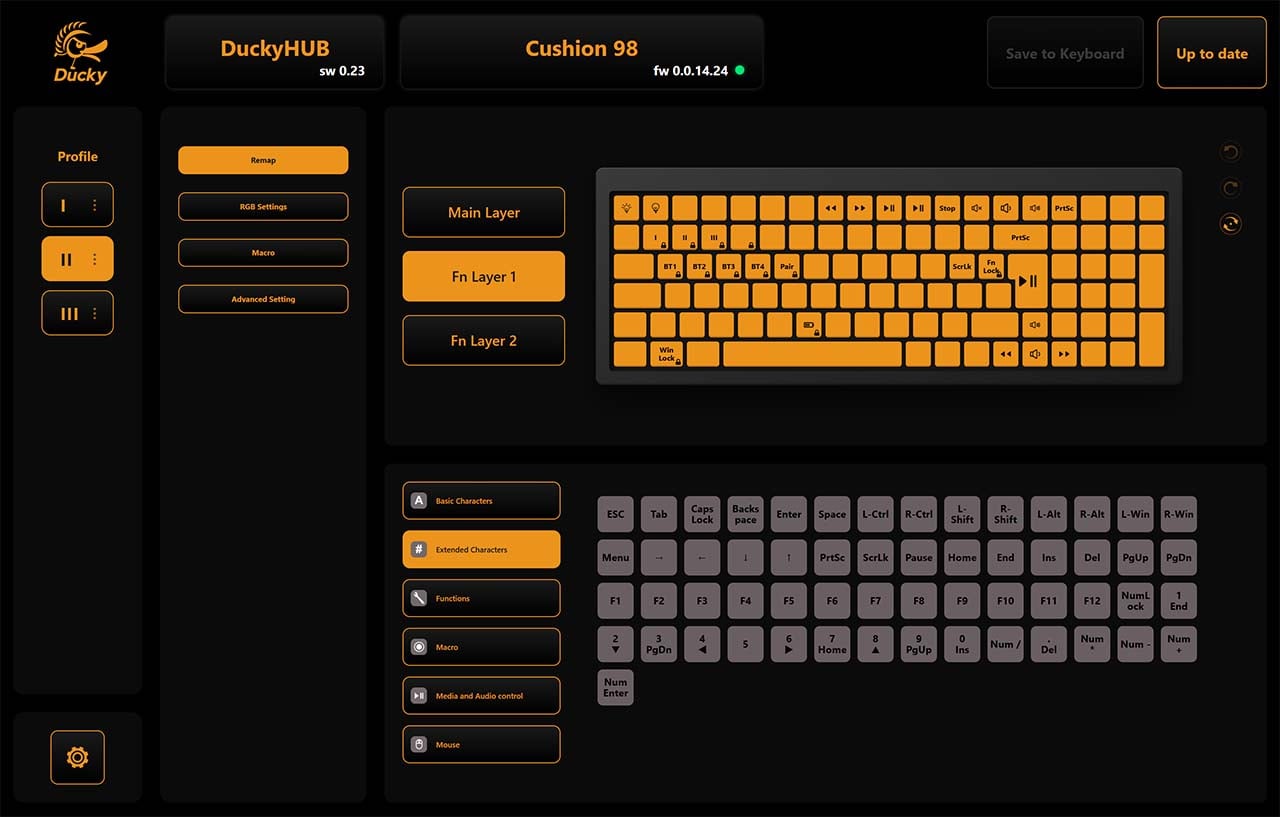
If there’s one criticism, it’s that the fact all the keys are lumped in together makes it difficult to see which one is which in the software, as none of the legends are shown when you select a function layer – I ended up having to count along the diagram to find the right F keys I wanted to use, for example.
RGB effects can be customised to a certain degree here, with static, wave, cycle, breathing, and raindrop (where keys light up one at a time) schemes available. There’s not a huge amount of control here – you can only change the palette to your own choice on static, raindrop, and breathing, by disabling the random control button, but you can’t set it to just cycle cleanly through your own choice of two colours, for example.
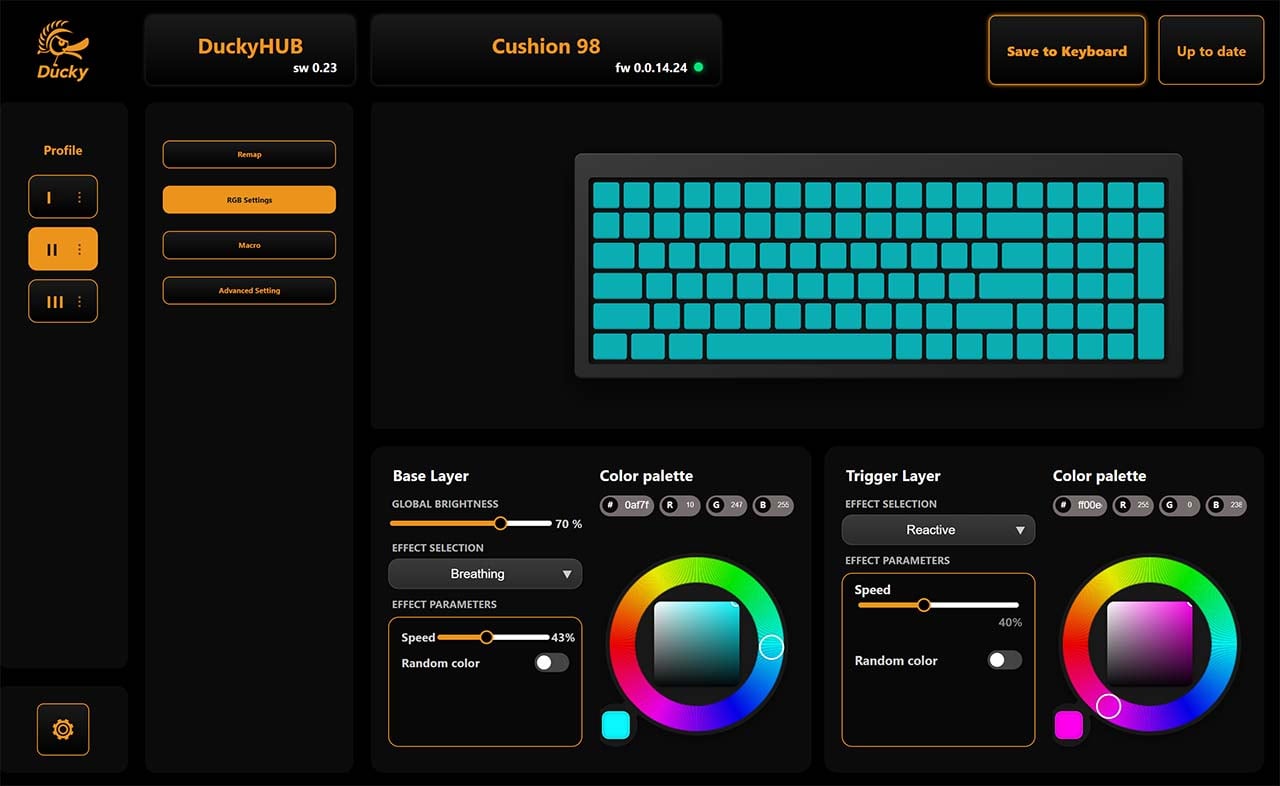
In addition, you can set what Ducky calls a Trigger Layer, where pressing the keys sets off a ripple effect of lighting, or the lights under the keys change colour as you press them. I found both of these highly distracting when enabled, but they’re there if you want them.
Finally, you can also use the software to adjust the scan and polling rates, with separate options for wired and wireless modes. There’s some granularity here, with the ability to set the polling rate in wired and 2.4GHz modes from 125Hz to 1kHz, while the scan rate can go up to 2kHz.
Performance
The real selling point of this keyboard, of course, is it’s incredibly quiet typing action, all thanks to that silicone cushioning layer. The result is remarkable, completely softening the harsh sounds that usually emanate from a mechanical keyboard, even with lubed switches and foam – the sound is completely deadened.
So you can get an idea of the difference, I’ve recorded a few seconds of typing on it, in comparison with two other mechanical keyboards I had to hand. The first is a Razer BlackWidow V4 X with Razer Green clicky switches at the extreme end of the noise scale. The second is my usual daily driver – a Corsair K95 RGB Platinum with tactile CherryMX Brown switches. Both these keyboards are great for typing by the way – this comparison isn’t intended to harshly criticise them, but to show just how quiet the Ducky Cushion 98 is in comparison.
All three keyboards were recorded from the same distance of 1cm away from the back end on the same surface, as if you’re sitting right next to them. As you can see from the waveform image below, the Ducky makes barely any noise in comparison to the other two models. You can also click the Play icon below the image to hear the sounds for yourself – the recordings for all three keyboards will all play in the same order as in the image.
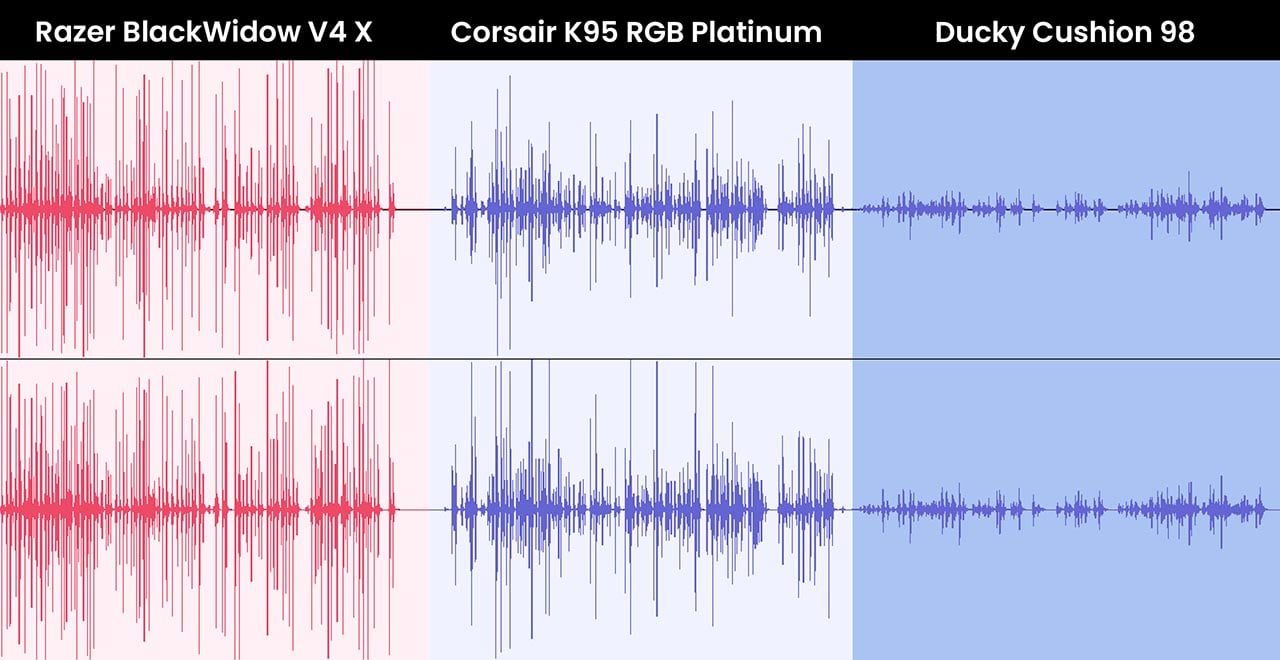
The recording above was captured using the black cushion, which provides the most sound dampening of the two layers provided. It also has the effect of creating a soft feeling under the keys – it does feel a bit like you’re typing on a mattress. Crucially, you still get the feeling of precision and tactile feedback of the individual switches, without the all-key bounce of a membrane keyboard. However, it does feel a bit mushy under your fingers.
The solution to this is swapping it out for the black cushion, which I much preferred out of the two. It makes typing a little noisier than the black cushion, but it’s still massively quieter than my other keyboards. Importantly, it feels much more natural for typing, with more of the physical mechanical feedback you expect, and less of a mushy, soft feeling. I also preferred the grey cushion for gaming, where you really want that tactile feedback.
The only slight exception to the Ducky’s quiet typing noise with either cushion is the spacebar, which still makes a bit of a thump compared to the other keys, as the key itself is so large.
Conclusion
It’s hard to stand out in the over-saturated mechanical gaming keyboard market, but Ducky has managed it – the Cushion 98 is a great piece of design and engineering. The noise reduction on offer is astounding, while it still offers just the right balance of mechanical tactile feedback for typing and gaming, with a choice of cushions to set it up for your preferences.
Add in its excellent build quality, toolless access, and the fact that you still get a numpad in its small footprint, and I’ve become smitten. There’s still some room for improvement – if Ducky can find a way to get a Prt Scr key and volume roller into the design, while ditching the dark grey keys with black legends on this nickel model, it will have an absolute winner on its hands. Even as it is, though, the Cushion 98 is a great product.
At £149.99, it’s not cheap, but that price is also well away from the cost of building a custom keyboard, and you get loads of features as well. If you’re not bothered about low-noise typing, you can save a lot of money by picking up a board like the Ducky OK-M instead. This mechanical model also squeezes a numpad into a small footprint, while offering indicator LEDs for the Caps Lock and Num Lock keys, and it costs just £69.99.
You’re undoubtedly paying a premium for the Cushion 98’s layer of silicone here, plus the build quality and features, but I’d happily pay it. The impact on acoustics is phenomenal.