
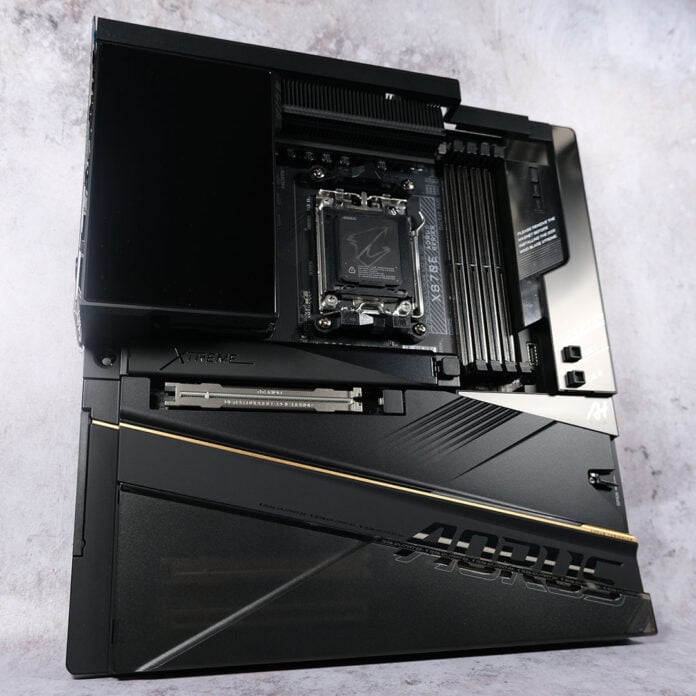
It’s always a pleasure to experience the fruits of a manufacturer at the top of its game, and Gigabyte’s X870E Aorus Xtreme X3D AI TOP is no exception. This is the very best motherboard the brand has to offer, especially if you want to install an AMD Ryzen CPU with 3D V-Cache, it comes together exceptionally, if expensively, well.

Gigabyte X870E Aorus Xtreme X3D AI TOP
£1,032.99
Pros
- Stylish, high-quality build
- Abundant connections
- Convenient feature set
- Solid firmware
- Useful CPU contact frame
Cons
- Four-figure price tag
- X3D Turbo Mode 2.0 underperforms
Club386 may earn an affiliate commission when you purchase products through links on our site.
How we test and review products.
You’ll need to spend a whopping £1,032.99 to pick up this flagship. That puts this motherboard out of reach of most folks’ budgets, and certainly doesn’t strike a value play. However, you’ll find nothing else quite as impressive in terms of design and features as the X870E Aorus Xtreme X3D AI TOP in Gigabyte’s arsenal, and there are few competitors in the wider market at this price.
Specs
As you would hope for a flagship E-ATX motherboard, the X870E Aorus Xtreme X3D AI TOP packs bleeding-edge specifications into every nook and cranny of its PCB. Gigabyte has put AMD’s top-tier chipset to full use, cramming loads of PCIe and USB connections into the board, alongside several welcome flourishes.
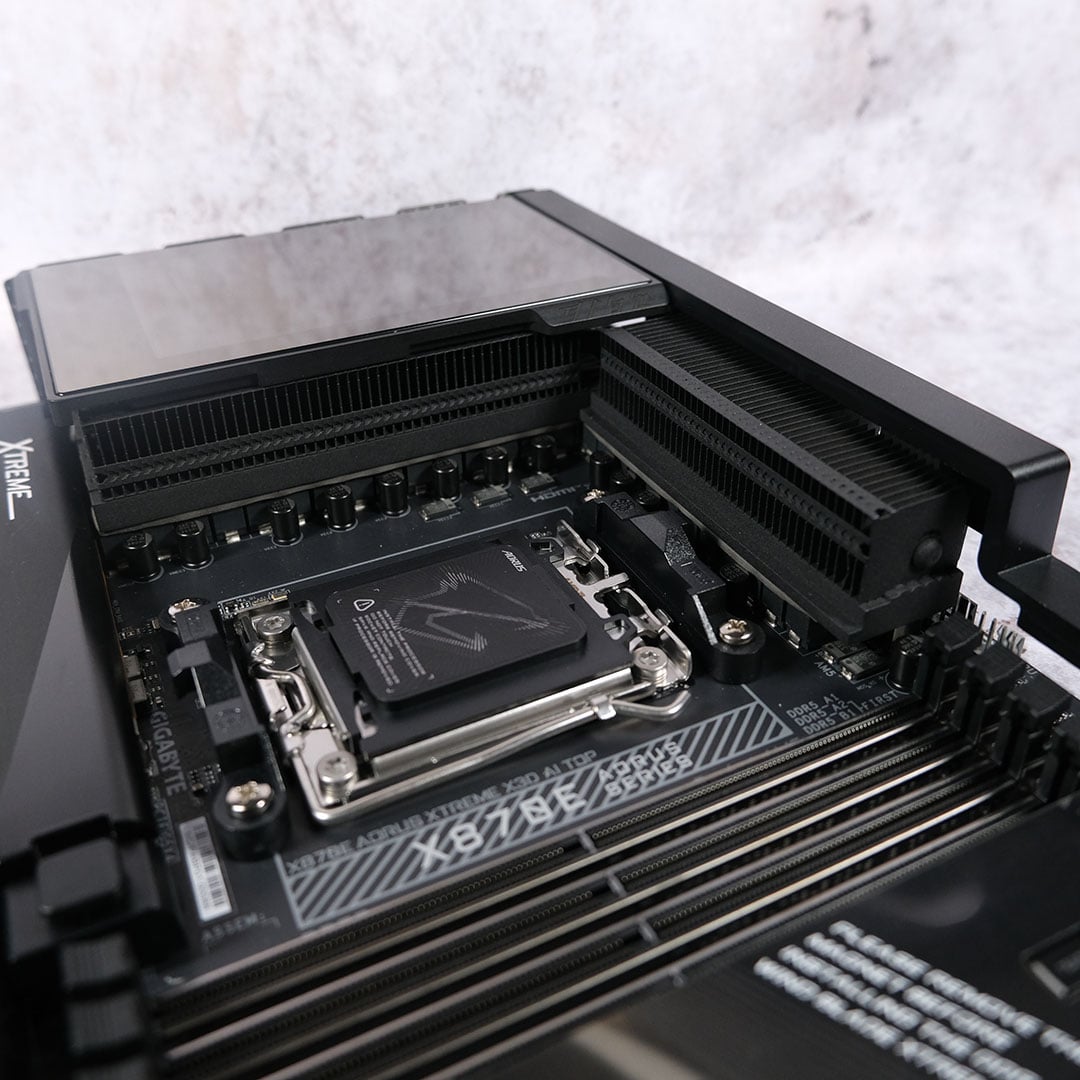
Surrounding the CPU socket is a 24+2+2 power phase design, complete with 110A Smart Power Stages (SPS). That’s about as beefy as you can get on a commercial AM5 motherboard. It’s undoubtedly overkill for anything but extreme overclocking, but you couldn’t ask for safer hands to handle your top-of-the-line processor.
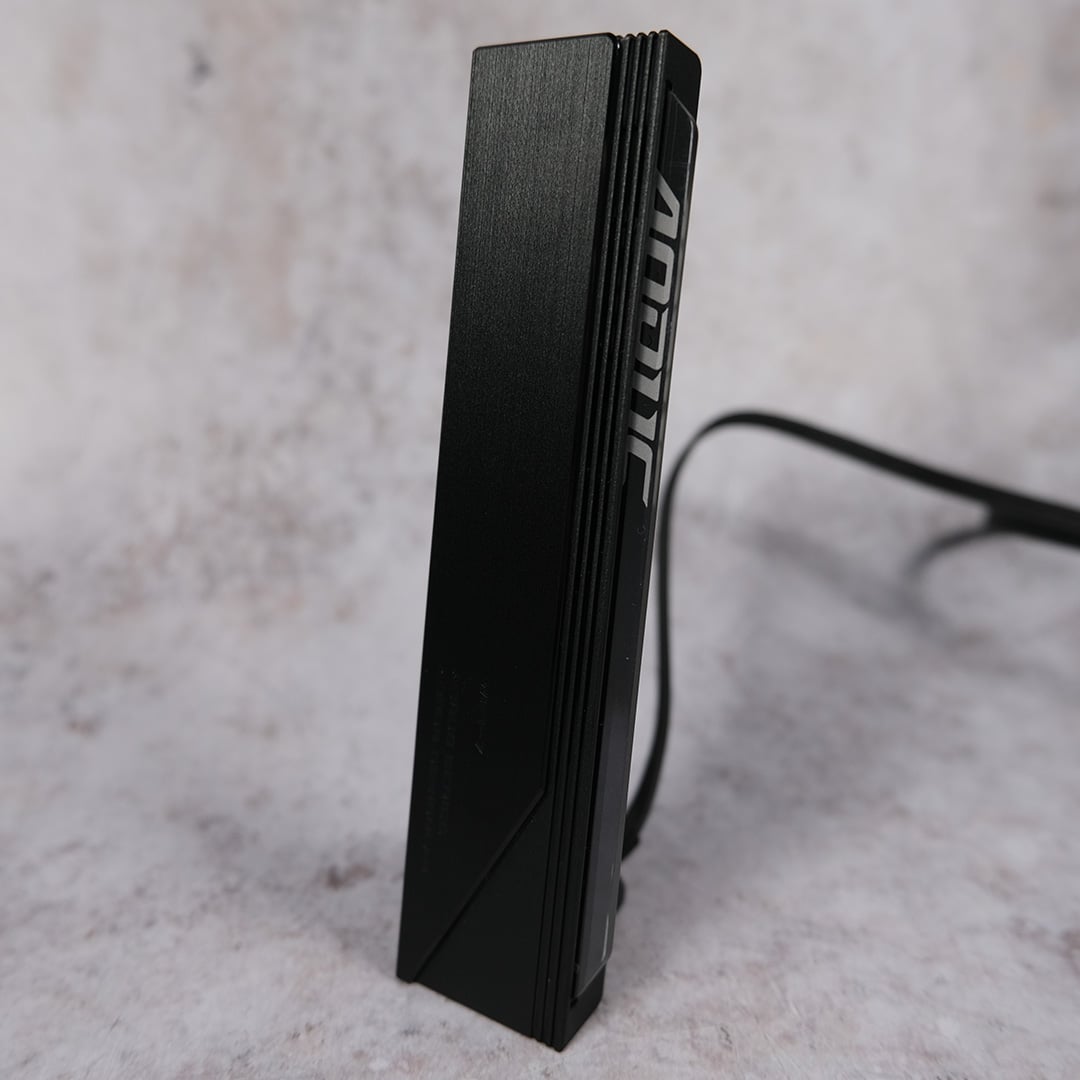
Sitting atop one of the VRMs is a 5in LCD. This display provides contextual boot information (CPU initialisation phase, etc.) before defaulting to a quick system information screen that’ll detail CPU temperatures, frequencies, and more. There’s strangely no way to customise the panel via Gigabyte Control Center, which feels like an obvious missed opportunity.
| X870E Aorus Xtreme X3D AI TOP | |
|---|---|
| VRM | 24+2+2, 110A |
| RAM support | Slots: 4 Max. Capacity: 256GB Max. OC Speed: 9,000MT/s |
| Onboard graphics | HDMI (x1) USB-C (x2) |
| PCIe expansion slots | PCIe 5.0 x16 (x1) PCIe 5.0 x8 (x1) PCIe 4.0 x4 (x1) |
| Audio | ESS ES9080 + ESS ES9280AC DAC |
| Storage | PCIe 5.0 x4 (x2) PCIe 4.0 x4 (x2) PCIe 4.0 x2 (x1) SATA 6Gb (x2) |
| Rear USB | USB-C 4 (40Gb) (x2) USB-C 3.2 Gen 2×2 (20Gb) (x1) USB-C 3.2 Gen 2 (10Gb) (x1) USB-A 3.2 Gen 2 (10Gb) (x8) |
| Front USB | USB-C 3.2 Gen 2×2 (20Gb) (x1) USB-C 3.2 Gen 2 (10Gb) (x1) USB-A 3.2 Gen 1 (5Gb) (x4) USB-A 2.0 (480Mb) (x4) |
| LAN | Realtek 10Gb (x2) |
| Wireless | Bluetooth 5.4 Wi-Fi 7 |
| Price | £1,032.99 |
The motherboard sports four DIMM slots, ready and waiting to run up to 256GB of DDR5 RAM. All these slots benefit from Gigabyte’s PCB Back Drilling Tech. This involves the company running small indents along the back of the PCB, which the brand claims improves signal integrity, and more, by trimming back the PCB and shortening the distance between traces. This isn’t a benefit I can quantify, but the logic is sound, and I appreciate the attention to detail here.
Look a little further to the right, and you’ll find built-in power, reset, and clear-CMOS buttons. They’re all conveniently next to a set of debug LEDs and code display, making it easy to troubleshoot the motherboard if necessary, inside and out of a case.
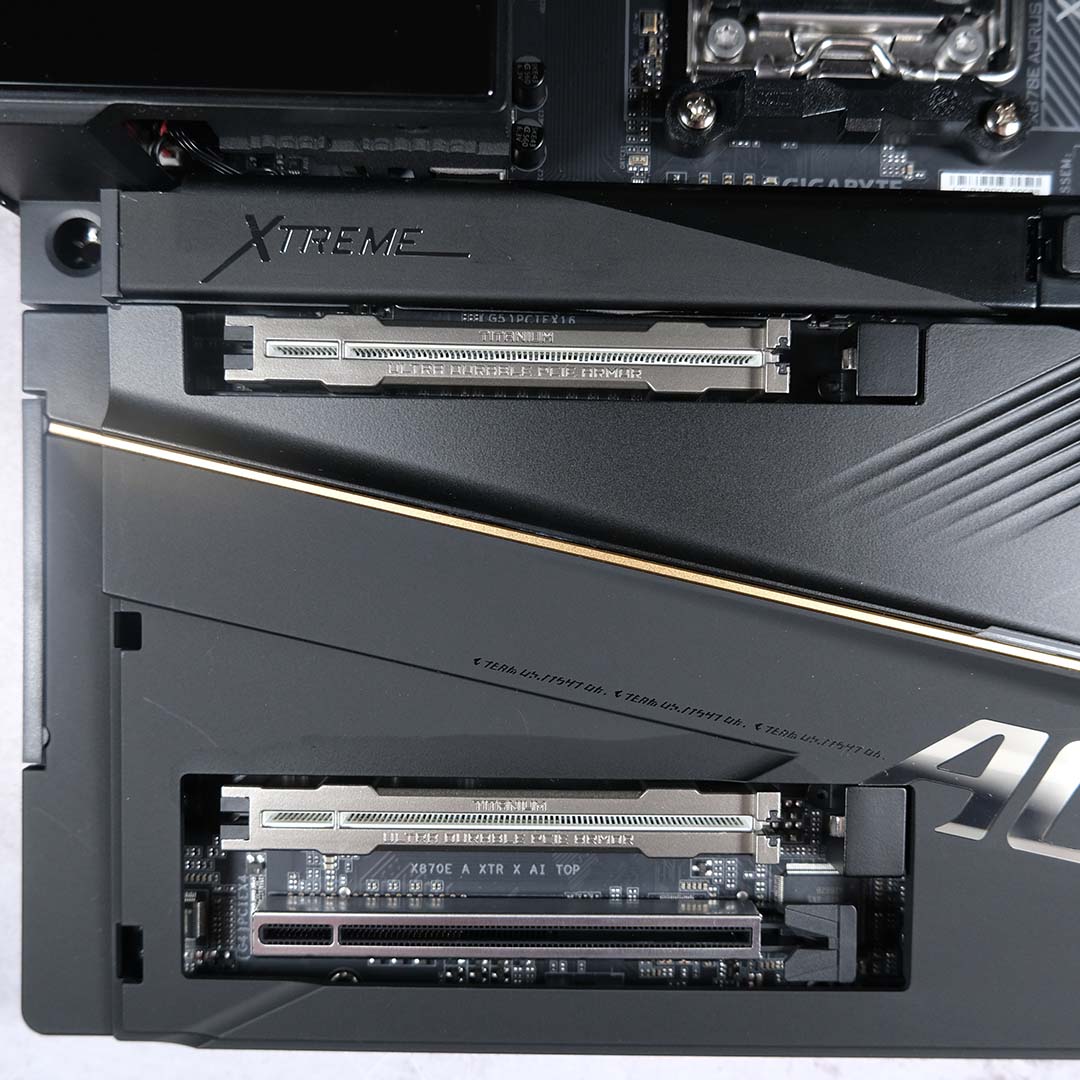
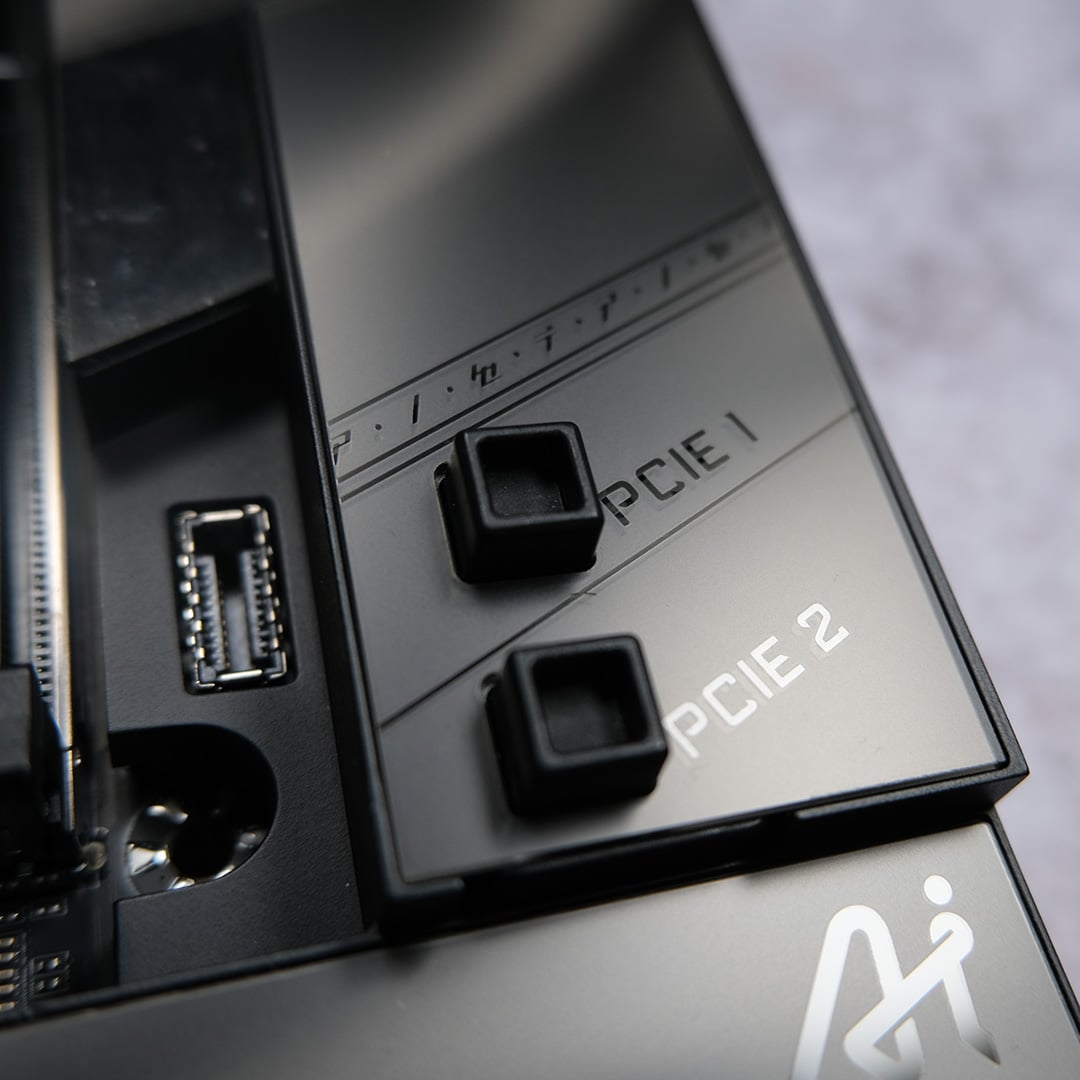
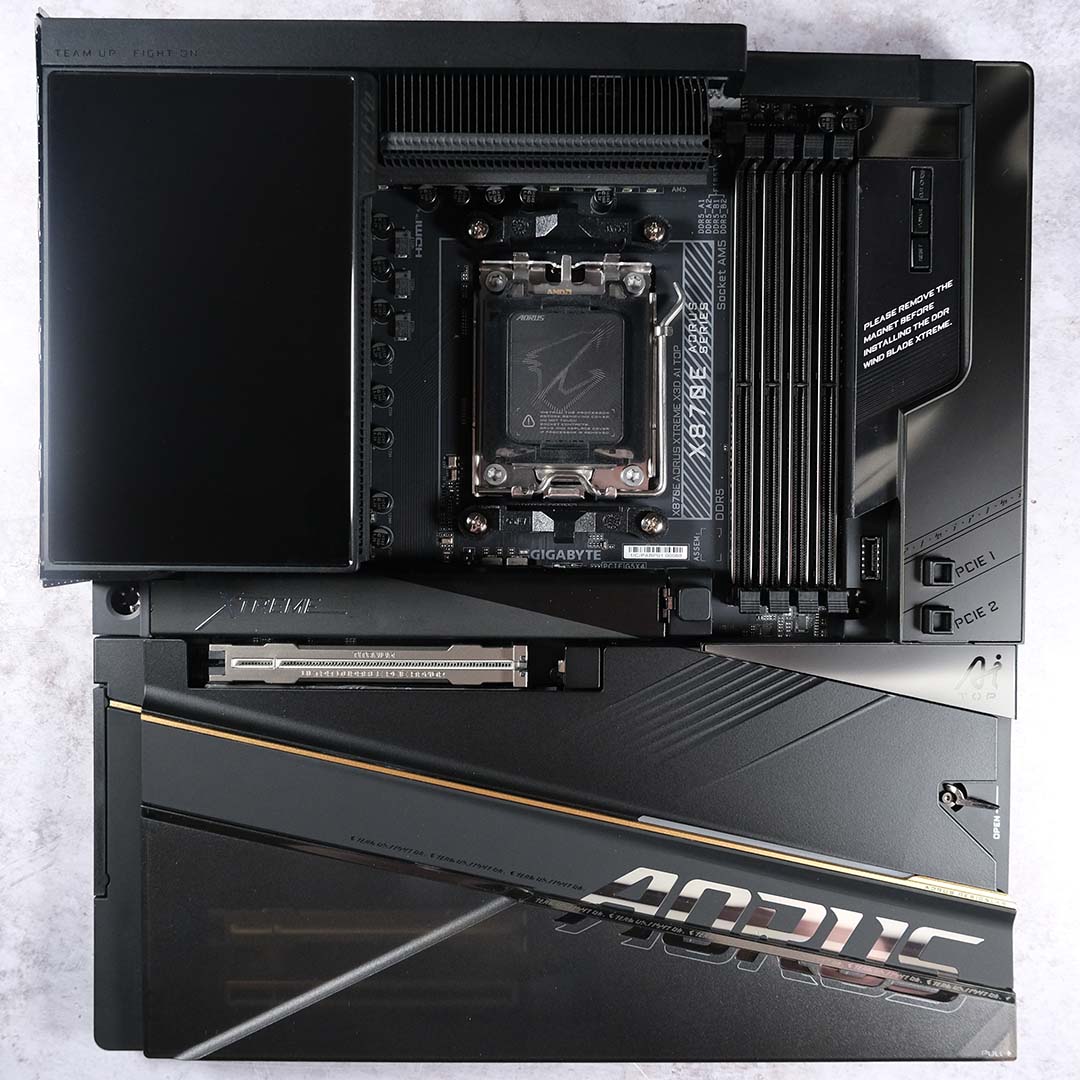
At first glance, the X870E Aorus Xtreme X3D AI TOP seems to only offer a single PCIe Gen 5 x16 expansion slot. Lift the semi-transparent cover towards the bottom of the board, though, and additional PCIe Gen 5 x8 and Gen 4 x4 slots become accessible. I really dig the ability to hide these extra slots for a minimalist finish, and I wish other motherboards would offer a similar styling.
The two Gen 5 slots don’t feature a typical latch, opting for satisfyingly clicky lock-and-release buttons to the right of the DIMM slots instead. This approach is commonplace on premium motherboards, but having it apply across two expansion slots is more of a rarity. Regardless, it’s a convenience I’ll always welcome, particularly in this era of enormous graphics cards that make uninstallation a fiddly chore, even for someone with thin fingers like myself.
I also appreciate the steel reinforcement around all the motherboard’s PCIe expansion slots. While I am of the opinion that plastic remains a perfectly fine choice for these headers, metal is undoubtedly stronger and provides slightly more peace of mind. That’s not forgetting that the metallic finish looks far more premium to boot. While I wish all the slot designs were uniform, that’s more of a nitpick than anything else.
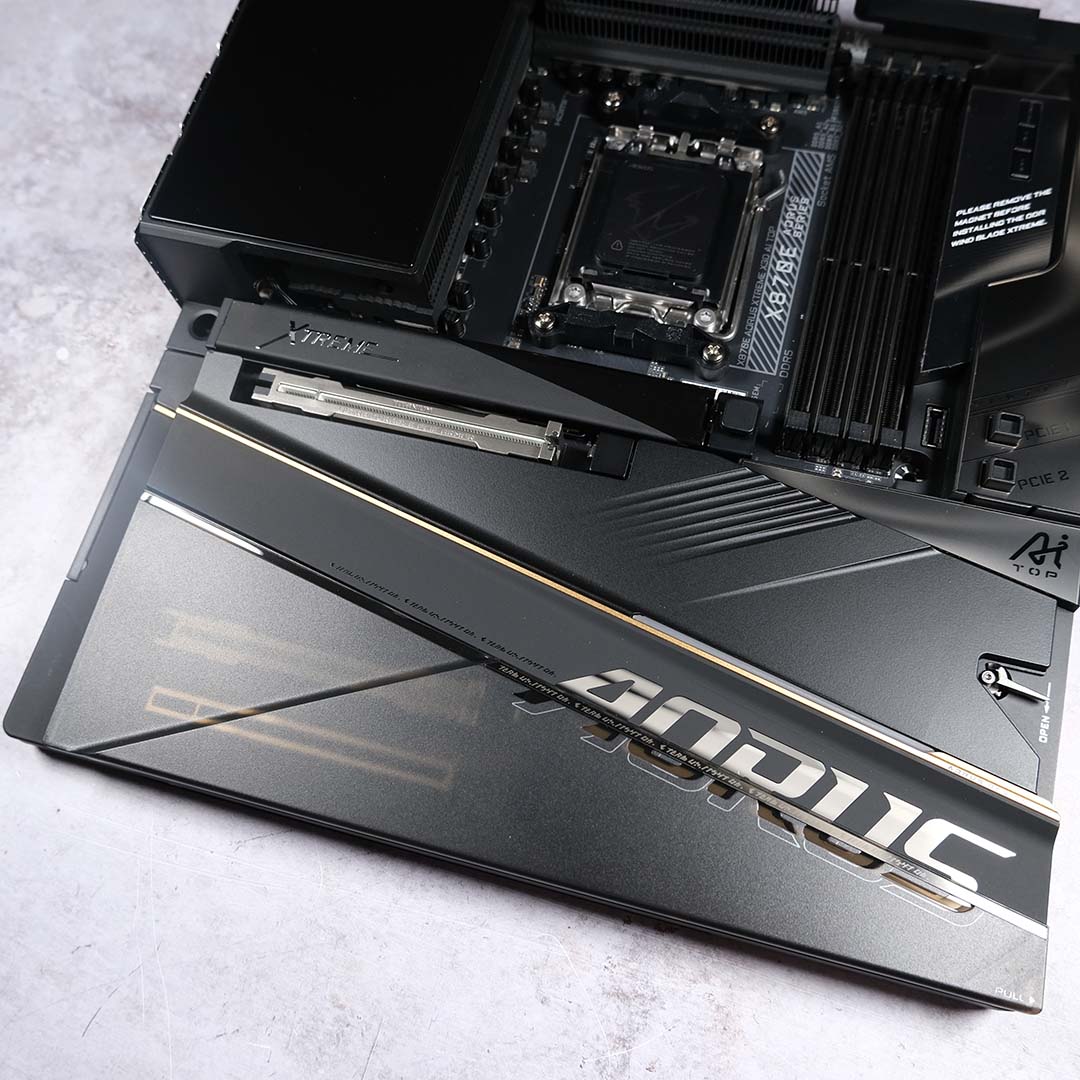
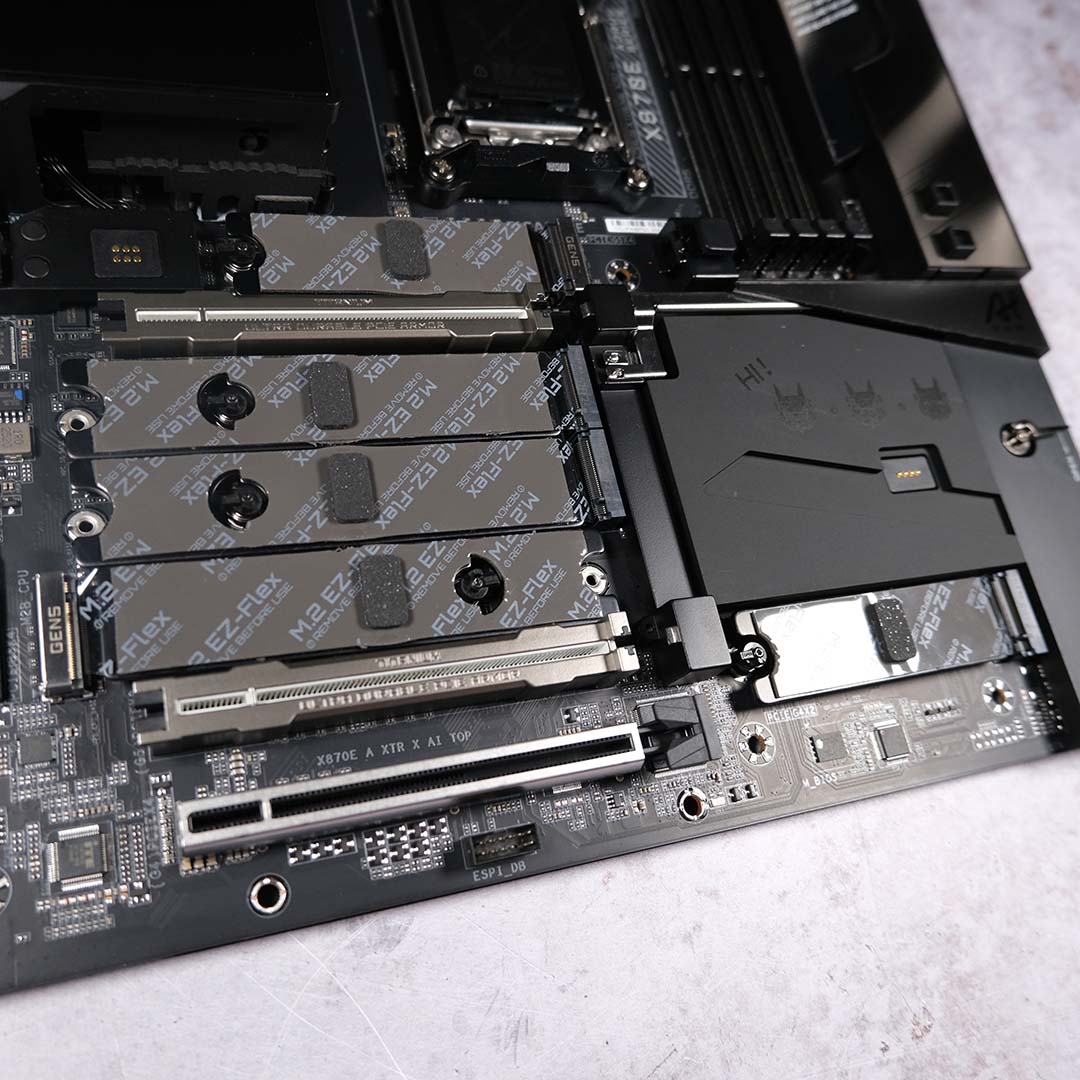
A simple press and hold of the right-side M.2 EZ-Latch Click allows the weighty heatsink, which encompasses almost the entire bottom half of the board, to pull away from the PCB, revealing all this motherboard’s many M.2 slots (and a cute Aorus Easter egg atop the chipset). You’ve got a choice of five M.2 spots to stick your storage, two of them offer PCIe Gen 5 x4 speeds, with two Gen 4 x4 ports and a single Gen 4 x2 slot rounding off the selection.
Regardless of which slots you populate, all drives will benefit from passive cooling, courtesy of a heatsink, as well as thermal pads, and conveniently don’t require any tools for installation. Getting my SSD into the primary M.2 was straightforward, without having to contend with fiddly heatsink alignments, was very welcome, all thanks to an intuitive design and smart use of magnets.
The stock heatsink for the top-most PCIe Gen 5 slot also managed to keep my WD_Black SN8100 2TB around 60°C under prolonged load. That’s plenty cool enough, and well below the drive’s thermal throttling threshold. There is a more elaborate alternative option for cooling your SSD in the box, but I’ll discuss that in due time.
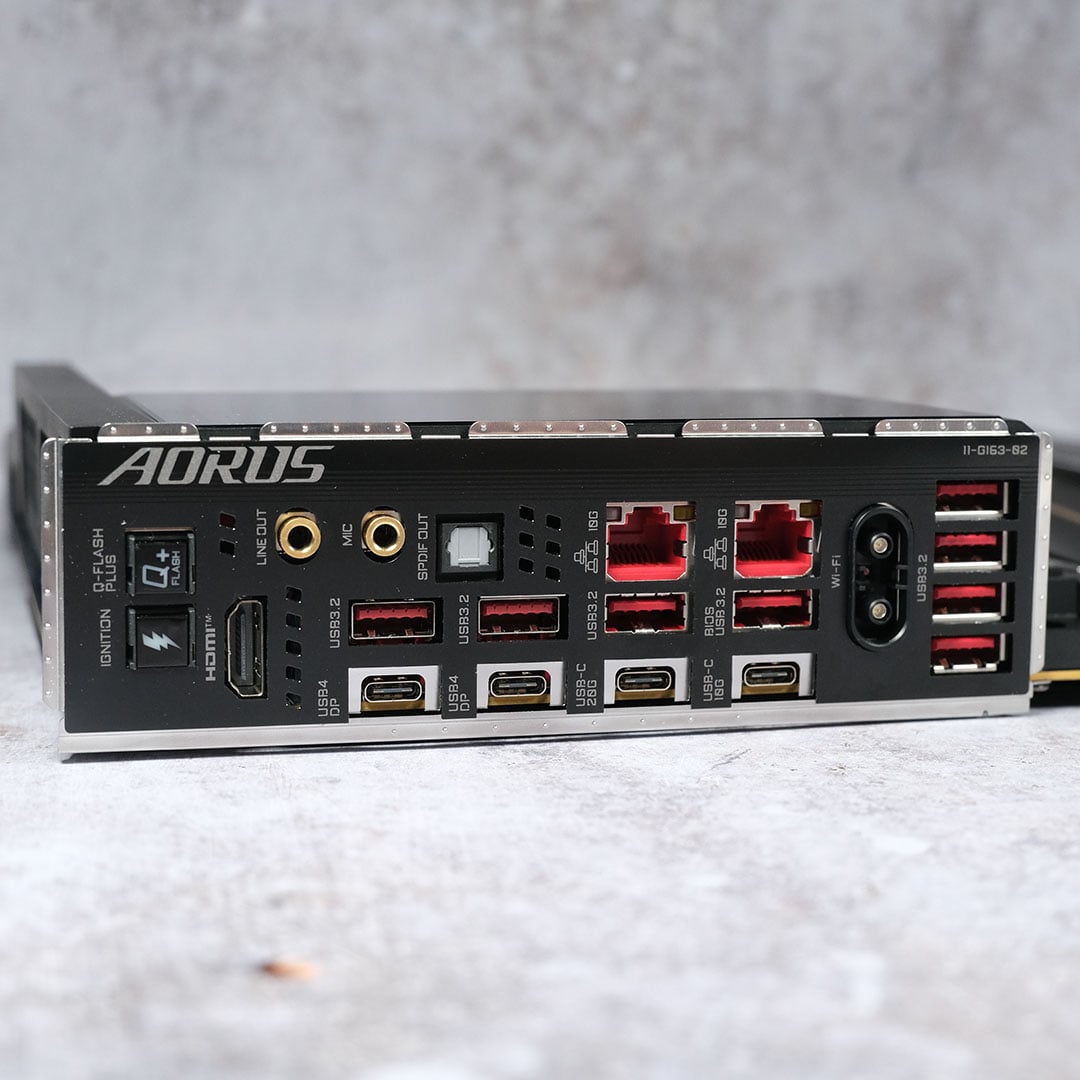
Flipping around to the board’s backside, it’s hard not to admire its selection of USB ports and other connections. The X870E Aorus Xtreme X3D AI TOP arrives with two USB 4 inputs, complete with DP Alt mode, and there’s also an HDMI output. Moving down the bandwidth chain, there’s a single USB-C 20Gb port, a USB-C 10Gb socket, and eight USB-A 10Gb ports.
The motherboard also features dual 10Gb Ethernet ports, which is impressive but well beyond the capabilities of my 1Gb home network. Still, I had no issues using either port, just as I had none with the Wi-Fi 7 dongle (complete with RGB lighting) on my Wi-Fi 6 WLAN. Bluetooth 5.4 also appears in this feature set, giving the motherboard yet another arrow in its quiver of the latest consumer standards.
I’m happy to see a Q-Flash button back here as well, allowing for BIOS updates without a CPU. An intriguing touch is also the ‘Ignition’ button, which provides power to the system without initialising the CPU, and can be useful for testing the likes of water cooling loops with reduced risk, and without having to faff around with ATX jumpers.
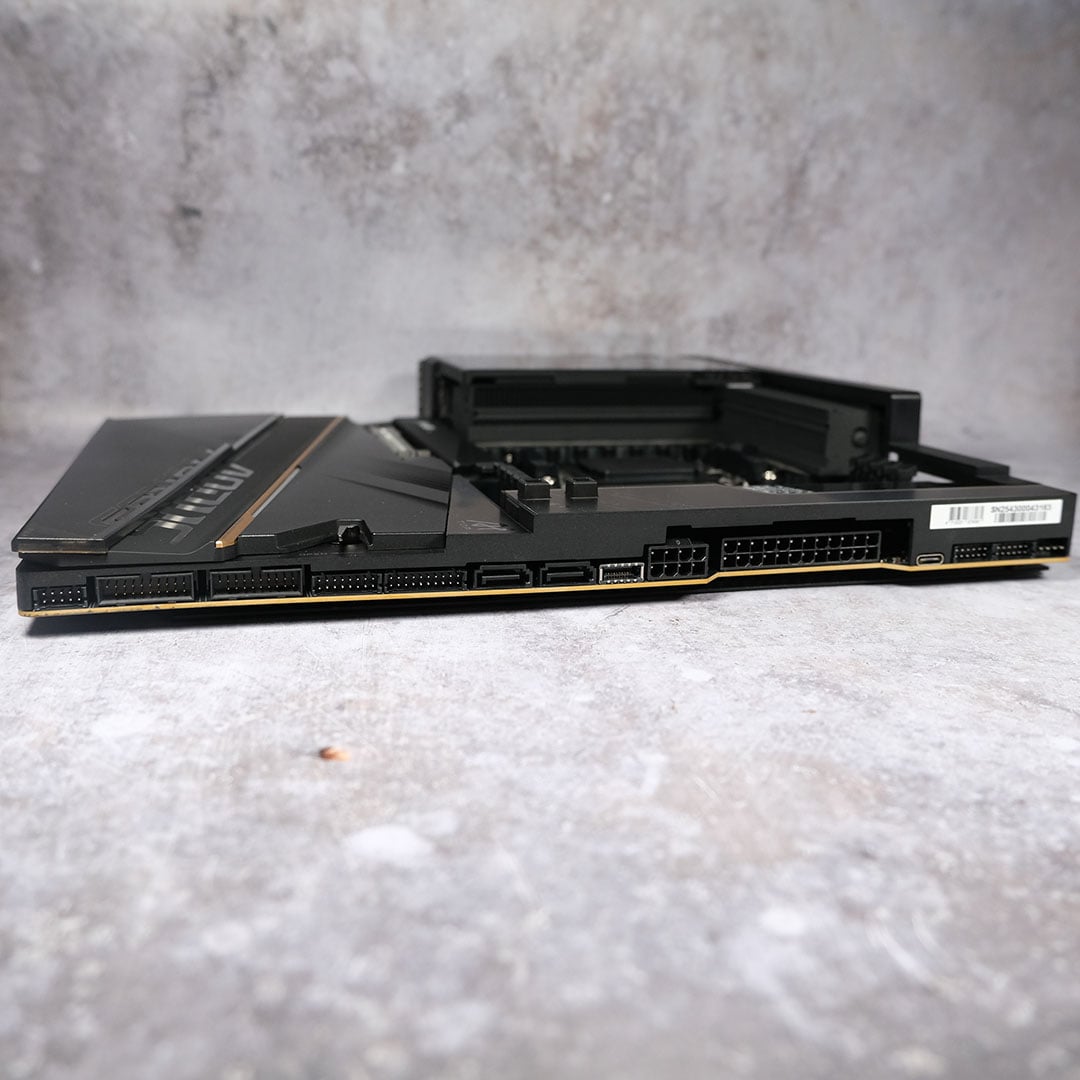
Looking at the motherboard from the top-down, you’ll notice that its built-in power connectors and headers aren’t where they would typically be located. That’s because Gigabyte’s either relocated them all to the side of the board, or they’re hiding underneath a removable magnetic panel.
This approach further contributes to giving X870E Aorus Xtreme X3D AI TOP a completely clean finish, serving as a middle ground between standard and back-connect designs. However, you will need to take case compatibility into account, as the relatively low position of these headers can make it difficult or impossible to install cables, as I found out the hard way in my Arctic Xtender VG case.
You’ll find just two fan headers on the PCB, one for the CPU and the one for system fans, both located towards the top of the board. However, Gigabyte provides the means to install an additional 10 fan power sockets via included extension cables. I don’t mind this arrangement, but it’s certainly less elegant than the EZ Bridge on MSI’s MEG X870E Godlike.
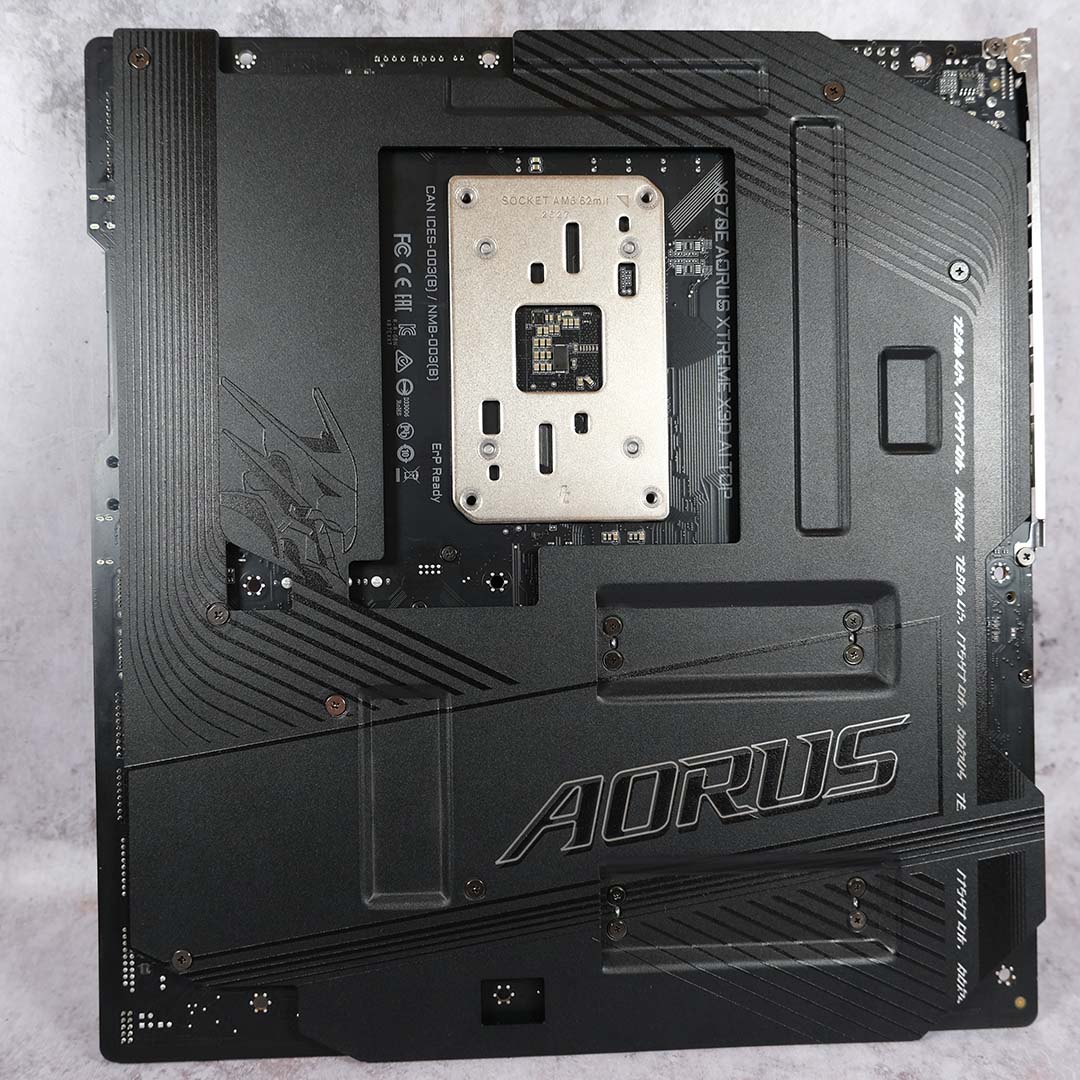
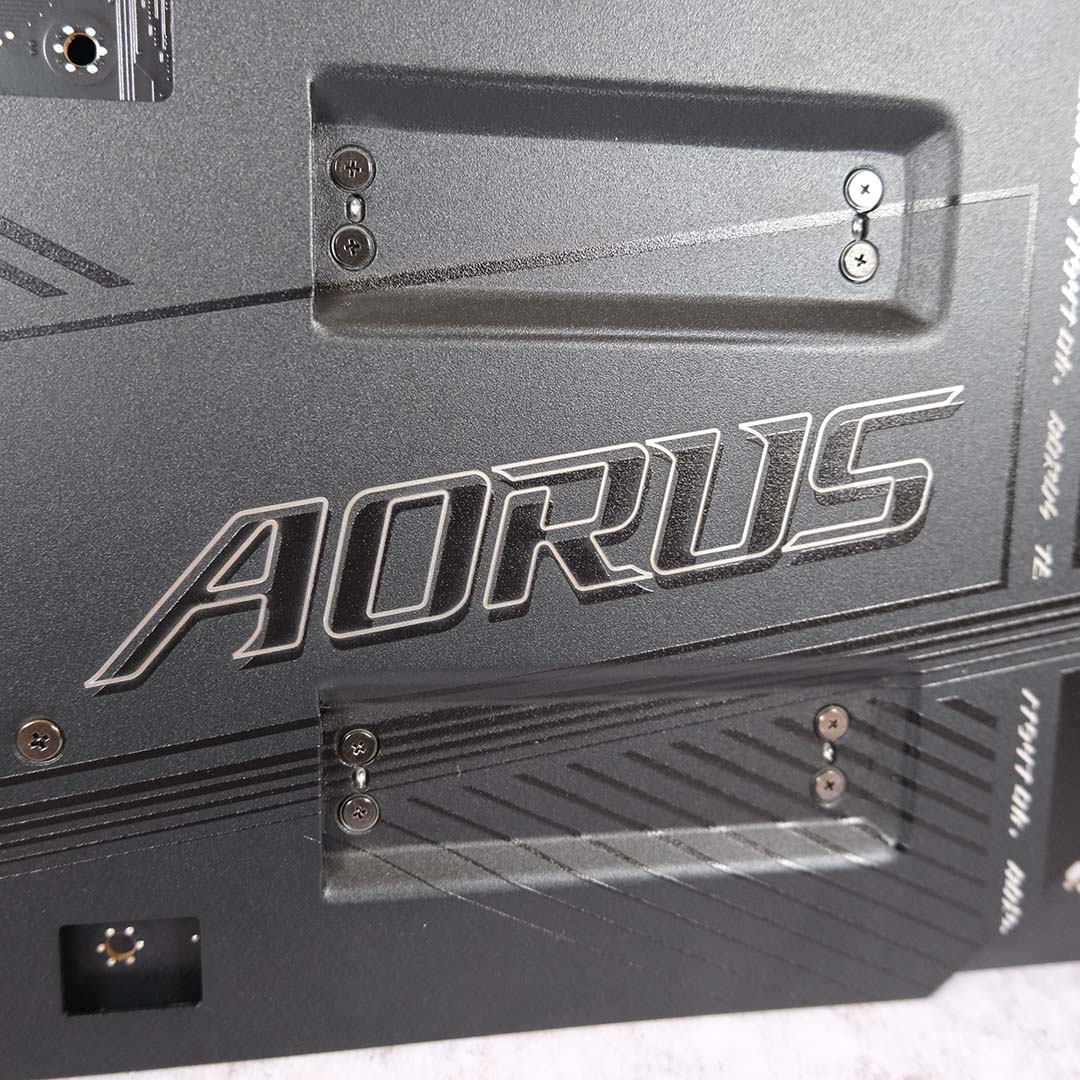
Flip over the motherboard and you’ll find a metal backplate that covers the entire PCB. It makes handling the X870E Aorus Xtreme X3D AI TOP that bit easier, as you’re far less likely to damage it, and it just gives the entire construction more heft and an air of high quality.
Briefly, I’d also like to give kudos to Gigabyte for providing a proper high-end audio system on this board, complete with a dedicated DAC. I don’t typically use my motherboard’s built-in audio processing, I’d have no qualms about plugging my premium analogue cans into the board with this great-sounding ESS setup.
Features
Inside the massive box in which the X870E Aorus Xtreme X3D AI TOP arrives, you’ll find a wealth of additional accessories to further supplement the motherboard’s built-in feature set. Surprisingly, there’s also some goodies in here that you’ll enjoy away from your PC, but I’ll save those oddities until last.
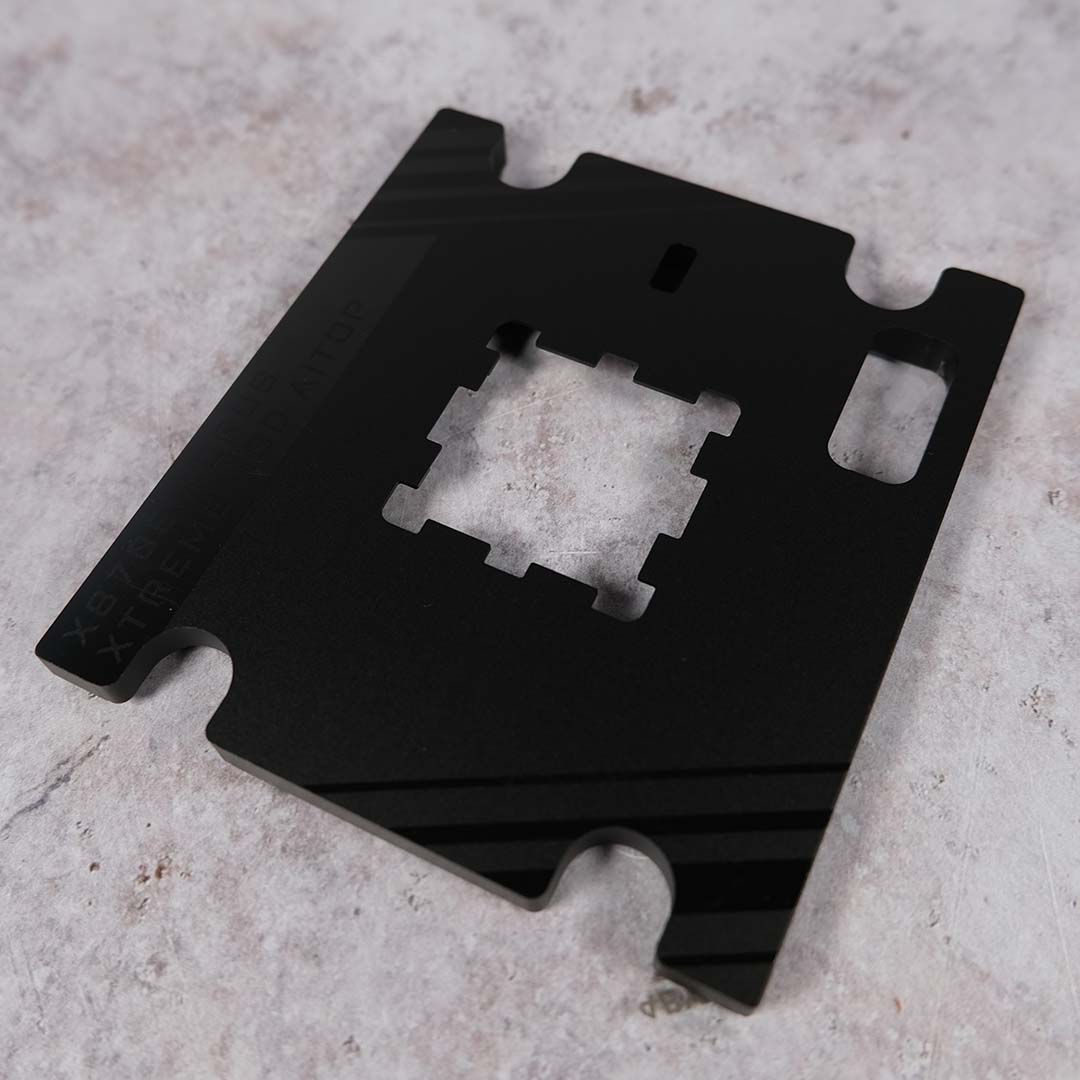
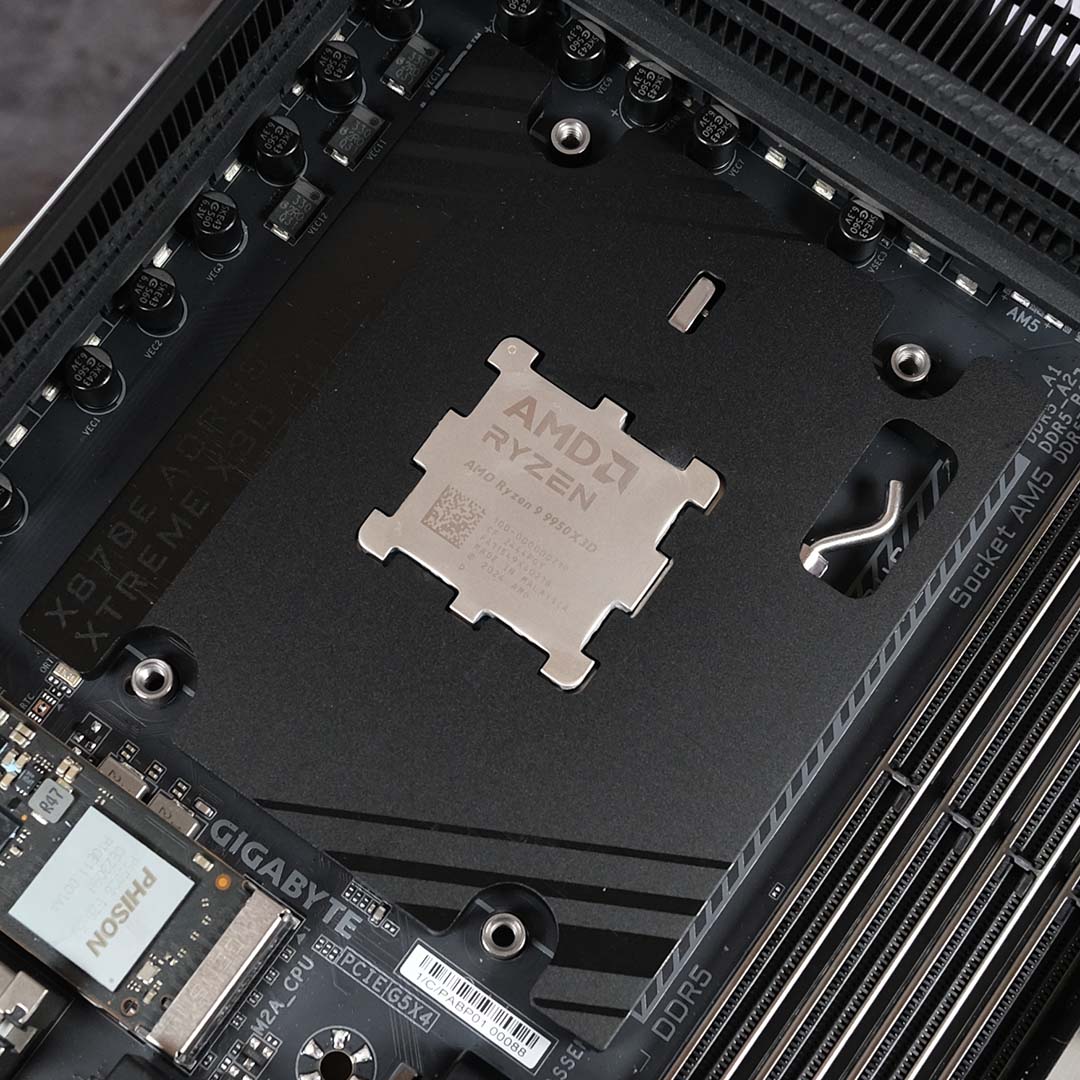
The best of all these extras in my eyes is the CPU Thermal Matrix. Despite what its name implies, this slab of metal actually serves to reduce VRM and RAM temperatures rather than those of your processor. Gigabyte claims it’ll improve thermals by as much as 8.5°C.
You will need a compatible cooler to use the accessory, which means any models that rely on the stock mounting method are out. In my experience, installing the mounts for my Arctic Liquid Freezer III 360 Black was as easy as it’s always been.
The fact that this CPU Thermal Matrix also keeps my Ryzen 9 9950X3D nice and clean, as it stops thermal paste leaking into its crevices, only makes me love it all the more. Seriously, any moves from cooler or motherboard manufacturers that keep AM5 chips free of gross grey goo residue are a big win in my book.
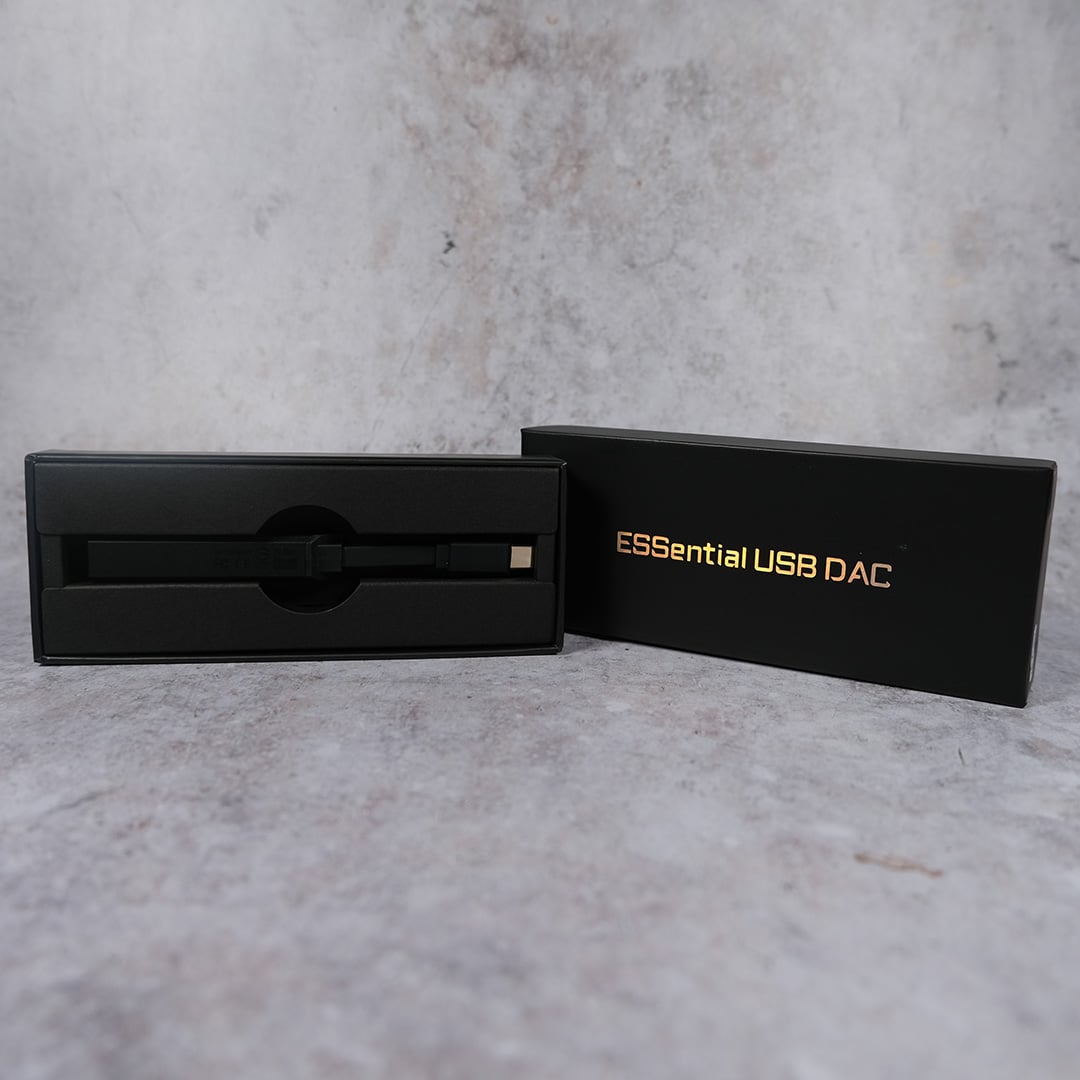
Furthering its commitment to high-quality audio, Gigabyte bundles a USB DAC with this motherboard too. The idea here is to free your 3.5mm headphones from noisy front panel connectors, giving you a cleaner, high-quality signal.
Audiophiles will appreciate the DAC’s support for up to 32-bit/384KHz files, as well as its wide frequency response range of 20Hz-40kHz. It’ll also work away from the X870E Aorus Xtreme X3D AI TOP, pairing fine with most USB-C devices, such as a laptop or Android smartphone.
This is no replacement for more-expensive DAC units, like a Sony TA-ZH1ES, but I admire Gigabyte’s intent with this inclusion. If nothing else, I’m happy to have a genuinely useful and versatile bit of kit bundled with my motherboard.
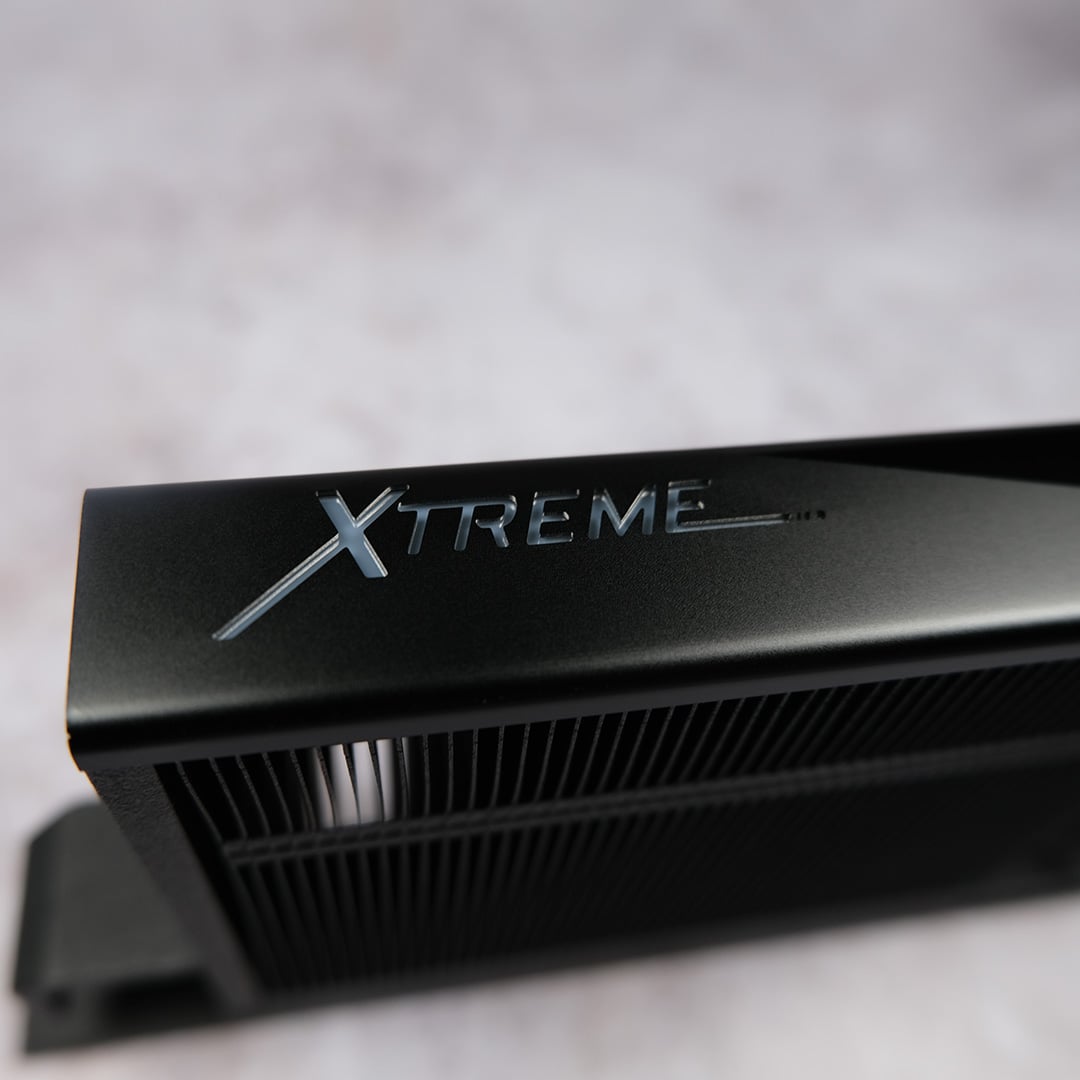
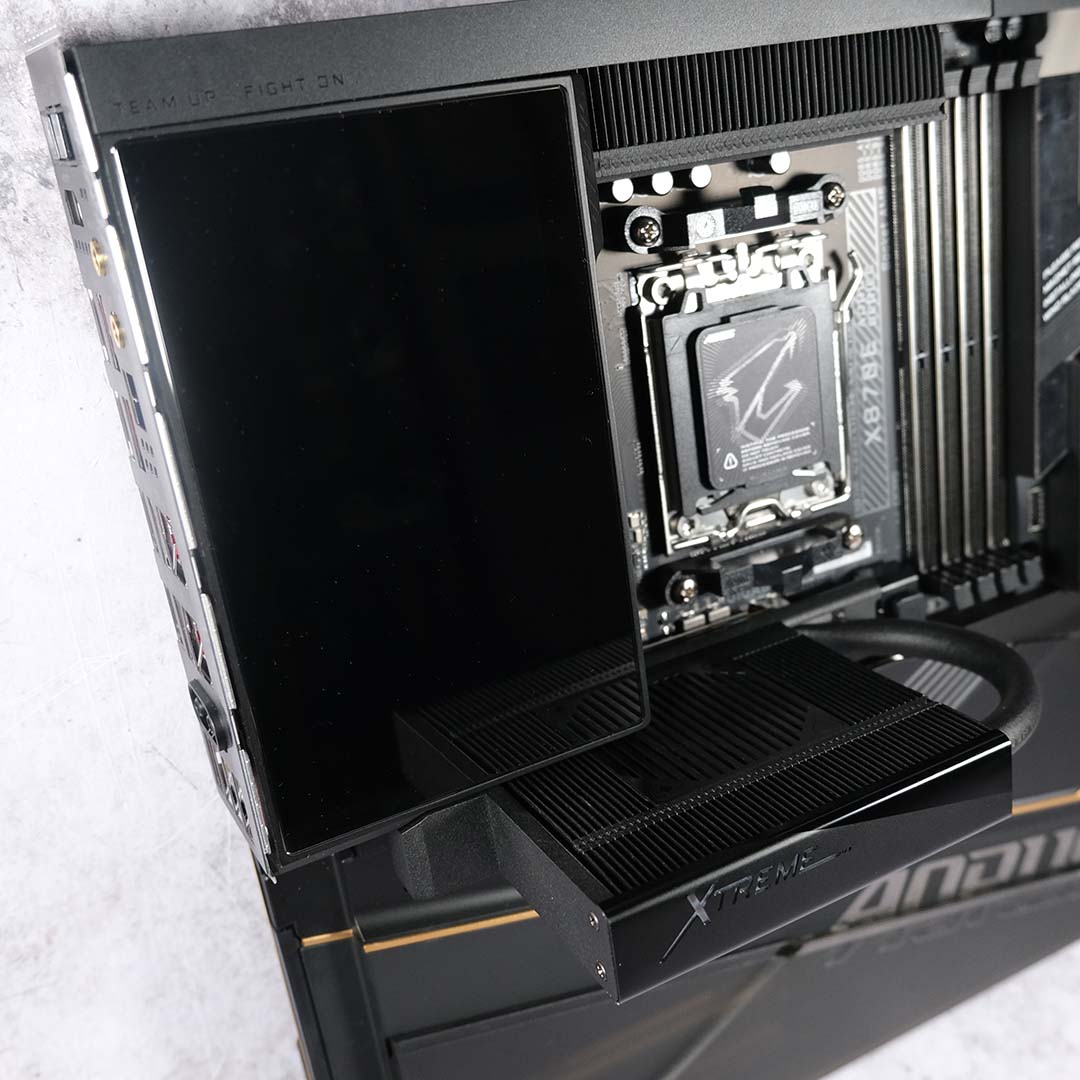
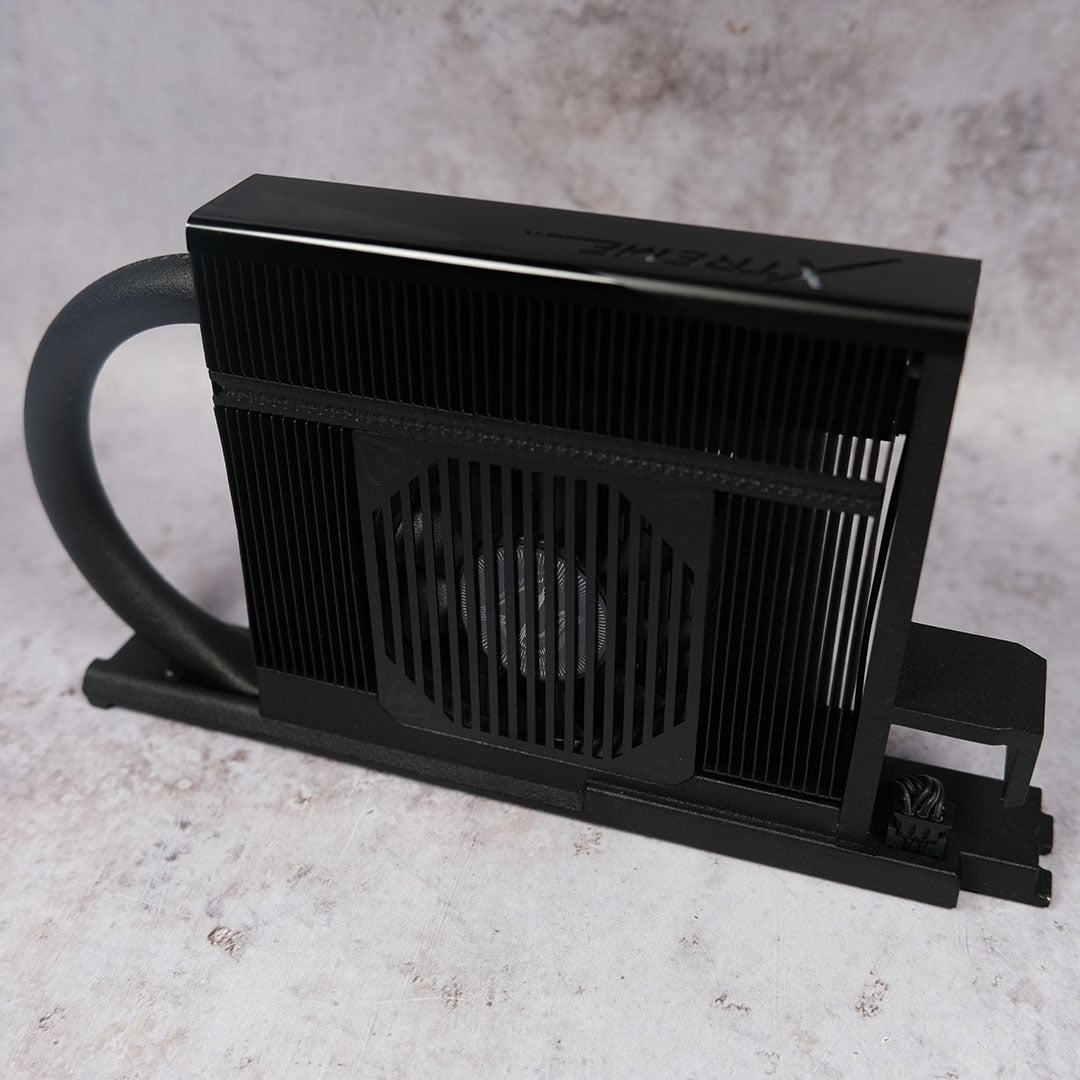
I thought we were past the era of enormous M.2 heatsinks, let alone ones with active cooling, but here is the M.2 Thermal Guard Xtreme. Standing as tall as some CPU coolers, with a thick heat pipe and fan to boot, this should tame even the raunchiest of SSDs.
I say should, as the size of the M.2 Thermal Guard Xtreme makes it impossible for me to use my choice of cooler, as my CPU cooler’s tubes clashed with the heatpipes for space. Should your setup prove more compatible, though, Gigabyte reckons it’ll slice up to a whopping 22°C off storage temps.
Despite not being able to use this monster in my final motherboard build, I can say the installation process was nice and simple via the same latch and magnets used by the stock heatsink. Built-in connections on the motherboard also conveniently take care of power for the fan.

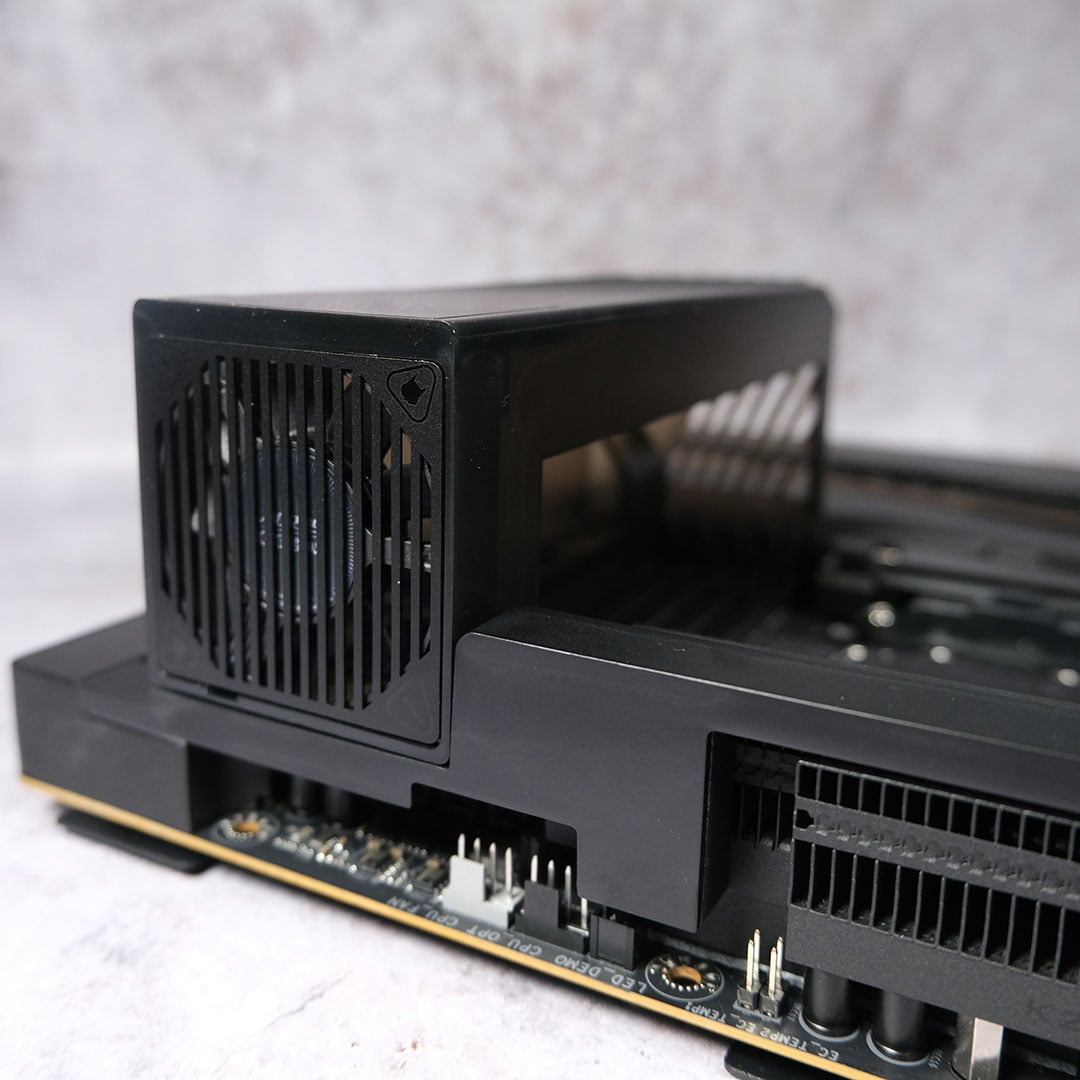
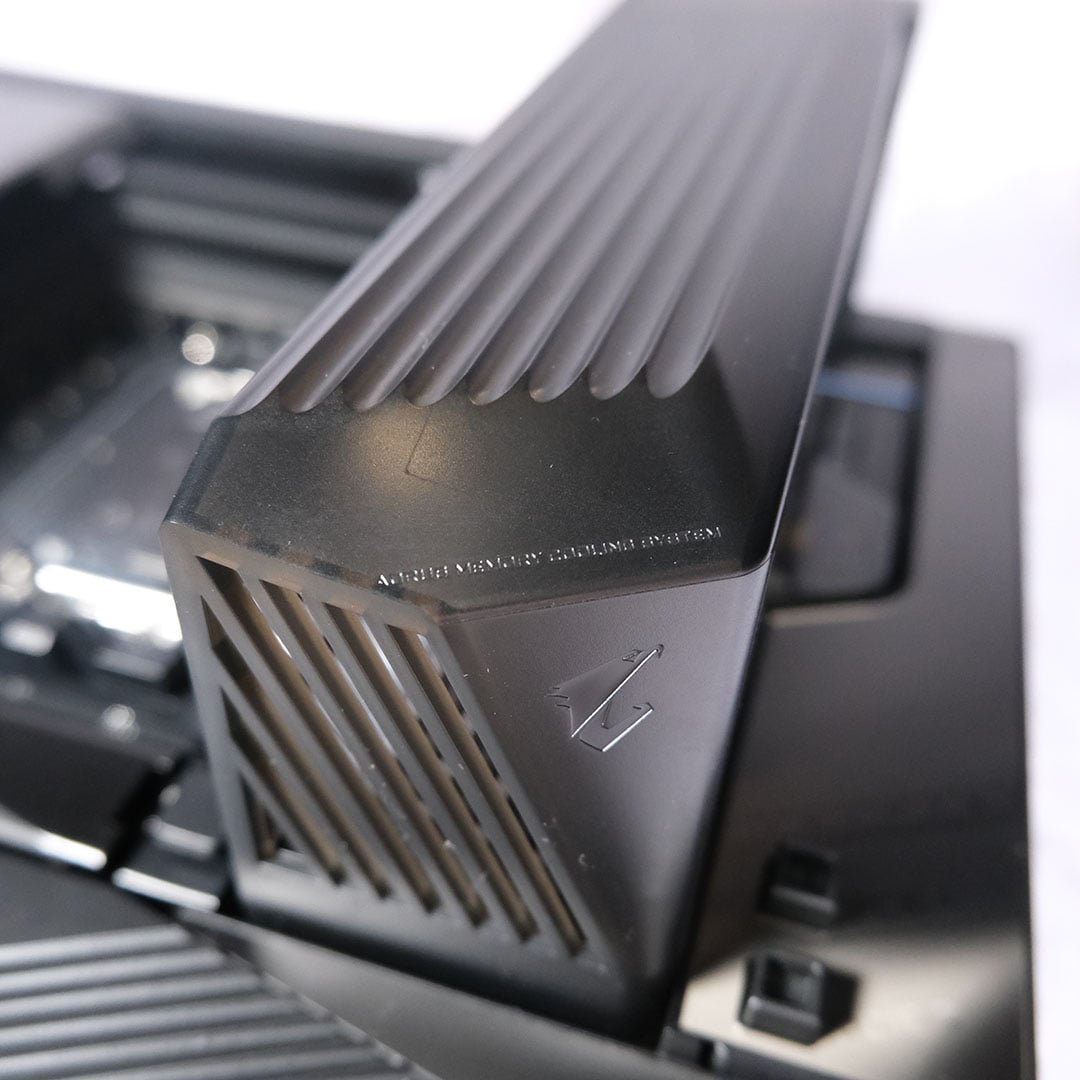
Continuing this trend of abnormal active cooling, let me introduce the DDR Wind Blade Xtreme. This shroud surrounds your RAM, attaching to the motherboard with a strong magnetic click, keeping your sticks cool via a built-in fan.
Gigabyte states that this accessory will lower memory temperatures by up to 9°C. However, I can’t say there’s much call for such gains, particularly as high-quality RAM already comes with stout heatsinks. In the case of my 32GB dual-channel kit, I didn’t accrue any performance improvements while using the DDR Wind Blade Xtreme, and my temperatures only fell by a degree or two at most.
The plastic construction also feels out of place, given the high-quality metals that populate most of the board. This is one addition that feels more like a solution looking for a problem than something I’d genuinely consider using.


Last, but not least, every X870E Aorus Xtreme X3D AI TOP comes with a MiiR tumbler and bottle opener. I’ve reviewed plenty of motherboards in my time, but never have I seen one come with accessories like these. While they’re definitely something I’ll get use out of, they do strike me as an odd addition.
With everything removed from the retail packaging, Gigabyte tells me that you can reuse the box to store bottles, with the company championing wine and whisky in particular. I’m a fan of both types of alcohol, but I can’t see myself doing this, as storing all the cables, manual, and other bits is a higher priority for me.
Firmware
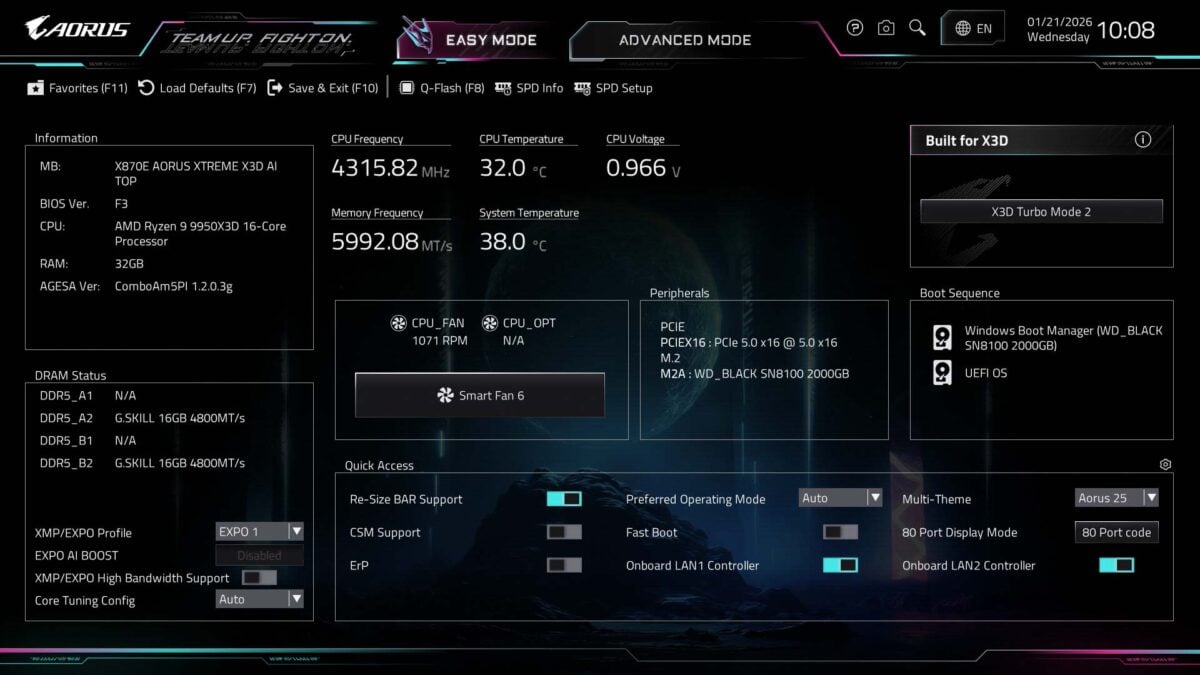
The X870E Aorus Xtreme X3D AI TOP’s BIOS will be familiar to anyone who’s ventured into the firmware of an Aorus board within the last few years. It displays at a crisp FHD (1080p) resolution, and manages to blend Gigabyte’s unique stylings and usability together without compromising one or the other.
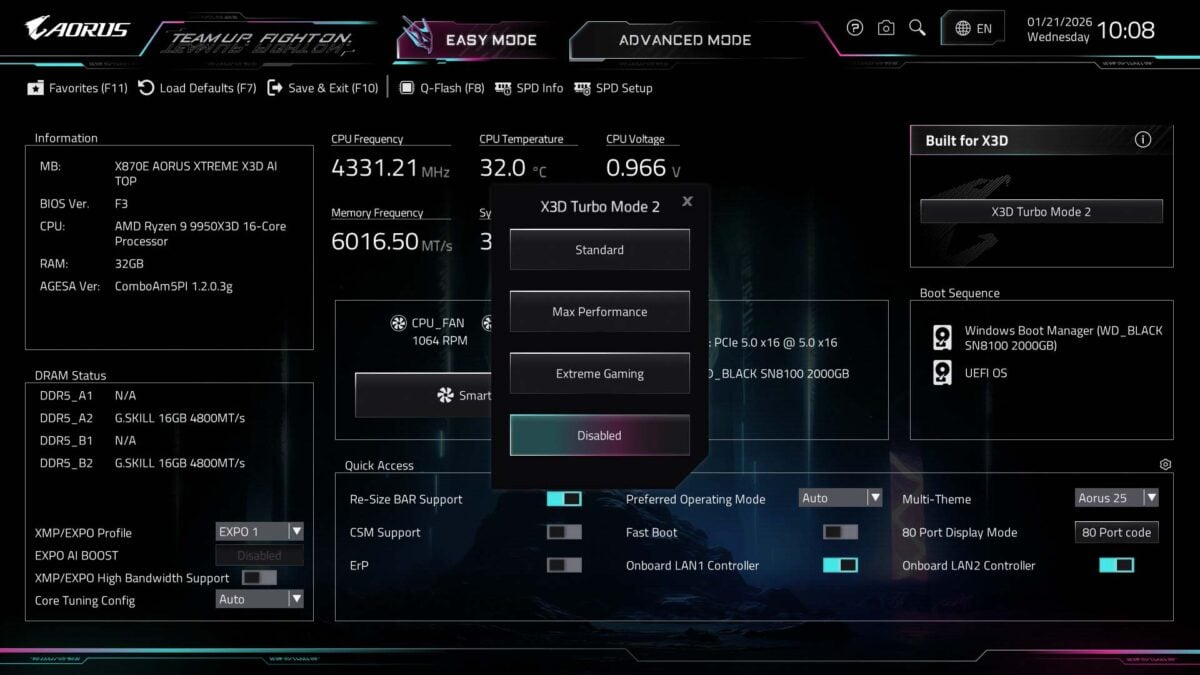
Under the hood, there’s a 64MB chip storing all BIOS data. This is double that of prior models, and gives the motherboard alleged futureproofing for upcoming hardware. After all, we wouldn’t want to spend over a grand on a piece of hardware that isn’t compatible with future AM5 CPUs, would we?
Common settings like A-XMP profiles are easy to find and configure, as is general system information. From the ‘Easy Mode’ tab you can also switch between X3D Turbo Mode 2 modes, but I’d sooner encourage the use of the ‘OnFly X3D’ application in Windows as a more convenient toggle.
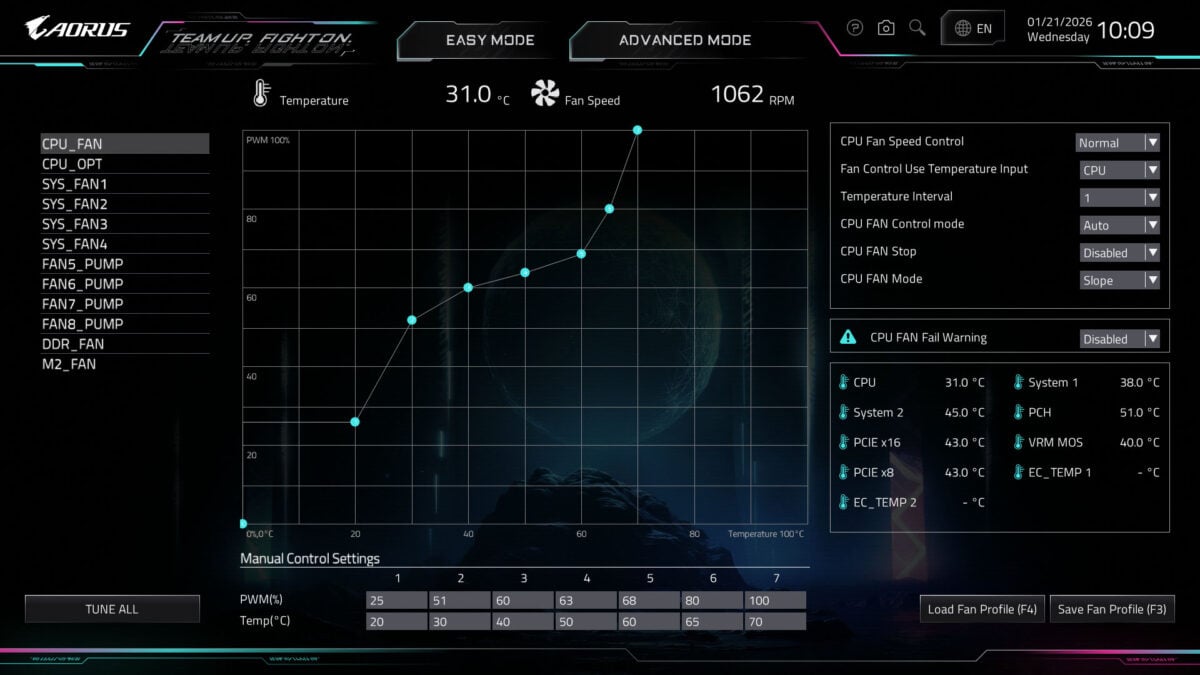
Delving into other options and the advanced tab, enthusiasts will feel right at home. Quickly, until all motherboard manufacturers follow suit, I’ll continue to give Gigabyte credit for crafting a fan curve editor that features tweakable numeric values.
Performance
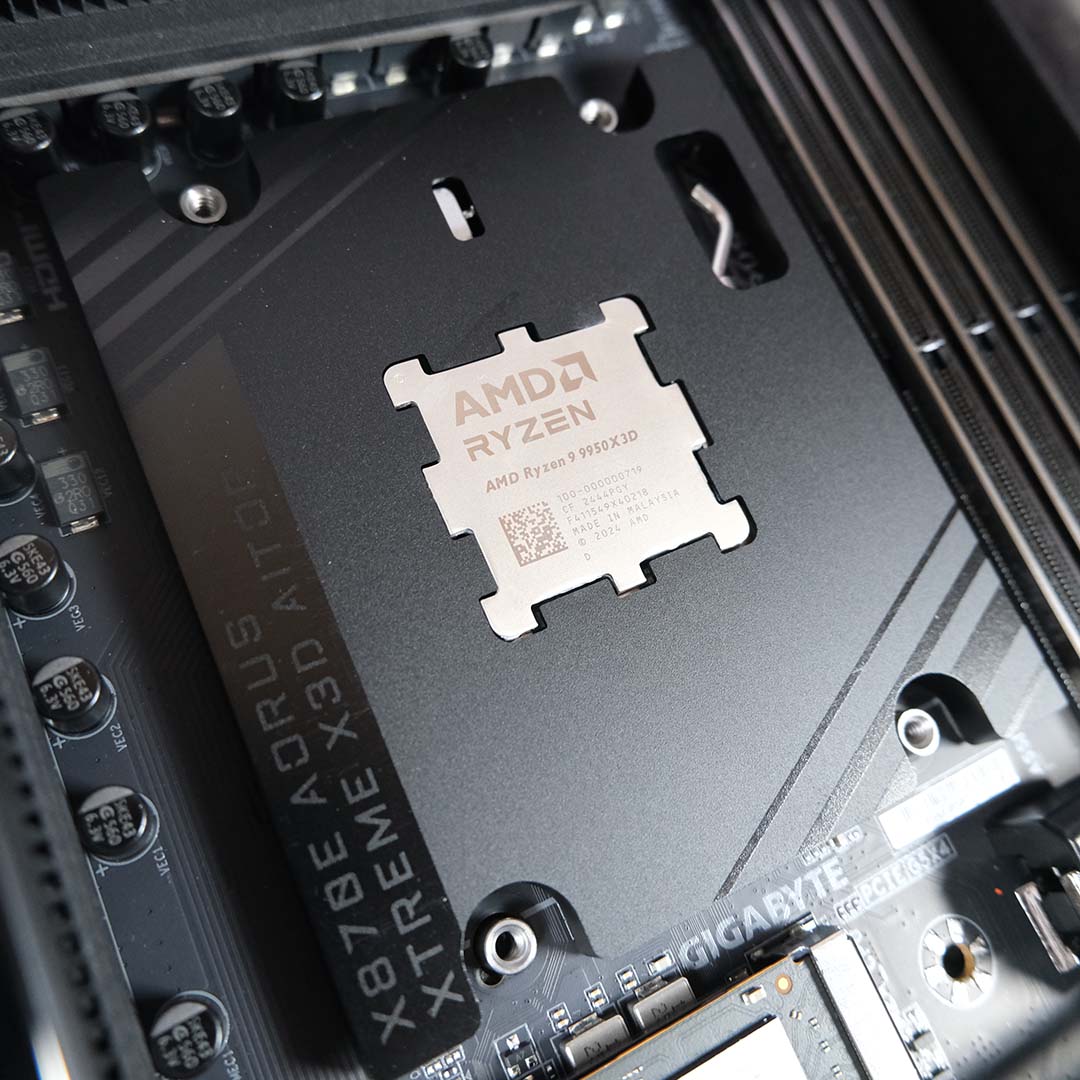
In order to test X3D Turbo Mode 2.0 modes, I need to make a few adjustments to the usual assortment of hardware I’d use for a motherboard review. As such, I’m mirroring the same setup I used in my X870E Aorus Elite X3D review. I’ll be pulling the results from my testing of that board here for comparison, but I recommend reading that coverage for an in-depth look into what X3D Turbo Mode 2.0 does under the hood.
My test components include a Ryzen 9 9950X3D, GeForce RTX 5090, WD_Black SN8100 2TB, Arctic Liquid Freezer III 360 Black, be quiet! Dark Power 13 1,000W, and 32GB (2x16GB) of G.Skill Trident Z5 Neo RGB DDR5-6000 CL28 RAM.
| X870E Aorus Xtreme X3D AI TOP | X870E Aorus Elite X3D | |
|---|---|---|
| AIDA Read | 77,563MB/s | 77,765MB/s |
| AIDA Write | 77,049MB/s | 77,732MB/s |
| AIDA Copy | 68,284MB/s | 68,243MB/s |
| AIDA Latency | 77ns | 78.4ns |
| Cinebench 2024 1T | 141pts | 140pts |
| Cinebench 2024 MT | 2,422pts | 2,522pts |
| 3DMark Time Spy | 31,383pts | 30,771pts |
| 3DMark Speed Way | 14,145pts | 14,285pts |
| 3DMark Steel Nomad | 13,887pts | 14,165pts |
| CrystalDiskMark seq. read | 14,811MB/s | 14,840MB/s |
| CrystalDiskMark seq. write | 14,132MB/s | 14,133MB/s |
| Cyberpunk 2077 (Min. / Avg.) | 194 / 254fps | 201 / 264fps |
| Rainbow Six Siege X (Min. / Avg.) | 408 / 513fps | 421 / 568fps* |
| Total War: Warhammer III (Min. / Avg.) | 97 / 148fps | 99 / 151fps |
| VRM temperature | 45°C | 51°C |
| Power consumption (Idle / Load) | 132 / 394W | 118 / 368W |
Both X3D motherboards are a close match for one another across the test suite, with no earth-shattering leads in any application. As ever, paying extra for a premium board like the X870E Aorus Xtreme X3D AI TOP won’t necessarily net you superior out-of-the-box performance.
Instead, that extra cash nets higher quality components that free up headroom to push beyond stock, as a literal six degrees of separation between VRM temperatures (45°C vs. 51°C) aptly demonstrates.
Just prepare to have a little extra power flow from the wall, as all those additional features each demand their fair share of watts, be it a flashy screen, RGB LEDs, or an alternative performance profile.
| Max Performance | Change vs. Off | |
|---|---|---|
| AIDA Read | 77,885MB/s | +0% |
| AIDA Write | 77,870MB/s | +1% |
| AIDA Copy | 68,419MB/s | +0% |
| AIDA Latency | 77.8ns | +1% |
| Cinebench 2024 1T | 141pts | +0% |
| Cinebench 2024 MT | 2,478pts | +2% |
| 3DMark Time Spy | 30,877pts | -2% |
| 3DMark Speed Way | 14,220pts | +1% |
| 3DMark Steel Nomad | 13,980pts | +1% |
| Cyberpunk 2077 (Min. / Avg.) | 204 / 269fps | +5% / +6% |
| Rainbow Six Siege X (Min. / Avg.) | 403 / 516fps | -1% / +1% |
| Total War: Warhammer III (Min. / Avg.) | 99 / 154fps | +2% / +4% |
| VRM temperature | 45°C | +2% |
| Power consumption (Idle / Load) | 136 / 452W | +3% / +15% |
Speaking of performance profiles, here’s how the X3D Turbo Mode 2.0 ‘Max Performance’ mode stacks up. An external clock (eCLK) of 1.06 and +150MHz on the CPU’s maximum boost clock via Precision Boost Overdrive (PBO) doesn’t provide transformative uplifts to the majority of the suite.
1-2% differences versus stock manifest more often than not, but there are some exceptions. While Cinebench 2024 doesn’t care much for the increase in processing power, both Cyberpunk 2077 and Total War: Warhammer III enjoy a 4-6% boost in average frame rate.
Using the ‘Max Performance’ setting will make the system less efficient, as the 15% increase in power consumption shows. Using this profile will squeeze a little extra out of your processor in some cases, but expect power consumption to rise more than scores or frame rates.
| Extreme Gaming | Change vs. Off | |
|---|---|---|
| AIDA Read | 63,816MB/s | -18% |
| AIDA Write | 88,128MB/s | +14% |
| AIDA Copy | 58,277MB/s | -15% |
| AIDA Latency | 70.3s | -9% |
| Cinebench 2024 1T | 141pts | +0% |
| Cinebench 2024 MT | 1,081pts | -55% |
| 3DMark Time Spy | 33,195pts | +6% |
| 3DMark Speed Way | 14,292pts | +1% |
| 3DMark Steel Nomad | 14,003pts | +1% |
| Cyberpunk 2077 (Min. / Avg.) | 188 / 284fps | -3% / +12% |
| Rainbow Six Siege X (Min. / Avg.) | 405 / 520fps | -1% / +1% |
| Total War: Warhammer III (Min. / Avg.) | 91 / 141fps | -6% / -5% |
| VRM temperature | 40°C | -9% |
| Power consumption (Idle / Load) | 130 / 261W | -2% / -34% |
Switching to ‘Extreme Gaming’ disables the CCD without 3D V-Cache on my Ryzen 9 9950X3D as well as SMT (Simultaneous Multithreading), bringing core and thread count down from 16/32 to 8/8. The same PBO adjustments I described for ‘Max Performance’ are also in effect on this profile.
The most notable win in this case is a 12% boost to Cyberpunk 2077’s average frame rate, with AIDA Write throughput rising by 14% too. That’s still well short of the “up to 25%” that Gigabyte advertises, but it’s a notable improvement regardless. However, cutting out all those cores comes at a substantial cost to multi-core performance, as my Cinebench 2024 score drops by a whopping 55%, and Total War: Warhammer III average frame rates fall by 5%.
Power consumption is notably lower here, on account of the reduced core count. There’s certainly more reason to experiment with ‘Extreme Gaming’ than ‘Max Performance, particularly if you have a Ryzen 9 9950X3D or Ryzen 9 9900X3D, but I can’t see it proving as useful on a single CCD chip like the Ryzen 7 9800X3D. Personally, I’m not sure the gains above are worth the faff of rebooting your system, nevermind the time to investigate performance differences.
Conclusion
There’s no doubt in my mind that the X870E Aorus Xtreme X3D AI TOP is an excellent choice of motherboard for an AM5 system. Gigabyte has crafted a properly impressive flagship here, which seamlessly blends smart and stylish design with top-of-the-line specifications. It would be on my shortlist of recommendations to pretty much anyone if it weren’t so gosh-darn expensive.
That said, at £1,033, you could reasonably make the argument that it’s a better-value purchase than similarly expensive boards such as the MEG X870E Godlike (£1,200). However, if you’re already spending so much on a motherboard, I doubt you’re baulking at the idea of splashing out another ~£200. At that point, it comes down to which board you prefer the look of, and whether you want faster or more USB-C connections – it’s a real hair-splitting exercise.
If X3D Turbo Mode 2.0 lived up to its marketing hype, this would be the de facto choice for anyone with a Ryzen 9000X3D CPU. While the feature doesn’t quite hit that mark, though, it does perform better than other one-click performance boosters, which deliver paltry gains by comparison.
Summarily, the X870E Aorus Xtreme X3D AI TOP more than earns its right to lay claim to the proverbial motherboard crown. Swap out some of the over-engineered accessories for a fan hub, and I dare say Gigabyte might just rule the roost.