

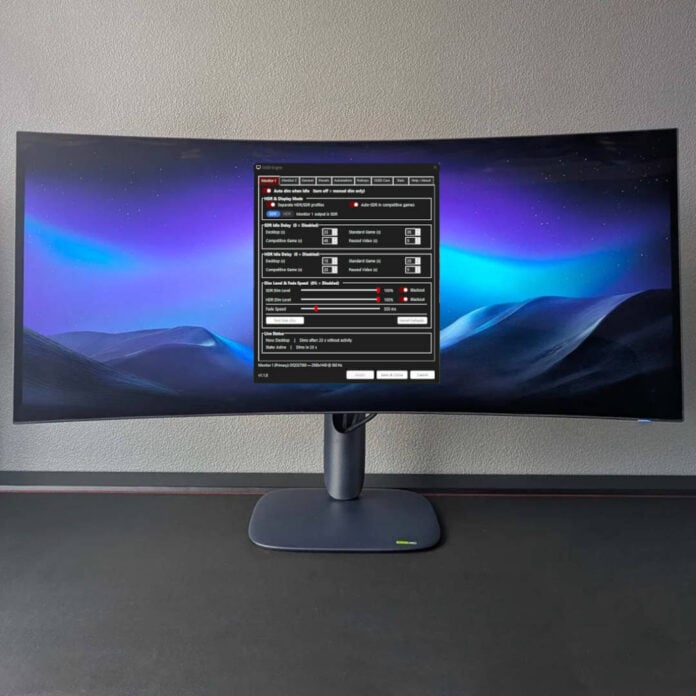
A new app has been launched that claims to be able to reduce the risk of burn-in on OLED monitors. The tool, called OLED Engine, works on both OLED and non-OLED displays, allowing you to configure and optimise the behaviour of multiple monitors individually.
OLED Engine can automatically dim your screen, turn it fully black, or even switch it off entirely, probably using the DDC/CI protocol. It also tracks screen usage and maintenance cycles to remind you when it’s time for a new cycle. During use, the app can hide your desktop icons, Windows taskbar, or even your mouse cursor, to reduce the risk of image retention from static elements.
The app recognises different use cases and adapts its level of protection accordingly. For example, it detects if a video is playing or a controller is being operated, in order to avoid dimming an actively used monitor. While this is mainly handy for those with multiple OLED displays, it can also help those who leave their monitor idle for long durations.
You can select different activation delays for your Windows desktop, games, competitive games, and paused video, in addition to brightness levels and dimming speeds. If you wish, you can also manually control all of these elements using keyboard shortcuts. The app supports up to five displays simultaneously, with the ability to set specific parameters for each one individually.
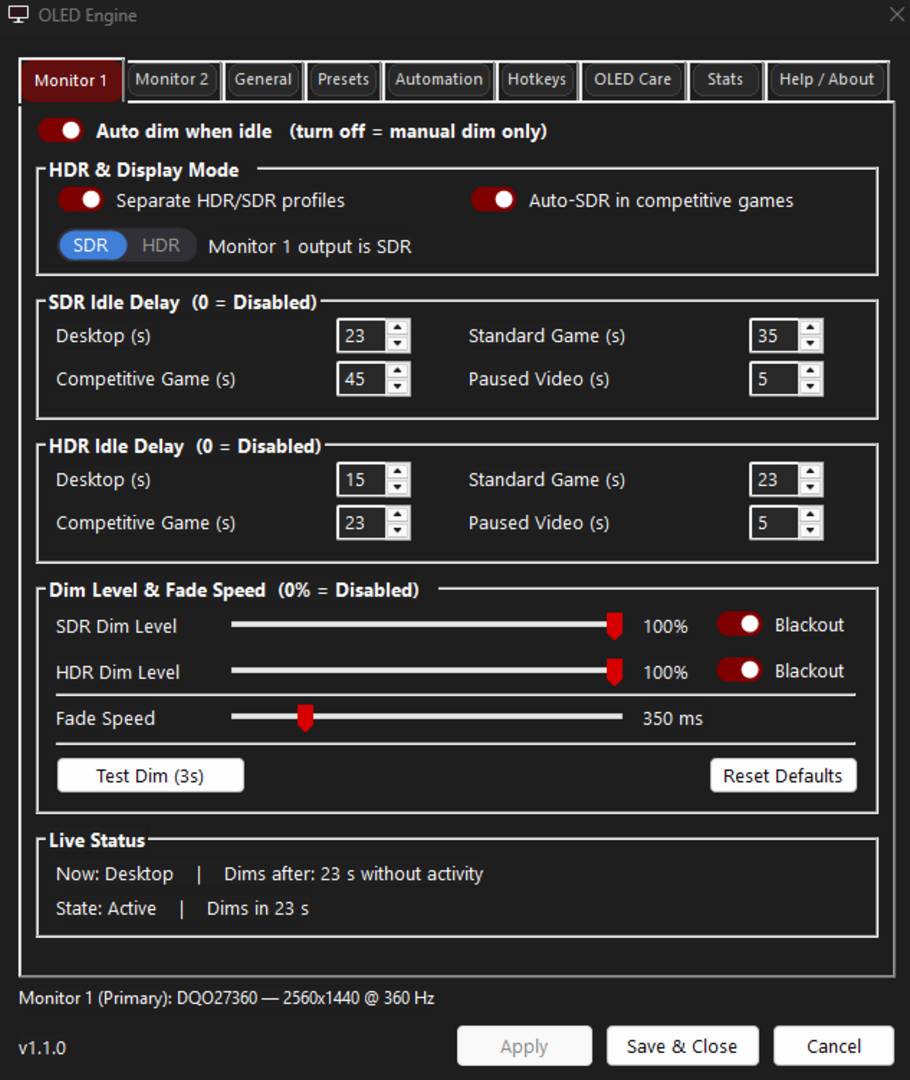
Beyond protection, OLED Engine includes some other features, such as automatic HDR and SDR switching. This allows you to disable HDR when launching competitive games, for example.
One feature many gamers will find useful is surely automatic G-Sync switching through Nvidia Profile Inspector. For those unfamiliar, OLED panels are notorious for variable refresh rate (VRR) flicker. When a game’s frame rate fluctuates wildly or drops suddenly – during loading screens, for example – OLED panels can exhibit noticeable brightness flickering in dark grey areas. By disabling G-Sync and thus setting the monitor to a fixed refresh rate, flickering is eliminated.
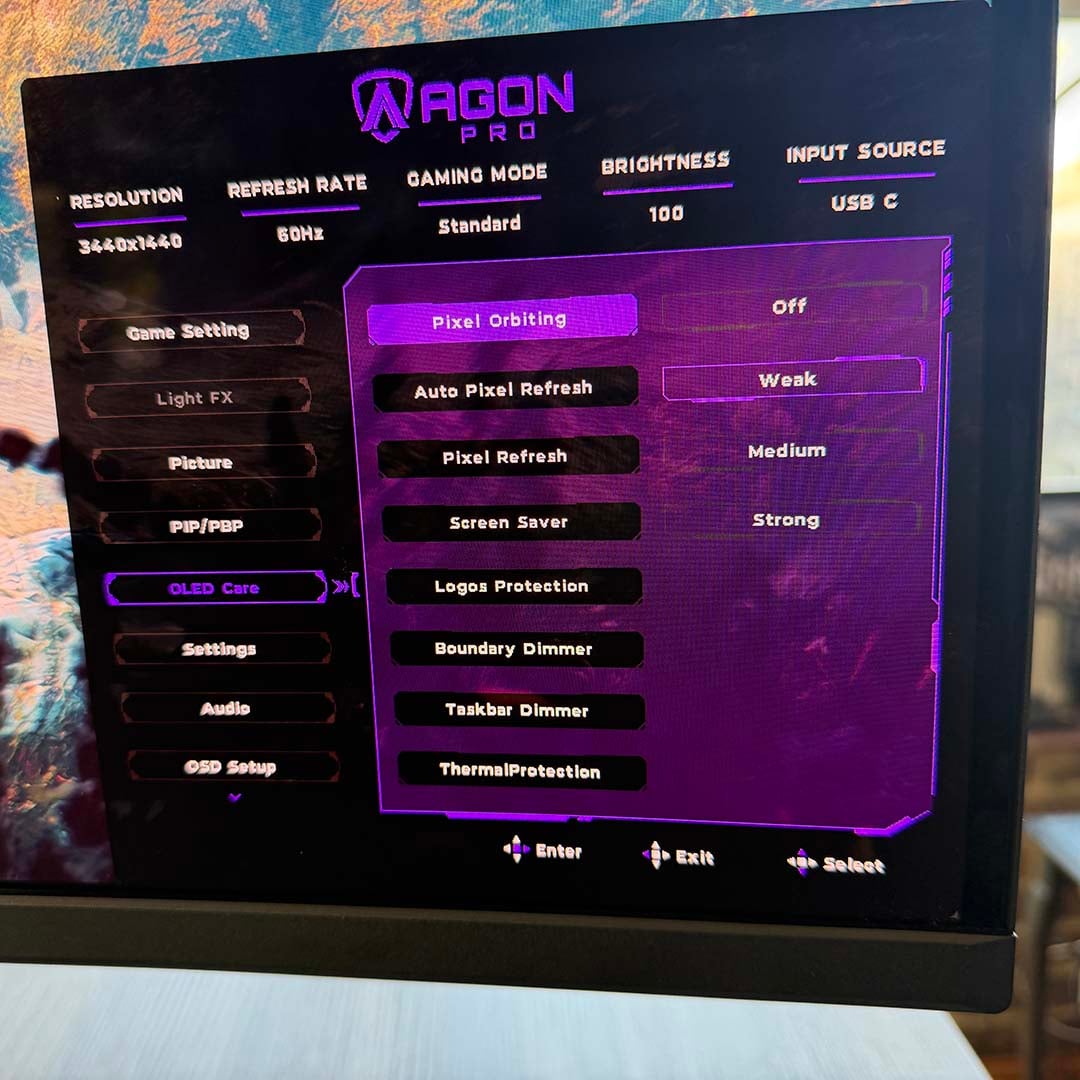
OLED and QD-OLED monitors are well shielded against burn-in nowadays. They include protection protocols, such as pixel shift, which moves the entire image by a few pixels horizontally and vertically every couple of minutes to reduce image retention. There’s also targeted smart dimming, which detects and dims high-risk static zones, as well as logo and static icon detection.
They usually also have mandatory maintenance cycles that run automatically, perhaps when a monitor enters standby after four hours of cumulative use, or after every 2,000 hours of use, for example. Some screens, such as the MSI MPG 322UR QD-OLED X24, even feature a presence sensor that turns off the screen when the user leaves their desk.
While most users don’t need OLED Engine to be well protected against burn-in, there is no harm in having more protection, especially if it doesn’t require any manual intervention after initial setup.