
Microsoft has added two ways to disable Bing AI, giving users more choice on the search results they see. This will remove AI Overview from the top row of answers without impacting the rest of the experience.
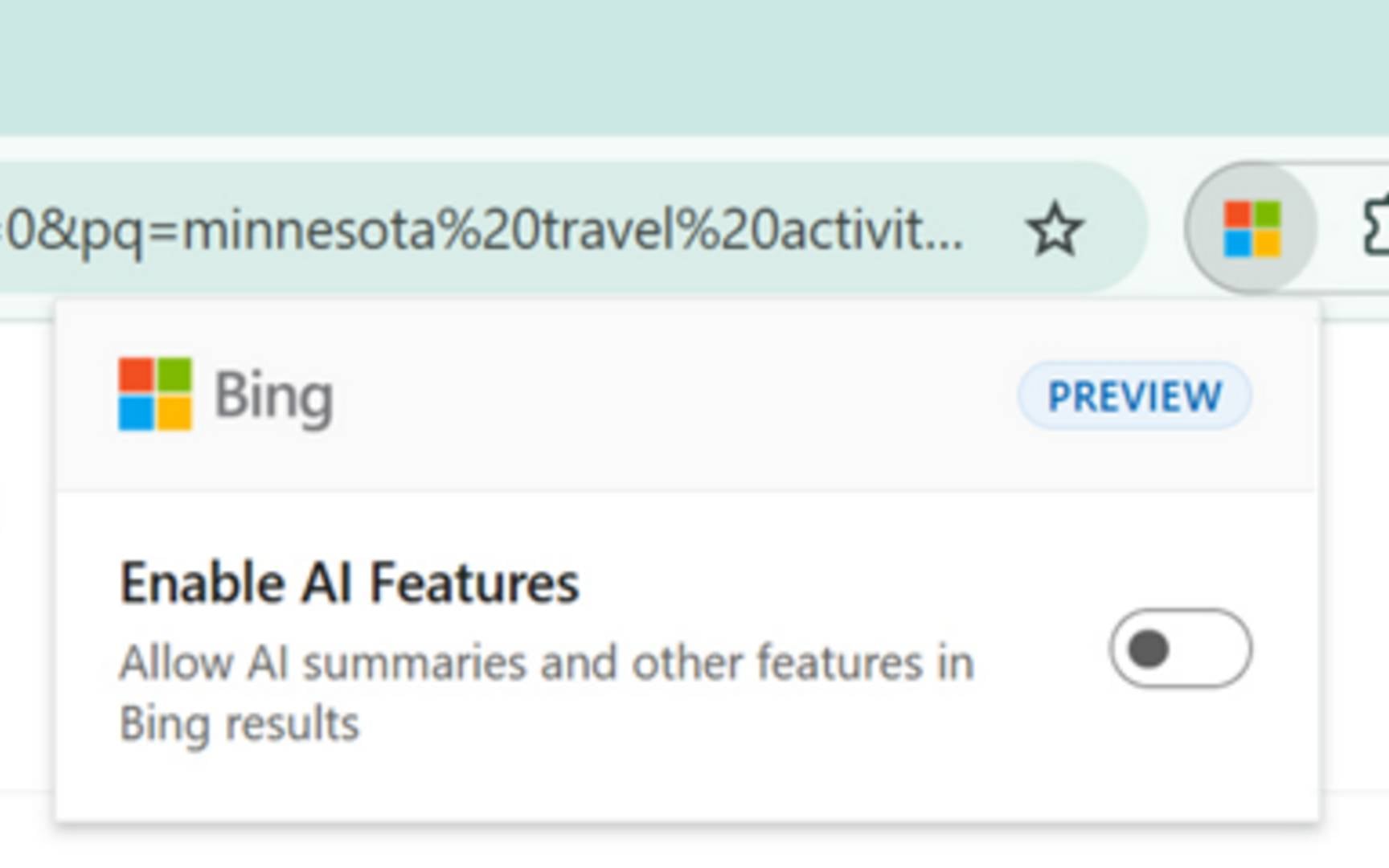
Microsoft has shared this change in a post on its Bing blog, saying, “When it comes to AI, we believe Bing users should have a choice in how they search.” To do so, the company is offering two options. The first consists of installing a browser extension called Microsoft Bing AI Search Choice for Google Chrome and Microsoft Edge, which automatically disables/removes AI Overview and chat features from Bing’s results. The second requires no installation at all. You simply adds “-ai” to the end of your search query. For example, “How to make an Ethernet cable -ai.”
The difference between the two is that the text prompt (-ai) needs to be added to every search query, unlike the extension, which applies your choice to every Bing Search automatically. While you can easily toggle AI on and off in the extension, using the “-ai” command is much easier if you only need to remove AI Overview from time to time. Furthermore, installing the extension forces Bing to act as your default search engine and opens Bing on every new tab.
Also, since unsupported or mobile browsers can’t use the extension, their users’ only option is to use the “-ai” command. That’s not a big deal, although a toggle directly integrated into the Bing page would have been better than any of the current options.
It’s unclear why Microsoft opted for an extension instead of a toggle within the Bing website itself. More so considering that, back in 2024, Bing had such a toggle called “Copilot response on result page,” which let you choose if you wanted to see Copilot responses on the search results page. This option was quietly removed as the company went all-in on its Copilot AI integration. That said, at least Bing users have a choice now, unlike Google, which still forces its AI Overview on users.
If you prefer using Google but don’t like the AI Overview, try adding “&udm=14” to the end of your search URL or use this link “https://www.google.com/search?q=0&udm=14” to conduct your search. This forces Google into a web-only view.