
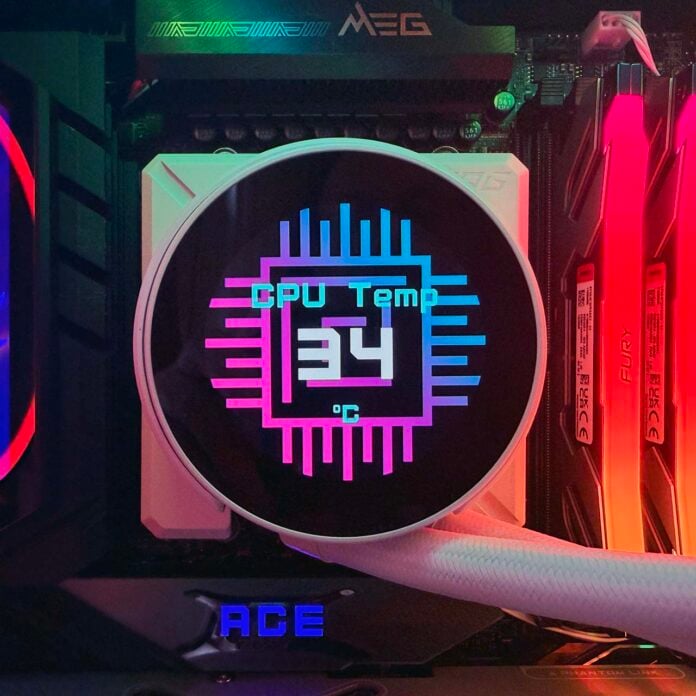
It’s just not enough for a closed-loop cooler to be damn good at keeping your CPU temps under control any more. MSI’s latest MPG CoreLiquid P22 360 still does that, naturally, but it also sports a big bundle of frills to make your PC’s interior come alive with lights and visuals agogo. With its LCD neatly mounted behind a classy magnetic cap, and a bright trio of ARGB fans spread across its 360mm radiator, the CoreLiquid P22 is as much about showing off as it is about CPU cooling, and I’m here for it.
In case you need to have a word with yourself first, take it from me – it’s absolutely fine to spend more money on a product that looks really cool, as long as it also does its job. To that end, MSI has kitted out the P22 with some serious cooling credentials, as well as various ways to simplify installation and control.
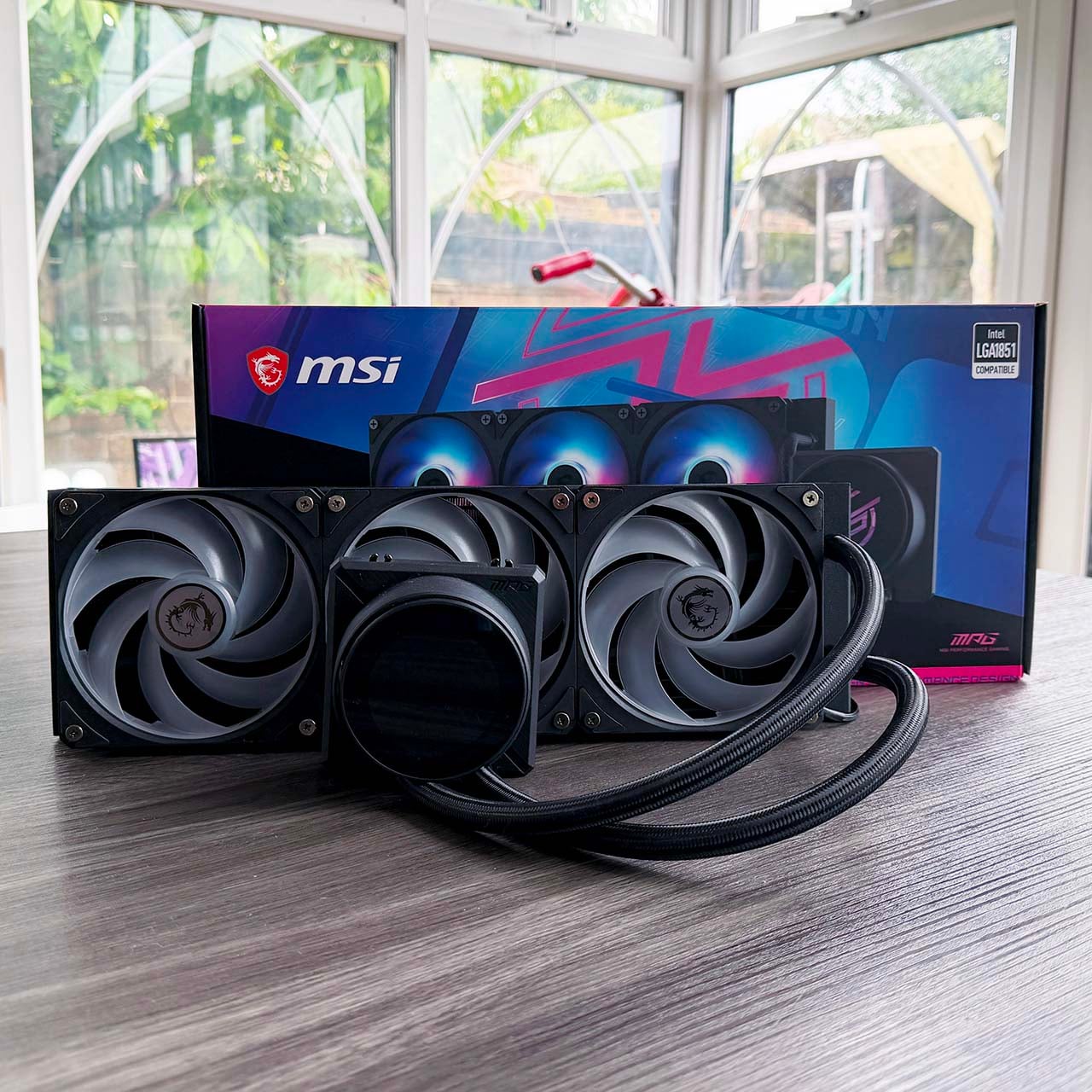

MSI MPG CoreLiquid P22 360
$149
Pros
- Great looks
- Excellent cooling
- Very quiet operation
- Easily handles a Ryzen 9 9950X3D
- EZ Display software is easy to use
- Pre-installed, pre-wired fans
Cons
- USB header cable is too short
- EZ Connect still requires a separate power cable for pump
- Display could be brighter
- EZ Display software only controls screen
Club386 may earn an affiliate commission when you purchase products through links on our site.
How we test and review products.
There’s a new software package, for example, called EZ Display, which circumvents the need to faff around with the company’s bloated MSI Center application to customise the screen. There’s also a pre-mounted all-in-one screwplate fixed to the pump unit that fits all of Intel and AMD’s current CPU sockets.
If you already own an MSI motherboard with the company’s EZ Connect feature, then you can also reduce the cable clutter going to your board, although this cooler will also happily work with a normal cabling setup on any other board too. The P22 is also available in black and white models, and we’ve had the chance to look at both of them for this review.
Specs
| Specifications | |
|---|---|
| Socket support | AMD: AM5 / AM4 Intel: LGA1851 / LGA1700 |
| Radiator dimensions | 394 x 119.2 x 27.2mm |
| Waterblock dimensions | 71.6 x 69.5 x 77.6mm |
| Tube length | 390mm |
| Pump speed | 3,400RPM ± 10% |
| Display | 2.1in 540×540 IPS |
| Fan size | 120mm MSI CycloBlade 7 ARGB (x3) |
| Fan speed | 500 ~ 2,000RPM ± 10% |
| Fan airflow | 62.6CFM (per fan) |
| Fan pressure | 2.36mmH2O (per fan) |
| Price | $149 |
Design
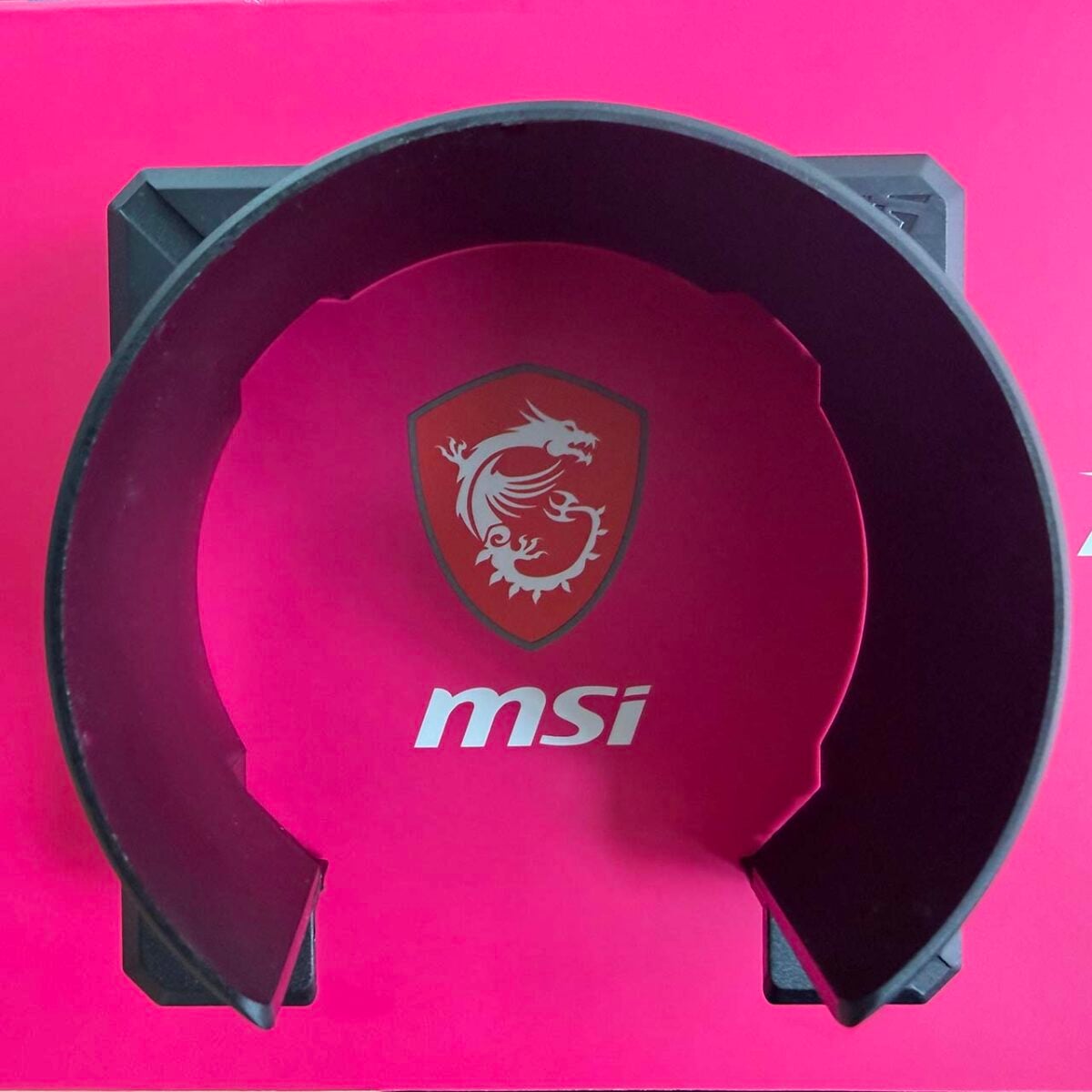
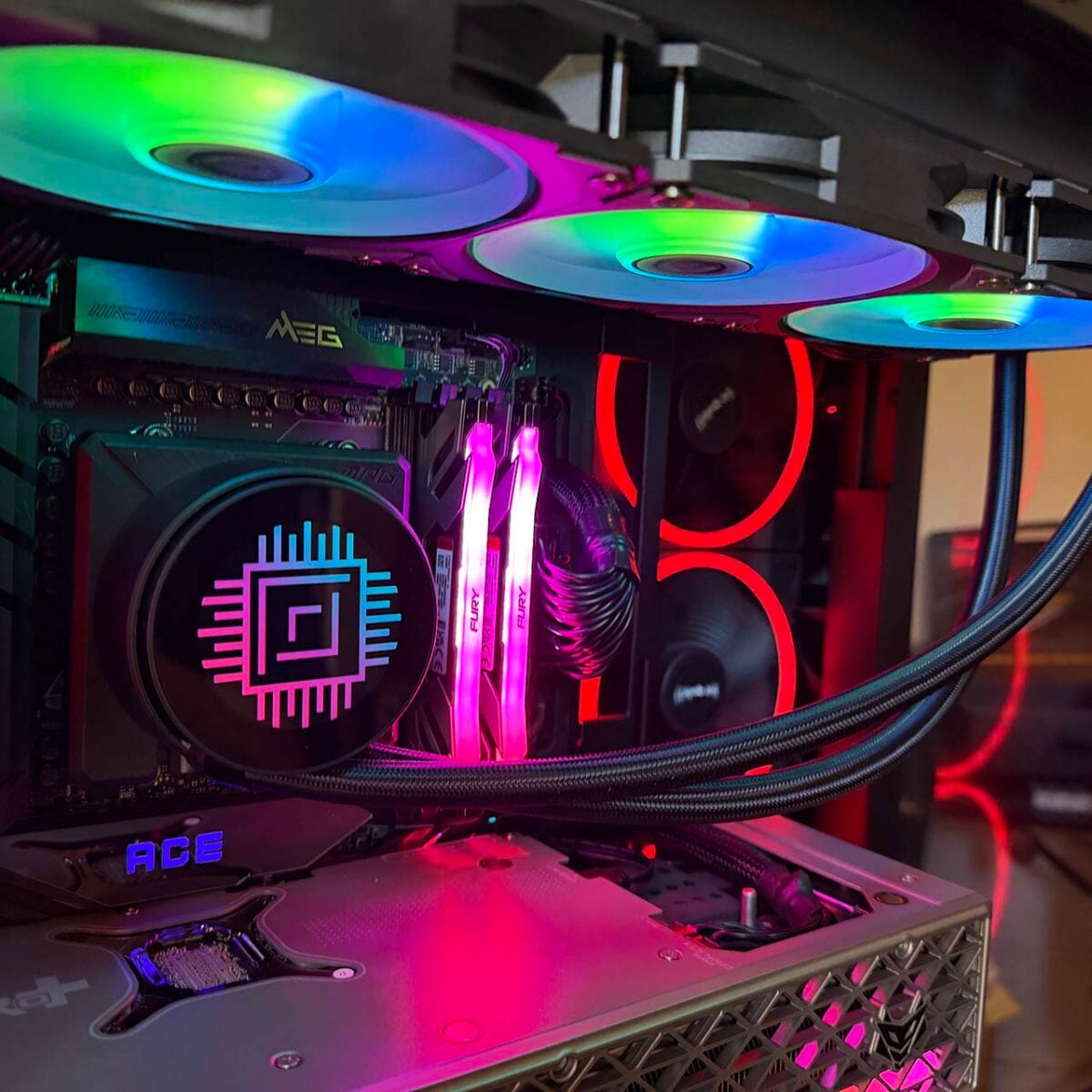
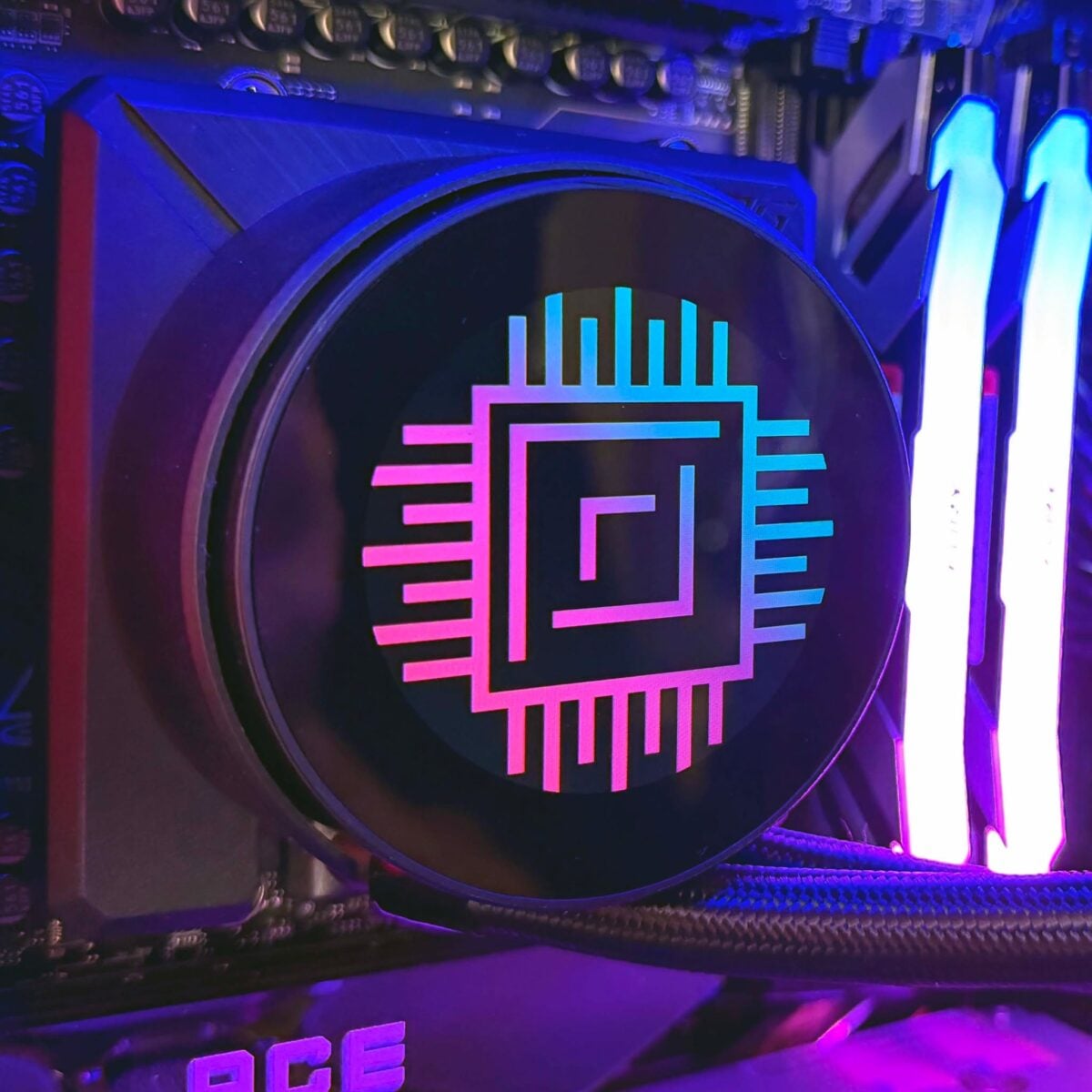
The MSI MPG CoreLiquid P22 360 is a fine-looking cooler once it’s set up in your PC. Its 120mm ARGB fans are bright and colourful, and the round display enables you to customise the look of the pump unit as you like. I like the EZ Cap that magnetically snaps onto the pump, and adds a neat black shroud that covers the screws, mounting plate, and cables emanating from the waterblock unit. It just looks like there’s a smart LCD in the middle of your PC.
That said, our black sample’s screen was slightly lopsided, with the display sloping rather than looking straight when you view it head-on. MSI assures us this is just a problem with our sample, and thankfully the screen on the white version was absolutely fine. Putting the LCD aside, there are a few design touches aimed at helping with cooling as well.
One is the clean copper contact plate on the bottom of the waterblock, which, unlike several competing designs, such as those from Corsair and NZXT, doesn’t have any screwholes in it. That aids thermal conductivity, as it means there’s nothing interrupting the flow of heat.
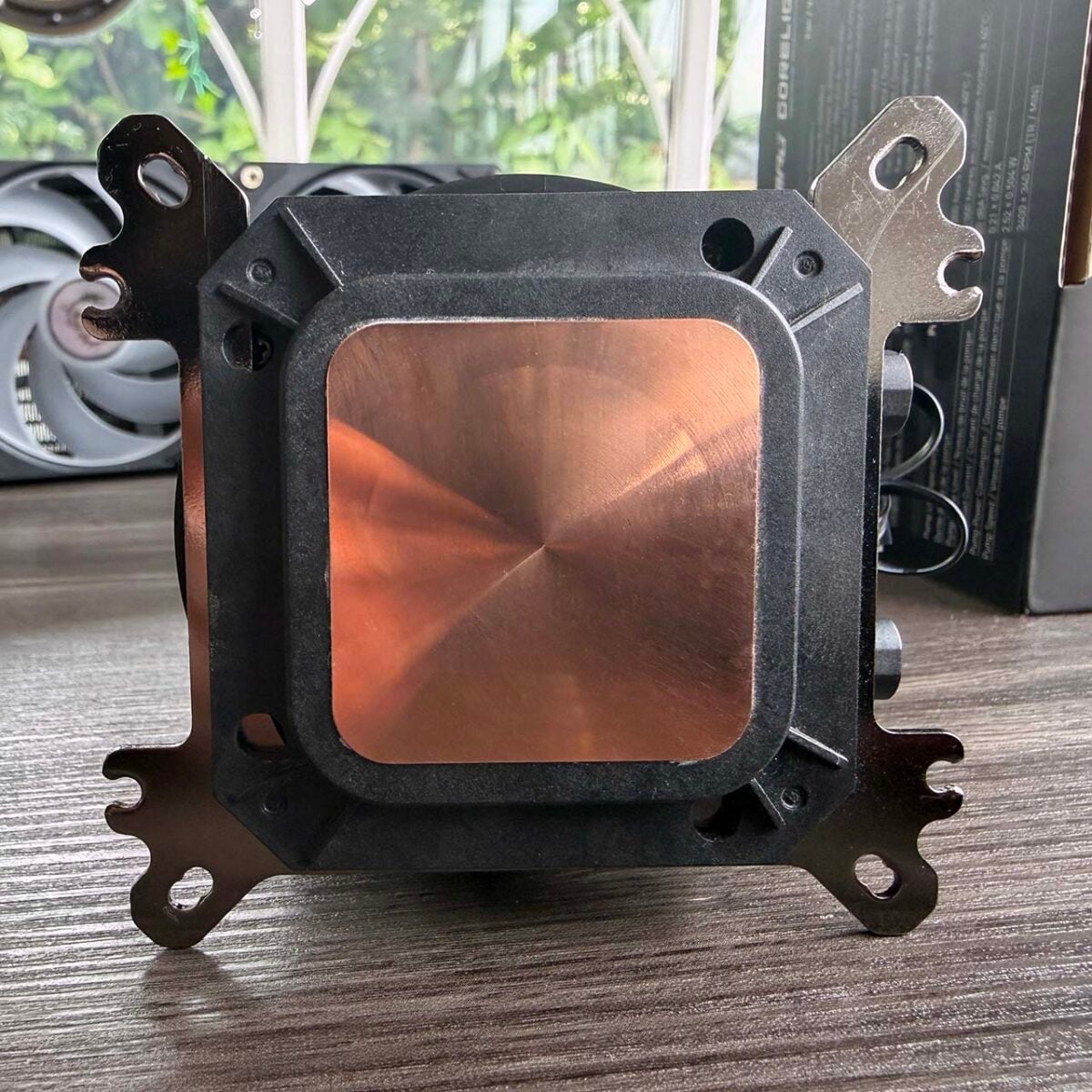
MSI also claims that it has optimised the fin structure in the waterblock for the chiplet layout of AMD’s CPUs. The P22 will naturally still cool one of Intel’s latest CPUs, using either the LGA1700 or LGA1851 socket, but owners of top-end AMD CPUs, such as the Ryzen 9 9950X3D2, will benefit from targeted cooling.
That’s an interesting design choice – several coolers let you offset the mount during installation, so they’re in the right position to cool the hotspot in AMD’s CPUs, but in this case MSI is working on the basis that an AMD CPU will be the default rather than the exception. That’s a reasonable assumption in the current desktop market, given that AMD’s CPUs occupy all the top spots on the Amazon best seller list right now.
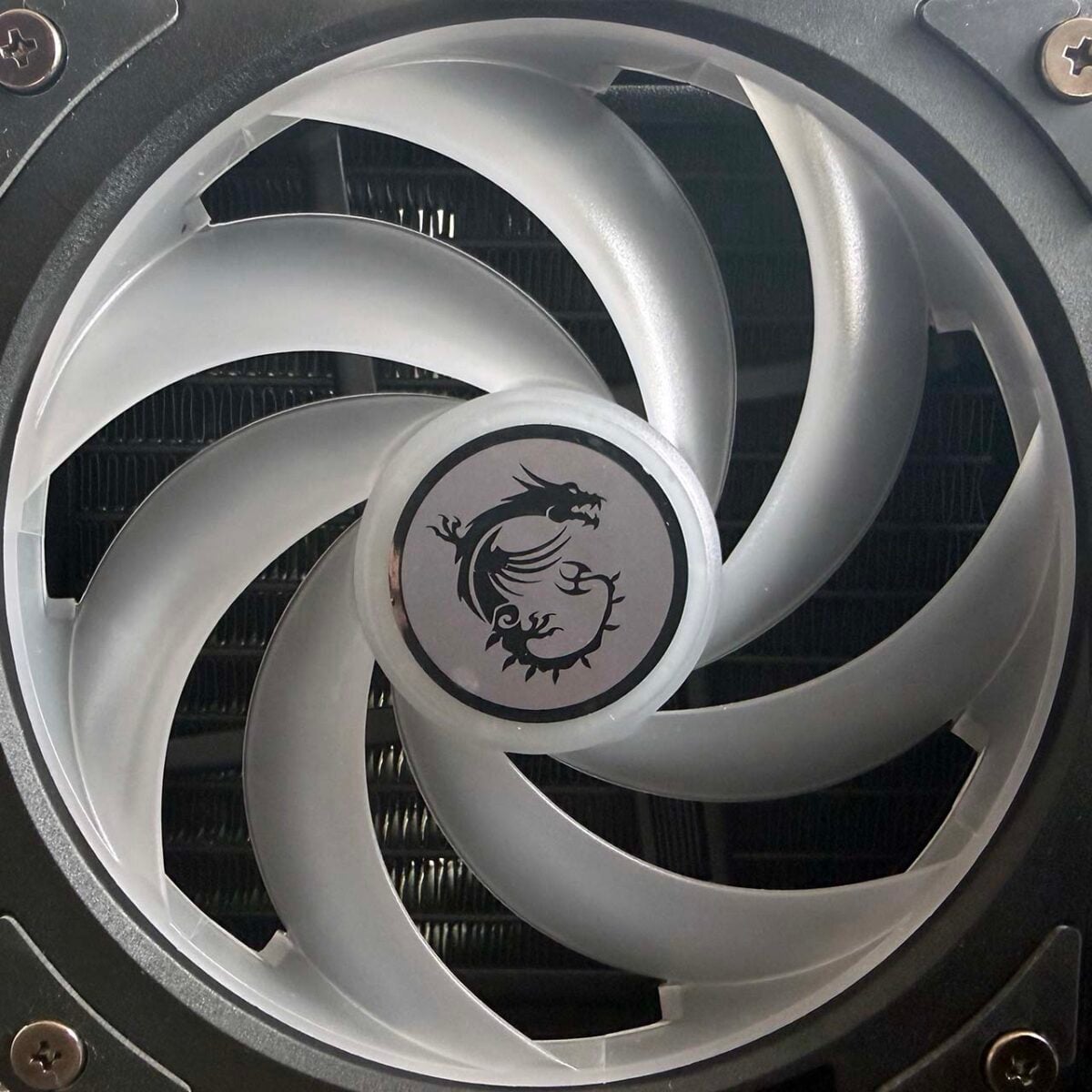
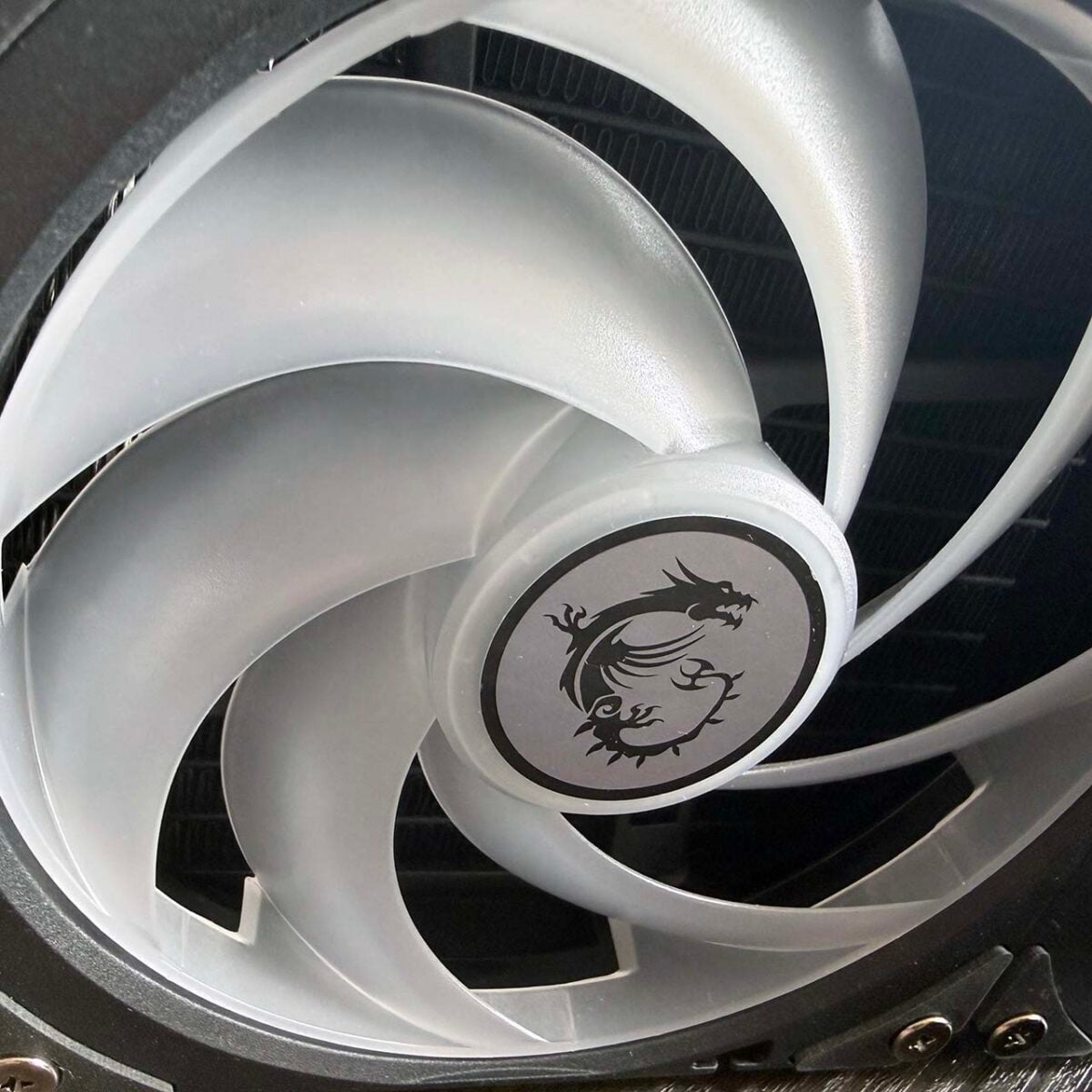
Meanwhile, as with previous P13 coolers, all the fans have rifle bearings and use MSI’s CycloBlade design. That means that the top halves of the blades are circled with a plastic ring, but the bottom halves are left free. MSI says this helps to focus airflow on the radiator where it’s needed.
Features
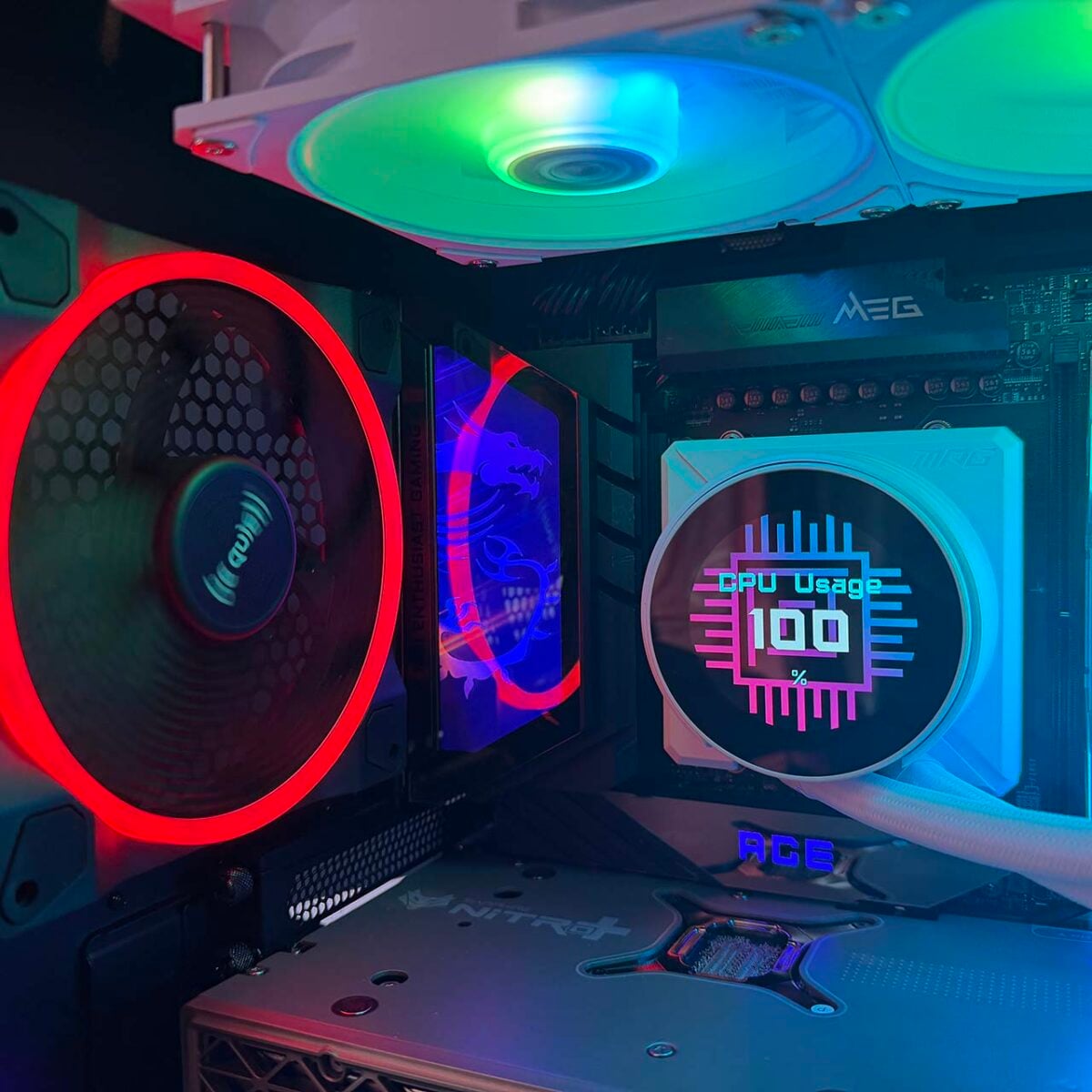
A big part of the P22’s appeal is undoubtedly the 2.1in IPS screen sitting on top of its waterblock/pump unit. The 540×540 resolution is ideal for this tiny, circular panel, although it’s not particularly bright, especially in comparison to the RGB LEDs in the radiator fans. You can clearly see the display behind your tempered glass side panel, but it could do with a bit of a brightness boost for some extra dazzle.
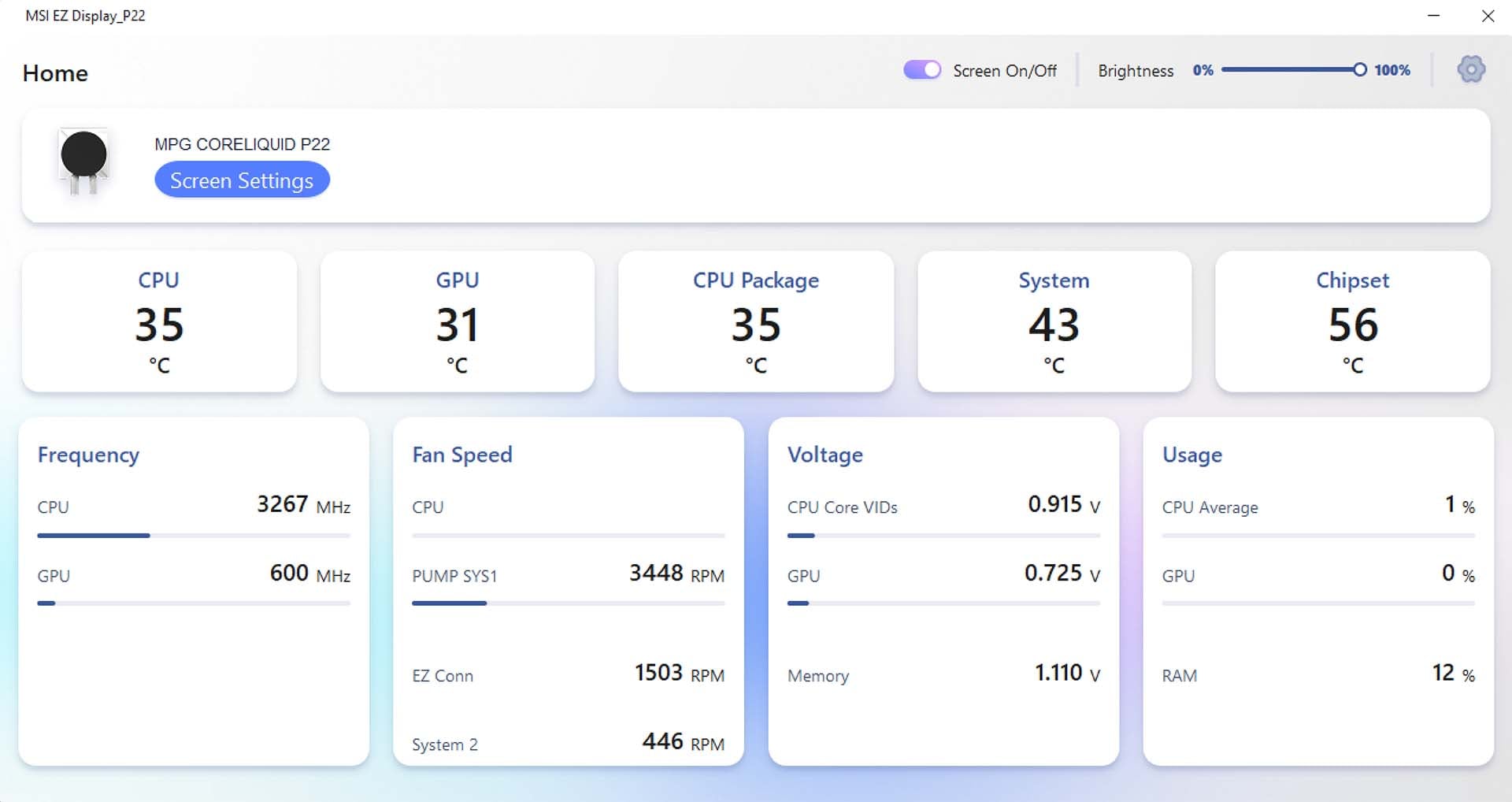
Speaking of which, you can adjust the brightness, as well as all the other key features for the display, in MSI’s new EZ Display software. The company is making a big deal about this software package, saying that it enables you to “say goodbye to heavy system software,” and instead use this “lightweight, fully independent app.”
The heavy system software the manufacturer is referring to here is its own MSI Center, and it’s certainly a relief not to have to use it. MSI isn’t alone in having a bloated, all-encompassing software suite that bogs you down and takes ages to do anything – Asus’ ArmourCrate is equally egregious, though it feels like a bit of a self-own that one of this cooler’s selling points is that you don’t have to use MSI’s usual software to control the screen.
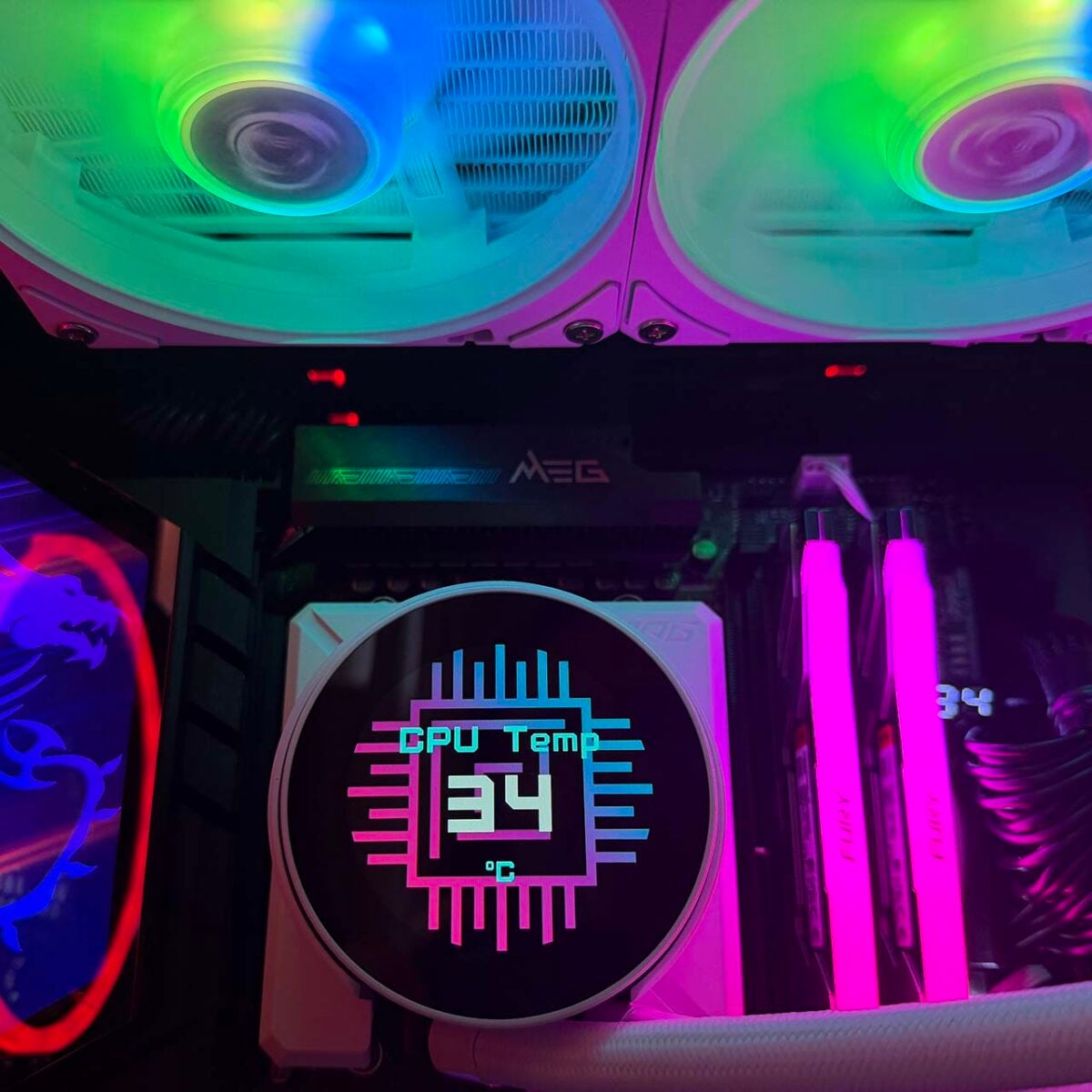
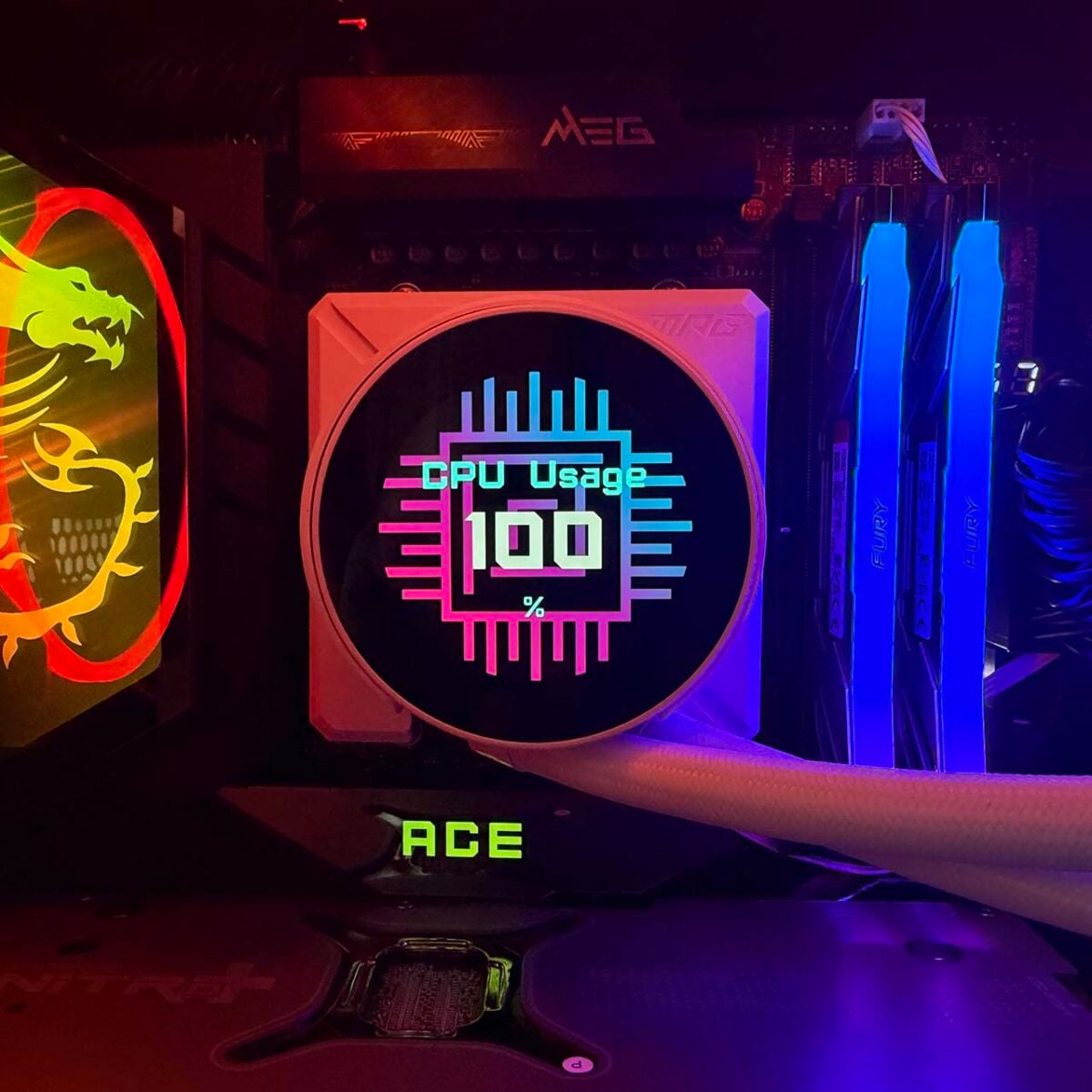
Thankfully, MSI has done a decent job with EZ Display. It’s quick, responsive, and easy to use. The dashboard gives you an at-a-glance readout of your pump and fan speeds, as well as key temperature metrics, and the uncluttered interface makes customising the screen straightforward. You have the option to display system stats on the LCD, such as your CPU frequency, temperatures, fan speeds, and so on, and you can change the font and colour as well – you just select which stats you want to display, or turn them all off if you like.
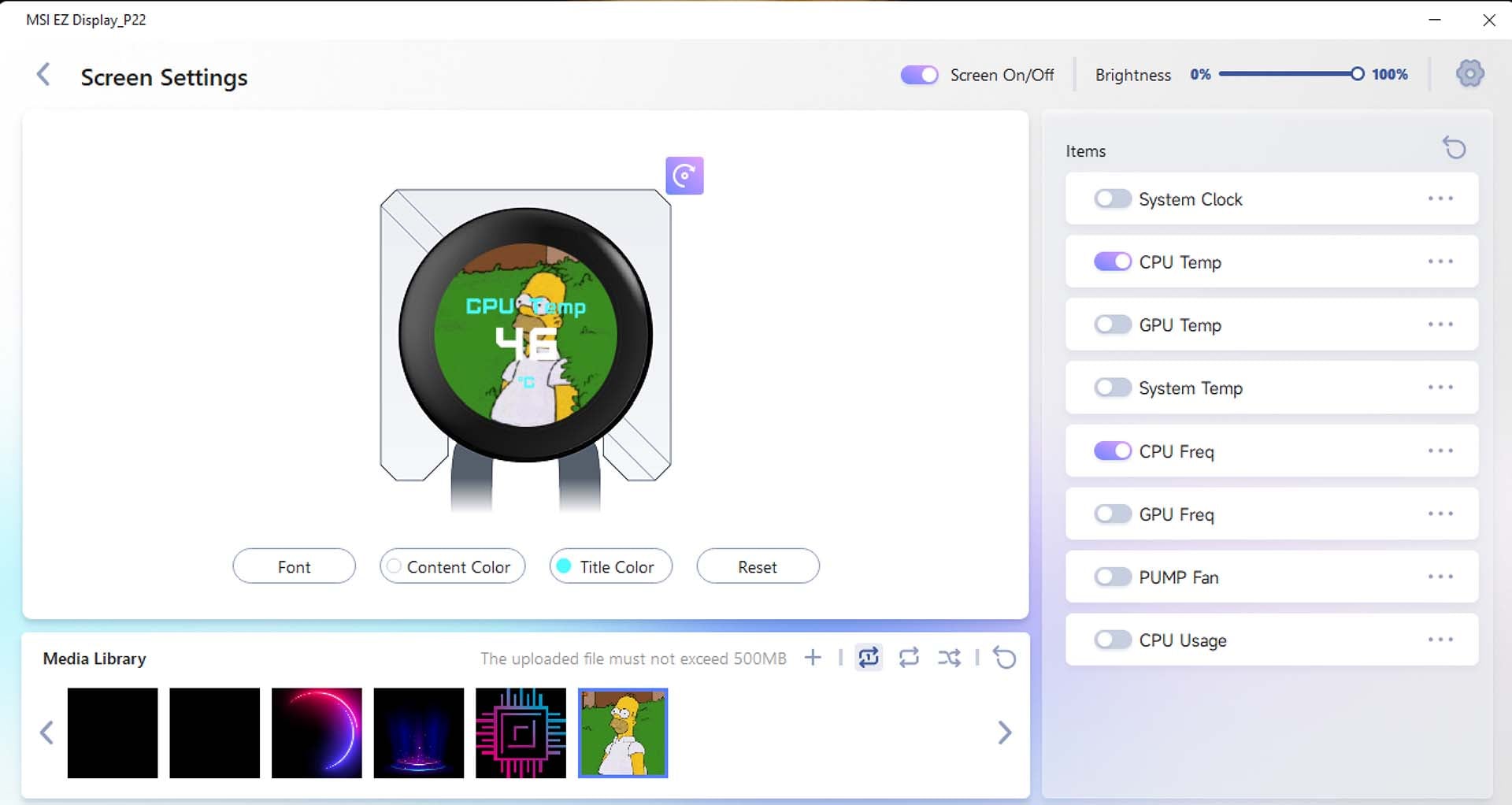
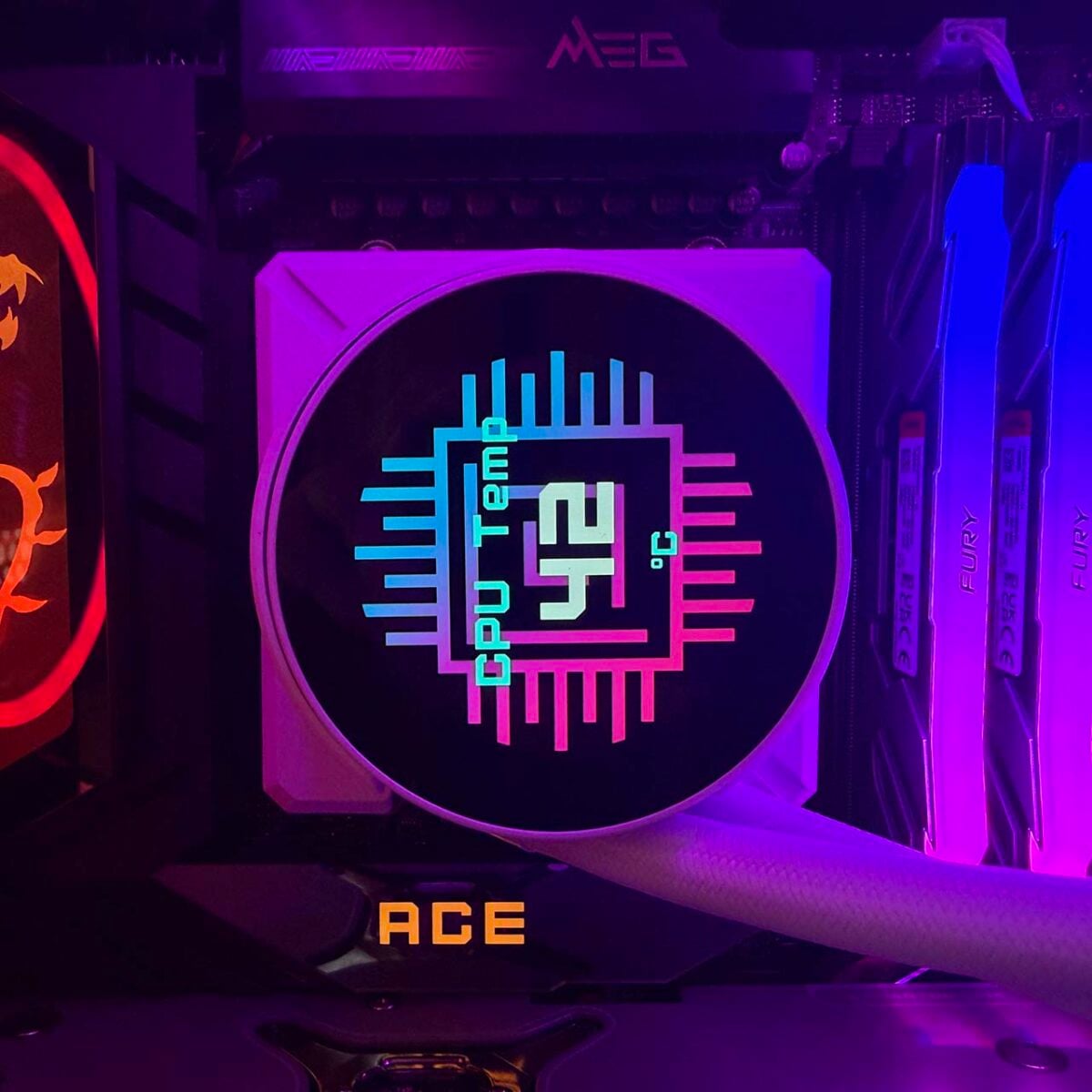
Several animated backgrounds are provided by default, but you can also upload your own image or video (with the option to crop the latter where you want), as demonstrated by our beautifully clean Club386 logo in the main photo for this review. You can set the LCD to shuffle these images and animations in rotation as well, although you frustratingly can’t remove the stock MSI ones from the shuffle stack, so you’re stuck with them. If you just want a single static image or your own repeating animation, though, the software does the job fine.
One other feature in EZ Display is the ability to rotate the image and stats by 90 degrees, to suit the orientation of the pump/waterblock unit in your system. MSI recommends having the tubing section facing downward, and you can’t rotate the pump on the mounting plate as you can with Corsair’s latest coolers, but this option is still useful if you have a rotated motherboard layout, for example.
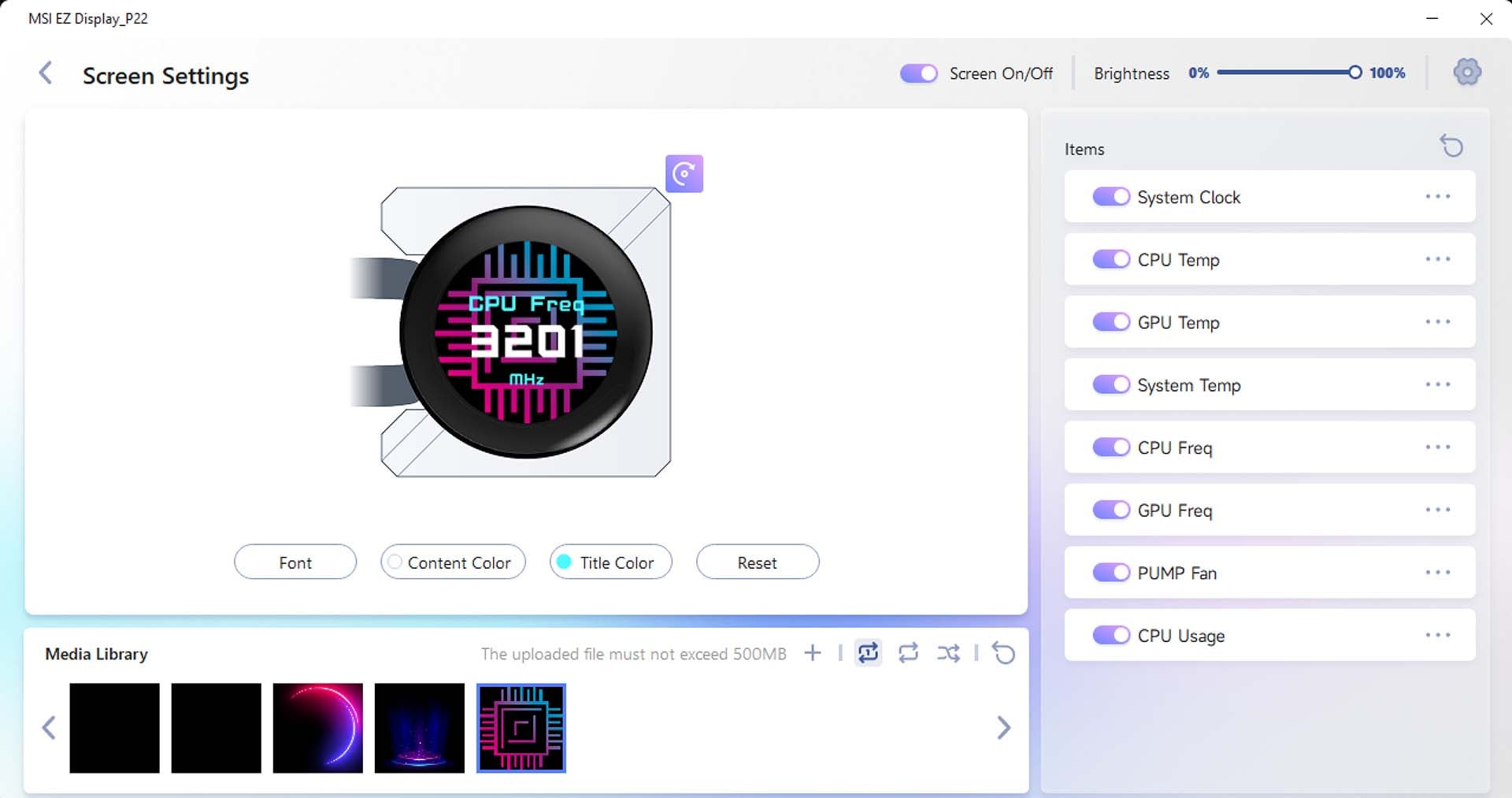
Overall, this software system works for me, as I dislike using clunky bloated software to do basic jobs. I just used EZ Display to customise the LCD, and then set my fan and pump speeds in the BIOS, circumventing MSI Center entirely. If there’s one criticism, it’s that MSI could have used this opportunity to get fan, pump, and RGB lighting control for the cooler into the same app, as Corsair does with iCUE, for example. It feels half-baked to have a lightweight, easy-to-use software package for the LCD, but then point users to MSI Center or their motherboard BIOS for everything else.
Installation
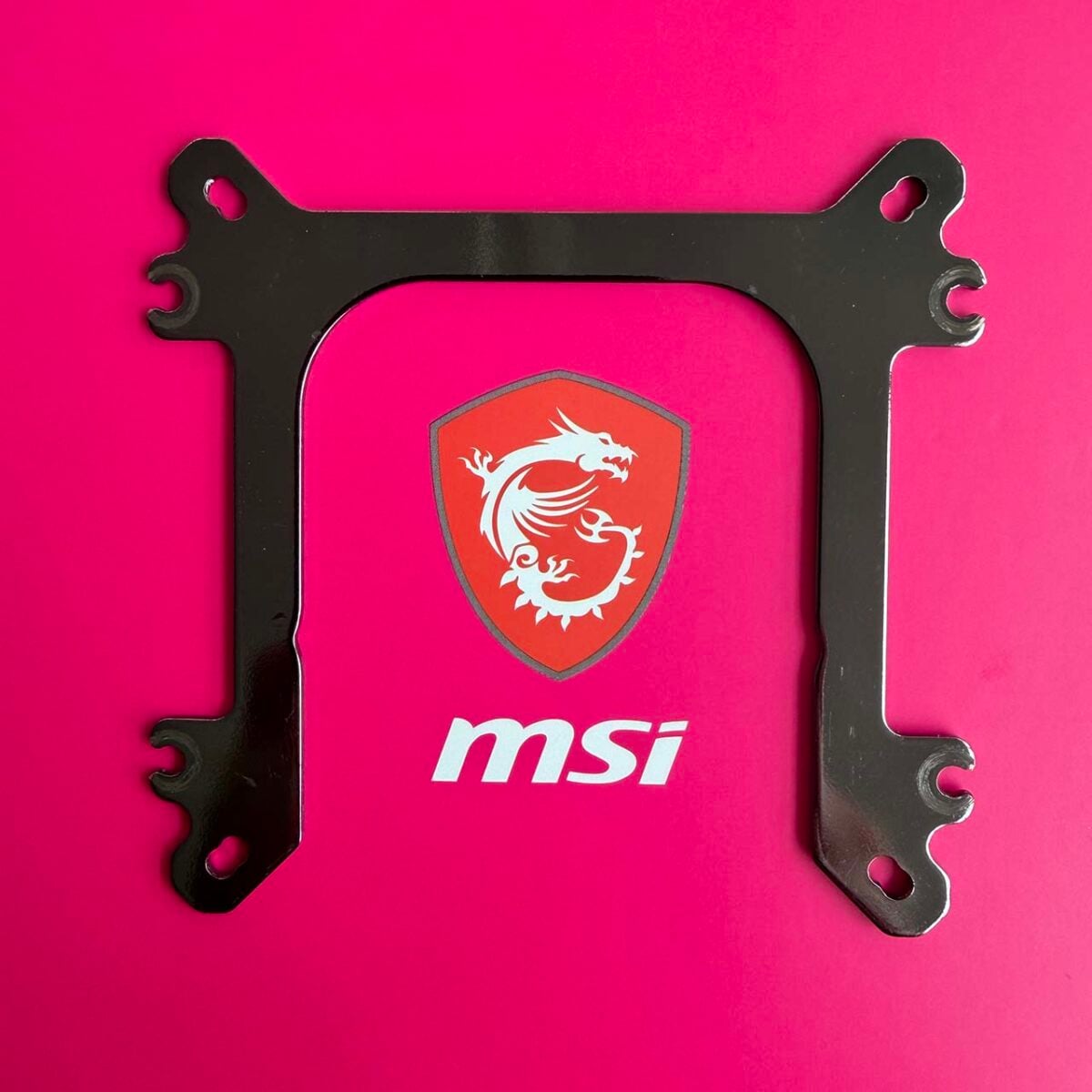
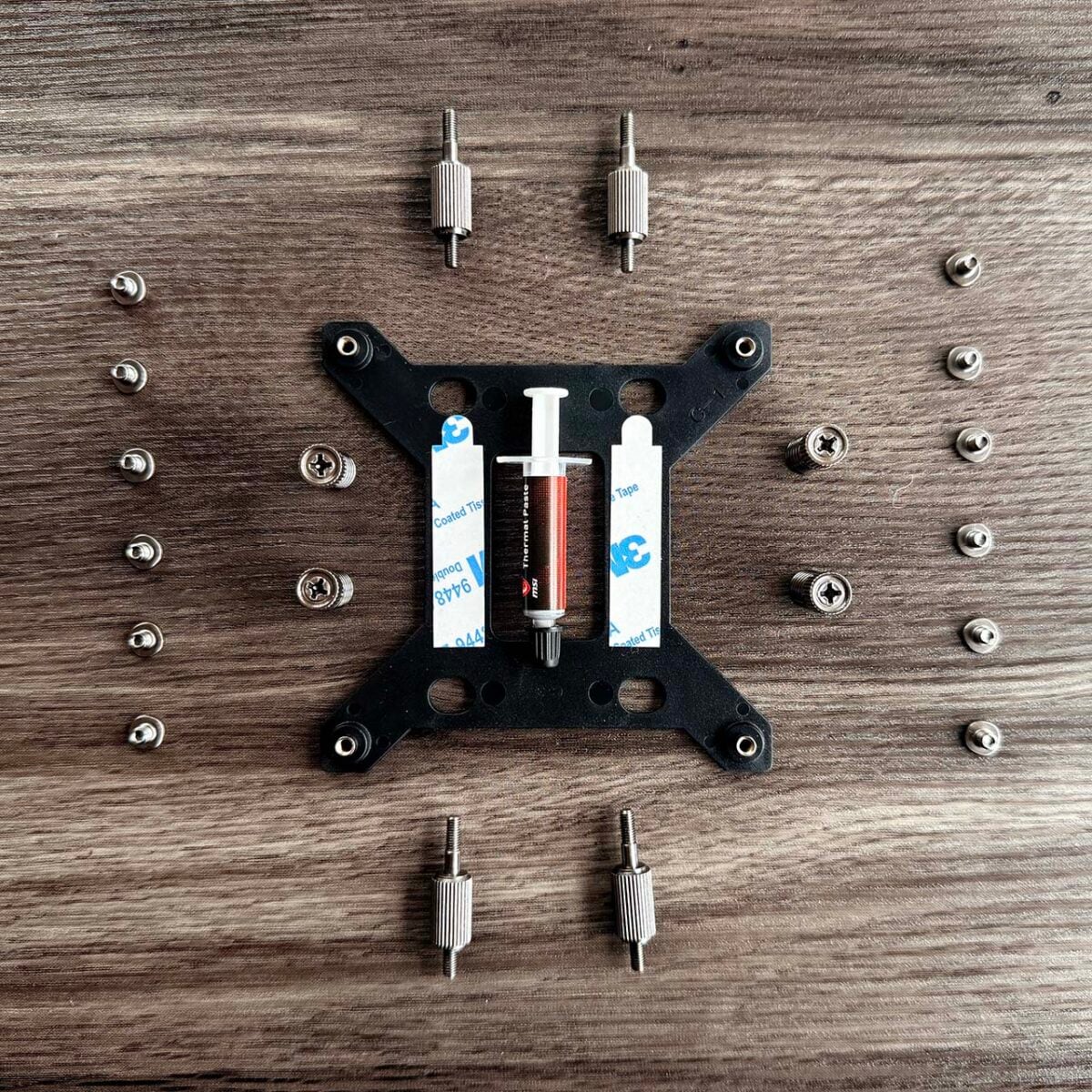
Setting up the MPG CoreLiquid P22 360 is relatively straightforward, and MSI has come up with some clever ways to make the process easier. One of these is the universal mounting plate on the pump/waterblock unit. It looks a bit like a Wacky Races contraption, with its various prongs, hooks, and holes sticking out, but it’s all covered by the EZ Cap once it’s installed. Importantly, it means you use the same mounting plate whether you’re using an Intel or AMD CPU, with no need to install separate plates depending on which chip you want to use.
The whole install process isn’t entirely universal, of course – you still need to use different screws for Intel and AMD CPUs, and the former also requires a backplate to be fitted on your motherboard – but it does mean you have to deal with fewer parts during installation. The rest of the pump installation process is simply a case of fitting four socketed spring screws to each of the corresponding standoffs you’ve fitted to the motherboard. There’s also a tube of thermal paste included, which is good for a couple of applications if you ever need to reinstall your cooler.
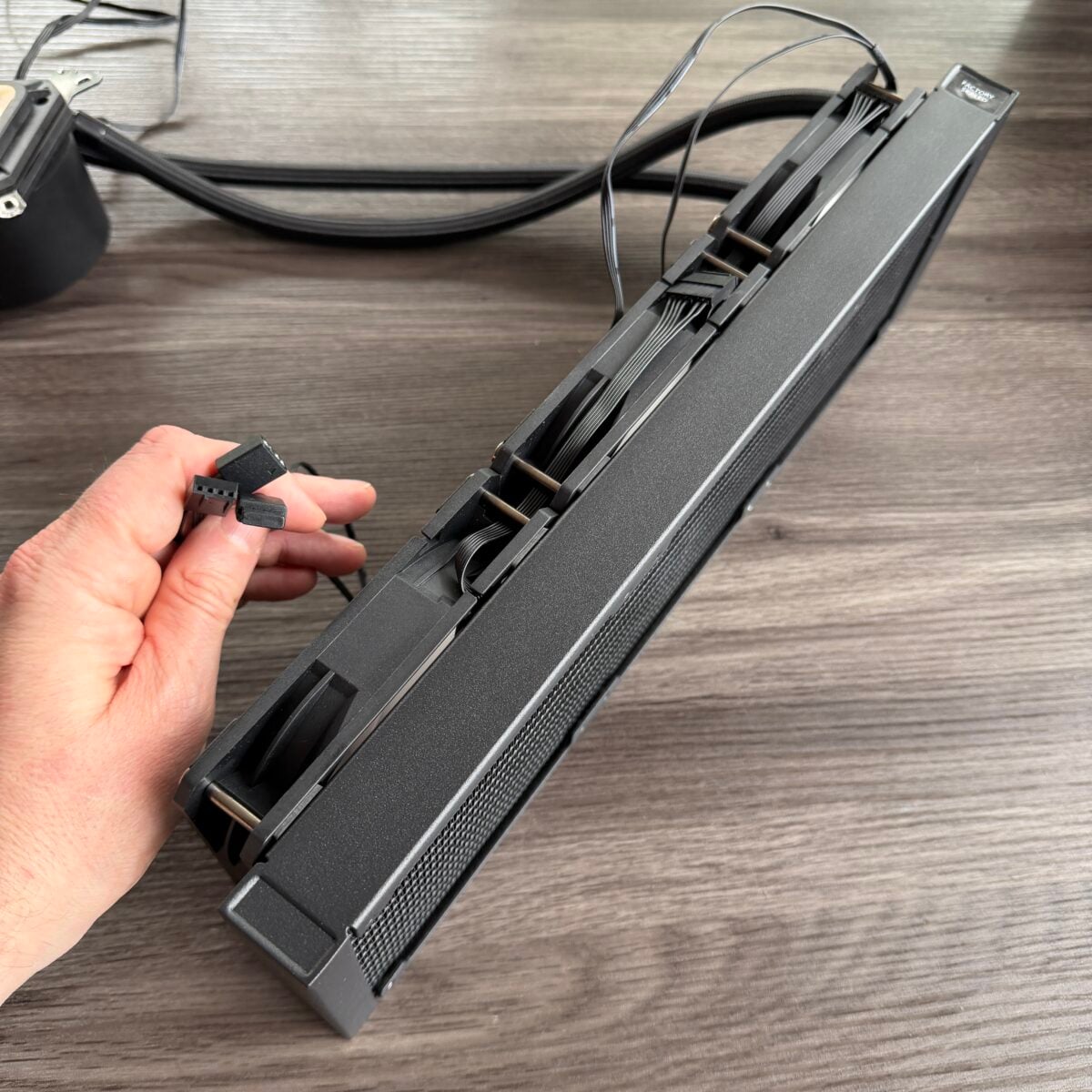
MSI has also made radiator installation gloriously easy by pre-fitting all the fans to the unit in the box, and also neatly daisy-chaining all the cables together, so you only have to contend with a 3-pin RGB plug and a single power plug. This all means you can fit the CoreLiquid P22 in your system relatively quickly, and without having to tidy multiple cables.
Speaking of which, MSI is also making a deal of its EZ Connect cable system with this cooler. The company has put a proprietary 10-pin header on some of its motherboards, including the MEG X870E Ace Max in our test rig, which is designed to offer USB and RGB connections, as well as fan power, in one go. A cable is supplied in the motherboard box, which enabled us to hook up the USB socket from the pump, as well as the 4-pin power and 3-pin RGB plugs from the fans.
Handily, the socket is positioned on the right edge of the motherboard, in just the right place to route the cables from the pump – you can then hide all the wires in a cable routing hole. This all sounds good in theory, but in practice, there’s only one 4-pin power socket on the EZ Connect cable, so you still have to route the power wire from the pump to the appropriate motherboard header, even if you’re using EZ Connect. As with the software package, it’s a setup that feels half baked.
There’s also a potential hiccup in wait if you don’t have EZ Connect on your motherboard, which is that the USB cable for the LCD isn’t particularly long. It will easily reach an MSI EZ Connect socket on the side, but you’ll have trouble if you want to route it around the back of your motherboard to a USB header at the bottom. It’s also a bit of a pain that you have to route two cables from the pump unit, especially when they’re both quite short.
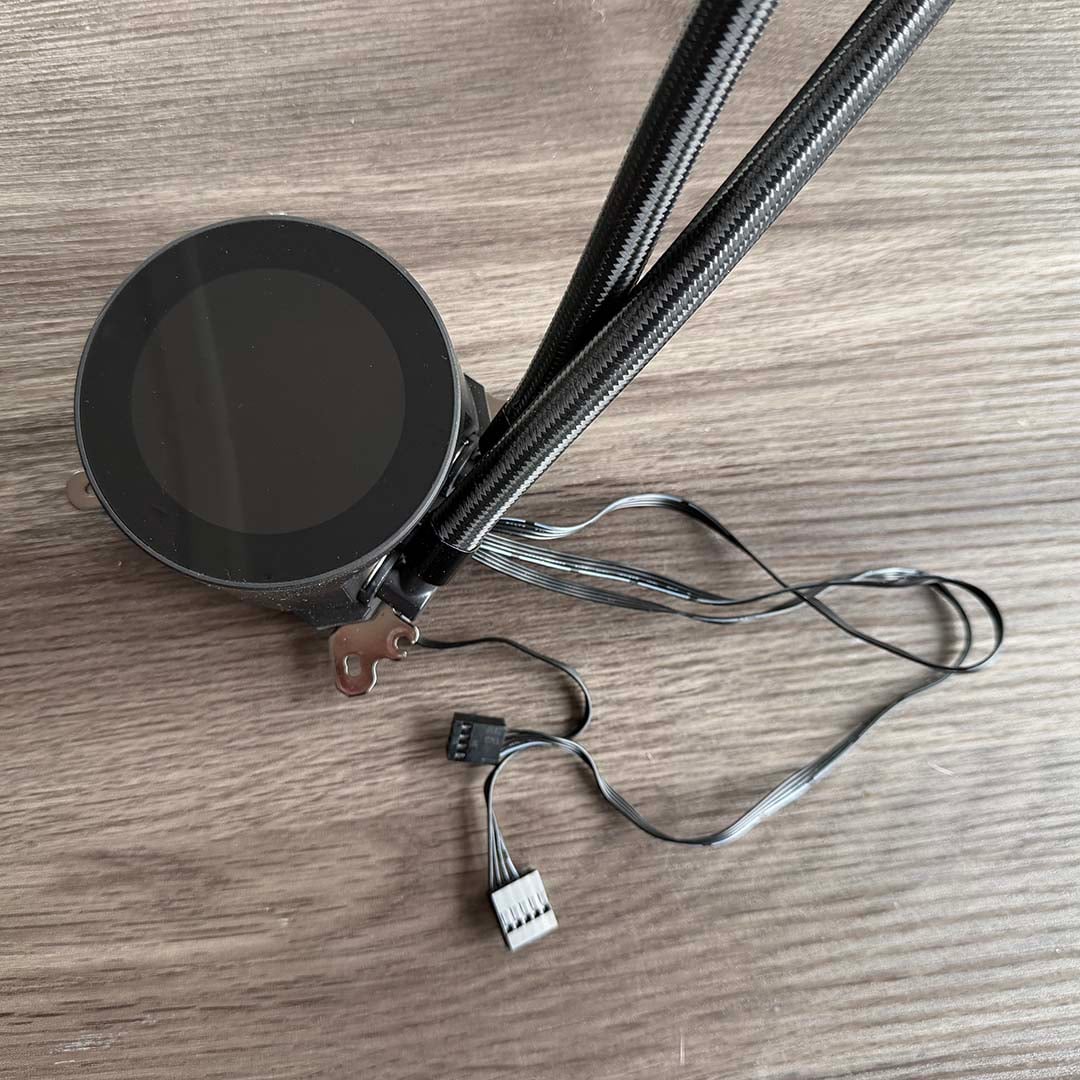
Likewise, the tubing could also do with being a little longer – there was very little slack when installing the radiator in our test case’s roof with the tubing facing downward from the pump, as MSI recommends. The tubing did reach, but there’s not much room for flexibility here if you wanted to mount the radiator further to the right, for example.
Once all your gear is wired up, you can then pop on the EZ Cap, which magnetically snaps onto the pump unit, surrounding the LCD and hiding all the screws and cable connections underneath.
Cable niggles notwithstanding, it’s generally pretty simple to get the P22 installed. However, MSI could make the process even more straightforward by including a paper manual, rather than inviting you to scan a QR code for a virtual one, and by including a little more detail in it. For example, there’s no information in the manual about whether you should hook up the pump or fan to the single 4-pin EZ Connect cable (I had to ask MSI myself).
Performance
How we test
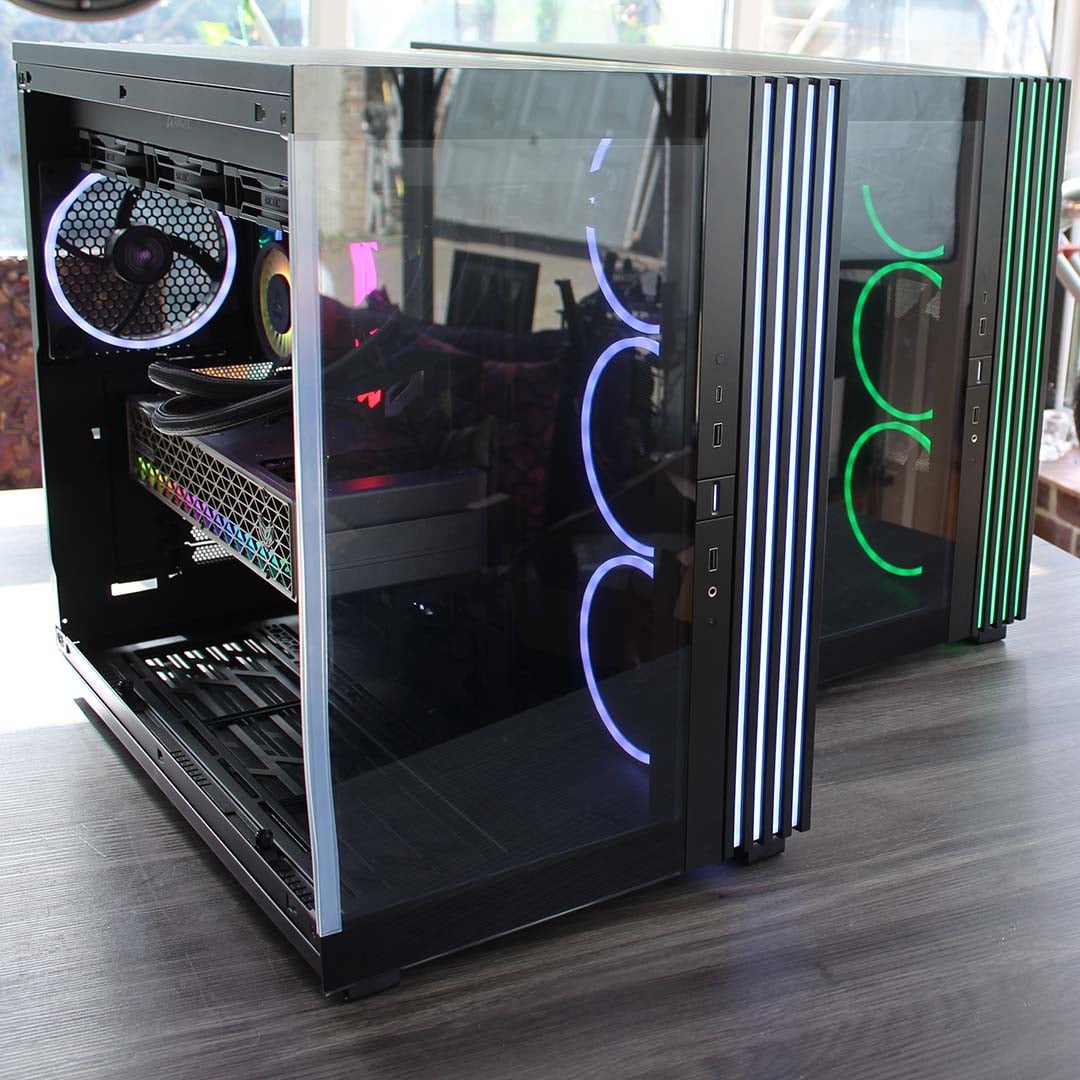
I’m testing this MSI AIO cooler in one of our brand new Club386 test PCs, which all have identical components. This setup includes a be quiet! Light Base 900 FX case, with all its fans fixed to 30% speed. The noise from the case at these settings is basically inaudible to our mere human ears and cannot be detected by our noise meter, enabling us to hear the difference made by a CPU cooler.
We use an AMD Ryzen 9 9950X3D as our test chip, which is the top choice on our guide to buying the best CPU. For each test, we run Cinebench 26’s multi-threaded benchmark, and record the average (mean) temperature of all the cores over the benchmark run, as well as the absolute maximum core temperature, so you have an idea of the worst-case scenario. We run this CPU at its normal peak 170W TDP, but also at 105W and 65W TDP settings. This means you can see how well a cooler can keep a lower-spec CPU, such as a 65W Ryzen 5 9600, in check, as well as more powerful chips.
Our 9950X3D Test PCs
Club386 carefully chooses each component in a test bench to best suit the review at hand. When you view our benchmarks, you’re not just getting an opinion, but the results of rigorous testing carried out using hardware we trust.
Shop Club386 test platform components:
CPU: AMD Ryzen 9 9950X3D
Motherboard: MSI MEG X870E Ace Max
Cooler: Arctic Liquid Freezer III 420 Pro ARGB
GPU: Sapphire Nitro+ Radeon RX 9070 XT
Memory: 64GB Kingston Fury Renegade DDR5
Storage: 4TB Sandisk Optimus GX Pro 8100
PSU: be quiet! Dark Power 14 1,200W
Chassis: be quiet! Light Base 900 FX
Before we conduct each temperature test, we record the ambient room temperature. We then subtract this from the raw CPU temperature result to give us a delta T reading. This enables us to account for differences in test conditions without having a temperature-controlled lab, and compare results between other coolers tested on different days. Bear in mind that this means the results listed in the table below will be considerably lower than the actual CPU core temperatures.
All temperature and noise level tests are conducted with the cooler inside our case with all the side panels closed. We record temperatures using CoreTemp, and measure sound levels with a noise meter positioned 10in away from the front of the case. This means our results come from a real-world scenario, rather than an open-air test bench.
Temperatures
| 9950X3D TDP / fan speed | Avg temp (delta T) | Peak core temp (delta T) |
|---|---|---|
| 170W / 600rpm | 56.1°C | 62.9°C |
| 170W / 1,200rpm | 44.3°C | 52.2°C |
| 170W / 2,000rpm | 40.7°C | 47.1°C |
| 105W / 600rpm | 39.7°C | 50.8°C |
| 105W / 1,200rpm | 28.3°C | 37.2°C |
| 105W / 2,000rpm | 26.6°C | 32.9°C |
| 65W / 600rpm | 28.0°C | 46.2°C |
| 65W / 1,200rpm | 14.7°C | 30.4°C |
| 65W / 2,000rpm | 13.2°C | 27.8°C |
There’s absolutely no way you can complain about the cooling performance on offer here. MSI says it’s optimised the waterblock for the chiplet layout of AMD’s latest CPUs, and it had no problem at all keeping our Ryzen 9 9950X3D in check. Even with its fans running at just 600rpm (a 7% load, as 500rpm is the lowest ceiling), our CPU’s core temperature peaked at a delta T of 62.9°C, with a raw core temp of 84°C.
That reading was taken during a gruelling Cinebench 26 multi-threaded benchmark run, so the CPU was running at full pelt. Average temperatures sat a delta T of 56.1°C (77.2°C in terms of raw core temp), which is also a solid result. Basically, you can run a 16-core AMD X3D CPU at full load on this cooler, even with the fans running at just 600rpm.
As a point of comparison, the Arctic Liquid Freezer III Pro 420 A-RGB in our test rig peaks at a delta T of just 54.5°C when cooling our 9950X3D with its fans running at 600rpm. That’s 8.4°C cooler, and shows what you get if your case has room for a massive 420mm radiator, but this 360mm MSI cooler can clearly still handle this powerful chip without breaking a sweat. Comparing these results to a decent air cooler, the be quiet! Dark Rock Pro 6 has a toastier peak delta T of 74.5°C at these settings.
Increasing MSI’s fan speed to 1,200rpm naturally makes for an even cooler chip, and without making too much noise either. With a maximum delta T of 52.2°C and average of 44.3°C, this cooler will happily cool a 9950X3D with plenty of headroom to spare. It goes without saying that it can also handle CPUs with lower TDPs fine, but it’s worth pointing out just how well it can manage it. After setting our 9950X3D to a TDP of 65W, the P22 brought its temperature down to a delta T of just 28.0°C at 600rpm – that’s 50.8°C in terms of real core temperature.
Noise
| Fan speed | Noise level |
|---|---|
| 600rpm | Undetected |
| 1,200rpm | 30.6dBA |
| 2,000rpm (max) | 43.1dBA |
MSI has nailed it when it comes to noise, and you can barely hear the pump, even when it’s running at maximum speed. The P22’s fans are practically inaudible at 600rpm, with our noise detector not picking up any reading at all. Push up the speed to 1,200rpm and you can hear the fans, but only just, and the noise is far from intrusive.
If you want as much cooling power as possible, the max 2,000rpm speed is considerably louder, with our noise meter reading 43.1dBA, but even then, the noise is a consistent, low-frequency whir, rather than a horrible hissy racket. You’re unlikely to need to run the fans at full tilt anyway, given that the P22 can easily cool a Ryzen 9 9950X3D with headroom to spare at a quiet 1,200rpm.
Conclusion
There’s a lot to like about the MSI MPG CoreLiquid P22 360. The quality of cooling on offer is excellent, and it’s quiet in action too. It also looks great, with its ARGB fans outputting a bright light show, and its shrouded LCD giving your PC a fancy custom centrepiece, even if it could be brighter.
It’s not priced badly either at $149. Given that you can get an Arctic Liquid Freezer III Pro 360 A-RGB for $92.99, you’re clearly paying a premium for the screen, but that’s a competitive rate. Comparatively, an NZXT Kraken Plus 360 RGB will set you back $169.99 now, and only gives you a smaller 1.54in display with a 240×240 resolution. Meanwhile, Corsair’s Titan 360 RX LCD gives you a 2.1in 480×480 display, but will set you back $219.99.
All that said, there’s definite room for improvement here. MSI has nailed the fundamental cooler design, and made a decent display-control package too, but there’s some attention to detail lacking in the periphery. If you’re going to make a one-cable system for AIO coolers, then it should cover all the cables, rather than leaving one straggling. Cable routing is also difficult when there are two wires coming out of the pump, and they’re too short to thread neatly around the back of your motherboard.
Also, while I much prefer EZ Display’s light footprint and simple interface to the clunky MSI Center, it needs to do more than just control the display. A decent manual wouldn’t go amiss either. This is a decent, good-looking cooler for a generous price, but MSI could make it even better by tidying up some of the loose ends.