


Big tech firms have repeatedly told us that cloud computing is the future, and while it undoubtedly started off being convenient, I’m increasingly finding that there’s a lot to be said for having complete control over your data in a NAS box instead. For one, there are none of the privacy concerns about handing all your data over to Microsoft, Google, or whoever, and expecting them to look after it. It’s right there, in your own box, on several mechanical or solid-state disks.
Believe it or not, as I’ll demonstrate shortly, having your own NAS setup can work out much cheaper than using cloud storage in the long run as well. Yes, even in the middle of a storage pricing crisis. There’s also growing dissatisfaction with various media streaming services, where films, TV shows, and albums can be pulled at a moment’s notice. The cloud is convenient, but you don’t physically own any of it, and that’s what you can fix with a NAS.
Serious power
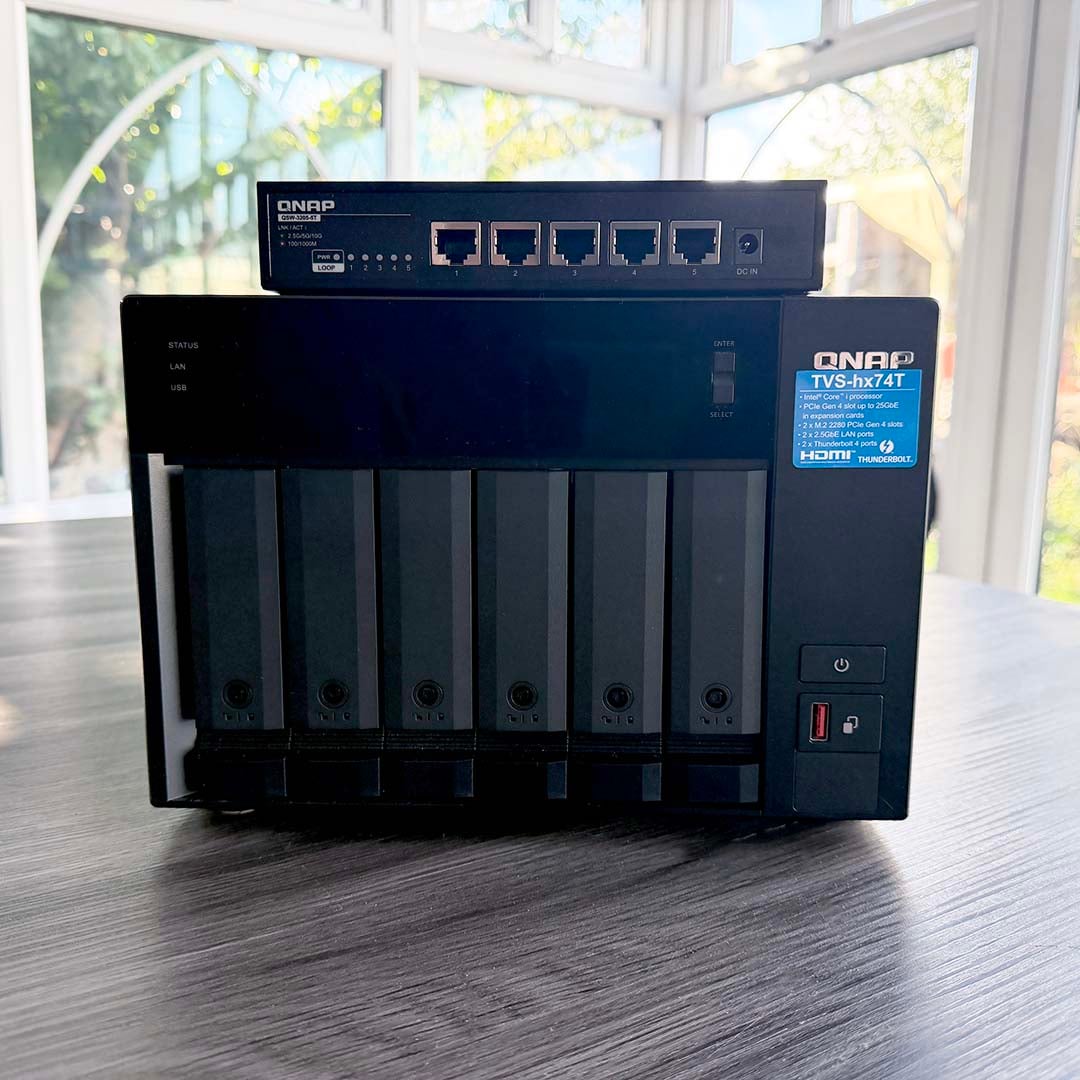
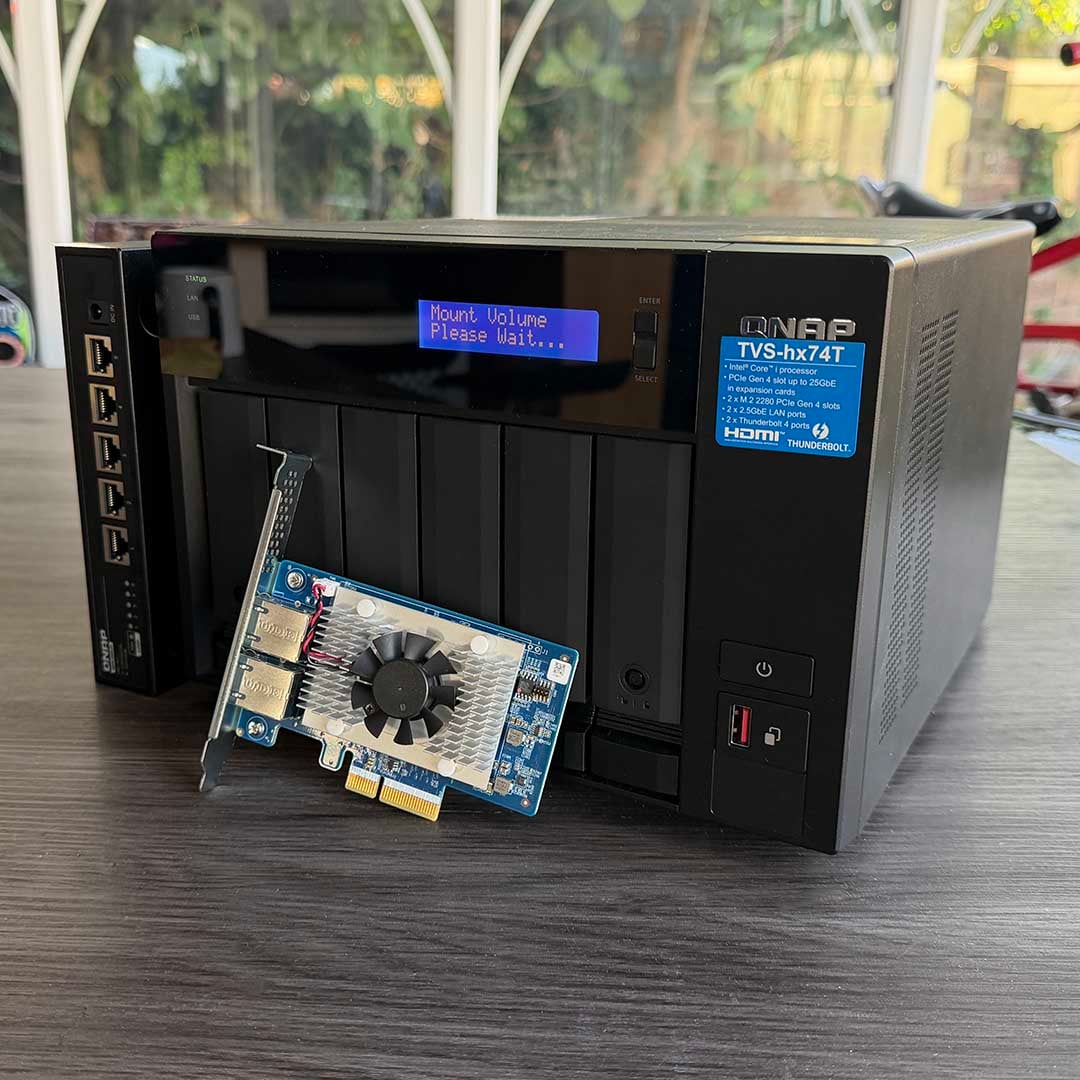
I’ve been a committed NAS user for well over a decade now, but my gear is a bit long in the tooth now, so I asked QNAP to send in one of its latest models for this feature. I’m using a QNAP TVS-hx74T, and it’s a great piece of kit. There are six 3.5in hard drive bays, so you can set up a massive RAID 5 array, plus two PCIe Gen 4 M.2 SSD slots acting as a high-speed cache.
There are some nifty high-speed storage features here as well. One is that you can hook up a computer directly to the back of it with a Thunderbolt 4 connection, getting up to 40Gbps of bandwidth – an impossibility over the cloud with a standard broadband connection. Meanwhile, a 12th-gen Intel Core i5 12400 CPU and 32GB of DDR4 RAM keep the system running with the power of a full PC behind it.
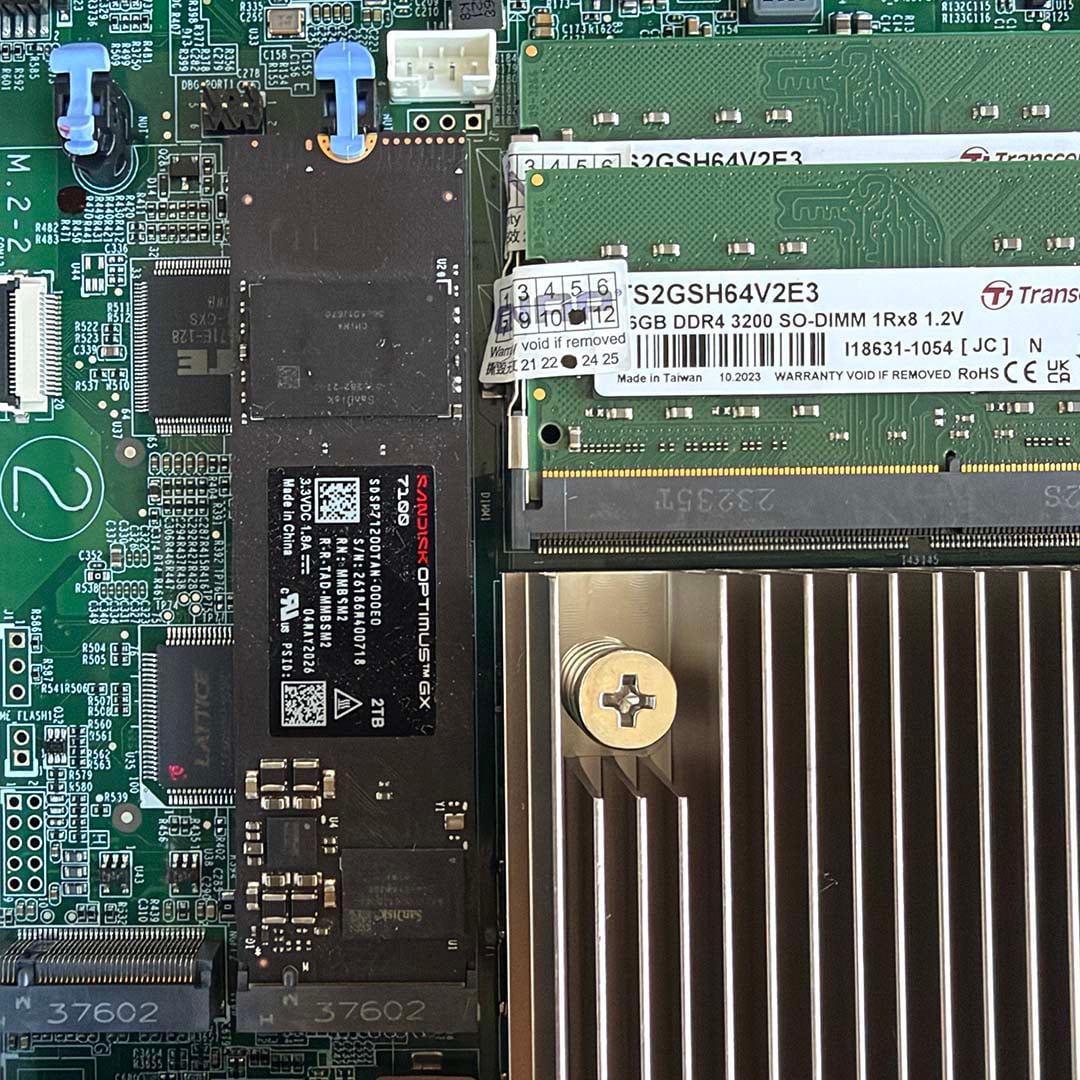
There’s also a pair of 2.5GbE network ports on the back, and you can put a 10GbE card in the spare PCIe slot and get a truly high-speed networked storage setup. In fact, in my 10GbE storage benchmarks, I was able to hit a sequential read speed of 1,185MB/s with this box.
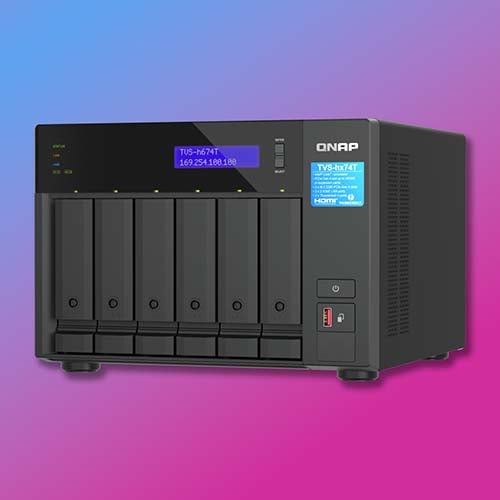
QNAP TVS-hx74T
“The TVS-h874T is more than a simple backup/archiving machine, and provides a total solution for encouraging your creativity with various technologies.” – QNAP
Reduced costs
The TVS-hx74T isn’t cheap at £3,160 from QNAP’s store, of course, but it’s ideal for serving the storage needs of a small production studio, for example. You don’t need to go this big to reap the rewards of cloud storage if your needs are smaller, though. You can pick up a QNAP TS-233 for around $239 / £239, if you’re looking to save some money for a home setup. It has a 2GHz quad-core CPU to keep everything ticking along smoothly, along with a built-in NPU that helps it run the same AI-assisted photo and video sharing software I cover later in this feature.
Put in a pair of 4TB Seagate IronWolf hard drives at £180 each, or 6TB spinners for £240 each and you’re looking at a total cost of £599 for a self-contained 8TB setup, or £719 for 12TB. The caveat here is that you’ll want your two drives to be set up in a mirrored RAID 1 array. This means both drives contain exactly the same data, so there’s no downtime if one of your drives fails. The other drive will carry on serving your storage needs while you replace the other one. In short, you’re really looking at a total usable capacity of 4TB or 6TB with one of these nominal 8TB/12TB setups.
You’ll want an external backup drive plugged into one of the rear USB ports as well, just in case there’s a disaster. A 6TB Seagate USB drive currently costs around £190. For the whole 12TB (6TB usable) kaboodle with a backup drive, you’re basically looking at around £900.
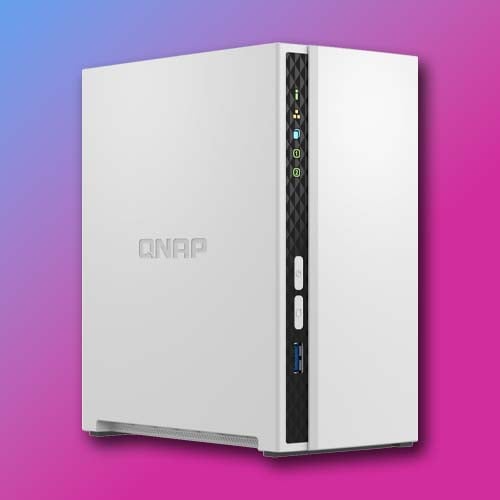
QNAP TS-233
£239 / $239
“The compact and slim TS-233 prioritizes a clean and essential design, and perfectly blends into your home or office.” – QNAP
How does that outlay compare to cloud storage? Naturally, that all depends on the service provider you use, how much storage you want, and any other services that come bundled with it, but it’s definitely competitive. Let’s take Apple iCloud as an example, which is increasingly becoming a necessity when iPhones come equipped with up to 2TB of storage. The photo and video libraries on our phones are growing bigger all the time.
At a base level, if you only need 200GB of iCloud space for your phone backup and file-sharing needs, you can get it for £2.99 a month. At that price, a NAS doesn’t make sense, and it’s more convenient to use the cloud. Once your storage needs start creeping up, though, a NAS looks much more tempting. If you want 6TB of space, for example (the same usable capacity as our two-drive NAS setup above), you’ll be paying £26.99 a month. Over three years, that will cost you £971.64. That’s £72 more than our two-bay 12TB NAS.
Meanwhile, if you’re setting up Dropbox for teams you’re looking at £14.50 per user per month for 3TB of space (or £144 for the year), which increases by 1TB with every actively used license. Say you have four people on your team, each with a license, that gives you the same 6TB usable capacity as our NAS example. At best, that will cost you £576 per year, or £1,728 over three years – £829 more than our NAS example.
There are other alternatives, of course. I haven’t included Microsoft’s OneDrive in these examples, as it’s fundamentally a part of Microsoft’s Office 365 suite, which comes with other advantages over storage. You can see what I’m driving at, though. The cost of cloud storage seriously adds up once you start looking beyond 2TB capacities, and you don’t know where your data is being physically kept either – you’re relying on a tech firm to look after it for you.
Is a NAS as convenient?
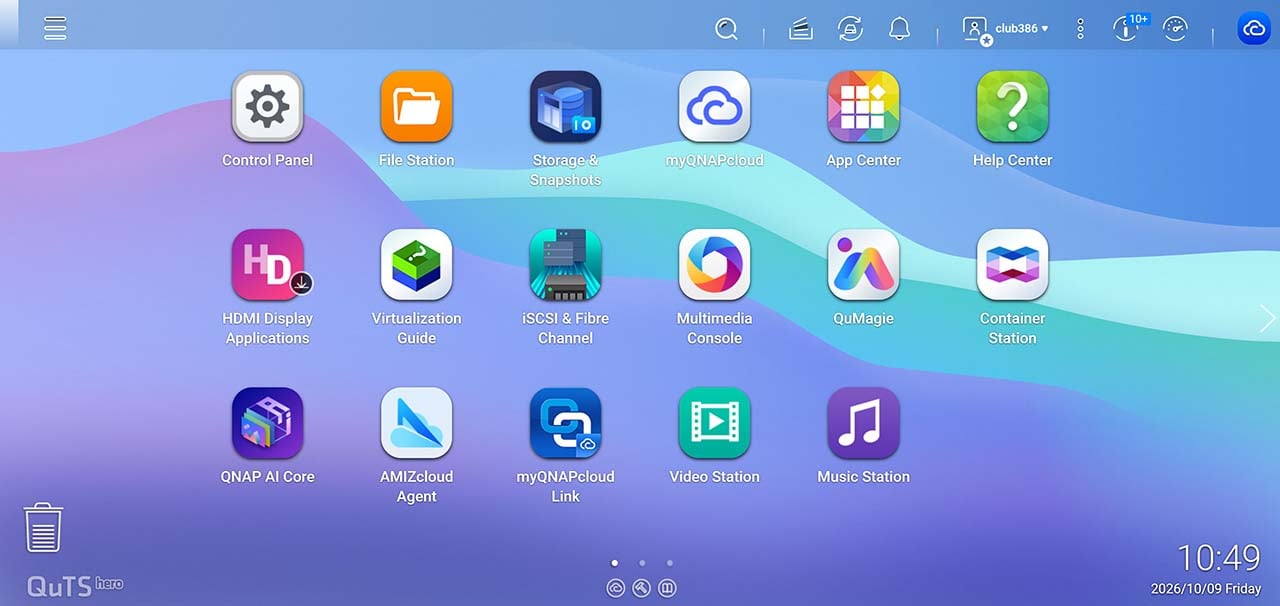
NAS software has come a long way over the last few years, with easily understandable point-and-click user interfaces, and useful smartphone software. One of the features that impressed me with QNAP’s setup is its new QuMagie app, which uses an NPU to analyse your photos and videos to categorise them. QNAP is in the process of winding down its more traditional photo and video apps over this year, so that QuMagie is the new standard.
It’s impressive stuff for a local storage setup, enabling you to search your photos for people and objects in much the same way as the Photo app you get on an iPhone. I uploaded several of my photos to the QNAP TVS-hx74T, and its verdict was largely accurate. You can search for dogs, castles, insects, cars, and so on, and it comes up with the goods, organised by date. One comical exception to this rule was a single photo of my old dog Coco, which it categorised as a penguin for some reason.
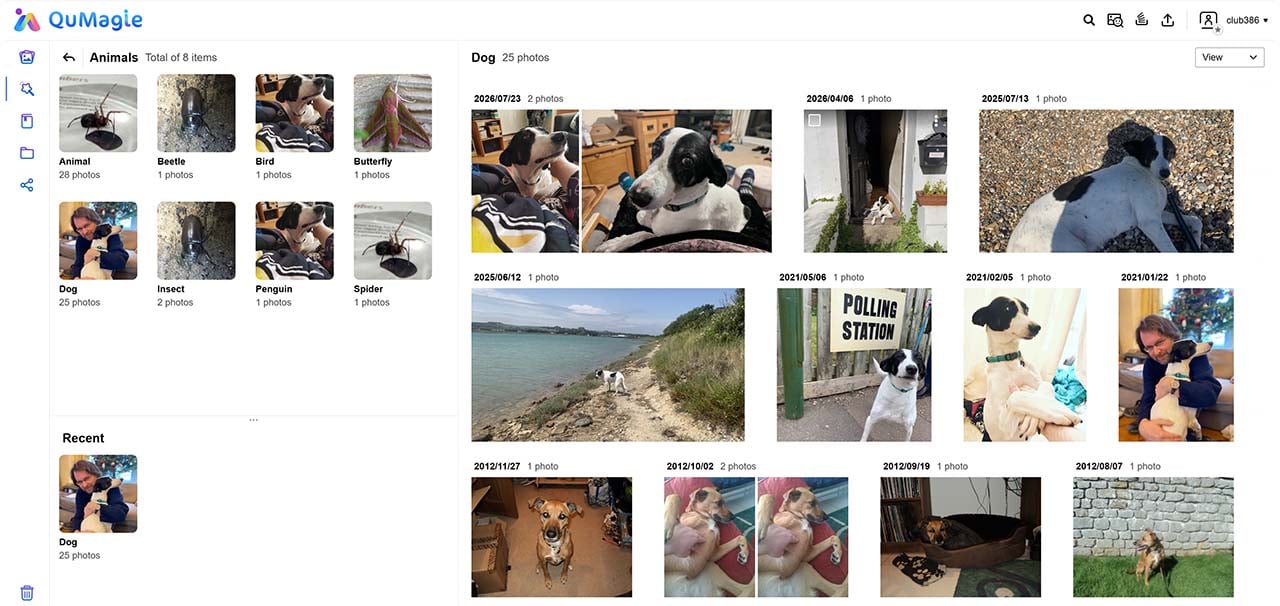
You can also attach names to the faces it recognises, meaning you can search for different people. Just as with other AI-based photo recognition services, you’ll need to occasionally correct some of these when it fails to recognise an old photo of your young, slim, teenage self as the same middle-aged, overweight person in later photos, but it largely works.
You can do the same with movies. As a film nerd, I have a big back catalogue of classic silent movies ripped from my DVDs, none of which have decent versions on the usual streaming services. With them all on a NAS, I can watch them any time I like, whether it’s on my TV, phone, or computer. There’s also the option to set up a part of your NAS as a dedicated Plex server and share it with your friends.
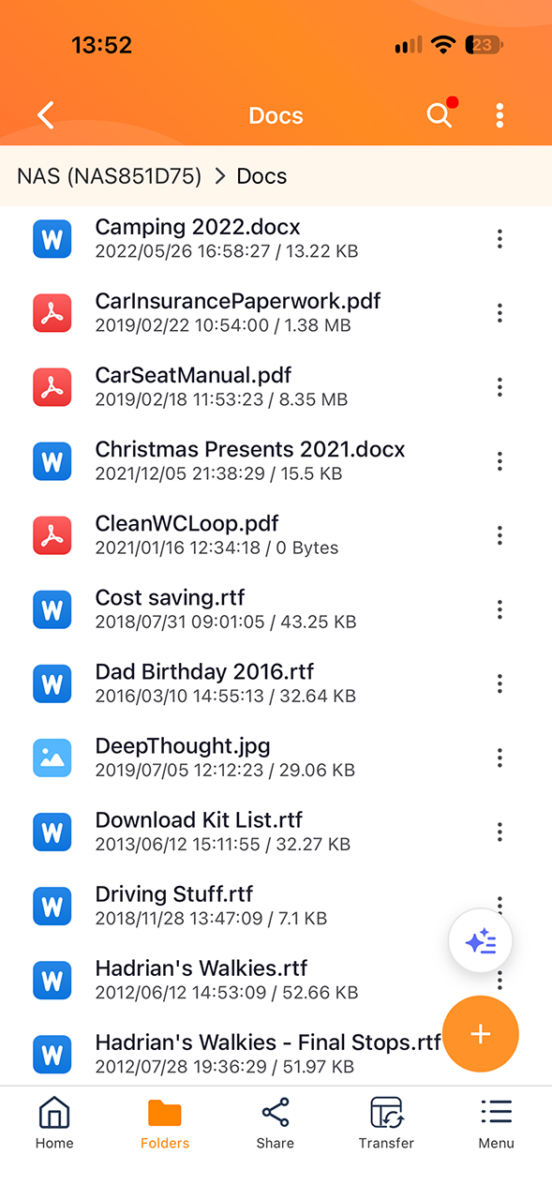
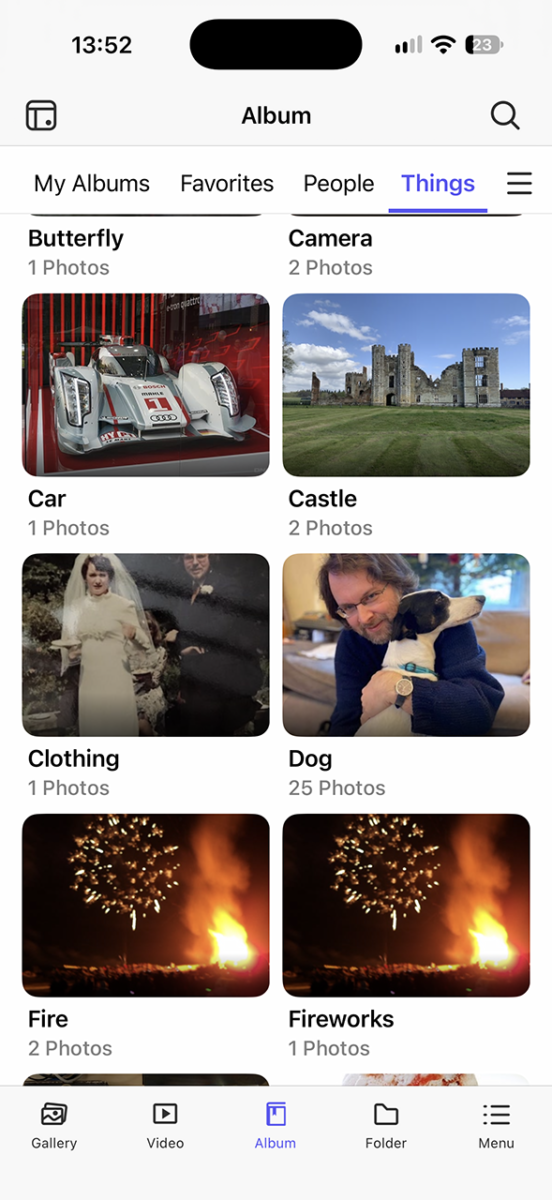
Accessing files is simple as well. Naturally, anyone on your network can access it just like a hard drive, but you can also get to your files when you’re out and about. On the QNAP NAS I used for testing, you just install the Qfile Pro app on your phone, hook it up to your QNAP login associated with your NAS, and it finds all your files. You can open a preview of most standard file formats to view in here as well, including word processor docs, PDFs, and spreadsheets.
Uploading from your phone is simple as well. All the screenshots I took for this feature on my phone were uploaded straight to the NAS from the Apple Photos app. Just hit the Upload button, select QuMagie, and transfer them over.
Is a NAS right for me?
A NAS isn’t right for everyone, of course, and it can be a big investment. You may also find that a combination of a NAS and cloud storage works better for you than just choosing one or the other. I have a 4TB-equipped NAS setup at home, for example, which is really convenient for sharing files between my family members across our devices. However, I also have a personal 200GB iCloud account, as it’s inexpensive and means my iPhone photos get automatically backed up. I also have a base level Dropbox account for quickly sharing small files online.
If you have a burgeoning shared storage library, though, whether it’s for your business or a massive media collection at home, a NAS may well make more sense than an expensive cloud subscription. You physically own your data, without having to worry about privacy, it’s really fast on your local network, and the latest NAS software offers many of the same conveniences as big cloud services now. You’re just running your own personal cloud instead of farming it out to Apple or Microsoft.
Bear in mind that you’ll also need to factor in the cost of a backup into your setup, as well as at least two drives so you can create a mirrored RAID array. It all adds up, particularly in these inflationary times, but crucially, that cost may well end up being cheaper than a cloud subscription over the long term. If you’re spending a lot of money on a cloud subscription at the moment, then it’s well worth doing your sums and considering a NAS as an alternative, especially as it can scale with your needs.