
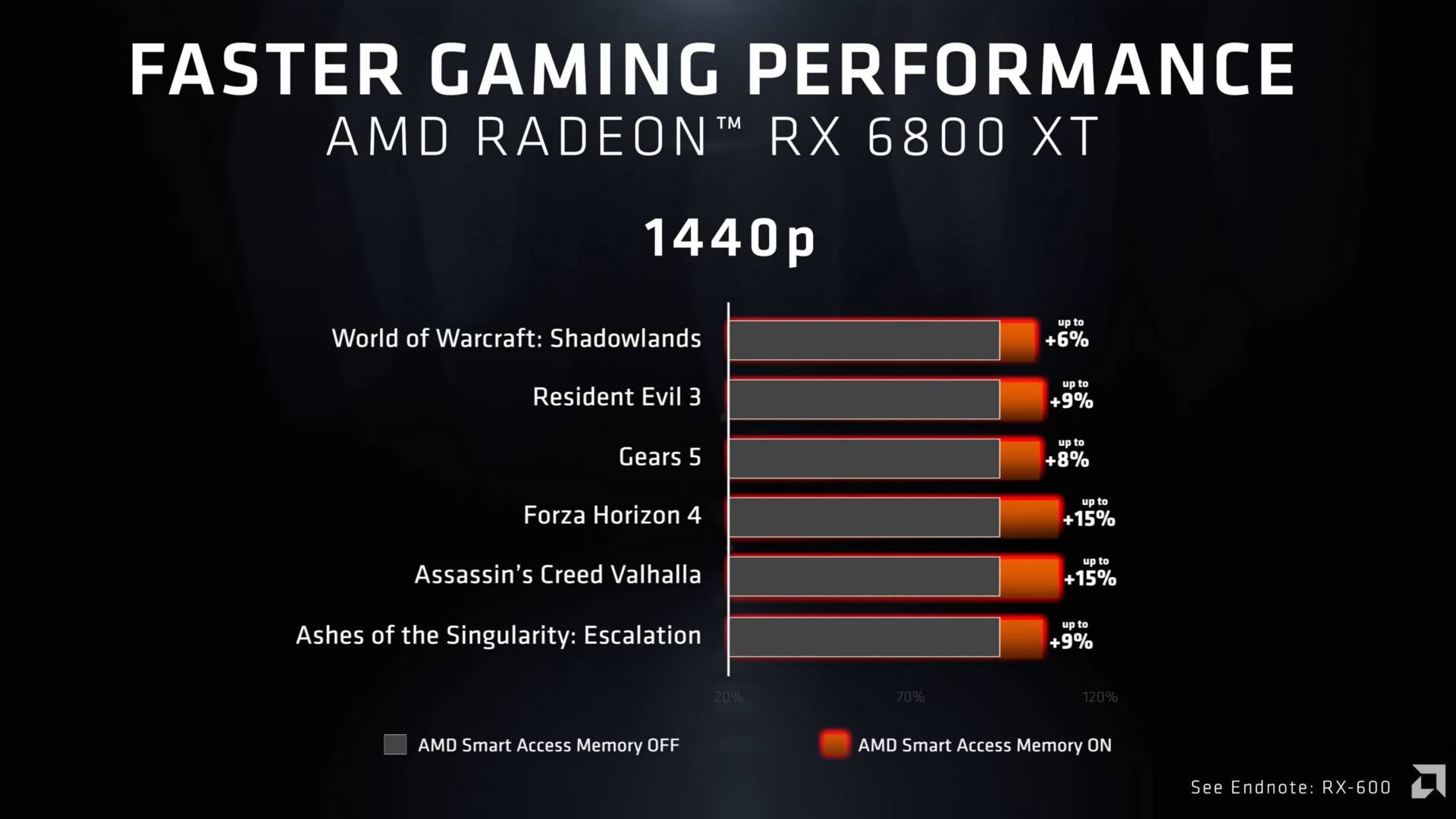
With the launch of its Radeon RX 6000 series GPUs, AMD introduced a feature called Smart Access Memory (SAM), promising great frame rate boosts in games that took advantage of it. Also known as resizable BAR, this neat new tech genuinely improved gaming performance for free, particularly in some titles such as Assassin’s Creed Valhalla. Nvidia quickly replicated the idea without AMD’s branding, and Intel relied heavily on it to maintain frame rates in its Arc GPUs.
But how does this smart memory tech hold up today? We decided to take resizable BAR for a spin in some old and new games, to see if these original claims still hold up, and if modern games require its presence for optimum performance.
From a technical viewpoint, enabling resizable BAR should be a priority on all modern systems, as it allows the CPU to access the full memory pool of a GPU in one go, reducing the number of calls needed to achieve a certain task. Depending on the game, AMD claims that SAM can improve frame rates by up to 15%, which is as good as GPU overclocking in certain cases, but without encountering tedious tuning and stability risks. Therefore, it’s generally recommended to keep it on by default, unless you have a specific reason for disabling it.
Today’s tests will be conducted on an X670E system powered by an AMD Ryzen 5 7600X and Radeon RX 7900 XT. Also, note that I am using Windows 10, but this shouldn’t change anything.
What is resizable BAR?
Resizable BAR is a PCIe feature of modern motherboards, processors, and graphics cards that can improve the performance of compatible games. First introduced by AMD alongside its Radeon 6000 series GPUs, under the Smart Access Memory (SAM) name, it allows the CPU to access a much larger block of the graphics VRAM pool in one go, instead of 256MB chunks.
For example, instead of sending or accessing 8GB of data on a graphics card through 32 calls, SAM allows the CPU to do this in a single swoop. This reduces the load when transferring data between the CPU and GPU VRAM, which, in theory, should improve performance and efficiency. In fact, Intel GPUs, such as the Arc B580, require it to work correctly.
How to enable resizable bar
To enable resizable BAR, first you will need to verify if your Windows is running on a GPT partition. To do so, open Windows Disk Management by pressing Win-S and typing ‘disk management’ into the Windows Search bar. Locate your system drive, generally Disk 0, then right-click on it and select Properties. In the new window, switch to the Volume tab and check if the Partition style is marked as GUID Partition Table (GPT) or Master Boot Record (MBR). If you see GPT, you’re all good, but if you see MBR, you will need to convert it into GPT. To convert MBR to GPT, you can follow TroubleChute’s guide on YouTube.
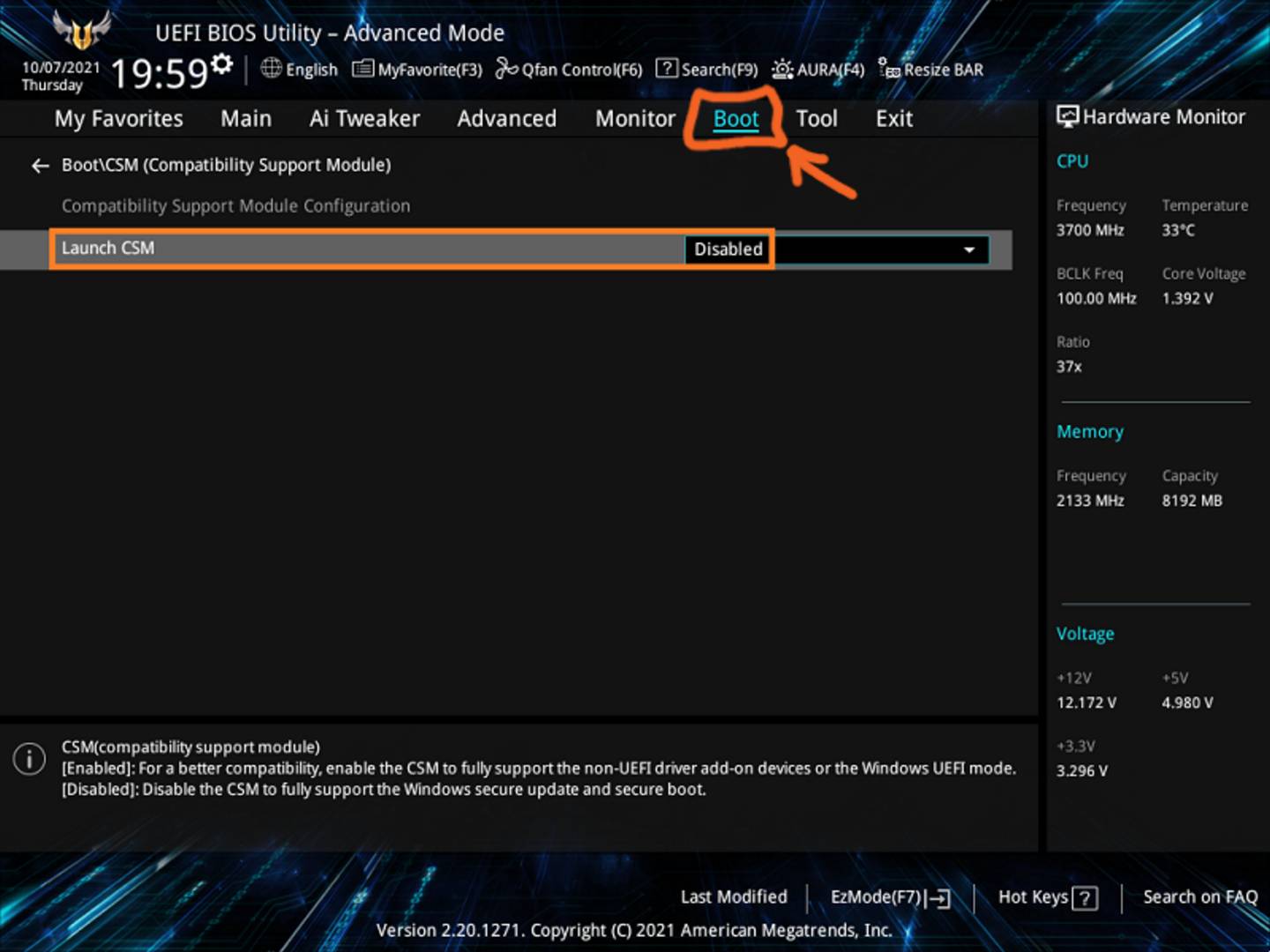
Now that your system is using a GPT partition, restart your computer and enter your motherboard’s BIOS by pressing the Del (Delete) or F2 key on your keyboard. Once inside, look for an option called CSM (Compatibility Support Module) and make sure it’s disabled. CSM location may change depending on the motherboard brand and model, but generally, you can find it under the boot section of the advanced menu (F7).
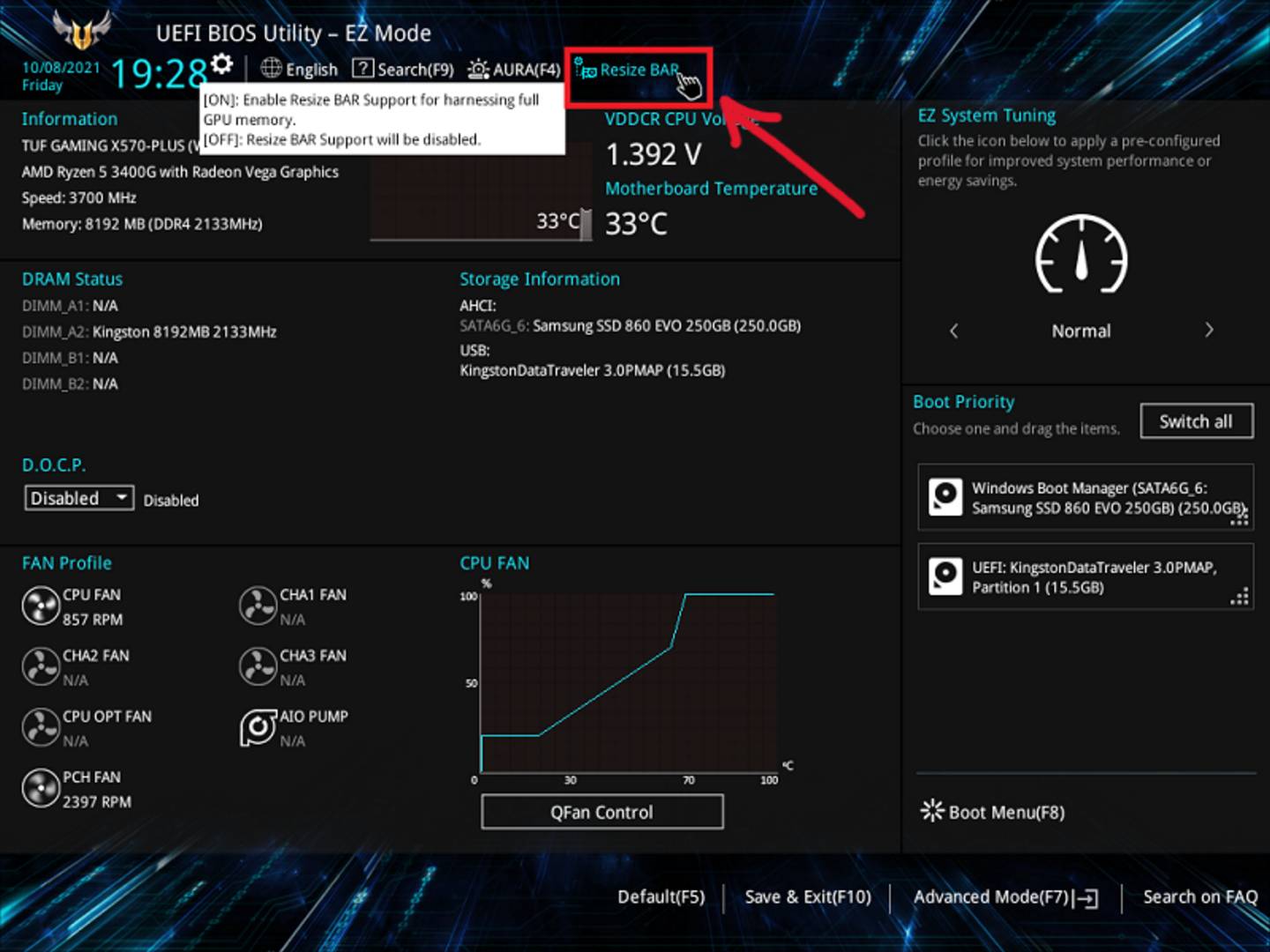
Next, look for Above 4G Decoding and enable it. You can usually find this setting under PCI configuration in the advanced section of your BIOS. Lastly, you should see Re-Size Bar Support in the same section, which you need to enable too. On our motherboard, you can also find the Re-Size Bar option on the main BIOS page in the top section (see picture above).
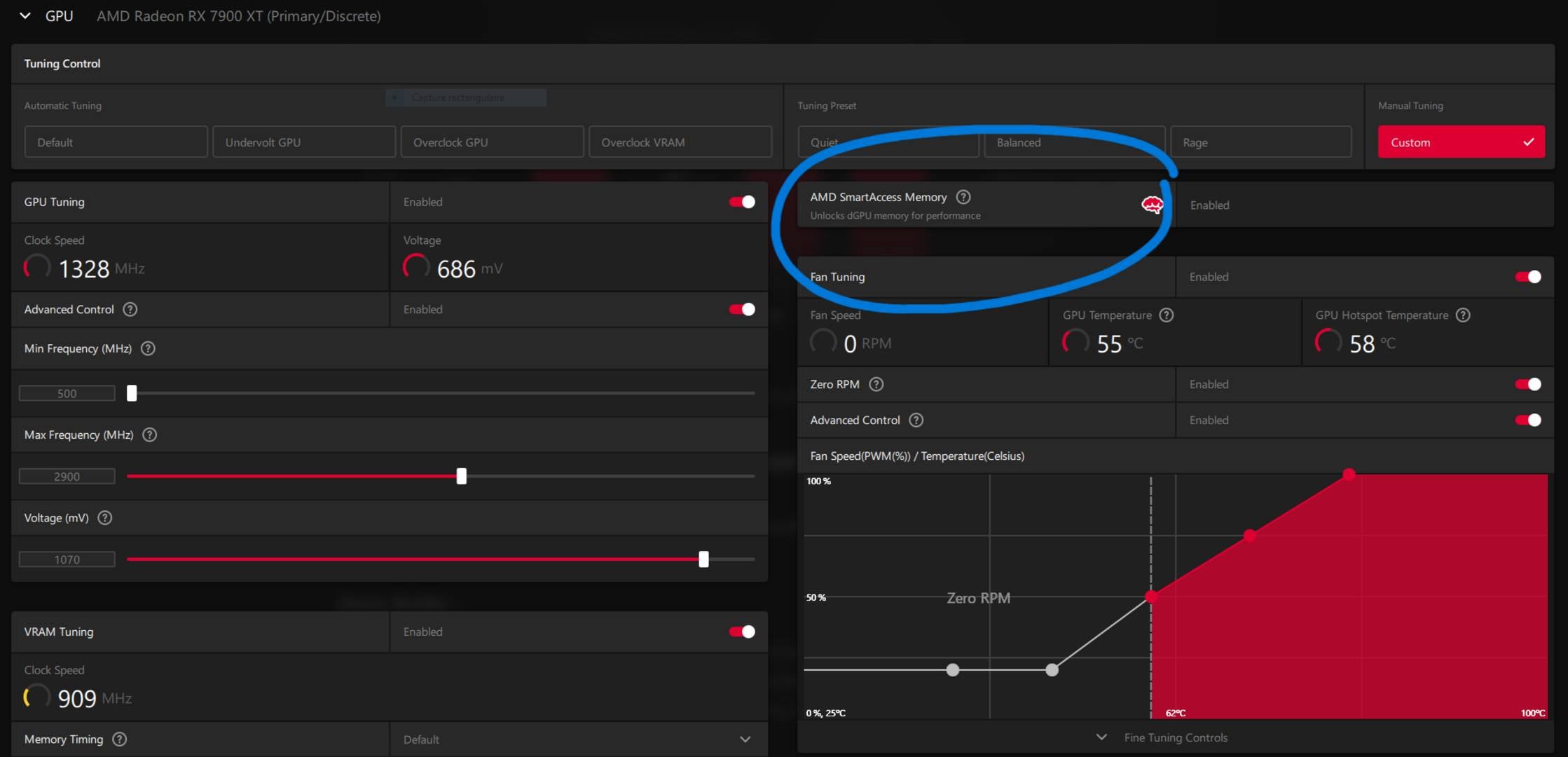
Save the changes and restart your system by pressing F10 on your keyboard. Now, when you enter Windows and open GPU-Z, you should see resizable BAR is enabled. If you’re using an AMD GPU, you should also see Smart Access Memory marked as enabled in your Radeon driver software.
Resizable BAR on vs. off
To test resizable BAR’s effect on performance, I used ten games from different genres to cover a wide scope of styles and game engines. These are Forza Horizon 6, Red Dead Redemption 2, Atomic Heart, Arc Raiders, and Assassin’s Creed Valhalla. For my tests, I favoured built-in game benchmarks when available, as they provide precise and repeatable results.
For example, in Forza Horizon 6, it’s practically impossible to have identical runs without the in-game benchmarks due to the game’s dynamic weather and daytime, not to mention players racing around. That said, I checked frame rates during normal gameplay, and they correlate with the overall trend.
Regarding graphics settings, I maxed out the settings at 2560×1440 in all titles, minus demanding ones such as ray tracing. FSR and XeSS upscaling are also used when available.
| BAR off (avg) | BAR on (avg) | Gain | |
|---|---|---|---|
| Forza Horizon 6 | 77fps | 78fps | 1.2% |
| Red Dead Redemption 2 | 109.7fps | 120.5fps | 9.8% |
| Atomic Heart | 138.5fps | 162.8fps | 17.5% |
| Arc Raiders | 136.1fps | 147.8fps | 8.5% |
| AC Valhalla | 126fps | 147fps | 16.6% |
Starting with Forza Horizon 6, resizable BAR brought practically no benefit, with gains of around 1.2%. While this result is unremarkable, at least performance didn’t regress, which means this feature can be left on for titles that benefit from it, without impacting Forza. Likewise, I didn’t notice any instabilities using either configuration.
Moving to Red Dead Redemption 2, we see the first clear advantage for resizable BAR, as the game’s frame rate increases by 9.8% on average with it enabled. For comparison, this is similar to the increase I managed to gain via GPU overclocking, which is impressive considering the ease with which resizable BAR can be enabled, as long as Windows is already using a GPT partition.
Atomic Heart saw the greatest improvement among the tested games, rocking a whopping 17.5% average boost with resizable BAR enabled. At this level, this tech becomes a necessity, unless you have a real reason not to enable it.
Arc Raiders saw a more modest jump by comparison, with an 8.5% average increase in frame rate, which, to be clear, is still more than enough to consider enabling resizable BAR.
Lastly, Assassin’s Creed Valhalla recorded the second-best improvement among this list, with its frame rate improving by 16.6% with resizable BAR on. To put this in perspective, that’s equivalent to the performance difference between an AMD Radeon RX 7900 XT and RX 7900 XTX. In other words, if you play Valhalla on an RX 7900 XTX without Smart Access Memory turned on, your GPU will be no faster than a cheaper RX 7900 XT with SAM enabled.
These gains extend to the 1% lows too, where Atomic Heart saw nearly identical gains to its average frame rate. On entry or low-mid-range systems, enabling resizable BAR could be the little push needed to deliver smoother gameplay
| BAR off (1% low) | BAR on (1% low) | Gain | |
|---|---|---|---|
| Atomic Heart | 122.5fps | 143.1fps | 16.8% |
| Arc Raiders | 108.4fps | 112.8fps | 4.0% |
I also tested some older and less demanding games to see if this feature could be of any help here as well. In Batman: Arkham City, I saw the first negative impact of resizable BAR; well, if you consider a drop of 18fps in a game running at +400fps that big of a deal. I would trade -4.1% in this 15-year-old game any day to gain 16.7% in a modern, more demanding one like Assassin’s Creed Valhalla. While the 1% lows dropped further by 9.5%, the game remained above 200fps, which is more than you need in a title like Batman.
Company of Heroes 2 didn’t see much difference either way, with a measured 1.6% drop when enabling resizable BAR, which is within the margin of error. In other words, this game doesn’t care whether resizable BAR is on or off, so it should not impact your decision.
| BAR off (avg) | BAR on (avg) | Gain | |
|---|---|---|---|
| Batman: Arkham City | 455.6fps | 436.8fps | -4.1% |
| Company of Heroes 2 | 135.4fps | 133.2fps | -1.6% |
| Destiny 2 | 165.7fps | 160.3fps | -3.3% |
| Graveyard Keeper | 197.6fps | 204.5fps | 3.5% |
| World of Tanks | 281.9fps | 275.1fps | -2.4% |
Destiny 2 is somewhat similar to Company of Heroes 2, showing a slight preference for not having resizable BAR, which nets a negligible 5fps boost. Graveyard Keeper was similarly indifferent, just this time favouring the feature on, with a 6fps increase. World of Tanks also performed similarly to these last three games, losing a marginal 2.4% average frame rate (6fps).
To put it simply, while old and light games don’t seem to benefit from SAM, their performance didn’t drop to any noticeable degree. This makes SAM’s enablement an easy decision to boost performance on modern demanding games that could enjoy a welcome performance bump.
| BAR off (1% low) | BAR on (1% low) | Gain | |
|---|---|---|---|
| Batman: Arkham City | 234.6fps | 212.4fps | -9.5% |
| Company of Heroes 2 | 70.6fps | 69.3fps | -1.8% |
| Destiny 2 | 140.9fps | 132.3fps | -6.1% |
| Graveyard Keeper | 161.6fps | 168.8fps | 4.5% |
| World of Tanks | 171.8fps | 165.7fps | -3.6% |
Conclusion
Overall, my testing shows that resizable BAR (SAM) does indeed offer higher gaming performance without any glaring downsides. While your mileage may vary if you play legacy titles or use old hardware, this feature still nets you faster frame rates more often than not. You don’t need to take any of the risks associated with overclocking either – you just need to enabled a couple of settings in the BIOS. If you ever do encounter any problems, you can always just disable it again.
In the ten games I tested, none of them suffered from deal-breaking performance degradation or other issues with resizable BAR enabled. Everything from loading speed to overall game stability was identical whether I turned this feature on or off. In short, there’s no reason not to enable resizable BAR on your gaming PC.